Editing on a laptop and workstation
You work on the same training projects on both devices and need to transfer media, project files and storage paths reliably.


Choose your laptop based first on the editing software and video footage you use. For Premiere on Windows, Adobe recommends 16 GB RAM for HD and at least 32 GB for 4K. If you’ll be continuing your work on a shared workstation, shared folders, storage paths and cache settings also need to be aligned. If the footage includes identifiable people, you should also check how access and data processing will be safeguarded.
You work on the same training projects on both devices and need to transfer media, project files and storage paths reliably.
You work with high-resolution footage or larger projects and need to match your hardware to your editing software and resolution.
You review or edit footage in different locations, balancing a portable device against screen space and performance headroom.
Start by choosing your editing software, version and footage. Then check how projects will be transferred between your laptop and workstation. Only after that should you weigh portability and screen space against the hardware you need.
| Consideration | What to check when buying | Who is it most important for? |
|---|---|---|
| Editing performance to suit your footage | For Premiere on Windows, Adobe recommends 16 GB RAM for HD, at least 32 GB for 4K and 8 GB of GPU memory. Check that the editing software, version and specific configuration are compatible. | If I work on larger or high-resolution projects, my main concern is finding hardware that suits my software and footage. Around 33% of consumers put editing performance first. |
| Project handover and shared storage | Align shared folders and storage paths on both devices. Plan to keep the media cache for each editing station on the system drive or a fast, directly connected SSD. Adobe covers these points for Premiere Productions. | If I start projects on my laptop and continue them on a shared workstation, the media and files need to be available in the right location. Around 27% of consumers prioritise project handover. |
| Portability and screen space | Compare the weight and screen size with the places where you edit, and check that you have the ports you need for displays and storage devices. | If I edit footage in different locations, I want a device that’s easy to carry without giving up the screen space I need when working on a laptop. Around 20% of consumers put portability first. |
| Footage protection and backups | Check for separate user accounts, access permissions, encryption and a separate backup method. The BSI recommends individual password-protected accounts on shared devices; footage containing personal data requires a separate review of how it is processed. | If several people use the devices or project files, I want to clearly restrict access and keep footage backed up reliably. Around 20% of consumers prioritise data protection and backups. |
Adobe distinguishes between Premiere requirements for HD and recommendations for 4K or higher resolutions. Hardware suited to different footage may not meet the needs of your actual project.
First decide on your editing software, version and footage. Then check the laptop’s exact configuration against the relevant software requirements.
With Premiere Productions, storage paths, cache location and the connection to shared storage all matter. A powerful laptop on its own won’t ensure everything works smoothly together.
Before choosing a configuration, test a small project on both devices using the intended shared folders, media and storage paths.
Manufacturers may offer different processor, graphics, memory or operating system options within the same range. Details for one variant don’t automatically apply to every model in that range.
Compare the full model number and the specifications actually listed with the requirements of your software and footage.
Separate accounts, encryption and backups serve different purposes. If footage includes identifiable people, you also need to establish how their personal data will be processed.
Check access permissions, backup procedures and, where relevant, who is responsible for data protection separately. The European Commission outlines safeguards for processing personal data.
The ThinkPad T1g Gen 8 is a performance-focused 16-inch range for Windows-based workplaces. Specifications vary by model.
The 16-inch MacBook Pro with M5 Pro is a macOS option if your software and project handover process are compatible with the system.
The ProArt P16 H7606 range is designed for creative applications; specifications depend on the model you choose.
The Dell Pro Precision 5 Series 16 offers a range of configuration options for business Windows workstations.
The ZBook Studio G11 is a 16-inch mobile workstation range. Check the specific configuration against your business requirements.
These mobile laptops are suited to local editing and connecting to a shared workstation. Operating systems and specifications vary by model.
 No image available
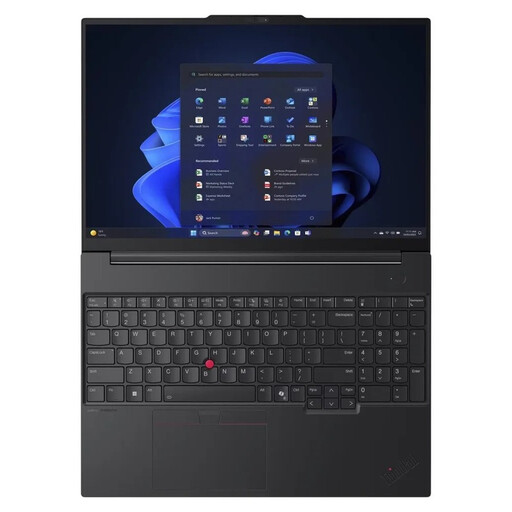
For a mobile Windows workstation with ports for external devices, check the listed connections and the specific memory configuration.
16-inch display, AMD Ryzen 7 250, Windows 11 Pro, 32 GB RAM and 1 TB SSD. Also listed are RJ45, USB4-C and HDMI 2.1. The memory can be upgraded to up to 64 GB. The stated weight is 1.71 kg.
 No image available
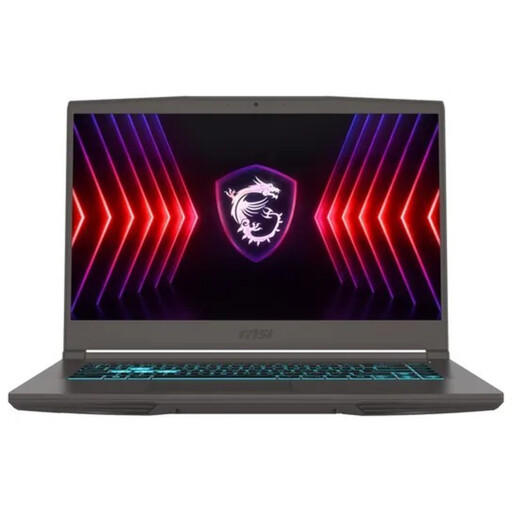
This 15.6-inch model is an option if you’re looking for a mobile editing setup with ports for a shared workstation.
Full HD display with 144 Hz, Intel Core i5-13420H, 16 GB RAM, 512 GB SSD and NVIDIA RTX 3050 with 4 GB of graphics memory. Listed connections include HDMI, USB-C with DisplayPort and RJ45. According to the product details, no operating system is pre-installed, so you’ll need to install one before use.
 No image available
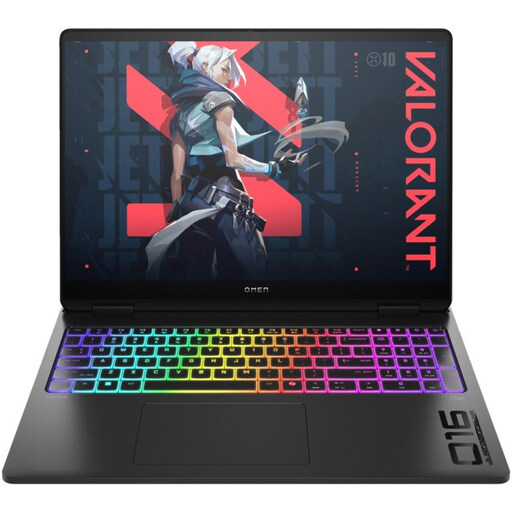
For more demanding local editing projects, compare the graphics and memory specifications with your software requirements.
16-inch display, AMD Ryzen AI 9 HX 375, 32 GB RAM, 1 TB SSD, GeForce RTX 5070 Ti with 12 GB of graphics memory and Windows 11 Home. The model is listed with a 240 Hz WQXGA display. Connections include Gigabit Ethernet, HDMI 2.1 and USB-C.
 No image available
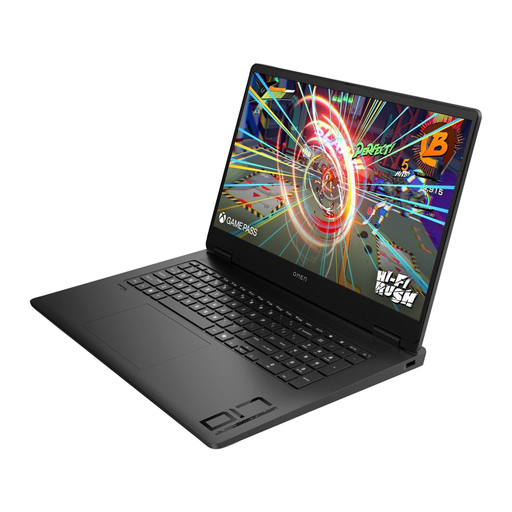
If you mainly edit at a fixed workstation, compare the 17.3-inch display and listed connections with your setup.
AMD Ryzen AI 7, 16 GB RAM, 1 TB NVMe SSD and Windows 11 Home. The Full HD display is listed at 144 Hz; connections include HDMI and USB-C with Power Delivery.
 No image available
If you often move between filming locations and your workstation, make sure to check this model against your portability needs.
15.6-inch Full HD display with 144 Hz, Intel Core i5-13420H, 16 GB DDR5 RAM, 512 GB SSD and NVIDIA RTX 4050. The stated weight is 4.55 kg. According to the product details, no operating system is pre-installed, so you’ll need to install one before use.
Not necessarily. What matters is that your software and project handover process work across both systems. For Premiere Productions, Adobe recommends using the same drive letter for shared folders on Windows and the same volume name on Macs wherever possible. Test the specific project and its media before buying.
Adobe recommends storing media cache files and their database on each editing workstation’s system drive or a fast, directly connected SSD, rather than on shared storage. For Premiere Productions, you should also make sure the network connection is suitable for your format and workflow.
No. You need to review how the footage will be processed. If people are identifiable and a business processes footage of them, you need to clarify the purpose, legal basis and appropriate technical and organisational safeguards, among other things. The European Commission explains these principles; whether specific footage can be recorded or published depends on the circumstances.
If several people use a laptop, the German Federal Office for Information Security recommends giving each person their own password-protected account with appropriate access permissions. Encryption can provide extra protection from other users or if the device is lost. It doesn’t replace backups or a review of how footage featuring identifiable people is processed.