Choose a desktop that suits your editing software and the video footage you actually work with. Then plan user accounts, project storage and backups for handovers between people. A configurable Windows tower is available in a range of specifications, while a compact Mac can save desk space and offers support for specific video codecs, provided its software, storage and ports suit your workflow. Adobe gives different RAM recommendations for HD and 4K footage in Premiere; these don’t apply universally to every editing programme.
Who uses the editing workstation?
Trainers who edit videos regularly
If you edit demonstrations regularly, match your set-up to your editing software, resolution and media format. Adobe gives different RAM recommendations for Premiere, depending on whether you’re working with HD or 4K footage.
Teams with different people editing
When several people take turns using the same computer, separate user accounts and a clear shared storage system can help. Microsoft and Apple explain how to set up separate accounts for multiple people using the same device.
People responsible for video archives
If you need to keep original footage long term, allow space for a separate backup as well as your working files. Adobe explains that proxy workflows can create additional, smaller media files.
What to consider when buying
First, check that the operating system and software are right for your existing workflow. Then compare the specific specifications with your footage, and decide how to organise accounts, projects and backups.
For Adobe Premiere, Adobe recommends 16 GB of RAM for HD footage and at least 32 GB for 4K footage. These figures aren’t a general minimum requirement for every editing programme.
| Buying consideration |
What to check before buying |
Who is this important for? |
| Smooth editing |
Check that the software version, footage resolution and codec are compatible; review the RAM, CPU and graphics in the specific configuration. |
If I regularly edit the training footage I actually use, I want to choose specifications that suit both the footage and the software. The right editing speed is the top priority for around 33% of consumers. |
| Project handover |
Set up separate user accounts, access permissions and a storage location for shared projects. |
If several people take turns using the same computer, I need clear access arrangements and shared storage. Project handover is the top priority for around 27% of consumers. |
| Media and backups |
Choose SSD capacity based on your footage; plan for both working storage and a separate backup. |
If I need to keep original footage and working files, I want to take my team’s storage needs into account. Around 20% of consumers prioritise having enough space for media and backups. |
| Space and software set-up |
Check the case size, operating system and ports for your monitor and external drives. |
If desk space is limited, I still want to be able to use my editing software and existing devices. A compact set-up is the most important consideration for around 20% of consumers. |
Common buying mistakes
-
Focusing only on the name of a workstation range
Models in the same range can differ in RAM, graphics and storage. The product family name alone doesn’t tell you whether a specific configuration will suit your editing software and recording format.
Before choosing, compare the full product specifications with your software and the footage you actually use.
-
Relying on the system SSD as your only project archive
Importing footage and creating proxies can generate additional files alongside the originals. A single working storage location isn’t a substitute for a separately planned backup.
Decide on capacity and storage based on your own footage, and plan backups as a separate task.
Proxy files and a separate backup require additional storage space.
-
Taking conflicting storage details as confirmed
On the Joybuy listing we checked for the HP A40MMET, the heading and description give different SSD capacities; HP lists the version with 1 TB.
Check the exact configuration you’re ordering against the full part number before relying on a stated capacity.
Key brands to consider
HP
The Z2 Tower range includes Windows workstations with specifications that vary by configuration.
- HP lists 32 GB of RAM and a 1 TB SSD, among other specifications, for the A40MMET version.
- Graphics and storage vary by configuration. On the A40MMET listing we checked, the SSD details conflict.
Apple
The Mac mini M6 is a compact macOS desktop for workflows with compatible software and peripherals.
- Apple lists hardware support for H.264, HEVC and ProRes.
- Check that the storage and ports suit your media storage, monitors and project. Codec support doesn’t confirm how quickly a specific project will run.
Lenovo
The ThinkStation P3 Tower Gen 2 is a configurable workstation range for a dedicated editing set-up.
- Lenovo lists versions with Intel Core Ultra and NVIDIA RTX PRO.
- Graphics, RAM and storage depend on the version you choose; the range name alone doesn’t confirm editing performance.
Dell
The Pro Max Tower T2 can be configured with different components to suit a workstation.
- Dell lists a range of processor, operating system and power supply options.
- The model name alone doesn’t confirm that a configuration is right for editing. The components actually selected are what matter.
ASUS
The ProArt Station PD5 PD500TE is documented as a creative tower with specific specifications.
- For the version described, ASUS lists Windows 11 Pro, an RTX A4000 with 16 GB, a 2 TB SSD and an SD/MMC reader.
- Whether these specifications offer a practical benefit for simple demonstration clips depends on the software and footage.
Joybuy products for your editing workstation
The Joybuy computers below include compact desktop models and tower workstations for a shared editing set-up. Match the specific specifications to your editing software, video footage and existing ports.
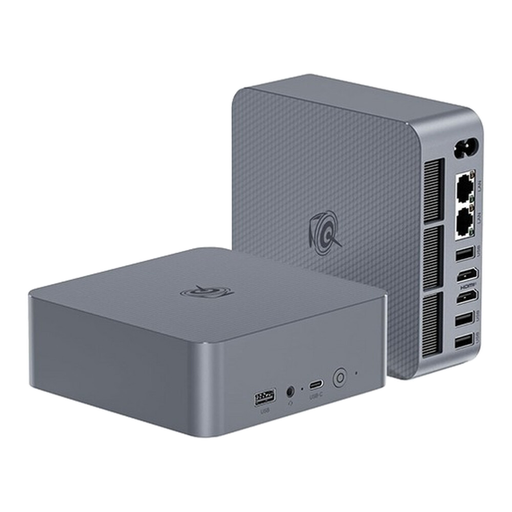 Image unavailable
Beelink Mini PC EQ7, 16 GB RAM, 512 GB
Could be worth considering for HD footage in Premiere; check that the specific software and other specifications suit your workflow.
16 GB RAM and 512 GB SSD according to the product name. Adobe recommends 16 GB RAM for HD footage in Premiere.
View at Joybuy
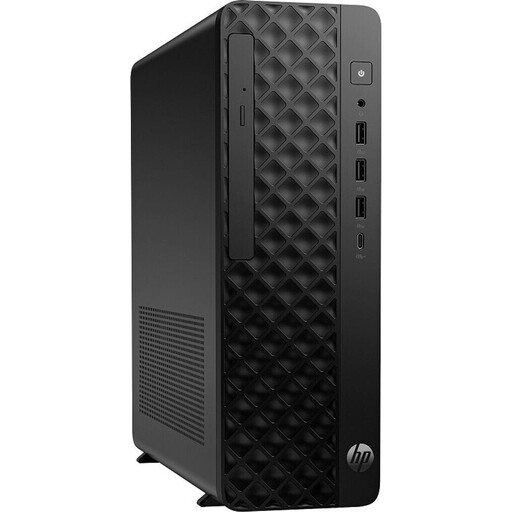 Image unavailable
HP Z2 SFF G1i A40M2ET#ABD, Core Ultra 7 265K
Could be worth considering for 4K footage in Premiere; also check the graphics, software requirements and how much storage you need.
32 GB DDR5, 1 TB SSD, RTX A400 with 4 GB and Windows 11 Pro according to the product name. Adobe recommends at least 32 GB RAM for 4K footage in Premiere.
View at Joybuy
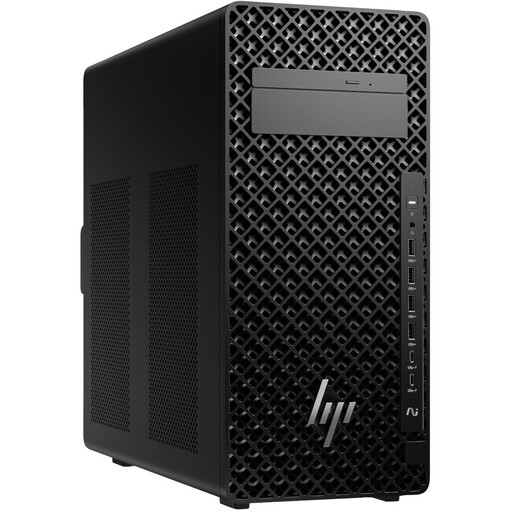 Image unavailable
HP Z2 Tower G1i A40MMET, Core Ultra 7 265
Could be worth considering for a dedicated Windows editing workstation; confirm the specifications you’ll actually receive before planning your storage needs around them.
32 GB DDR5, Core Ultra 7 265 and integrated Intel graphics according to the product name. The SSD details for this version conflict, so don’t rely on a specific capacity until you’ve checked.
View at Joybuy
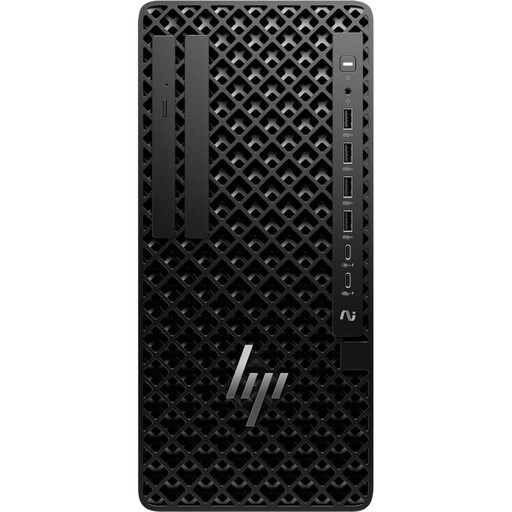 Image unavailable
HP Z1 Tower G1i A40T1ET#ABD, Core Ultra 9 285
Could be worth considering for a tower workstation; whether you need these specifications for your projects depends on the editing software and footage.
64 GB DDR5, 1 TB SSD, integrated Intel graphics and Windows 11 Pro according to the product name.
View at Joybuy
Image unavailable
HP Z1 Tower G1i A40SYET, Core Ultra 7 265 vPro
Could be worth considering for a dedicated Windows editing workstation; check that the configuration suits your software, footage and storage needs.
32 GB DDR5, 1 TB SSD, integrated Intel graphics and Windows 11 Pro according to the product name.
View at Joybuy
Frequently asked questions
Do several people using the same editing computer definitely need a server?
No, not if they take turns using the computer: Windows and macOS support separate user accounts on one device. For working together on Premiere Productions across multiple workstations, Adobe describes using shared project storage. Decide how handovers will work in practice.
Can a proxy workflow make up for a less powerful computer?
No. Proxies don’t replace checking software requirements or keeping the original files. Adobe describes them as lighter working copies that can make editing easier, particularly with high-resolution or demanding footage. Allow for storage and extra capacity.
Can you simply record and publish training demonstrations featuring identifiable people?
Not in every case. The Berlin Commissioner for Data Protection and Freedom of Information explains that recording identifiable people and using the footage requires an applicable legal basis under Art. 6(1) GDPR. The relevant basis for a particular video depends, among other things, on the people involved, the purpose and how the footage is distributed.


