Who should look for which features?

Players short on desk space

If you need to fit a steering wheel and other input devices alongside your monitor, consider its width and depth, including the stand. ASUS and Dell publish the footprint measurements for their respective models. If you’re using a monitor arm, also check that it’s suitable for your desk edge and thickness.

Players who value clearly rendered detail

If you want instruments, signs and menus to look sharp, consider screen size and native resolution together. A 27-inch WQHD model needs more desk space than a compact 24-inch Full HD example.

Players who want a wider view

A wider display can be appealing if you value extra space at the sides and have enough room on your desk. Whether the aspect ratio, field of view and menus work well depends on the specific simulation you play, too.

What to look for when buying

Compact 24-inch Full HD format

A good fit if: you want to leave room for input devices on a small desk.

The trade-off: The Full HD examples listed have fewer native pixels than the WQHD and ultrawide examples.

27-inch WQHD in 16:9

A good fit if: you have room for the larger footprint and want instruments or menus to appear more detailed.

The trade-off: Check that your PC and connection support the resolution and refresh rate you want.

Ultrawide

A good fit if: you value extra space at the sides and your desk and game support the format.

The trade-off: SCS Software notes that very wide single-screen views may cause distortion at the edges in its games. This doesn’t necessarily apply to other simulations.

Priority What to check before buying Who it matters most to
Footprint and stand Measure the width and depth with the stand, as well as the space needed for your input devices. If you’re using a monitor arm, check the VESA measurement and desk mounting requirements. If I need to fit a steering wheel and keyboard on my small desk, the actual footprint matters. Around 36% of consumers put usable space first.
Clearly rendered detail Consider screen size and native resolution together, and check that your PC can handle the resolution you want in-game. If I want instruments, signs and menus to be easy to make out, I compare screen size and resolution together. Around 29% of consumers prioritise detail.
Wider view Check your desk width, the native resolution and whether the specific game supports the aspect ratio you want. If I want to see more of my surroundings to the sides, the format needs to suit the simulation. Around 21% of consumers prioritise a wider view.
Refresh rate and connection Check the stated refresh rate separately for HDMI and DisplayPort, then compare it with your PC’s outputs. If smooth motion matters to me, the refresh rate needs to be achievable with the connection to my PC, too. Around 14% of consumers prioritise refresh rate and connection compatibility.

Common misconceptions when buying a monitor

  • Comparing screen size alone

    A monitor can be too wide for your desk, even if the screen size seems right, or its stand can take up too much room.

    Before buying, check the monitor’s dimensions with the stand and the space needed for your input devices against your desk.

  • Assuming ultrawide gives you the right field of view in every game

    What you see depends on the game and its display settings. In its documentation, SCS Software notes that very wide single-screen views may cause distortion at the edges.

    Check the aspect ratio, field of view and menu positioning in the simulation you actually play.

  • Relying on the refresh rate without checking the connection

    According to Dell, the G2724D has different maximum refresh rates at WQHD over DisplayPort and HDMI: 165 Hz and 144 Hz respectively.

    Check that the resolution and refresh rate you want are supported by the monitor’s connection and your PC’s output.

  • Choosing an OLED based only on contrast or review scores

    ASUS warns that displaying static, high-contrast images for long periods can carry a risk of burn-in. This is worth bearing in mind if your simulation has on-screen elements that stay visible for a long time.

    Compare your usage patterns with the guidance in the manual and the warranty terms for the exact model variant.

Brands and models to consider

ASUS

The TUF Gaming VG249Q is a documented 23.8-inch Full HD example, while the ROG Strix XG27AQWMG is a 26.5-inch WOLED model with a different focus. The specifications apply to each specific model.

  • ASUS lists the VG249Q as 54.05 cm wide and 21.76 cm deep with the stand.
  • ASUS warns that displaying static, high-contrast images for long periods can carry a risk of burn-in on OLED screens.

Dell

The Dell G2724D is a 27-inch WQHD IPS model with different stated refresh rates depending on the connection used.

  • Dell lists it as 61.19 cm wide and 20.02 cm deep with the stand.
  • Dell states that at WQHD, it supports 165 Hz over DisplayPort and 144 Hz over HDMI. Check the figures for the connection you intend to use.

LG

The LG UltraGear 27GS75QX-B is a documented 27-inch WQHD IPS example.

  • LG lists a resolution of 2560 × 1440 pixels and a refresh rate of 180 Hz, or 200 Hz when overclocked.
  • These specifications apply to this model number; check the dimensions and variant before choosing.

Samsung

The Odyssey G5 LC34G55TWWPXEN is an example of a 34-inch ultrawide format.

  • Samsung lists this model as 21:9, with a resolution of 3440 × 1440 pixels, a VA panel and a refresh rate of 165 Hz.
  • These specifications don’t tell you whether the format will suit your desk or every transport simulator.

MSI

The MSI G274QPFDE E2 is a documented 27-inch WQHD model with height adjustment.

  • For the DE variant, MSI lists dimensions of 613.5 × 227.9 × 406.6 mm with the stand, as well as a 75 × 75 mm VESA mount.
  • Check the full model number when buying to make sure the specifications match the variant you want.

Joybuy products for compact and WQHD setups

The models below include compact 24-inch Full HD monitors and 27-inch WQHD monitors. Before choosing, check the footprint with the stand and make sure your PC and connections support the resolution and refresh rate you want.

KOORUI MB24V29FS4, 24-inch Full HD IPS monitor

KOORUI MB24V29FS4

This 24-inch Full HD format is worth considering if you want to save space on a small desk.

24 inches, Full HD, IPS, 120 Hz, 5 ms, 99% sRGB, HDMI and VGA; 100 × 100 mm VESA mount and tilt-adjustable stand.

View at Joybuy
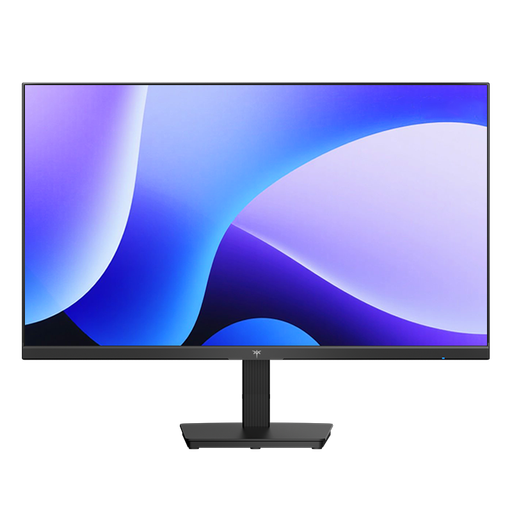
KTC H24B9S, 24-inch Full HD IPS gaming monitor

KTC H24B9S

This 24-inch Full HD model offers a compact screen size; check that the stand fits your available space.

24 inches, 1920 × 1080, IPS, 144 Hz, 1 ms MPRT, Adaptive Sync, HDMI and DisplayPort.

View at Joybuy
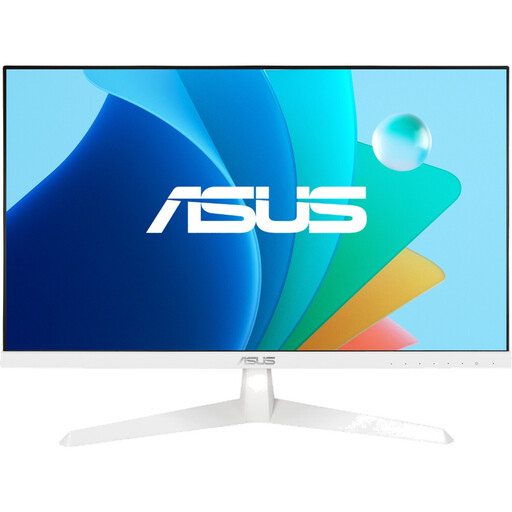
ASUS Eye Care VY249HF-W, 24-inch Full HD monitor

ASUS Eye Care VY249HF-W

This 24-inch Full HD format is a compact option if you want to leave room for input devices alongside your monitor.

24 inches, 1920 × 1080, IPS, 100 Hz, 1 ms MPRT, Adaptive Sync, HDMI 1.4 and 100 × 100 mm VESA mount; tilt-adjustable.

View at Joybuy

KTC H27D9, 27-inch WQHD IPS monitor

KTC H27D9

This 27-inch WQHD model is worth considering if extra detail matters to you and you have room for its larger footprint.

27 inches, 2560 × 1440, IPS, 120 Hz, Adaptive Sync, HDMI and DisplayPort.

View at Joybuy
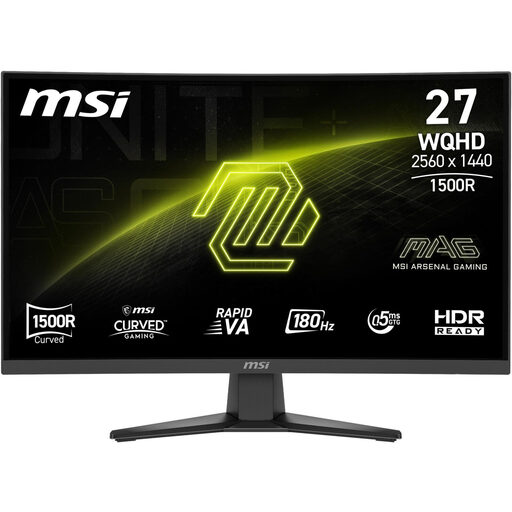
MSI MAG 275CQFDE E18, 27-inch WQHD monitor

MSI MAG 275CQFDE E18

A 27-inch WQHD model is an option if detail matters more to you than keeping your setup as compact as possible.

27 inches, 2560 × 1440, 16:9, Rapid VA, 0.5 ms, DisplayPort and HDMI.

View at Joybuy

Frequently asked questions

Will a monitor arm automatically fit any small desk?

No. First, check that the specific arm is compatible with both your monitor and desk. Compare the monitor’s VESA measurement and weight with the arm’s specifications, and check the clamp range, desk edge, material and clearance behind the desk. The clamp specifications for one model won’t necessarily apply to others.

What should I consider when choosing an OLED monitor for simulations with on-screen elements that stay visible?

Consider the potential risk of burn-in if static, high-contrast elements are displayed for long periods. ASUS warns of this risk; check the manual and warranty terms for the specific model variant.

What are my rights when buying a monitor online in Germany?

For a standard online purchase by a consumer, the Verbraucherzentrale (German consumer advice centre) says that a 14-day right to cancel generally applies. For faulty goods, Your Europe, the European Union’s information portal, states that there is a legal guarantee of at least two years from receipt. A manufacturer’s warranty doesn’t replace these rights. Check the terms of your specific contract and any exceptions to the right to cancel.

How can I compare the energy consumption of monitors?

Electronic displays covered by EU energy labelling rules have an energy label with a scale from A to G. The European Commission explains this labelling; compare the label and specification sheet for the exact model variant.

Do I need an ultrawide monitor or multiple monitors for transport simulators?

No, it depends on the simulation and how it’s configured. SCS Software documents both single-screen views and special multi-monitor modes for its games. Check the display options in the title you play.