Choose your monitor based on how you’ll use the output. For images viewed mainly online, an sRGB and colour-profile workflow is key. For print preparation, colour gamut coverage and repeatable calibration matter more. Adobe explains why the same file can look different on different screens, while EIZO points out that calibration can’t compensate for a gamut that’s too small or an uneven panel. Also check whether your specific computer supports two external displays through the ports provided. According to Apple Support, this depends in part on the Mac model, resolution and refresh rate.
Who needs to compare colours?
Colour-critical users with two monitors
If you assess the same edit on two displays, you need a reliable reference screen and suitable display targets. Adobe explains why images can look different on different screens, while EIZO outlines the importance of calibration.
Photographers preparing images for print
If you also edit images for print, consider colour gamut, calibration and your intended output workflow together. EIZO also explains the limits of calibration, such as when the gamut is too small or the panel display is uneven.
Creatives using a laptop and a second display
If you want to combine image editing with extra screen space, check your computer’s display limits and the video and charging ports you need. Apple Support notes that the number of usable external displays depends on the model and display configuration.
What should you look for when buying?
Two comparable, calibratable monitors
Best suited to you if: you regularly assess the same edit critically on both displays and want to calibrate each one to a suitable target.
Bear in mind: Achieving a repeatable match takes time. According to EIZO, calibration can’t correct a gamut that’s too small or panel unevenness.
A reference monitor plus a work screen
Best suited to you if: you only need one display for making definitive image judgements and mainly use the other for tools or references.
Bear in mind: Without its own calibration, the second screen isn’t an equivalent colour reference. BenQ describes Display ColorTalk as a visual matching tool for supported configurations, not as independent measurement evidence.
A web or print workflow
Best suited to you if: you’re choosing a monitor specifically for predominantly online output or for print preparation.
Bear in mind: A wide gamut doesn’t guarantee that two displays will match each other or a printout. The output profile and calibration still matter.
| Buying priority |
What to check before buying |
Who is it especially relevant to? |
| Matching both displays |
Check the calibration method and software compatibility for the exact model; profile each display separately. |
If I want to assess the same edit on two screens, I need a reliable reference screen. Around 33% of consumers prioritise being able to make the most consistent assessment possible. |
| Print preparation |
Check the exact model’s colour gamut coverage and calibratability against the requirements of your print output. |
If I edit images for print, I want to consider colour gamut and soft-proofing requirements together. Around 27% of consumers put print preparation first. |
| Online output |
Check the monitor’s sRGB mode and the colour-profile workflow used by your image-editing software. |
If my images are mainly viewed online, an appropriate sRGB and colour-profile workflow is my main priority. This applies to around 20% of consumers who prioritise web display. |
| Connecting two displays |
Check the computer’s supported number of displays, resolution and refresh rate, as well as its video and charging ports. |
If I want to use a laptop with two external displays, the whole connection setup needs to work with my computer. Around 20% of consumers put connecting two displays first. |
Common misconceptions when buying a monitor
-
The same colour gamut figures don’t automatically mean the colours will match
Colour gamut coverage alone tells you nothing about calibration or how consistently colours are displayed across the whole screen. EIZO points out that calibration can’t compensate for a gamut that’s too small or panel unevenness.
Decide which monitor will be your reference, then check the profiles, calibration method and condition of both displays.
Matching the displays takes time and may require a suitable measuring device.
-
A DisplayPort output doesn’t guarantee two extended desktops on a Mac
A daisy-chain connection alone doesn’t tell you whether your computer supports the number of external displays you want. According to Apple Support, this depends in part on the Mac model and display configuration.
Before buying, check what your specific computer supports and which connection method you’ll need. BenQ distinguishes between DisplayPort and Thunderbolt for daisy chaining.
-
A wide colour gamut is no substitute for colour management
Web and print output have different requirements. A wide monitor gamut alone won’t ensure you have the right profiles or a reliable print preview.
First decide how you’ll use the output, then match the monitor mode, file profile and, if needed, print workflow to it.
Key brands at a glance
EIZO
EIZO positions the ColorEdge CS2740 as a 27-inch 4K monitor for colour-critical image work. ColorNavigator is the manufacturer’s hardware calibration software for compatible ColorEdge models.
- EIZO describes ColorNavigator as a tool for a repeatable calibration workflow.
- According to EIZO, calibration can’t correct a gamut that’s too small or panel unevenness; this doesn’t prove that the colours will match a second display.
BenQ
BenQ lists a resolution of 2560 × 1440 pixels, 99% Adobe RGB and hardware calibration for the PhotoVue SW272Q. The manufacturer describes Display ColorTalk as a solution for visually matching supported display configurations.
- The SW272Q specification sheet also lists 90 W USB-C Power Delivery.
- Display ColorTalk isn’t independent measurement evidence that two specific devices match.
ASUS
According to ASUS’s German specification sheet, the ProArt PA279CRV is a 27-inch 4K monitor with sRGB and Adobe RGB modes.
- ASUS lists 99% Adobe RGB, two DisplayPort connectors for daisy chaining and 96 W USB-C Power Delivery.
- These connection specifications don’t prove that a DisplayPort MST chain will enable two extended desktops on every Mac. Check your computer and connection method separately.
Dell
Dell positions the UltraSharp U2725QE as a 27-inch 4K Thunderbolt hub monitor for workspaces focused on connectivity and laptop integration.
- Dell lists an IPS Black panel and a typical refresh rate of 120 Hz for this model.
- These manufacturer specifications don’t prove that the model is suitable as a colour-accurate print reference.
ViewSonic
ViewSonic positions the ColorPro VP2786-4K for photo editing and print output.
- The manufacturer lists 100% Adobe RGB and an integrated calibrator.
- Manufacturer claims about soft-proofing and colour accuracy aren’t an independent comparison with the other models.
Joybuy monitors and second screens
The Joybuy models below include 4K monitors and portable second-screen solutions. For colour-critical work, check the profiles and calibration features of each model separately.
 No image available
TCL 32X3A 32-inch OLED+ monitor
An option if you’re looking for a large-format OLED+ monitor for a dual-display setup; the title specifications don’t confirm colour calibration.
32 inches; 4K UHD, 3840 × 2160; 240 Hz; 480 Hz at FHD; 1,300 nits; 0.03 ms GtG.
View at Joybuy
 No image available
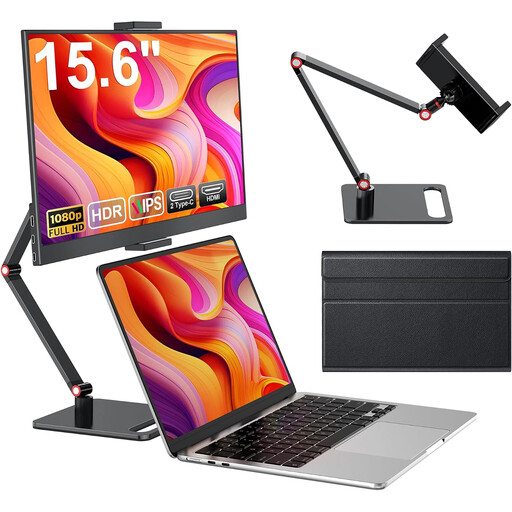
Portable 15.6-inch FHD laptop monitor
A portable second-screen option if you’re looking for a monitor for your laptop workspace.
15.6 inches; FHD, 1080p; 60 Hz; IPS panel; HDMI and USB-C ports; stand.
View at Joybuy
 No image available
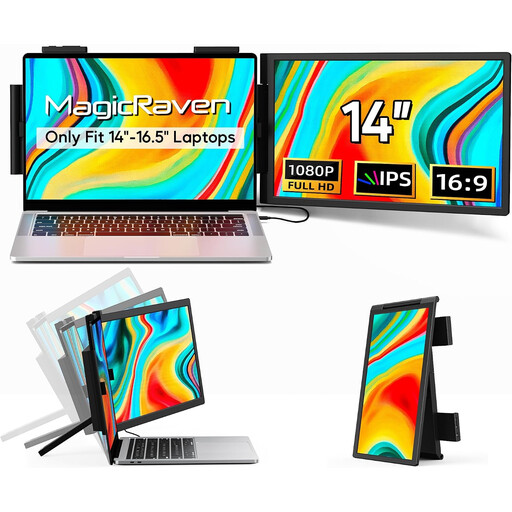
14-inch FHD dual-screen extension
This portable extension is an option if you’re looking for a second screen for your laptop setup; check that it’s compatible with your device.
14 inches; FHD, 1080p; 60 Hz; IPS panel; for 14 to 16.5-inch laptops; HDMI, USB-A and USB-C ports; listed as compatible with Windows, Mac and Android.
View at Joybuy
 No image available
MSI PRO MP273UPDE E6 27-inch 4K monitor
An option for detailed image work if you’re looking for a 27-inch 4K monitor with an IPS panel; check separately whether its colour and calibration features suit your workflow.
27 inches; 4K UHD; IPS; 60 Hz; HDR Ready.
View at Joybuy
 No image available
INNOCN CB27U1 27-inch 4K UHD monitor
An option if you’re looking for a 27-inch 4K second screen; the listed ports and display modes don’t replace checking its specific colour management features.
27 inches; 3840 × 2160; IPS; 120 Hz; HDR500; PIP and PBP; USB-C with 90 W Power Delivery; HDMI and DisplayPort.
View at Joybuy
Frequently asked questions
Is setting both monitors to the same colour mode enough?
No, this doesn’t prove that the colours will look the same. Devices can display the same file differently. Check the profiles and, for colour-critical work, calibrate each suitable screen to a target that fits your workflow.
Can I use two monitors as extended desktops on a Mac through a monitor’s DisplayPort output?
Don’t assume so just because a daisy-chain connection is available. BenQ says Thunderbolt is required for daisy chaining on Macs. Also check with Apple how many external displays your specific Mac model supports at your chosen resolution and refresh rate.
Should I choose a monitor for web or print output?
Yes, base your choice on how you’ll mainly use the output. For images viewed online, an appropriate sRGB and colour-profile workflow matters. For print preparation, you should also consider colour gamut coverage, calibration and the requirements of your print output.


