Organising frames and the timeline
If you want to arrange frames, layers or tools on one screen and the preview on the other, usable screen space and easy-to-read panels are key.


First, choose a monitor based on whether it will display frames and tools or serve as a preview screen. Then check text legibility and scaling, the colour mode for your output format, and your computer’s connections and display support. 4K or USB-C alone guarantees neither a better workflow nor support for two external displays.
If you want to arrange frames, layers or tools on one screen and the preview on the other, usable screen space and easy-to-read panels are key.
If you need to assess colour for a specific output format, look for suitable colour modes and a clear calibration process.
If you want to run both screens from a laptop, its specific display support needs to match the video connections. With USB-C, charging power may also be important.
First decide what you want to do on each screen. Then compare the usable workspace, the colour workflow you need and the connections your setup actually supports.
| Consideration | What to check before buying | Who is it most important for? |
|---|---|---|
| Workspace and legibility | How you’ll arrange windows across both displays; text size at the native resolution and your chosen scaling. | If I want to arrange frames, tools and the preview clearly, the usable screen area matters. Around 33% of consumers prioritise workspace and legibility when choosing. |
| Colour mode and image assessment | A colour mode suited to your output format; whether calibration is available and how it works. | If I’m assessing colour for a specific output format, I need suitable modes and a clear route to calibration. Around 27% of consumers prioritise colour mode and consistent image assessment. |
| Connections and display support | The exact computer model and the number of external displays it supports; video outputs, cables, and the monitors’ inputs and outputs. | If I want both screens to work reliably with my computer, I check the whole connection chain, not just the port on the monitor. Around 20% of consumers prioritise connection compatibility. |
| Desk space and energy use | Space available for both devices, including their stands; the energy label for each specific model. | If I want two monitors to fit on my desk and use them every day, I consider both the space they take up and their ongoing energy use. Around 20% of consumers prioritise these factors. |
BenQ describes DualView on the PD2706U as two display modes shown side by side on the same screen. This does not demonstrate support for two external monitors.
Check separately how your computer drives two physical displays.
Support also depends on your computer and the entire connection setup. Daisy-chaining requires compatible ports and cables.
Compare the specifications for your exact computer model with the inputs, outputs and cables for both monitors.
A wide colour gamut isn’t automatically the right mode for your output format. Assessing colour across two displays also depends on how your workflow is set up.
Decide on your output format first, then check the colour mode and calibration process for both screens.
When using two monitors, you also need to consider how much space they take up with their stands.
Compare the full dimensions of both monitors and their stands with the desk space available.
The PD2706U is a 27-inch 4K option for creative work with images.
According to ASUS, the ProArt PA279CRV combines a 27-inch 4K screen with dedicated colour modes and DisplayPort daisy-chaining.
The UltraSharp U2724DE is a 27-inch QHD hub monitor, suited to setups where connectivity and an organised workspace are priorities.
The ColorEdge CS2740 is a 27-inch 4K option for workflows involving colour modes and regular hardware calibration.
The UltraFine 27UP850K-W is a 27-inch 4K IPS option with USB-C and an adjustable stand.
The models below are worth considering as a main screen for frames, panels or previews. Make sure their resolution and connections work with your second display and computer.
 No image available
If you’re looking for a 4K main screen in a larger format, the product title lists a 32-inch display with a resolution of 3840 × 2160 pixels.
The title also lists OLED, along with 240 Hz and 480 Hz at FHD.
 No image available
If you’re considering a wide workspace for multiple windows, the product description lists a 40-inch display with a resolution of 5120 × 2160 pixels.
The specifications list IPS, 100 Hz, USB-C with 65 W Power Delivery and a height-adjustable stand.
PIP/PBP is listed as a way to view multiple sources on one monitor; it doesn’t replace connecting two physical displays.
 No image available
If you’re looking for a 27-inch main screen to show fine image detail, the product title lists 4K UHD with a resolution of 3840 × 2160 pixels.
The product specifications list IPS, 120 Hz, USB-C with 90 W Power Delivery and PIP/PBP.
The description also lists Delta E < 1, along with sRGB and Adobe RGB specifications. Check that the stated colour modes suit your project.
 No image available
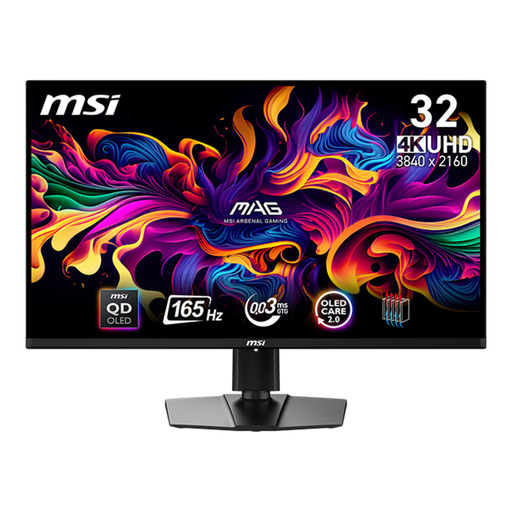
If a 4K main screen in a 31.5-inch format suits your setup, the product title lists a resolution of 3840 × 2160 pixels.
The product specifications describe the display as QD-OLED.
 No image available
If you want to arrange frames and panels on a QHD screen, the product specifications list a 27-inch display with a resolution of 2560 × 1440 pixels.
The description lists an IPS panel, HDMI and DisplayPort inputs, and a height-adjustable stand with pivot function.
QHD cannot show a 4K preview at full resolution, pixel for pixel.
No. You can also use two compatible video connections from your computer or a supported dock setup. Daisy-chaining requires compatible ports, cables and computer support. BenQ describes Thunderbolt cabling for certain models.
In Windows display settings, you can identify the displays and arrange them to match their actual positions. Microsoft also explains how to set the resolution and scaling for each screen.
That depends on the specific Mac model and the resolution and refresh rate of the displays. Apple recommends checking support for your model based on these details.
Compare the energy labels for the specific displays. The European Commission describes an efficiency scale from A to G for the electronic displays it covers. Check the details for each device separately.
If a product is faulty, your statutory rights against the seller are separate from any voluntary manufacturer’s guarantee. According to Verbraucherzentrale, online consumer purchases generally come with a 14-day right to cancel; specific terms and exceptions depend on the purchase.