Who would benefit from using two monitors?

Level designers with lots of editor windows

If you want to use the scene view, hierarchy, Inspector and references without constantly switching between windows, you can spread your editor windows across two displays. Unity documents how to position editor windows freely, including on an additional monitor; Epic Games describes the tools available in the Unreal Editor interface.

Designers working from a laptop

If you want to connect two external displays while keeping cables to a minimum, the connections on both monitors need to work with your laptop. Your computer’s capabilities matter too: BenQ points out that a DisplayPort MST daisy chain doesn’t automatically provide an extended desktop on macOS.

Designers who regularly preview gameplay

If you regularly check moving game content, consider the requirements of the editor view separately from those of the preview. ASUS lists a maximum of 60 Hz for the PA279CRV and up to 120 Hz for the PA278QGV; a monitor’s refresh rate alone doesn’t tell you the frame rate the game can achieve.

What should you look for when buying?

What matters What to check when buying Who it matters to most
Comfortable, readable workspace Check the screen size, native resolution and scaling, as well as the space available for both displays on your desk. If I want to keep the scene view and tools in sight at the same time, I need enough workspace that’s easy to read. Around 29% of consumers rank this as their top priority.
Connections and video signals Check your computer’s video outputs, the inputs on both monitors and the complete signal path, including your chosen resolution and refresh rate. If I want to use two external displays with my computer and possibly charge my laptop via USB-C, the connections need to be compatible. Around 23% of consumers prioritise connectivity.
Assessing colour and detail Check the colour space required for your output, along with the relevant colour modes and the resolution of the specific model. If I need to assess colours and details for a project, the features of the main display matter more than convenient connectivity or a high preview refresh rate. Around 18% of consumers put colour assessment first.
Positioning Consider the space taken up by the stands, as well as the height adjustment and rotation options for both displays. If I want both monitors to sit comfortably on my desk, the adjustment range and available desk space matter. Around 18% of consumers prioritise positioning.
Moving previews Check the refresh rate at your chosen resolution, the supported input and the frame rate your test system can achieve separately. If I regularly assess movement in a live level, I prioritise previews differently from extra editor space or specialist colour modes. Around 12% of consumers prioritise moving game content.

Pitfalls when buying two monitors

  • Assuming a DisplayPort daisy chain gives you two extended displays

    A DisplayPort output on a monitor alone doesn’t confirm that your computer can send a separate signal to each of two displays using the connection you have in mind. BenQ explains that a standard DisplayPort MST daisy chain on macOS mirrors the displays rather than providing an extended desktop.

    Before buying, check your computer, operating system, both monitor connections and the complete signal path for your chosen resolution and refresh rate.

  • Assuming 4K or a wide colour gamut benefits every task

    Manufacturers list different resolutions, colour modes and refresh rates for specific models. These features serve different purposes and don’t guarantee consistent images across two displays.

    First decide what you want to see on the main display and what you want on the tool display. Then compare the features you actually need for each.

  • Assuming office monitor studies prove a productivity boost for level design

    The DGUV study looked at ten people completing standardised office tasks, not designing game levels. Its findings therefore don’t prove a general productivity benefit for this workflow.

    Judge two monitors by whether their layout suits your editor windows and the way you work.

Brands to consider

ASUS

The ProArt PA279CRV and PA278QGV models have different strengths for a dual-monitor workstation.

  • ASUS Germany lists the PA279CRV as a 27-inch 4K monitor with colour modes, a height-adjustable stand, USB-C with 96 W Power Delivery and a maximum refresh rate of 60 Hz. The PA278QGV is listed as a 27-inch QHD monitor with a 120 Hz refresh rate.
  • The models differ in resolution and refresh rate. The manufacturers’ specifications don’t prove that two displays will show colours consistently or that they’ll improve productivity when designing levels.

BenQ

The DesignVue PD2706U is a specific 27-inch 4K model designed for visual work.

  • BenQ lists colour modes for sRGB, Rec.709 and DCI-P3, as well as USB-C for video and data with 90 W Power Delivery. Height adjustment and pivot are also included.
  • Colour gamut coverage figures are provided by the manufacturer, not from independent testing. Whether USB-C supports your preferred setup also depends on your computer.

Dell

The Pro Plus P2725DE is a 27-inch QHD model with a USB-C hub, suitable as a tool monitor or for a suitably planned dual-monitor setup.

  • Dell lists a resolution of 2560 × 1440 pixels at 100 Hz and a USB-C hub.
  • Its native resolution is lower than that of the 4K models mentioned here. The hub’s usefulness depends on the connections your computer needs.

LG

The UltraFine 27UP850K-W is a 27-inch 4K IPS model with USB-C and an adjustable stand.

  • LG lists typical DCI-P3 coverage of 95% and DisplayHDR 400.
  • These manufacturer specifications don’t independently verify colour accuracy or confirm that the monitor is suitable for every HDR project. Check the connections and what’s included with the specific version.

EIZO

The ColorEdge CS2740 is a specialist 26.9-inch 4K wide-gamut model for graphics and colour work.

  • EIZO describes the model as a display for photography, video and graphics work.
  • That specialism doesn’t make it essential for every level design project, nor does it prove an advantage when testing moving gameplay.

Joybuy products for a dual-monitor workstation

The Joybuy products below include 4K and QHD displays for scene views, tool windows and moving gameplay previews.

MSI MAG 274UPDFDE E16M, 27-inch, UHD, Dual Mode

MSI MAG 274UPDFDE E16M, 27-inch, UHD

Could work as a detail-focused main display if you also use it to check moving game content.

Dual Mode: 160 Hz at UHD or 320 Hz at FHD. Mini-LED and Rapid IPS are listed in the product name.

View at Joybuy

INNOCN CB27U1, 27-inch, 4K UHD, IPS

INNOCN CB27U1, 27-inch, 4K UHD

An option for a detail-focused scene view, with a USB-C connection and a listed refresh rate of 120 Hz.

Specifications include 3840 × 2160 pixels, IPS, USB-C with 90 W Power Delivery, a height-adjustable stand and pivot. Check that your computer supports your chosen resolution and refresh rate through the connection you plan to use.

View at Joybuy

KOORUI G2741L, 27-inch, 4K UHD, Dual Mode

KOORUI G2741L, 27-inch, 4K UHD, Dual Mode

Could be worth considering for a detail-focused editor view and moving previews, provided your computer can output the mode you choose.

Dual Mode options are listed as 3840 × 2160 pixels at 160 Hz or FHD at 320 Hz. The product description specifies a glossy display surface.

View at Joybuy

MSI PRO MP273UPDE E6, 27-inch, 4K UHD, IPS

MSI PRO MP273UPDE E6, 27-inch, 4K UHD

A 4K option for a detail-focused main or scene view.

The product name specifies an IPS display with a 60 Hz refresh rate. Height adjustment, pivot, swivel and tilt are also listed; if you often preview moving content, check that the refresh rate meets your needs.

View at Joybuy
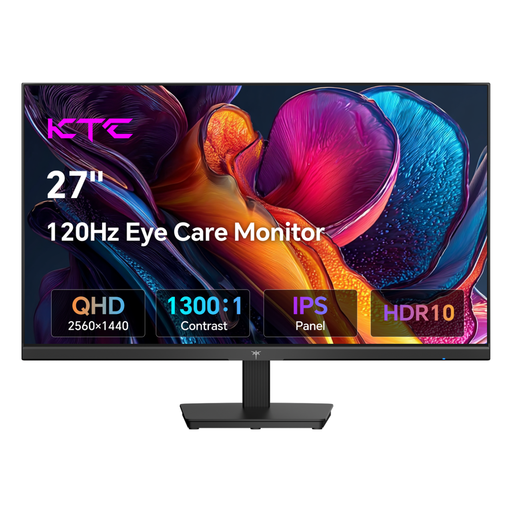
KTC H27D9, 27-inch, QHD

KTC H27D9, 27-inch, QHD

Could work as a tool or preview display alongside a higher-resolution main screen.

Specifications include 2560 × 1440 pixels, IPS and 120 Hz. Its native resolution is below 4K; check VESA mounting and the connection options for your planned setup.

View at Joybuy

Frequently asked questions

Can I move editor windows to the second monitor?

Yes. Unity documents editor windows that can be positioned freely, including on an additional monitor. Check which windows you can use separately with your version of the engine; this is different from extending game output across both displays.

Is one USB-C connection enough for two external monitors?

Not necessarily: the connections on the monitor alone don’t tell you how many separate displays your computer supports. BenQ notes that a DisplayPort MST daisy chain on macOS may mirror the displays instead of providing an extended desktop, so check the complete signal path before buying.

How should I position two monitors for longer work sessions?

Arrange them around the view you look at most often, and check the adjustment range and how much space the specific stands take up. A DGUV laboratory study of ten people looked at standardised office tasks, not game level design, so it doesn’t provide a one-size-fits-all layout for your workstation.

What should I know about power consumption and warranties?

Compare the information on the EU energy label and product data sheet for both monitors you choose. According to the European Union, consumer purchases in the EU come with a minimum two-year legal guarantee from the seller; an additional manufacturer’s warranty doesn’t replace this.

Which energy label applies to monitors in Germany?

According to the European Commission, computer monitors generally fall under EU energy labelling rules for electronic displays, which use a scale from A to G. The label doesn’t recommend a particular efficiency class or a specific setup for level design.