Timeline-focused editors
If you want to spread your tracks and tools across two screens, extra horizontal space is important. Adobe explains how you can move Premiere panels to a second screen.


Choose your second screen based on whether you mainly want it to display the timeline and panels or provide an uncluttered preview. Adobe describes both ways of working in Premiere. An ultrawide monitor could give you more room for a wide timeline; for a UHD preview, native resolution matters, as does choosing a suitable colour mode for SDR projects. Also check that your computer can run two screens at once, and that you have enough desk space and, if needed, USB-C video output and charging power.
If you want to spread your tracks and tools across two screens, extra horizontal space is important. Adobe explains how you can move Premiere panels to a second screen.
If you want to view the programme image separately from the interface, the colour mode should match your SDR output format. Adobe describes Rec.709 as an SDR preset; a specific monitor’s colour reproduction should be assessed separately.
If you want to connect an additional screen to your laptop, check video output and charging requirements for your specific device. Manufacturers’ USB-C specifications apply to particular models.
A good fit if: You want to see tracks and panels side by side and have enough room for a wide screen.
The trade-off: LG lists the 34BA75QE-B as having a resolution of 3440 × 1440 pixels. That’s fewer vertical pixels than the UHD models listed here, which have a resolution of 3840 × 2160 pixels.
A good fit if: You want to check UHD detail and choose a suitable colour mode for a Rec.709 SDR project.
The trade-off: A 16:9 screen offers less horizontal space than the 21:9 model listed here. Manufacturer claims about colour reproduction aren’t an independent measurement of your specific unit.
A good fit if: Colour decisions are a regular part of your work and you’re prepared to follow a suitable calibration process.
The trade-off: EIZO specifies up to 60 W of USB-C power delivery for the CS2740; the calibration sensor is an optional accessory.
| What to consider | What to check before buying | Who should pay particular attention |
|---|---|---|
| Timeline and panels | Check the window layout, aspect ratio, text scaling and desk space together. | I want to see as many tracks and tools as possible at once; around 36% of consumers put timeline space first. |
| Preview and SDR colour | Check the native resolution and colour modes that match your output format. If you work regularly with colour, also consider calibration and accessories. | I want to view the programme image separately and tailor colour assessment to my SDR output format; around 29% of consumers prioritise preview and colour assessment. |
| Connectivity and power | Check that your computer has two video outputs you can use at the same time, and confirm USB-C video output and charging power are compatible with your specific device. | I want my computer to run both screens and, if needed, charge my laptop appropriately; around 21% of consumers put computer connectivity first. |
| Space and positioning | Measure your available desk space, including the stands, and check whether the model offers height adjustment or VESA mounting. | I need to fit and position both monitors on my desk; around 14% of consumers prioritise space and adjustability. |
A manufacturer’s claim about HDR or colour gamut coverage alone doesn’t prove that a monitor is suitable for your SDR or HDR colour workflow. The colour settings in your editing software and project matter too.
Start by deciding on your output format and the appropriate software settings. If you regularly work with colour-critical material, check the calibration process and any accessories you’ll need.
The calibration sensor for the EIZO CS2740 is an optional accessory.
A wide timeline and a UHD preview serve different purposes. The 21:9 model listed here has a resolution of 3440 × 1440 pixels, while the UHD examples listed here have a resolution of 3840 × 2160 pixels.
First, decide which windows you want on each screen. Then compare the resolution, aspect ratio and space required for your setup.
A USB-C port alone doesn’t tell you whether your computer can output video through it or whether its charging power is right for your laptop. The number of screens you can use at the same time also depends on your computer and connection setup.
Check your computer’s video outputs, both connection paths and your charging requirements before settling on a connection.
Depending on your computer and what’s included, you may need extra cables or adapters.
The DesignVue PD2705U is a 27-inch 4K example for a preview screen geared towards SDR.
The ProArt PA279CRV is a 27-inch 4K example with colour presets and USB-C for a compatible laptop.
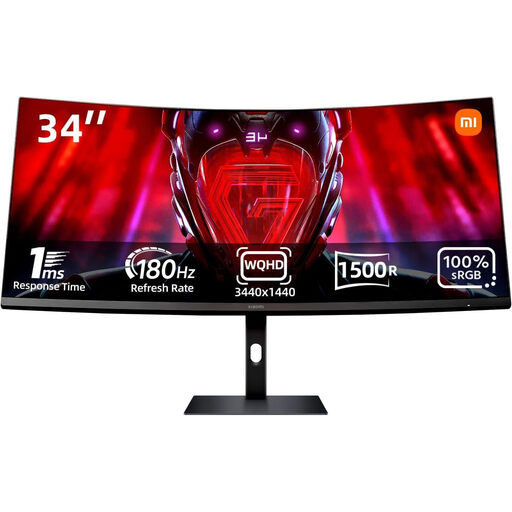
The UltraWide 34BA75QE-B is a 21:9 example designed to give you a wider workspace for your timeline.
The ColorEdge CS2740 is a 27-inch 4K example for workspaces where regular calibration is needed.
The Pro P2725QE is a 27-inch 4K hub monitor example for setups where connectivity and workspace features come first.
Depending on the model, the options below offer a wide workspace for your timeline and panels or a 4K preview. Check the connections, desk space and, if applicable, USB-C charging power against your specific computer and workspace.
 No image available
For a separate UHD preview, provided your computer and connection support 4K.
27 inches; 3840 × 2160 pixels; IPS; 60 Hz; HDR Ready.
 No image available
For a wide timeline and panels arranged side by side, if you have enough room on your desk.
40 inches; 5120 × 2160 pixels; IPS; 100 Hz; 21:9; PIP/PBP; USB-C with 65 W Power Delivery; height-adjustable stand.
The 40-inch monitor needs plenty of desk space. Its stated USB-C charging power of 65 W must be suitable for your laptop.
 No image available
For a 4K preview and arranging multiple sources, provided the connected devices support the features you choose.
27 inches; 3840 × 2160 pixels; IPS; 120 Hz; PIP/PBP; USB-C with 90 W Power Delivery; height-adjustable, tiltable and swivelable.
Its stated USB-C charging power of 90 W must be suitable for your laptop’s charging requirements.
 No image available
For a wide workspace if you want to arrange your timeline and panels side by side.
34 inches; 3440 × 1440 pixels; 21:9; 180 Hz; DisplayPort and HDMI connections.
 No image available
For a workspace with multiple devices or screens, if WQHD rather than 4K suits your preview and layout.
27 inches; 2560 × 1440 pixels; IPS; 100 Hz; USB-C with 98 W Power Delivery; daisy chain; KVM; built-in webcam.
This display has WQHD resolution, not 4K.
For more workspace, you can move panels to the second screen and save your workspace. To display the programme output on that screen, Adobe describes the “Enable Mercury Transmit” playback setting and selecting the output monitor.
First, decide on your intended output format and the sequence’s colour settings. Adobe describes “Direct Rec.709 (SDR)” as an SDR preset and provides separate workflows for material with a wider colour gamut; an HDR10 label on a monitor isn’t a substitute for setting this up.
Only if your laptop and connection support the required video output and the stated charging power is suitable for your laptop. Manufacturers specify up to 60 W for the EIZO CS2740, 90 W for the LG 34BA75QE-B and 96 W for the ASUS PA279CRV.
For consumer purchases in Germany, new products generally come with two years of statutory rights against the seller for defects; a manufacturer’s guarantee is separate. The Verbraucherzentrale states that online purchases generally come with a 14-day right to cancel. The German Federal Ministry for the Environment notes that old devices must be taken to an authorised collection point or returned to a retailer where the relevant conditions apply, and must not be put in household waste.