For a photo gallery viewed mainly on screen, a versatile monitor for previews is usually the obvious choice. First, check that your computer can run both displays at the resolution you want. If you’re assessing prints or exhibition material where colour accuracy matters, choosing the right colour space and following a consistent colour-management workflow become more important. You can use two different monitors together, but their colours won’t automatically match.
Which monitor is right for you?
Gallery creators who need two workspaces
If you want to view photos at full size on one screen while selecting, sorting or editing the layout on the other, reliable dual-screen support and a practical setup are key. Microsoft Support and Apple Support explain how to use multiple displays; the combinations available also depend on your computer.
Editors of digital photo galleries
For a gallery that will mainly be viewed on screen, key things to consider include a suitable resolution, an appropriate colour mode and a monitor profile you can rely on. Adobe explains the role of calibration and profiling in colour management.
Photographers preparing prints
If you’re also preparing prints or exhibition material, your monitor, image file and output profile need to suit the specific printing process. Adobe explains the importance of monitor and output profiles for colour management.
Which buying considerations matter most?
Digital galleries and photo selection
A good fit if: You mainly review and arrange photos, and prepare them for viewing on screen.
Consider: Specialist hardware calibration isn’t automatically necessary for this; however, different displays can still show colours differently.
Colour-critical print preparation
A good fit if: You need to assess colours for prints or exhibition material and coordinate your monitor, file and output profiles.
Consider: The right colour space and calibration options don’t replace a suitable printer profile or checks on the output process.
| What you need |
What to check before buying |
Who it matters most to |
| Running two displays |
Check the number of displays supported, the ports and dock, and the resolution and refresh rate you want with your computer configuration. |
If I want to see my gallery and file list at the same time, my computer needs to support both displays; around 40% of consumers put dual-screen compatibility first. |
| Digital image previews |
Check the native resolution, readability when scaled, colour mode and profiling options. |
For consumers who mainly assess detail and colour on screen, a clear, reliable preview is essential; around 30% prioritise checking images digitally. |
| Colours for printed output |
Check the output process, suitable colour space, calibration options and ICC profiles for the monitor and output. |
If I’m preparing prints or exhibition material where colour accuracy matters, the display needs to match my output profile; around 20% of consumers put checking print colours first. |
| Space and energy consumption |
Compare the dimensions of the complete setup, mounting options and the EU energy labels for the specific models. The European Commission describes energy classes from A to G for monitors covered by the scheme. |
If space is limited or I use my setup for long periods each day, I want to consider both the space it takes up and its running costs; around 10% of consumers prioritise space and running costs. |
Which common misconceptions should you avoid?
-
A USB-C or DisplayPort connection doesn’t automatically mean two screens will work.
Support also depends on your computer, the way you connect the displays and the settings you want. Before buying, check how many external displays your specific computer model supports.
Colour-critical work may require additional profiling or suitable calibration equipment.
-
Screen size alone won’t tell you whether two monitors will fit on your desk.
Stands and any monitor hood you use also take up space. Compare the dimensions of both devices in the planned setup and check that you have the right mounting options.
You may need a suitable mount or extra desk space.
Which monitor brands are worth considering?
ASUS
The ProArt PA279CRV is a documented example of a versatile 27-inch 4K monitor with an sRGB mode and several video connections.
- According to ASUS’s German spec sheet, this model offers USB-C with 96 W Power Delivery and DisplayPort daisy-chaining.
- Whether daisy-chaining works in a dual-screen setup also depends on your computer and connection method. ASUS notes that specifications may vary by country.
BenQ
The PhotoVue SW272U is an example of a 27-inch 4K monitor designed for photo editing and potential print preparation.
- BenQ lists 99% Adobe RGB, hardware calibration and an included monitor hood for this model.
- The hood takes up extra space, and accurate print reproduction also requires a coordinated workflow.
EIZO
The ColorEdge CG2700X is an example of a specialist monitor for colour-critical image editing, not a must-have for every digital gallery.
- On 1 October 2026, PRAD ranked the model first in its list of professional 27-inch graphics monitors; this ranking doesn’t assess its value for every dual-screen gallery setup.
- A colour-critical workflow still requires suitable profiles for your monitor and output.
Dell
The UltraSharp U2725QE is a documented example of a 27-inch 4K productivity monitor with a Thunderbolt hub, for when connectivity and desk organisation matter.
- Dell lists IPS Black technology and 90 W power delivery for this model.
- These features don’t prove that two devices will show identical colours or that the monitor is suitable for a particular print proof.
LG
The UltraFine 27UP850K-W is a documented example of a 27-inch 4K IPS monitor with USB-C and an adjustable stand.
- LG lists 95% DCI-P3 as a typical value for this specific model.
- A DCI-P3 figure doesn’t demonstrate a particular level of Adobe RGB coverage or verified print accuracy.
Monitors for your photo gallery
This selection includes 27-inch monitors with a range of resolutions and connection options for digital gallery viewing and potential colour-managed workflows. For colour-critical printing, suitable profiles and compatibility with your specific computer remain essential.
 No image available
INNOCN 2751S PLUS Mini-LED monitor
Could be a good fit if you’re looking for a QHD preview and stated colour-gamut figures; these figures alone don’t prove that the monitor will match printed output.
27 inches, QHD 2K, 275 Hz, 1 ms, 99% Adobe RGB and 99% sRGB; HDMI and DisplayPort; height-adjustable stand.
View at Joybuy
 No image available
INNOCN CB27U1 27-inch 4K UHD monitor
The 4K UHD resolution could be a good fit for detailed gallery viewing; separately check whether your computer supports two displays in the configuration you want.
3840 × 2160 pixels, IPS, 120 Hz, HDR500, USB-C with 90 W Power Delivery, HDMI and DisplayPort; height-adjustable, with PIP and PBP functions.
View at Joybuy
 No image available
KTC M27P6 27-inch 4K Mini-LED monitor
The 4K UHD specification could be useful for a gallery with detailed previews; check that the connections work with your computer and second screen.
4K at 160 Hz or Full HD at 320 Hz, HDR1400, USB-C with 65 W, KVM, HDMI and DisplayPort; height-adjustable, tiltable and swivel-enabled.
View at Joybuy
 No image available
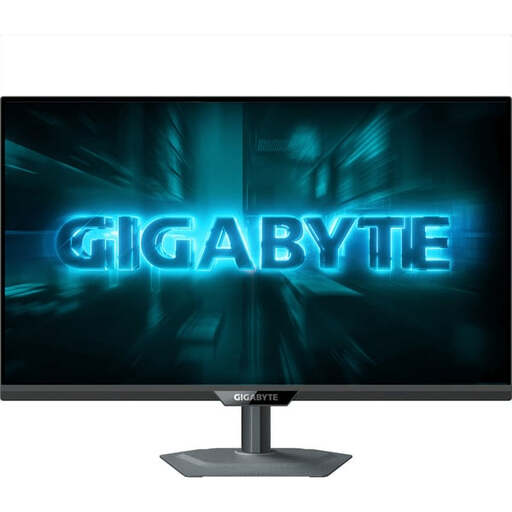
GIGABYTE G27Q20 27-inch QHD monitor
The QHD resolution and stated DCI-P3 figure may be relevant for viewing images on screen; DCI-P3 shouldn’t be taken as proof of Adobe RGB coverage.
SS-IPS, 200 Hz (OC 210 Hz), 94% DCI-P3; height-adjustable, tiltable, swivel-enabled and with pivot function.
View at Joybuy
 No image available
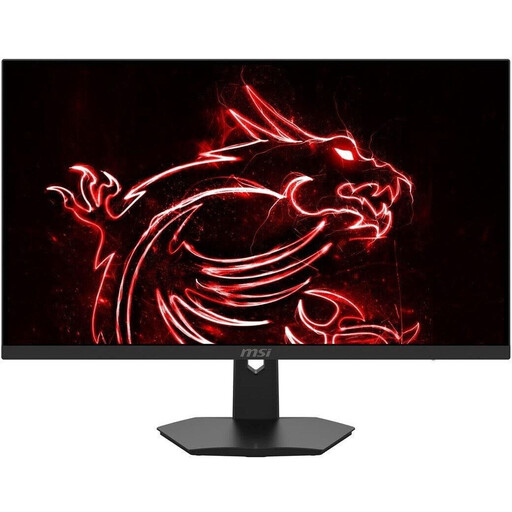
MSI MAG 274FDE 27-inch Full HD monitor
If Full HD is enough for viewing your gallery, this model could work as an additional screen; check the resolution against the level of image detail you want.
IPS, 180 Hz, 98% DCI-P3, DisplayPort and HDMI; height-adjustable, tiltable, swivel-enabled and with pivot function.
View at Joybuy
Frequently asked questions about monitors for photo galleries
Do both screens need to show the same photos?
No. To view your gallery alongside a file list or editing tools, you can use an extended desktop; mirroring shows the same desktop on both displays. Microsoft Support and Apple Support explain both modes.
Can any laptop run two external 4K monitors?
No, you can’t tell from the monitor connections alone. Apple Support notes that the number of external displays supported can depend on the Mac model, as well as the resolution and refresh rate; check the specifications for your specific computer.
How can you keep colour reproduction consistent when editing photos?
Use a colour mode that suits your workflow and an appropriate monitor profile. Adobe explains that calibration and profiling are part of colour management; for print previews, you also need to take the output profile into account.
Does a wide colour gamut guarantee accurate print reproduction?
No. A colour-gamut figure alone doesn’t confirm that the monitor and printed output will match. Coordinate your monitor, file and output profiles for your specific workflow; EIZO also notes that calibration can’t compensate for certain monitor limitations.


