What matters when using two screens?
First decide whether you want to add to your existing laptop display or use two external monitors. The connections you need and the best way to position them will differ.
Existing display plus one extra monitor
A good fit if: You write on your existing screen and want to show notes, a character overview or sources alongside it.
Things to consider: The extra monitor needs to suit your video connection and available desk space. A USB-C port on a monitor doesn’t automatically mean it accepts video input.
Two separate external monitors
A good fit if: You’re choosing both screens from scratch and want to position text and research independently.
Things to consider: Your computer, connections and desk all need to support two external displays. This is different from using a laptop display plus one external monitor.
Dual-monitor system with a shared mount
A good fit if: You really do want two external displays and have a suitable place to attach the mount to your desk.
Things to consider: Two 27-inch displays take up more width than one extra monitor. The mount doesn’t remove the need to check that your computer and video connection support the setup.
| What matters when buying |
What to check before buying |
Who it matters most to |
| Readable space for writing and research |
Screen size, native resolution, text scaling and the usable width of both displays on your desk. |
If I want to read my draft and research at the same time, the usable space on my desk matters. For around 40% of consumers, readable space for writing and research is the most important buying consideration. |
| Computer and connection compatibility |
Whether the built-in display counts, the number of displays supported, video outputs and suitable cables. |
Before I buy, I want to know whether my laptop can run an existing display plus a monitor, or actually drive two external screens. Around 30% of consumers put computer and connection compatibility first. |
| Positioning and adjustability |
Desk width, stand or clamp mount, and whether the specific model can be height-adjusted and rotated. |
If my desk is small, I need an arrangement that keeps both displays readable and leaves enough room for the mount. For around 20% of consumers, positioning and adjustability are decisive. |
| Overall cost and effort |
How many monitors you need, which cables are included, any adaptors required and the energy label for the specific devices. |
I want to consider the devices, any extra connection components I’ll need and the cost of running them. Around 10% of consumers see the overall cost and effort as their top buying consideration. |
Extra monitors to add to an existing display
The Joybuy products below are portable extra monitors for use alongside an existing display. Before buying, check that the connections and setup are suitable for your specific computer and desk.
 No image available
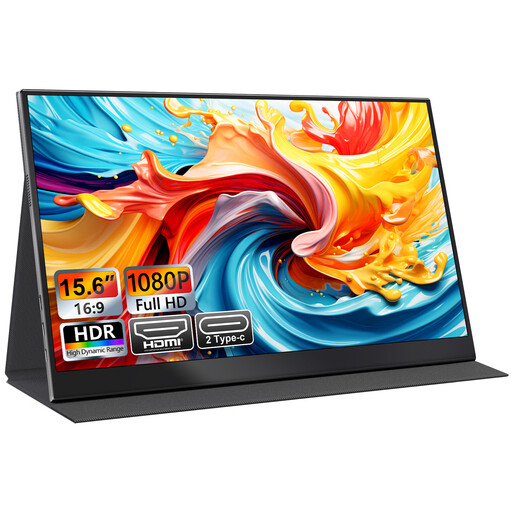
UFYQL M156F04 portable 15.6-inch Full HD monitor
This model can complement an existing display as a portable extra screen; make sure the connection is compatible with your computer.
15.6 inches, 1920 × 1080, IPS; USB-C and HDMI; smart cover stand and VESA mounting.
View at Joybuy
 No image available
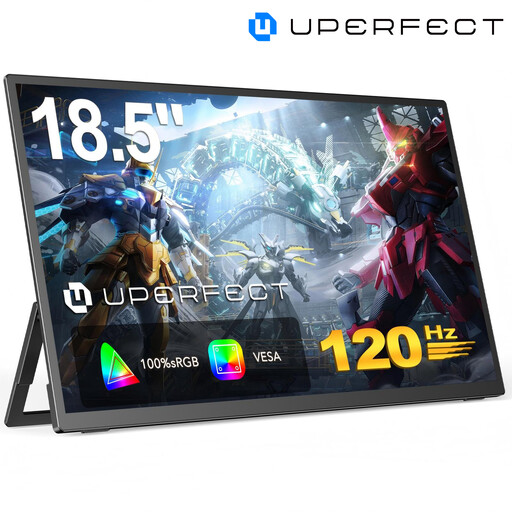
UPERFECT portable 18.5-inch Full HD monitor with 120 Hz
The larger screen size may be useful for an extra text or research display, if you have enough room for it on your desk and in your setup.
18.5 inches, 1920 × 1080, matte IPS screen and 120 Hz; USB-C and Mini HDMI.
View at Joybuy
 No image available
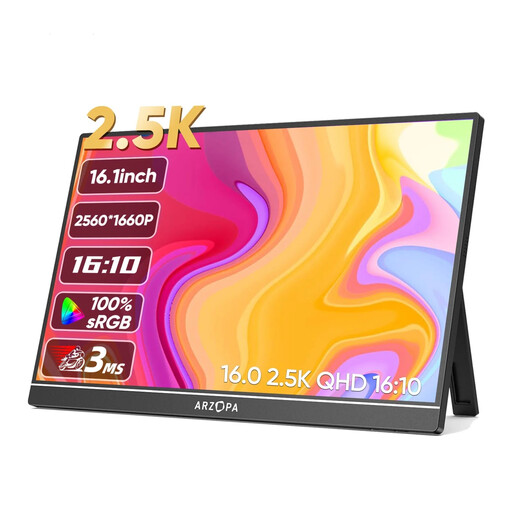
Arzopa Z1RC 2.5K portable 16-inch monitor
The 16:10 aspect ratio is one option if you’re looking for a portable extra screen for text and research.
16 inches, 2560 × 1600, 16:10 and IPS; USB-C and HDMI.
View at Joybuy
 No image available
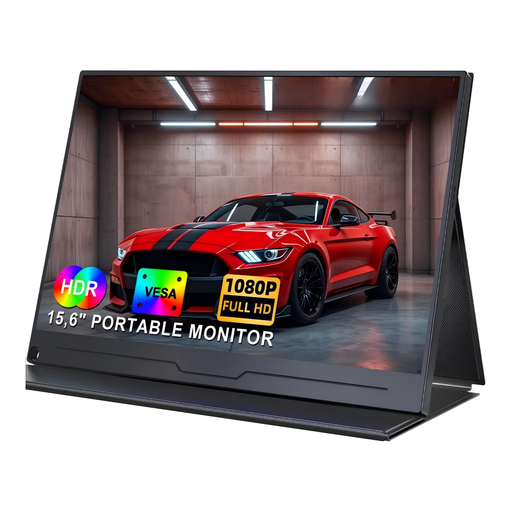
UPERFECT portable 15.6-inch Full HD monitor with IPS
This portable model is worth considering as an addition to an existing display.
15.6 inches, 1920 × 1080, IPS and HDR; USB-C. For a direct USB-C connection, the connected device must support video output.
View at Joybuy
 No image available
UPERFECT portable 15.6-inch monitor with 100% sRGB and stand
The built-in adjustable stand lets you change the viewing angle at your desk.
15.6 inches, 1920 × 1080 and IPS; USB-C and Mini HDMI; built-in stand and VESA compatibility.
View at Joybuy
Frequently asked questions about monitors for two screens
Do I need two new monitors to use two screens?
No. You can use your existing laptop display alongside an external monitor, as long as your computer supports this setup. If you mean two external monitors, check how many displays your specific computer model supports.
Is a USB-C port on the monitor enough for video and power?
Not necessarily. Philips describes the 24E1N1300AE/00 as supporting video, data and power over USB-C for compatible devices. Dell, by contrast, lists the P2425’s USB-C port as a downstream data port. Check what both devices support and make sure you have the right cable.
How should I arrange the screens for writing?
In Windows, you can arrange the displays in the display settings to match their actual positions, and adjust the orientation and text scaling if needed. Then check that your draft and reference windows are easy to read in that layout.
What should I consider about energy use and disposal?
The European Commission includes electronic displays in the EU energy-labelling rules. Compare the energy label for the specific monitor; it doesn’t describe the energy use of an entire two-screen setup. The German Environment Agency lists local collection points as one way to dispose of old electrical equipment separately.
What if there’s a fault or the product is advertised with a guarantee?
Your statutory rights are against the seller; a guarantee is an additional, voluntary service with its own terms and conditions. The Consumer Advice Centre recommends treating these separately and checking the guarantee terms on offer.


