For previewing digital type and layouts, a monitor with a sharp image, comfortable text scaling and an adjustable, anti-glare setup is a sensible starting point. However, a 27-inch 4K model won’t automatically feel comfortable at every viewing distance. Print colours also call for a suitable colour-management and soft-proofing workflow. USB-C docking is only worthwhile if the monitor, laptop and required charging power are compatible.
Who is this monitor for?
Readers checking type and layouts
If you regularly assess small text, spacing and digital page layouts, look for a sharp image that works well with a text scaling setting you can read comfortably. Microsoft describes ClearType as a technology that uses individual LCD subpixels to render text.
Designers working on print projects
If you assess colours as well as letterforms for a specific output, you’ll need a suitable colour-management and soft-proofing workflow. The colour preview should match the intended output colour space and print process.
Laptop users at a study desk
If you connect a laptop to your monitor, check that the video connection and charging power are compatible with your computer. Extra hub ports are most useful when you actually need them for your peripherals.
What should you look for when buying?
| Criteria |
What to check when buying |
Who is it important to? |
| Text clarity and scaling |
Compare the native resolution and screen size with typical text sizes and your preferred scaling settings on your own computer. |
If I need to check fine letterforms and spacing, the chosen scaling should remain easy to read. Around 36% of consumers put text clarity and layout details first. |
| Comfort at your desk |
Check the anti-glare finish, height adjustment and seating position. If you’re particularly sensitive to noise, check how noisy the specific model is. |
If I work for long periods in a quiet room, I want to position the screen comfortably and avoid distracting reflections. Around 29% of consumers prioritise an easily adjustable preview and a quiet working environment. |
| Colour workflow |
Set your output target and choose an available colour mode, along with profiles and soft-proof settings if needed. |
If I need to assess colours for a specific print or digital project, a suitable colour workflow matters more than a wide-gamut specification on its own. Around 21% of consumers prioritise a colour preview for a defined output target. |
| Connections and charging |
Check that your laptop’s video output, the monitor’s connection features and the required charging power are compatible with the exact monitor model. |
If I want to connect my laptop and peripherals through the monitor, the video signal and power supply need to work with my computer. Around 14% of consumers prioritise suitable connectivity. |
Common misconceptions
-
4K automatically means more usable workspace
With the same screen size, the workspace you can comfortably use also depends on which scaling setting you find easy to read.
Try typical documents in the apps you use, with your preferred scaling, rather than choosing on pixel count alone.
-
Wide colour-gamut coverage guarantees an accurate print
A soft proof uses colour profiles to simulate a particular output. The monitor’s colour-gamut coverage is only one part of the workflow.
First decide on your output target, then check the appropriate colour mode, profiles and soft-proof settings.
-
Every USB-C port allows you to dock your laptop fully
Video output and maximum power delivery vary by monitor. So USB-C alone doesn’t confirm that a one-cable setup will work with your laptop.
Check your laptop’s connection features and charging requirements against the exact model. Depending on your device, you may also need a charger or adapter.
Key brands at a glance
EIZO
The FlexScan EV2740X and EV2740S models combine 4K specifications with different USB-C charging capacities.
- EIZO lists the EV2740X as a 27-inch 4K monitor with up to 94 W of USB-C power delivery.
- According to EIZO, the EV2740S delivers up to 70 W over USB-C, so the models differ in their charging capabilities.
ASUS
The ProArt PA279CRV is a 27-inch 4K design monitor with features for digital colour workflows.
- ASUS lists an anti-glare IPS screen, adjustable positioning and support for several colour spaces.
- Manufacturer claims about colour gamut and accuracy don’t prove that the monitor is suitable for soft-proofing every print job or that it operates silently.
BenQ
The DesignVue PD2705U is designed for digital creative work with a suitable sRGB or Rec. 709 workflow.
- BenQ specifies 99% coverage for both sRGB and Rec. 709, along with Delta E ≤ 3, for the PD2705U.
- These manufacturer specifications don’t prove the colour accuracy of every individual unit or guarantee a match with a subsequent print.
Dell
The UltraSharp U2725QE is a 4K Thunderbolt hub monitor, while the S2725QC is a separate 4K USB-C model with different features.
- Dell lists a built-in hub and height-adjustable stand for the U2725QE.
- According to Dell, the U2725QE has no built-in speakers. The model numbers aren’t interchangeable.
LG
The UltraFine 27UP850K-W is a 27-inch 4K IPS monitor with USB-C.
- LG lists height, tilt and swivel adjustment, plus a typical DCI-P3 value of 95%.
- The colour-gamut specification alone doesn’t mean an advantage for black-and-white typography or guarantee a print soft proof.
Monitors at Joybuy
This selection features high-resolution office and design monitors for previewing text and layouts.
 No image available
MSI PRO MP273UPDE E6, 27-inch 4K UHD
The 4K resolution and 27-inch screen size listed in the model name make this a possible choice for detailed previews of text and layouts.
IPS; 60 Hz; HDR Ready.
View at Joybuy
 No image available
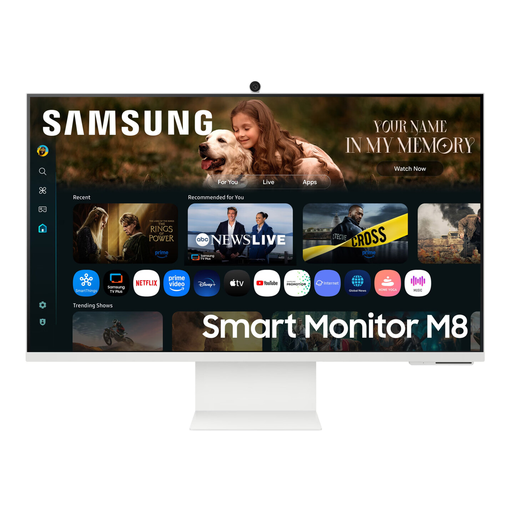
Samsung M8 M80F (2025), 32-inch 4K UHD
This 32-inch 4K model is an option if you’d like more screen space for previewing layouts.
VA; 60 Hz; webcam.
View at Joybuy
 No image available
INNOCN 40C1U, 40-inch 5K ultrawide
The ultrawide format may be useful for previewing wider layouts. Check that the screen size suits your desk.
5120 × 2160; IPS; 100 Hz; 21:9.
View at Joybuy
 No image available
INNOCN CB27U1, 27-inch 4K UHD
According to the product name, this model combines a 27-inch screen with 4K UHD for detailed text previews.
IPS; 3840 × 2160; 120 Hz; HDR500; USB-C with 90 W PD.
View at Joybuy
 No image available
KTC M27P6, 27-inch 4K MiniLED
This 27-inch 4K model is an option for previewing fine layout details. Check that the modes listed in the product name match your actual needs.
Fast IPS; 4K 160 Hz or FHD 320 Hz; HDR1400; Type-C 65 W.
View at Joybuy
Frequently asked questions
Is 4K alone enough for a good text preview?
No. Check text size and scaling in the apps you actually use. EIZO and ASUS each list 163 ppi for the 27-inch 4K models mentioned above. Microsoft also describes how software-based LCD text rendering affects the image.
How should I set up my screen for longer work sessions?
Adjust the height, tilt, text size and room lighting so the preview is easy for you to read and reflections are kept to a minimum. The BAuA ASR A6 covers screen-based work within its occupational scope; it doesn’t set a blanket equipment requirement for every home office.
Is wide colour-gamut coverage enough for previewing prints?
No. Adobe describes a soft proof as a simulation of a specific device’s output using colour profiles. Choose your monitor and settings to suit the print workflow you’ll be using.
Where can I compare monitor energy consumption?
Compare the EU energy label with the information in the European Product Registry for Energy Labelling (EPREL). The European Commission lists details there, including efficiency and resolution. Make sure you check the exact model on offer.


