For dialect interviews with multiple video and audio tracks, an ultrawide monitor makes sense if you want to keep your timeline and panels in view side by side. A 27-inch 4K monitor is a better fit if a detailed preview is your priority. The 34-inch LG and Dell models mentioned offer 3440 × 1440 pixels, while the ASUS and BenQ 4K models offer 3840 × 2160 pixels. For colour-critical work, the monitor mode and sequence settings need to match your intended output. A monitor cannot recognise dialects or replace checking the original audio.
Which monitor is right for you?
Multicam interview editing
If you review and synchronise several camera and audio tracks, a wider workspace can make it easier to arrange your timeline and panels. Adobe specifically describes editing synchronised footage from multiple camera angles for interviews, too.
Editing with subtitles
If you’re checking spoken passages and editing text alongside the timeline, make sure the preview, text and controls remain legible at your chosen scaling. Adobe supports German speech recognition for Speech-to-Text, but this does not guarantee accuracy with dialects.
Colour-critical interview editing
If you’re assessing colours for a specific output, the monitor mode and sequence settings need to suit your colour workflow. Adobe distinguishes between SDR Rec.709 and HDR workflows, so choosing the right monitor mode is a decision to make carefully.
What should you look for when buying?
34-inch ultrawide
A good fit if: you want to arrange multiple tracks, your timeline and panels side by side. LG and Dell list 3440 × 1440 pixels for the models considered here.
The trade-off: At 1440 pixels high, this format has fewer vertical pixels than 4K UHD, which has 2160.
27-inch 4K UHD
A good fit if: you prioritise a detailed preview on a more compact screen. ASUS and BenQ list 3840 × 2160 pixels and a Rec.709 mode for the models mentioned.
The trade-off: Its narrower physical width compared with the 34-inch ultrawide models mentioned may leave less room for windows side by side. Also check that everything is legible at your chosen scaling.
| What to consider |
What to look for when buying |
Who will find this most important? |
| Keeping track of multiple tracks |
Check the screen width and resolution, and how you plan to arrange your timeline, programme monitor and audio tracks. |
If I want to see several camera and audio tracks alongside my panels while editing multicam footage, keeping track of everything is essential; around 36% of consumers rank it as their top priority. |
| Image detail and subtitles |
Compare the source and output resolutions, and check how legible the preview and text are at your operating system’s scaling setting. |
If you want to check individual image details and on-screen text, assess the preview at your chosen scaling; around 29% of consumers prioritise this. |
| Colours suited to your output |
Choose SDR or HDR, then check the relevant monitor mode and your colour management and calibration workflow. |
If I regularly assess colours for a specific output, the mode and sequence settings need to work together; around 21% of consumers put their colour workflow first. |
| Laptop connectivity |
Check video transmission, the charging power you need, cables and ports against your laptop’s specifications. |
If you want to connect your editing laptop with as few cables as possible, check the exact connection in advance; around 14% of consumers prioritise laptop connectivity. |
Common misconceptions
-
Assuming 21:9 gives you a full-height 4K preview
The 34-inch ultrawide models compared here have 1440 vertical pixels, while the 4K UHD models mentioned have 2160. So, a wider timeline doesn’t mean you can display a 4K preview at its full pixel height.
Choose based on what matters most to you: a wider timeline or a more detailed preview. Also, test the window layout you plan to use.
-
Assuming an HDR logo means the monitor is right for colour assessment
Adobe distinguishes between SDR Rec.709 and HDR sequence workflows. An HDR logo alone doesn’t prove that a monitor is suitable for your intended output and the colour workflow it requires.
Decide on your output first, then check the specific monitor modes and your calibration workflow.
-
Assuming a USB-C port means you can connect everything with one cable
USB-C and Thunderbolt features, as well as stated charging power, vary between models. The right connection also depends on your laptop and the cable you use.
Check video transmission and the charging power you need for your specific laptop. If the connection isn’t suitable, you may need extra cables or a separate power supply.
-
Accepting automatically generated dialect subtitles without checking them
Support for German Speech-to-Text features does not guarantee recognition accuracy for dialects.
Check the transcript and subtitles against the original audio; a monitor won’t improve speech recognition.
Key brands at a glance
LG
The 34U650A-B is a 34-inch ultrawide option that gives you a broad workspace.
- LG lists a 21:9 aspect ratio, 3440 × 1440 pixels, an IPS panel and a typical 99% sRGB for this model; the colour value is a manufacturer’s specification.
- Its 1440-pixel height is less than the 2160 pixels of a 4K UHD model.
Dell
The UltraSharp U3425WE is a 34.1-inch option for a broad workspace, with a Thunderbolt hub.
- Dell lists 3440 × 1440 pixels and 90 W power delivery for this model.
- Its resolution gives you fewer vertical pixels than 4K UHD. These specifications apply to the U3425WE, not to every Dell monitor.
ASUS
The ProArt PA279CRV combines 27 inches and 4K UHD with a selectable Rec.709 mode.
- ASUS lists 96 W USB-C Power Delivery for this model.
- Check that the port and charging power suit your laptop; this doesn’t amount to an independent measurement of colour accuracy.
BenQ
The SW272U is a 27-inch 4K model with a selectable Rec.709 mode and hardware calibration.
- BenQ states that this model offers 90 W USB-C Power Delivery and 100% Rec.709 coverage.
- These are manufacturer’s specifications, not an independent assessment of the specific unit you buy.
EIZO
EIZO positions the ColorEdge CS2740, among other uses, for video editing and colour grading on a 27-inch 4K UHD screen.
- EIZO lists hardware calibration and up to 60 W power delivery over USB-C for this model.
- Hardware calibration doesn’t give you more room for your timeline. Also check that the charging power is sufficient for your laptop.
Ultrawide monitors at Joybuy
The Joybuy products below are ultrawide displays designed to give you more room to arrange your timeline and panels. If a full-height 4K preview is your priority, consider a 4K model instead.
 No image available
Gawfolk GF340C-H 34-inch curved monitor, UWQHD
The 34-inch ultrawide format is designed to give you room to arrange your timeline and panels across the screen.
34 inches; UWQHD at 3440 × 1440 pixels; 21:9; curved display.
View at Joybuy
 No image available
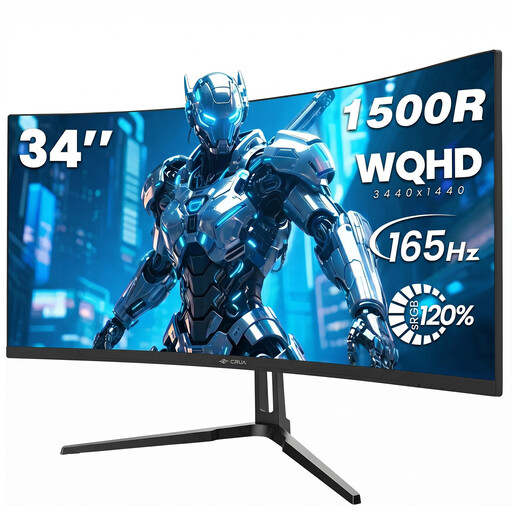
CRUA CR340QA-H 34-inch curved monitor, WQHD
The wide 34-inch format could be a good fit if you want to arrange your timeline and panels side by side.
34 inches; 3440 × 1440 pixels; 21:9; curved display.
View at Joybuy
 No image available
CRUA 49-inch DQHD monitor, 32:9
The 32:9 format is designed to give you plenty of horizontal space for work areas side by side.
49 inches; DQHD at 5120 × 1440 pixels; 32:9; curved display.
View at Joybuy
 No image available
INNOCN E34A1R 34-inch ultrawide monitor, UWQHD
The 34-inch ultrawide format can make it easier to keep track of everything when your timeline and panels are arranged side by side.
34 inches; 3440 × 1440 pixels; 21:9; curved display.
View at Joybuy
 No image available
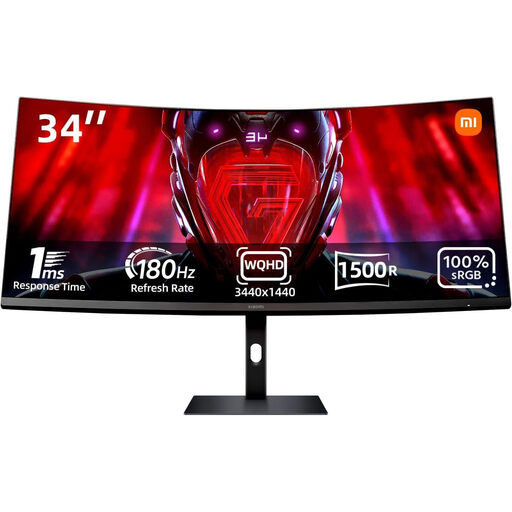
Xiaomi G34WQi 34-inch ultrawide monitor, WQHD
The 34-inch ultrawide format is an option if you want to arrange your work areas side by side across the screen.
34 inches; WQHD; ultrawide format.
View at Joybuy
Frequently asked questions
Can a better monitor help recognise dialects?
No. A monitor displays editing windows and transcripts, but it doesn’t recognise speech itself. Adobe lists German as a supported language for Speech-to-Text, but this doesn’t guarantee a particular level of accuracy with dialects. Check names, dialect words and subtitles against the original audio.
How do I set up multiple interview cameras?
According to Adobe, you can create a multicamera source sequence in Premiere and synchronise clips using suitable audio tracks or timecodes, among other methods. Check that everything is in sync before cutting between angles; your screen choice doesn’t change the synchronisation method.
Is an HDR logo enough for an interview project?
No. An HDR logo alone doesn’t confirm that the monitor offers a review workflow suited to your output. First decide whether you’re exporting in SDR or HDR, then match your sequence settings to it. Adobe describes separate Rec.709 SDR and HDR workflows.
What should I look for when it comes to a monitor’s power consumption?
Compare the energy consumption information on the EU energy label. The European Commission lists electronic displays as a product group with an energy efficiency scale from A to G; check the information for the specific model and operating mode.


