Editing with multiple tracks
If you want to arrange camera angles, your timeline and tools clearly, how you divide up the screen can make all the difference. Adobe describes both multicamera sequences and customisable panels in Premiere.


If you want to see multiple tracks and panels at once while editing, consider an ultrawide monitor. If a 4K preview and assessing image detail are your priorities, a 16:9 4K monitor could be a better fit. Also compare the desk space you have, the connections you need and, for USB-C, the charging power your laptop requires. A wide colour gamut alone is no substitute for a suitable colour-management workflow.
If you want to arrange camera angles, your timeline and tools clearly, how you divide up the screen can make all the difference. Adobe describes both multicamera sequences and customisable panels in Premiere.
If you’re assessing image detail or correcting colour, the resolution and settings should suit your output and colour workflow. Adobe describes Rec. 709 as an SDR working colour space for SDR-to-SDR workflows where most source media is Rec. 709.
If you connect a laptop at your workstation, check the video signal, connections and, where necessary, the power supply you need. For example, the documented USB-C charging power differs between monitors from ASUS, BenQ and LG.
A good fit if: You want to arrange your timeline, preview and panels side by side across a wider screen, and have enough desk space.
The trade-off: The examples listed have 1440 vertical pixels, compared with 2160 on the 4K models; wide monitors also take up more desk space.
A good fit if: You want to assess 4K footage in the preview or prefer to arrange panels one above another.
The trade-off: There’s less room for side-by-side windows than on an ultrawide; at 27 inches, choosing a comfortably readable scaling setting can be important.
A good fit if: You already have a suitable screen and want to display video separately from the interface. Adobe describes this setup for Premiere.
The trade-off: Check the available video outputs, the space you have and how everything will fit on your desk; the software feature alone doesn’t confirm that your computer is compatible.
| Buying priority | What to check | Who is it important to? |
|---|---|---|
| Timeline and camera angles | Aspect ratio, native resolution and your own layout; a wider screen may mean fewer vertical pixels than 4K. | If I want to keep several camera angles, my timeline and tools in view, a clear overview matters to me. Around 36% of consumers say an overview of the timeline and camera angles is their top priority. |
| Preview and colour reproduction | Resolution, a suitable colour mode and settings for your intended output format. | If I want to assess the details and colours in the finished video, I match the resolution and colour workflow to the project. Around 29% of consumers put preview and colour checking first. |
| Laptop connection | Your laptop’s video output and charging requirements, compared with the monitor’s connections and Power Delivery. | If I connect a laptop at my editing workstation, the video signal and, if needed, the power supply must suit my device. Around 21% of consumers prioritise connecting a laptop. |
| Space and adjustability | Width and depth, including the stand, as well as desk mounting and the adjustments you need. | If I’m setting up a monitor on my desk, I want to make sure there’s room for both the screen and its stand. Around 14% of consumers focus mainly on desk space and adjustability. |
One documented ultrawide example offers 3440 × 1440 pixels, which is fewer vertical pixels than the 3840 × 2160 resolution of the 4K models listed.
Choose based on how you actually want to arrange your timeline and preview, not just the screen size.
The documented Power Delivery figures for the models featured range from 60 W to 90 W. A USB-C connection alone doesn’t tell you whether the power output is enough for your laptop.
Compare your laptop’s charging requirements and video output with the specifications for the exact monitor model.
Depending on your laptop, you may still need to use its separate power adapter.
The right colour-management settings depend on your source footage and intended output. Manufacturer specifications alone don’t describe the entire workflow.
First decide on your output format, then check your software settings, monitor mode and, if necessary, calibration.
The ProArt PA348CGV is a documented 34-inch ultrawide example for a spacious editing setup.
The DesignVue PD2705U is a 27-inch 4K example with a documented Rec. 709 mode.
The UltraSharp U3425WE is a 34-inch ultrawide with a hub; the U2723QE is a separate 27-inch 4K model.
The UltraFine Ergo 32UN880-B is a 31.5-inch 4K example with an adjustable clamp stand.
The ColorEdge CS2731 is a 2560 × 1440 model with documented hardware calibration; the CS2740 is a separate 4K model.
The monitors below include wide ultrawide workspaces for timelines and panels, as well as 16:9 models for 4K previews.
 No image available
The 32:9 format could suit you if you want plenty of width for your timeline and panels.
49 inches; 5120 × 1440 pixels; 165 Hz; HDMI 2.1 and DisplayPort 1.4; height-adjustable stand; VESA mounting.
With 1440 vertical pixels, the display has a lower vertical resolution than the 4K examples listed.
 No image available
The 21:9 format could work well if you want to arrange several parts of your editing setup side by side.
34 inches; 3440 × 1440 pixels; UWQHD; 21:9; 200 Hz; height-adjustable.
The resolution provides 1440 vertical pixels, fewer than the 4K examples listed.
 No image available
The 4K format could be right for you if detail in the preview matters more than extra width for side-by-side windows.
27 inches; 4K 160 Hz or FHD 320 Hz; Type-C with 65 W; KVM; height-adjustable stand; tilt and swivel adjustment.
Compared with an ultrawide, the 16:9 format offers less width for side-by-side windows.
 No image available
The 4K format could work well for detailed previews; check that the colour mode suits your SDR workflow.
27 inches; 4K UHD 3840 × 2160 at 160 Hz or FHD at 320 Hz; HDMI 2.1 and DisplayPort 1.4.
Compared with an ultrawide, the 16:9 format offers less width for side-by-side windows.
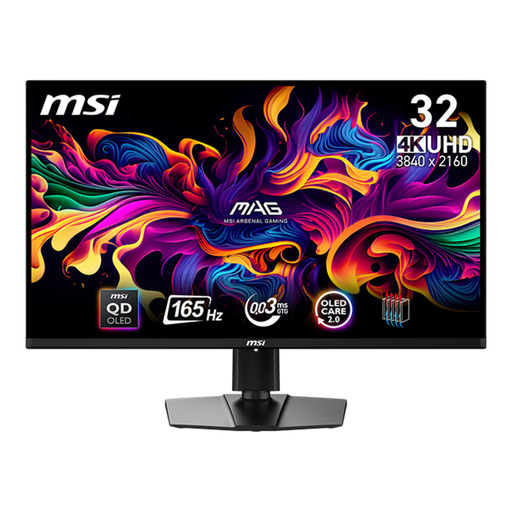 No image available
This 4K monitor could be a good choice if you want to assess image detail in the preview.
31.5 inches; 3840 × 2160 pixels; 4K UHD; QD-OLED.
Compared with an ultrawide, the 16:9 format offers less width for side-by-side windows.
No. Premiere supports multicamera sequences and customisable panels on a single screen. If you want to separate the video from the interface, Adobe also describes using a second monitor.
Match your sequence’s working and output colour spaces to the project. Adobe describes Rec. 709 as a working colour space for SDR-to-SDR workflows where most sources are Rec. 709. Choose a monitor mode to suit, rather than relying on a colour-gamut percentage alone.
Compare your laptop’s video output and charging requirements with the connections and Power Delivery output of the specific monitor. A USB-C connection alone doesn’t confirm that the video signal and power supply will work with your device.