If you often need your timeline, media browser and tools side by side, an ultrawide monitor could be the right choice. For checking 4K details and small on-screen graphics, a 4K monitor is a better fit. Match the colour mode and colour management to your intended output format, and before buying, check that the connections, screen space and, where needed, laptop power supply will work for your editing setup.
Which monitor is right for you?
Editing with multiple tracks
When reviewing long recordings, you’ll want to arrange your timeline, video tracks and control panels clearly. Adobe explains how you can adjust track heights in Premiere Pro; when choosing a monitor, screen format and available space also matter.
Checking images and colour
If you’re checking details, on-screen graphics or making regular colour corrections, consider resolution and suitable colour modes separately. Adobe notes that sequences can use different colour management settings for different output formats.
Editing on a laptop
If you connect a laptop to your editing setup, the video signal, available connections and, where needed, power supply are all important. Manufacturers specify different USB-C and charging capabilities for different models, so check these against your laptop’s requirements.
What should you look for when buying?
First, decide whether your editing setup needs to prioritise arranging multiple windows or displaying detail at the screen’s native resolution. Then work out your output format and connection requirements.
| Criterion |
What to check before buying |
Who is it most relevant to? |
| Space for multiple tracks |
Aspect ratio, native resolution and screen dimensions; arrange the timeline and preview in your software at a comfortably readable scaling setting. |
If I often use my timeline and control panels side by side, the available workspace matters to me. Around 36% of consumers put an overview of multiple tracks first. |
| Colours that match your output |
Decide on SDR or HDR output and the project colour space; check for suitable modes and profiling or calibration options. |
If regular colour correction is important for my film, I want to match the monitor to the actual output format. For around 29% of consumers, colour assessment comes first. |
| Detail in the preview |
Compare the resolution of your footage and output with the monitor’s native resolution; check readability at your preferred scaling setting. |
If I need to assess image details or small on-screen graphics, a suitable native resolution is important to me. Around 21% of consumers prioritise previewing detail. |
| Laptop connection |
Check that your laptop’s video output matches the monitor’s input; factor in charging requirements, cables and the connections you need. |
If my laptop powers my editing setup, the connection needs to support both video output and its power requirements. For around 14% of consumers, these connection requirements come first. |
Which assumptions should you avoid?
-
Assuming ultrawide means a 4K preview
The 34.1-inch model documented by Dell Germany has a resolution of 3440 × 1440 pixels; the 27-inch 4K models considered here have a resolution of 3840 × 2160 pixels. The resolutions differ both horizontally and vertically.
Arrange your timeline and preview to suit the way you actually want to edit, then decide which pixel dimension matters more to your workflow.
-
Assuming wide colour gamut coverage guarantees accurate film colours
Colour assessment also depends on the intended output colour space and your colour management settings. A manufacturer’s coverage claim is no substitute for setting up your project appropriately.
Decide on SDR or HDR and your output colour space before weighing up colour presets or calibration features.
For the EIZO CS2740 workflow described, hardware calibration requires a suitable external sensor.
-
Assuming a monitor’s USB-C port guarantees video and enough charging power
Manufacturers specify different power delivery capabilities for different models. A USB-C port alone doesn’t tell you whether your laptop can output a video signal through it or charge at the required power level.
Check your laptop’s video output, cable and charging requirements against the specifications for the specific monitor.
Monitor brands to consider
Dell
The UltraSharp U3425WE is a documented 34.1-inch ultrawide option for a spacious editing interface.
- Dell lists a resolution of 3440 × 1440 pixels, a 21:9 aspect ratio, a Thunderbolt hub and 90 W power delivery.
- The vertical resolution is 1440 pixels. Check that the screen dimensions and layout work for your desk and preview.
BenQ
The DesignVue PD2705U is a 27-inch 4K option with manufacturer-stated sRGB and Rec. 709 coverage.
- BenQ Germany lists 99% coverage for each colour space and factory calibration for this model.
- These are manufacturer claims, not independent measurements of the monitor you buy. Your own colour management workflow remains essential for controlled colour correction.
ASUS
The ProArt PA279CRV is a 27-inch 4K option with documented colour presets and USB-C.
- The German datasheet lists Rec. 709, sRGB, a resolution of 3840 × 2160 pixels and 96 W USB-C Power Delivery, among other features.
- Check that the relevant preset and your laptop’s actual compatibility suit your workflow.
EIZO
The ColorEdge CS2740 is designed for editing setups where a defined calibration workflow is important.
- EIZO Germany lists 4K resolution, hardware calibration and USB-C with a maximum power delivery of 60 W.
- The calibration described requires a suitable external sensor, such as the separately available EX5; the product specifications come from the manufacturer.
Monitors at Joybuy
These models include spacious ultrawide workspaces and 4K displays for checking detail. Choose a resolution, screen layout and laptop connections that suit your editing setup.
 No image available
CRUA 49-inch DQHD ultrawide monitor
The 32:9 format offers a wide workspace if you want to arrange your timeline and other editing windows side by side.
49 inches; 5120 × 1440 pixels; 165 Hz; 120% sRGB; HDMI 2.1 and DP 1.4; height-adjustable stand.
The resolution is not 3840 × 2160 pixels. Also consider how much space a 49-inch screen will need.
Joybuy
 No image available
INNOCN E34A1R 34-inch ultrawide monitor
The 21:9 display could be a good fit if you want to arrange your timeline and other windows across a wide screen.
3440 × 1440 pixels; 200 Hz; PIP and PBP modes; HDMI and DisplayPort inputs; height-adjustable stand.
If you need a native resolution of 3840 × 2160 pixels, this model has a different resolution.
Joybuy
 No image available
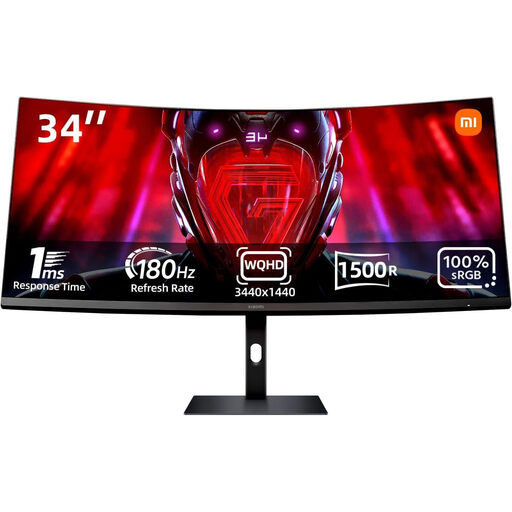
Xiaomi G34WQi 34-inch ultrawide monitor
The 21:9 format and 3440 × 1440 pixel resolution make this an option if arranging multiple editing windows is your priority.
34 inches; 180 Hz; 100% sRGB; HDR 10; HDMI and DisplayPort connections.
This model doesn’t have the resolution needed for native 3840 × 2160 display.
Joybuy
 No image available
CRUA CR320QB 32-inch 4K monitor
The native 4K resolution could be useful for checking image detail if you don’t need to prioritise an especially wide window layout.
32 inches; 3840 × 2160 pixels; HDR10; 100% sRGB; 16:9 format.
The 16:9 format offers less room for multiple editing windows side by side than an ultrawide monitor.
Joybuy
 No image available
INNOCN CB27U1 27-inch 4K monitor
The 4K resolution is an option if you want to check image detail and factor your laptop connection into your choice.
27 inches; 3840 × 2160 pixels; IPS; USB-C with 90 W Power Delivery; PIP and PBP modes; height-adjustable.
USB-C video output and the stated charging power require a compatible laptop. The 16:9 format is less wide than an ultrawide monitor.
Joybuy
Frequently asked questions
Do you automatically need an HDR monitor for a museum film?
No, the key factor is the intended output format. Adobe describes separate colour management settings for SDR and HDR sequences. Decide on your output first, then choose a suitable monitor and project mode.
How can I keep colour consistent across recurring projects?
Match your settings to the output format and, if needed, use a calibration process you can verify. EIZO describes hardware calibration for ColorEdge monitors using ColorNavigator; for the CS2740, you’ll need to factor in a compatible external measurement sensor. This is the manufacturer’s description, not a requirement for every museum film.
Do computer monitors sold in Germany need an energy label?
The European Commission includes ordinary computer monitors within the scope of the rules for electronic displays and their energy labelling. Some specialist displays are exempt or subject to different requirements; this doesn’t establish whether a specific product listing is compliant.


