Designers working on designs and previews
If you want to see your design workspace and browser preview at the same time, check that both windows have enough room on a wide display. Microsoft Support explains how to snap windows in Windows.


An ultrawide monitor can provide a shared workspace for designing and previewing in a browser on one computer; Microsoft Support explains how to snap two windows side by side in Windows. What matters is the usable resolution and the width of each window, not just the screen size. If you need two separate displays or want to switch between two computers, consider multiple monitors or a KVM instead, and check the connections on the specific model.
If you want to see your design workspace and browser preview at the same time, check that both windows have enough room on a wide display. Microsoft Support explains how to snap windows in Windows.
If you assess colours and details, check the specifications for the specific panel and its colour modes. A manufacturer's colour gamut figures alone cannot guarantee colour-accurate previews in your browser.
If you want to connect a laptop or switch between computers, check video output, charging power and, where relevant, KVM separately. Dell, EIZO and other manufacturers document these features for specific models.
A good fit if: You want to see your design and browser preview at the same time on one computer. Dell and BenQ list a resolution of 3,440 × 1,440 pixels for their respective 34-inch models.
The trade-off: Set up both windows in the programmes and browser you actually use; resolution alone doesn't tell you whether each window will be wide enough.
A good fit if: You need extra tool windows open alongside your design and preview, and have room on your desk for a larger monitor.
The trade-off: Compare the dimensions, native resolution and connections of the specific model rather than assuming the screen size alone will give you windows of the right size.
A good fit if: You specifically need two physically separate displays, rather than arranging windows side by side on one screen.
The trade-off: Both displays need to be connected and arranged in your operating system. A KVM switches input devices between computers, but it doesn't replace a second screen.
| What matters | What to check before buying | Who is this especially important to? |
|---|---|---|
| Design and preview side by side | Native resolution, desk space and window widths in your own design programme and browser. | If I use my design and browser preview at the same time, I want both windows to be easy to read in my workspace. Around 36% of consumers put this side-by-side workspace first. |
| Colours and image detail | The colour mode and documented colour specifications for the exact model, as well as how it displays content in your browser. | When I assess the colours and details in my portfolio work, the display on the specific panel matters more to me than extra width. Around 29% of consumers prioritise colour assessment. |
| Laptop and switching between computers | Video output, the charging power you need, cables and inputs; consider KVM only if you genuinely need it for two computers. | If I want to connect a laptop or use two computers, I want to know exactly which functions the monitor provides. Around 21% of consumers put connection or computer-switching needs first. |
| Space and running costs | The dimensions of the casing and stand, adjustment options and the EU energy label for the specific model. | If space is limited or I want to factor in running costs, I check the dimensions and energy information before choosing. Around 14% of consumers prioritise space and ongoing costs. |
Two windows on one computer, two physical displays and switching between two computers are different requirements. An ultrawide can show windows side by side, but it isn't automatically a solution for two separate displays or multiple computers.
Before comparing models, decide whether you mean two windows on one screen, two physical monitors or using multiple computers.
A manufacturer's colour gamut coverage figure alone doesn't tell you how your file will look throughout your workflow and in your browser.
Compare the documented colour modes for the exact model and check the preview in the workflow you plan to use.
Video, data and power are separate functions, and the stated charging power can vary between models.
Check that your laptop's video output and power requirements match the specifications and connections of the specific monitor.
The DesignVue PD3420Q is a 34-inch ultrawide for designers considering documented colour modes and KVM.
The UltraSharp U3425WE is a 34-inch ultrawide with a Thunderbolt hub, designed for workspaces with several connection requirements.
The 34U650A-B is a 34-inch ultrawide for which LG lists resolution and sRGB coverage specifications.
The FlexScan EV3450XC is a 34.1-inch office ultrawide with USB-C docking, KVM and an integrated camera.
The CU34P3CV is a 34-inch ultrawide with a VA panel and USB-C docking.
This selection includes 34-inch ultrawide monitors for arranging work windows side by side, as well as a wider 49-inch model for additional tool windows.
 No image available
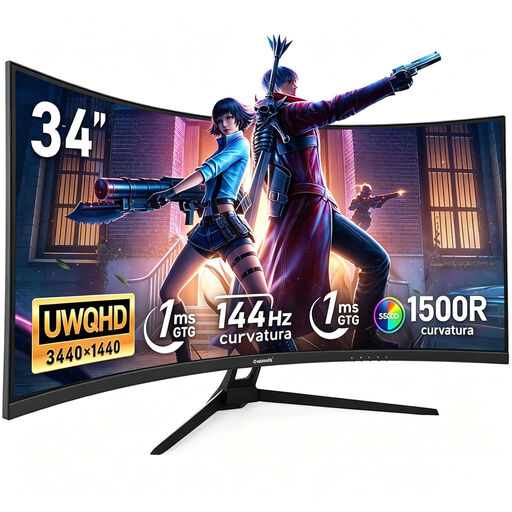
The 34-inch ultrawide format is suited to working on designs and previews in side-by-side windows.
Listed in the product title: 3,440 × 1,440 pixels, 144 Hz, 1500R curvature and a VA panel.
The title lists 100% sRGB; this figure alone doesn't prove that browser previews will be colour-accurate. According to the title, there are no built-in speakers.
 No image available
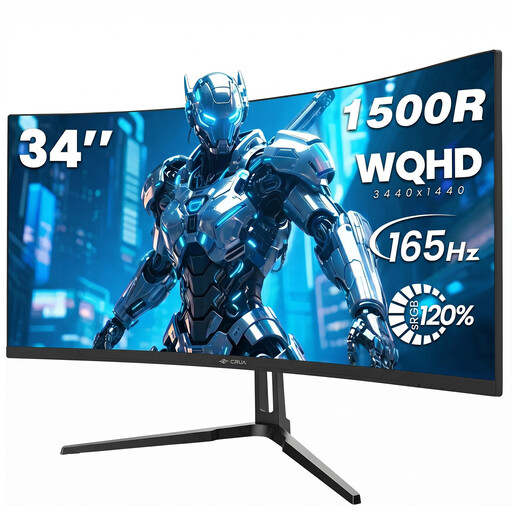
The 34-inch ultrawide format is a good starting point if you want to arrange your design and browser preview on one screen.
Listed in the product title: 3,440 × 1,440 pixels, 165 Hz, 1500R curvature, a VA panel and DisplayPort.
 No image available
The wide resolution is suited to a workspace with your design and preview arranged side by side.
Listed in the product title: 21:9, 3,440 × 1,440 pixels, 165 Hz, 1500R curvature and 1 ms MPRT. The title also lists VESA 75 × 75 mm.
 No image available
The wider format may suit you if you need extra tool windows open all the time; first check that you have enough desk space and that the window layout works for you.
Listed in the product title: 5,120 × 1,440 pixels, 165 Hz, 1500R curvature, a height-adjustable stand, HDMI 2.1 and DisplayPort 1.4.
The title lists 120% sRGB; this manufacturer figure is no substitute for checking your own colour preview. The 49-inch format needs plenty of desk space.
 No image available
The 34-inch ultrawide format is suited to side-by-side work windows; check the usable width with your design programme and browser.
Listed in the product title: 3,440 × 1,440 pixels, 21:9, 200 Hz, a VA panel and 1500R curvature. The title also lists PIP and PBP, as well as a height-adjustable stand.
Not necessarily: as Microsoft Support explains, you can snap two windows side by side on one screen in Windows. If you specifically need two separate displays, you'll need to connect multiple monitors and arrange them in your system.
Only if your computer outputs video through the connection in question and the specific monitor's power delivery is suitable for your laptop. Dell lists up to 90 W for the U3425WE, while AOC lists up to 65 W for the CU34P3CV. The same connector doesn't automatically mean the same functions.
Check the space, position and adjustment options against your actual working environment. The Federal Institute for Occupational Safety and Health explains that ASR A6 covers screen workstations in workplaces and teleworking environments; according to its scope, it doesn't apply universally to every form of private use.
Monitors covered by EU rules carry an energy label showing their efficiency class; compare the information for the specific model. When you buy online as a consumer in Germany, you generally have a 14-day right to cancel, which you must notify the retailer about. The Consumer Advice Centre also distinguishes statutory consumer rights from a voluntary guarantee.