What to look for when buying
First, work out which windows need to be visible at the same time. Then check how the shared computers will connect and how the workspace can be set up.
| Priority |
What to look for when buying |
Who it matters most to |
| Reading receipts side by side |
Check the native resolution and text scaling; allow for the minimum width your windows need. |
If I want to keep accounts and invoices open side by side, I need enough room for both windows while keeping the text easy to read. Around 36% of consumers put viewing documents side by side first. |
| Switching between computers and input devices |
Check the video outputs, USB-C video capability, power requirements and actual USB switching for each device. |
If several people or computers take turns using the space, I want to keep using the same input devices without constantly unplugging and reconnecting them. Around 21% of consumers prioritise easily switching between devices. |
| Adjusting the screen position |
Check the stand adjustments, desk space required and whether you can see the outer windows from the intended position. |
When working with large spreadsheets for long periods, I want to adjust the screen to suit my seating position and the light. Around 29% of consumers prioritise an adjustable setup. |
| Comparing purchase and running costs |
Check the energy label for the specific model and factor in any extra equipment you need; electricity costs also depend on usage and your tariff. |
If I need to keep costs under control, I want to compare features, energy use and service terms separately. Around 14% of consumers put cost control first. |
Joybuy products for this setup
The models below offer ultrawide workspace for viewing documents side by side, as well as options with picture-in-picture or device-switching features. Before buying, check which connections and screen width will work for your shared desk.
 No image available
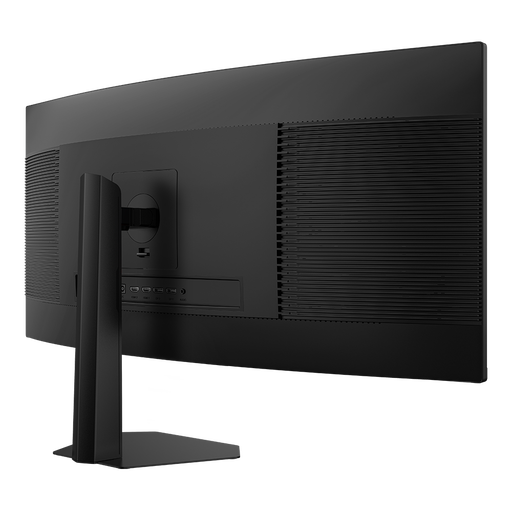
INNOCN E34A1R 34-inch ultrawide monitor
For viewing accounts and invoices side by side, this 34-inch model with a resolution of 3440 × 1440 pixels is a good option if the windows remain easy to read at your chosen scaling level.
- 3440 × 1440 pixels, 21:9
- PIP/PBP and height-adjustable stand
Joybuy
 No image available
INNOCN 40C1U 40-inch ultrawide monitor
If you’re looking for more workspace for multiple documents, this 40-inch model has a listed resolution of 5120 × 2160 pixels. Check that it will fit across your shared desk before buying.
- 5120 × 2160 pixels, 21:9, IPS
- USB-C with 65 W Power Delivery
- PIP/PBP and height-adjustable stand
Joybuy
 No image available
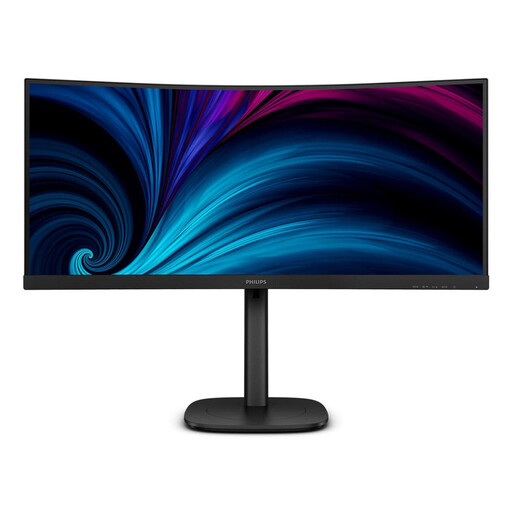
Philips 3000 Series 34B2U3600C/00
This 34-inch model with a resolution of 3440 × 1440 pixels is an option for viewing accounts and invoices side by side. If several computers will share the space, check that the connections and switching features you need are compatible with each device.
- 34 inches, 3440 × 1440 pixels
Joybuy
 No image available
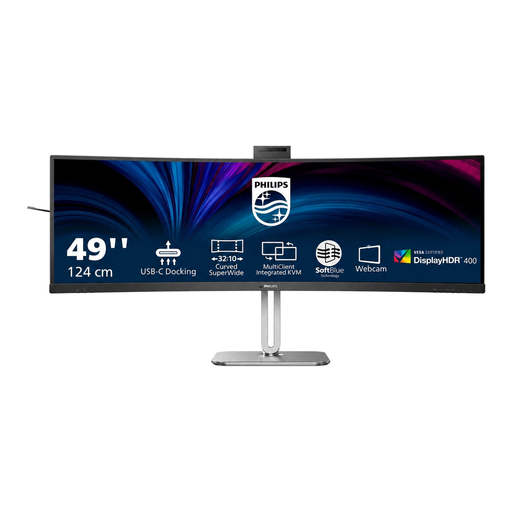
Philips 49B2U6900CH 49-inch monitor
If you want to arrange lots of windows side by side and use two computers with shared peripherals, the listed SmartKVM feature is worth considering. Check that the monitor’s width will fit your shared workspace before buying.
- 5120 × 1440 pixels, 32:9, 49 inches
- 1193 mm wide with stand
Joybuy
 No image available
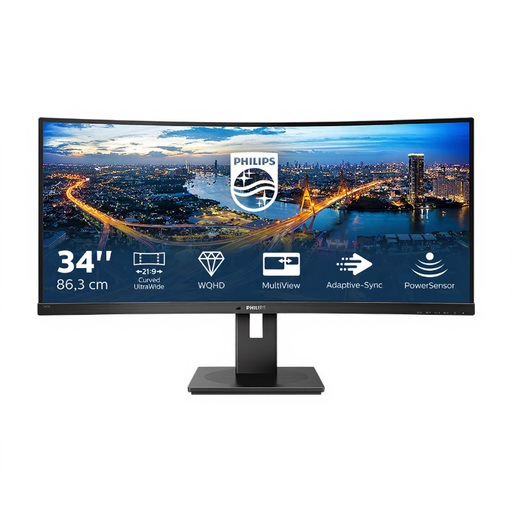
Philips 345B1C 34-inch ultrawide monitor
This 34-inch model with a resolution of 3440 × 1440 pixels is an option for viewing documents side by side; its height-adjustable stand makes it easier to position the screen to suit you.
- 3440 × 1440 pixels, 21:9
- 100 Hz, VA, 1500R
- HDMI, DisplayPort and USB hub
Joybuy
Frequently asked questions
Can a 34-inch monitor with a lower resolution work just as well for accounts and invoices?
The same screen size doesn’t mean the same amount of workspace: Philips lists 2560 × 1080 pixels for the 342B1C/00 and 3440 × 1440 pixels for the 346B1C/01. What matters is how much horizontal and vertical space your applications need at a readable scaling level.
How should I set up the screen at a shared workspace?
Adjust the height and tilt for each person, and check the lighting and reflections at the desk itself. The German Federal Institute for Occupational Safety and Health describes ASR A6 as setting out requirements for screen work in its relevant areas of application; choosing a particular monitor doesn’t, by itself, make a workspace ergonomic.
What should I compare when it comes to running costs and customer service?
Compare the EU energy label for the specific monitor. You’ll also need to know your usage hours and electricity tariff to work out your electricity costs. For a consumer purchase, distinguish your statutory rights against the seller from a voluntary manufacturer’s warranty.
Is there a prescribed ultrawide monitor size for office workstations in Germany?
ASR A6, as described by the German Federal Institute for Occupational Safety and Health, covers requirements for screen workstations but doesn’t set a general ultrawide screen size for this purchase. Whether its rules apply to a particular space depends on how that space is classified; a privately used desk doesn’t become a workplace or a teleworking workstation under the rules simply because it’s shared.
Can I return a monitor bought online if the window layout doesn’t work for me?
According to Germany’s Consumer Advice Centre, distance consumer contracts generally come with a 14-day right to cancel from the date you receive the goods; the information was published by the Consumer Advice Centre on 13 August 2026. Check for possible exceptions and review the specific contract. The right to cancel is separate from a voluntary warranty and from your statutory rights if the product is faulty.


