For regularly checking accounts against invoices, a 34-inch ultrawide with a resolution of 3440 × 1440 pixels is a good starting point. PRAD describes working with several windows side by side as a possible use for a 34-inch office monitor, while Philips specifies this resolution for the 345B1C/00. USB-C docking or displaying two computers only matters if your laptop or working setup supports these features. Also check that your windows fit at your preferred text size and that the monitor will fit on your desk.
Who is an ultrawide monitor for?
Anyone checking invoices across two windows
If you regularly compare account entries with invoice PDFs, what you need most is enough screen space to view windows side by side on one computer. PRAD describes working with several windows as a possible use for 34-inch office monitors; Philips specifies a 21:9 format for the 345B1C/00.
Laptop users who need a dock
If you often connect your work laptop, sending video, data and power over a single USB-C connection may be useful. AOC and Dell document these features for specific models; compatibility and the required charging power depend on your laptop.
People who use two computers
If you switch between two computers or want to view both at the same time, check KVM for shared input devices and Picture-by-Picture for two video sources separately. EIZO documents KVM for the EV3451X; this feature cannot be assumed to be available on other models.
What should you look for when buying?
First, work out how much screen space your windows need at a comfortably readable text size. Then check your connectivity needs, available desk space and which features you’ll actually use.
| What you need |
What to check when buying |
Who will find this most important? |
| Viewing accounts and invoices side by side |
Check the resolution, window widths and scaling with the applications you use. |
If I want to compare spreadsheet rows directly with an invoice, both windows need to fit at a comfortably readable text size. Around 42% of consumers put readability first. |
| Connecting a laptop with fewer cables |
Check that the monitor’s USB-C video output and charging power meet your laptop’s requirements. |
If I regularly plug in and unplug my laptop, I want to know whether the chosen connection can carry video, data and power. Around 25% of consumers prioritise the right laptop connection. |
| Fitting the monitor and setting it up ergonomically |
Check the dimensions of the casing and stand, desk depth and adjustability. |
If my desk is short on space or I need to adjust the screen to suit my seating position, the dimensions and adjustment options matter most. Around 17% of consumers prioritise desk space and ergonomics. |
| Upfront and ongoing costs |
Allow for only the features you need and compare energy use on the EU energy label. |
If I don’t need docking, KVM or a webcam, I don’t want these to become the deciding factor in my purchase. To compare power use, look at displays of a similar size. Around 16% of consumers put cost first. |
Common misconceptions
-
Confusing Picture-by-Picture with arranging regular windows
To view accounts and invoices on one computer, you can arrange the windows side by side using your operating system’s snap feature. Picture-by-Picture is designed to show two video sources at once on models that support it.
Before buying, decide whether you want to display two computers at the same time or simply view two applications from one computer.
-
Assuming USB-C means full laptop docking
For a single-cable setup, both your laptop and monitor need to support the required video mode, and the charging power must be right for your laptop.
Check your laptop’s video mode and power requirements against the specifications for the particular monitor.
If a feature is missing or doesn’t meet your needs, you may still need a separate connection or power supply.
-
Comparing screen size alone
A wide monitor still needs to fit on your desk and be adjustable to suit your seating position. Dimensions and adjustment options vary by model.
Measure the space available on your desk and check how adjustable the specific stand is.
Key brands to consider
Philips
The 345B1C/00 is a documented 34-inch ultrawide with plenty of room for work.
- Philips specifies a resolution of 3440 × 1440 pixels and a 21:9 format for this model.
- USB-C docking on another Philips model does not prove that the 345B1C/00 has this feature.
AOC
The CU34P3CV combines a wide office display with documented USB-C features.
- For this specific model, AOC specifies DisplayPort Alt Mode, data transfer and power delivery of up to 65 W via USB-C.
- Whether the charging power is enough for a particular laptop depends on the device.
Dell
The Dell Pro P3425WE is a documented office option with a USB-C hub and Ethernet.
- For this model, Dell specifies a resolution of 3440 × 1440 pixels, 100 Hz, height adjustment and USB-C power delivery of up to 90 W.
- These specifications do not guarantee that every laptop will be compatible with the monitor or that the charging power will be sufficient.
LG
According to LG, the 34BA75QE-B combines a wide display with USB-C and RJ45.
- For this model, LG specifies a resolution of 3440 × 1440 pixels, USB-C power delivery of up to 90 W and Picture-by-Picture for two computers.
- Picture-by-Picture for two video sources is not the same as viewing two windows from a single computer.
EIZO
The FlexScan EV3451X is designed for workspaces where switching between two computers is important.
- EIZO specifies KVM, up to 94 W Power Delivery and a seven-year warranty for the EV3451X.
- These specifications apply to the EV3451X and cannot be assumed to apply to other models in the range.
Samsung
The ViewFinity S5 S50GC is a documented 34-inch ultrawide that focuses on a wide viewing area.
- For the LS34C500GAUXEN, Samsung specifies Ultra-WQHD and Picture-by-Picture for two sources.
- The specifications listed do not confirm that the monitor has USB-C docking.
Joybuy products
According to their product specifications, the following 34-inch ultrawide monitors provide plenty of room for work windows side by side. Depending on the model, also check the resolution, setup and features for two video sources.
 No image available
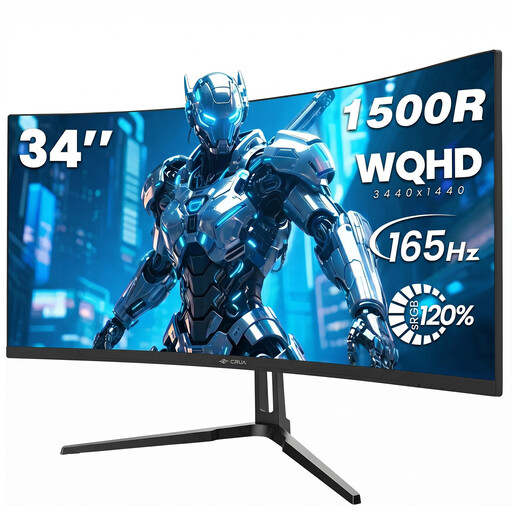
Gawfolk GF340C-H 34-inch curved gaming monitor
The 21:9 format gives you a wide viewing area for placing your accounts overview and invoice window side by side.
3440 × 1440 pixels; 1500R curvature; 165 Hz; 75 × 75 mm VESA mount; tilt-adjustable.
View at Joybuy
 No image available
CRUA CR340QA-H 34-inch curved gaming monitor
The ultrawide format can give you room to view a spreadsheet and an invoice window at the same time.
3440 × 1440 pixels; 21:9; 1500R curvature; 165 Hz; 75 × 75 mm VESA mount.
View at Joybuy
 No image available
INNOCN E34A1R 34-inch curved gaming monitor
If you want to view two video sources at once as well as your accounts and invoices, the product description lists PIP/PBP for this model.
3440 × 1440 pixels; 21:9; 200 Hz; 1500R curvature; height-adjustable.
View at Joybuy
 No image available
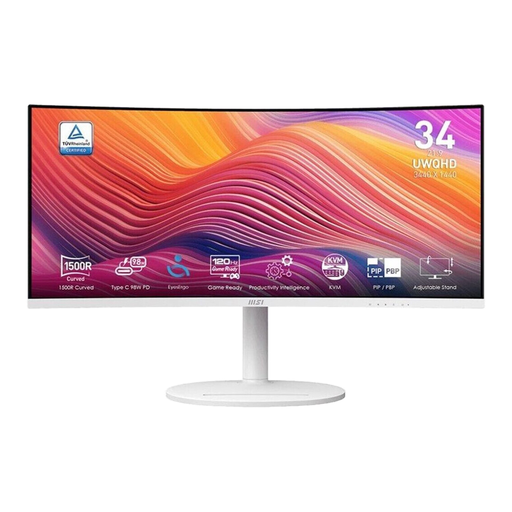
MSI Modern MD342CQPWDE 34-inch office monitor
The product title describes this model as an office monitor; its 21:9 format is useful for arranging work windows side by side.
3440 × 1440 pixels; QLED; matt screen finish; 120 Hz; tilt-adjustable stand.
View at Joybuy
Frequently asked questions
Do I need Picture-by-Picture to view accounts and invoices side by side?
No, if both applications are running on the same supported Windows computer: you can arrange windows side by side using the snap feature. Picture-by-Picture displays two video sources at once on models that support it.
Can I connect my laptop with a single USB-C cable?
This only works if your laptop, connection and monitor support the required video output and provide enough power. AOC specifies DisplayPort Alt Mode and up to 65 W for the CU34P3CV; Dell lists up to 90 W for the P3425WE. Compare these specifications with your laptop’s requirements.
How do I set up two work windows, and what should I check afterwards?
On supported versions of Windows, you can snap windows to the left and right sides of the screen or use snap layouts; Microsoft describes both options. Then check with an actual invoice and accounts view that both windows fit at a scaling level you find easy to read.
How can I compare the power consumption of ultrawide monitors?
For displays of a similar size, compare the energy consumption shown on the EU energy label in kWh/1000 h. To estimate your own costs, you’ll also need your hours of use and electricity rate.


