Frames and timeline side by side
If you organise lots of frames or tracks and want to keep your tools visible at the same time, usable screen width and enough space for your canvas are key things to consider.


A 21:9 monitor with a resolution of 3440 × 1440 pixels is a sensible starting point for frames, timelines and tool windows, provided there’s enough usable screen height for your canvas. If you need more vertical space, consider a higher-resolution ultrawide; if you want several windows side by side all the time, a 49-inch format could be a good fit. Desk space, positioning when sitting and standing, and your computer’s connections are also important.
If you organise lots of frames or tracks and want to keep your tools visible at the same time, usable screen width and enough space for your canvas are key things to consider.
For a defined output workflow, check the colour space, documented factory settings and options for profiling. Manufacturer specifications are no substitute for independent colour measurements.
If you switch between sitting and standing, your screen position and desk space need to work at both desk heights. The Federal Institute for Occupational Safety and Health recommends adjusting the display to your individual eyesight and body measurements.
| Buying priority | What to check | Who it matters to |
|---|---|---|
| Space for frames, timeline and canvas | Check the aspect ratio, native resolution and software layout at your preferred scaling. | If I want to see frames and the timeline side by side without losing sight of the space available for my canvas, the right layout matters to me. Around 31% of consumers put this workspace requirement first. |
| Colour for your output workflow | Match the project colour space, colour gamut coverage and calibration or profiling process to the specific model. | When assessing colour for a defined output target, I want suitable colour spaces and display settings I can verify. Around 25% of consumers prioritise their colour workflow. |
| Positioning at a sit-stand desk | Check the stand’s footprint and adjustment options; set up the screen position for both sitting and standing. | If I work at an adjustable-height desk, the monitor needs to suit my workspace in both positions. Around 25% of consumers pay particular attention to how well their setup works for sitting and standing. |
| Connecting to your work computer | Check the video output, ports, power delivery required and any docking features. | If my workflow depends on a particular video signal or charging my laptop, the monitor and computer need to support the same features. Around 19% of consumers put computer connectivity first. |
Screen size alone won’t tell you whether the monitor, stand and input devices will fit on your desk, or whether you can position the screen comfortably at your working height.
Measure the available desk space, including room for your input devices, and check the adjustment options on the specific model.
An unsuitable stand can take up valuable space; you may need a compatible mount.
A USB-C port alone doesn’t tell you which video, data and charging features your monitor, computer and cable support together.
Check the computer connection, desired resolution, data features and charging requirements separately.
If the video output or charging power isn’t compatible with your computer, you may need additional connectivity equipment.
Colour gamut and calibration specifications apply to the specific model and stated settings. They don’t automatically prove that those settings will suit every workflow you use later.
Choose a colour mode to suit your output target and plan to check the display settings for your work.
The DesignVue PD3420Q is a 34-inch option for creatives looking for a 21:9 screen with documented colour modes.
The ProArt PA34VCNV is a 34.1-inch option for colour-focused workflows, with USB-C connectivity.
The UltraSharp U3425WE combines a 34.1-inch ultrawide format with a Thunderbolt hub.
The CU34P3CV is a 34-inch office monitor with a curved VA panel and USB-C connectivity.
The UltraWide range includes different screen widths and resolutions; features vary by model.
These Joybuy models include 34-inch 21:9 displays for timelines and work windows, a higher-resolution ultrawide and a 49-inch option for wide, side-by-side views.
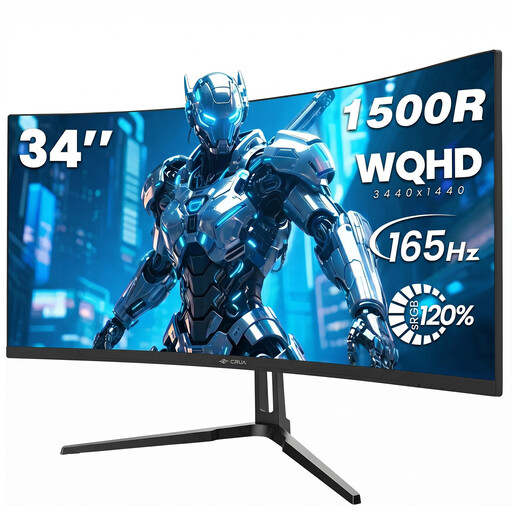 No image available
Could suit a 21:9 layout for timelines and work windows, if 3440 × 1440 pixels gives you enough room for your canvas.
3440 × 1440; 21:9; 1500R curvature; 165 Hz; 1 ms MPRT; VESA 75 × 75 mm.
 No image available
Could be a good fit if you want to view several wide windows side by side and have enough desk space and viewing distance for its large format.
5120 × 1440; 32:9; 165 Hz; height-adjustable stand; VESA 75 × 75 mm; HDMI 2.1 and DisplayPort 1.4.
The 32:9 format prioritises width and doesn’t automatically offer more screen height than a 21:9 display.
 No image available
Could suit a 21:9 workspace with frames and windows side by side; check that the screen height is enough for your canvas.
3440 × 1440; 21:9; VA; 200 Hz; 1500R curvature; height-adjustable; picture-in-picture and picture-by-picture.
 No image available
The 5120 × 2160 resolution offers more vertical pixels than the 1440-pixel options listed here; check that your computer and software support the display you want.
5120 × 2160; 21:9; IPS; 100 Hz; height-adjustable; USB-C with 65 W Power Delivery.
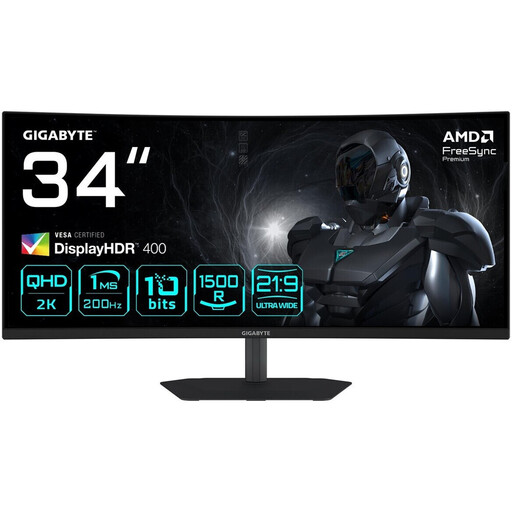 No image available
Could suit a 21:9 layout for frames and timelines, if 3440 × 1440 pixels is enough for the way you work.
3440 × 1440; 21:9; 1500R curvature; 200 Hz; HDMI 2.0 and DisplayPort 1.4.
With a compatible computer output, this resolution gives you room for a wide timeline and additional windows. Whether the 1440 pixels of screen height are enough for your canvas depends on your software layout and scaling; check both with your project.
Check the screen position at both desk heights and adjust it to your body measurements and, if applicable, your computer glasses. The Federal Institute for Occupational Safety and Health describes alternating between sitting and standing as sit-stand movement; an adjustable-height desk doesn’t remove the need to set up your monitor to suit you.
Only if the computer, monitor and connection you’re using support all the features you need. For the CU34P3CV, AOC lists DisplayPort Alternate Mode and up to 65 W power delivery; compare this with your laptop’s video output and charging requirements.
For display screen workstations in workplaces, ASR A6 sets out requirements under the Workplace Ordinance; whether these apply to relevant home-working workstations depends on the circumstances. This doesn’t mean there’s a general product requirement for every desk used at home.