If you want to arrange frames, the timeline, preview and panels side by side, start by comparing the native resolution with your usual software layout. According to their respective manufacturers, several 34-inch models offer 3,440 × 1,440 pixels. For colour-critical decisions, the right colour mode and a suitable colour workflow are essential. At a shared workstation, you’ll also need to consider desk space, adjustability and the connections required by all the computers in use.
Who these monitors are for
Organising frames and timelines
If you want to keep animation frames, the timeline, preview and panels in view at the same time, check that your specific software layout remains easy to read at your preferred display size. Adobe explains how to arrange and customise workspaces and panels in After Effects, and how to organise content across layers and frames in Animate.
Assessing colours for an output format
If your work also involves colour-critical assessment, documented colour modes and a suitable colour workflow are important. Information about colour spaces and calibration varies by model and comes from the respective manufacturers.
Setting up a shared desk
If several people or computers use the same workstation, consider desk space, adjustability and positioning as well as the connections. The German Federal Institute for Occupational Safety and Health covers requirements for working with screens in ASR A6.
What to consider when buying
Start by checking how clearly you can see your animation layout. If colour work or switching between computers is also part of your day, then check that your colour workflow and the connections at the shared workstation are suitable.
| Buying criterion |
What to look for |
Who it matters most to |
| Clear animation layout |
Check the native resolution and scaling with your usual window arrangement; several 34-inch models offer 3,440 × 1,440 pixels. |
If I want to use frames, the timeline and preview at the same time, they need to remain easy to read at my preferred size. Around 33% of consumers put the arrangement of these work windows first. |
| Colour control |
Decide on your output format, then compare the colour mode and calibration information for the specific model. |
If I need to assess colours for a particular output format, I need suitable modes and a well-matched workflow. Around 27% of consumers prioritise colour control for their output format. |
| Ergonomics and desk space |
Measure the width and depth, including the stand, and check the adjustment options and positioning in relation to windows and lights. |
If several people share the desk, I want to position the screen to suit me without the stand or reflections getting in the way. Around 20% of consumers prioritise a workstation that can be set up to suit their needs. |
| Connections for different computers |
Check the video output, required charging power, cables and any switching features for each computer against the exact monitor model. |
If I switch between computers, I want to know that the display and power connections work with every device I use. Around 20% of consumers prioritise connections that suit the computers they switch between. |
Avoiding common buying mistakes
-
Comparing screen size alone
A large or wide screen doesn’t necessarily mean there’s enough room for the timeline, preview and panels at your preferred text and preview size.
Check the native resolution alongside your typical software layout and preferred scaling.
-
Confusing colour gamut coverage with colour approval
Manufacturer figures for sRGB, Rec.709 or DCI-P3 describe specific device characteristics. They don’t automatically confirm that the entire colour workflow is right for your output format.
Decide on your output format, then check the modes and calibration information for the specific model.
-
Planning to use USB-C without checking your devices
A USB-C port on its own doesn’t tell you whether every laptop can output a picture or charge at the required power. At a shared workstation, you may need a different connection or an additional power supply.
Before buying, check the connections, video output for each computer and the charging power required.
-
Overlooking the stand and lighting at a shared desk
The stand and screen take up space, while reflections in the wrong place can make a shared workstation less comfortable to use.
Measure the available space, including the stand, and plan an adjustable setup without distracting reflections from windows or lights.
Relevant brands at a glance
BenQ
The DesignVue PD3420Q is a flat 34-inch example for arranging frames, with documented colour modes and switching features.
- BenQ Germany lists 3,440 × 1,440 pixels, 100% Rec.709, 100% sRGB and 98% DCI-P3. The model is also listed with a factory calibration report and KVM.
- The model is listed with a 60 Hz refresh rate and 65 W USB-C Power Delivery. Colour figures are manufacturer specifications and don’t replace checking that the monitor suits your colour workflow.
ASUS
The ProArt PA348CGV is a flat ultrawide example for creative work, with documented colour modes and an ergonomic stand.
- ASUS Germany lists 3,440 × 1,440 pixels, 98% DCI-P3, up to 120 Hz through compatible inputs and 90 W USB-C Power Delivery.
- Check the dimensions, including the stand, against your desk. The colour accuracy figure is a manufacturer specification, not a test carried out at your workstation.
Dell
The curved UltraSharp U3425WE is an ultrawide option for extra workspace and laptop connectivity.
- Dell Germany lists 3,440 × 1,440 pixels at 120 Hz, IPS Black technology and 90 W power delivery.
- The connection details don’t automatically confirm compatibility with every office computer. Check the connection for each device you use.
LG
The UltraWide 34U650A-B is a 34-inch example with a wide workspace and an IPS panel.
- LG Germany lists 3,440 × 1,440 pixels, 100 Hz and typical sRGB colour gamut coverage of 99%.
- The sRGB figure alone doesn’t confirm that the monitor has been assessed for your entire colour workflow. Check the features against your connection requirements.
Philips
The B-Line 346B1C/00 is a curved 34-inch ultrawide example for office windows and USB-C connectivity.
- Philips lists 3,440 × 1,440 pixels, USB-C and an ergonomically designed stand.
- Manufacturer claims about viewing comfort aren’t an independent measure of effectiveness at your specific workstation.
Joybuy product selection
The following Joybuy products include ultrawide monitors with different screen sizes, resolutions and features for arranging multiple work windows.
 No image available
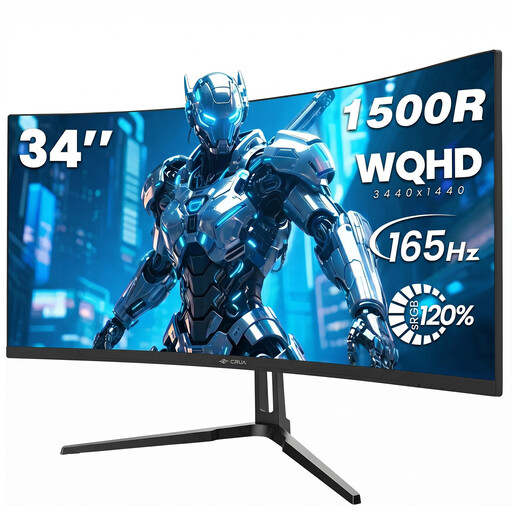
CRUA CR340QA-H 34-inch curved monitor
The wide 21:9 screen may suit you if you want to arrange several animation windows side by side.
34 inches; 3,440 × 1,440 pixels; 1500R; 165 Hz; VESA compatible with 75 × 75 mm.
View at Joybuy
 No image available
INNOCN E34A1R 34-inch curved monitor
The 21:9 resolution could provide a useful basis for arranging animation windows side by side.
34 inches; 3,440 × 1,440 pixels; VA panel; 200 Hz; PIP/PBP; height adjustable.
View at Joybuy
 No image available
INNOCN 40C1U 40-inch ultrawide monitor
The listed resolution and screen size may suit a multi-window layout; check the space available on your shared desk.
40 inches; 5,120 × 2,160 pixels; IPS panel; 100 Hz; USB-C with 65 W Power Delivery; PIP/PBP; height adjustable.
View at Joybuy
 No image available
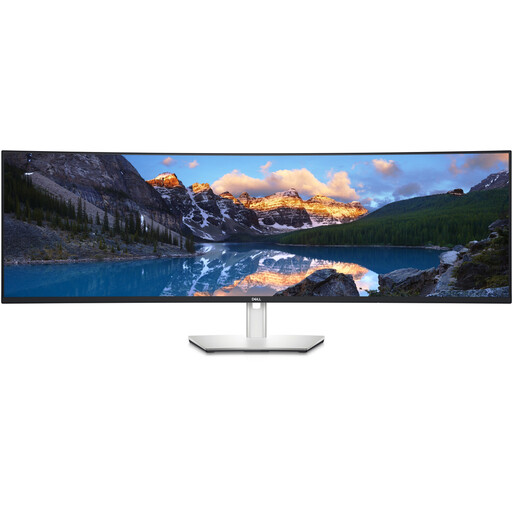
Dell UltraSharp U4924DW 49-inch monitor
The large screen may suit a layout with several work windows side by side; check the dimensions against your shared desk.
49 inches; 5,120 × 1,440 pixels; 60 Hz; USB-C; 2 × HDMI; DisplayPort.
View at Joybuy
 No image available
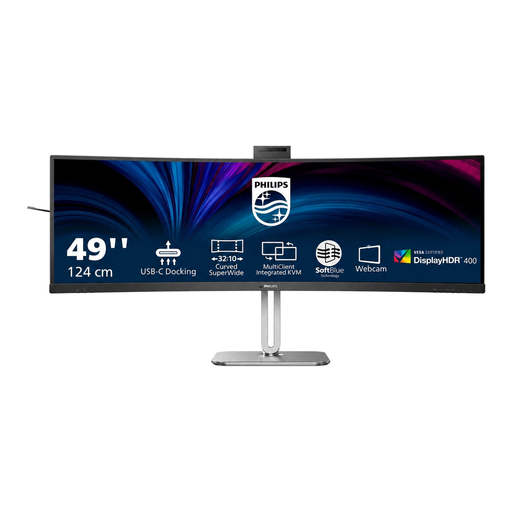
Philips 49B2U6900CH 49-inch monitor
The listed resolution gives you a wide workspace for several windows; consider the desk space available and how you want to arrange the screen.
49 inches; 5,120 × 1,440 pixels; 75 Hz; VA panel; 2 × HDMI; DisplayPort; 2 × USB-C.
View at Joybuy
Frequently asked questions
What resolution should I compare for frames, the timeline and preview?
Compare the native resolution with your actual window layout; several documented 34-inch models offer 3,440 × 1,440 pixels. The best way to check whether the preview and frames remain easy to read at your preferred size is to try your software layout.
Can I use any laptop at a shared workstation with a single USB-C cable?
You can’t tell from the monitor’s USB-C port alone. Check the video output on each laptop and the charging power required against the specifications for the exact model. BenQ lists 65 W for the PD3420Q, while ASUS lists 90 W for the PA348CGV.
What should I consider when setting up in a shared office?
Check the desk space, viewing position, adjustability and potential reflections from windows or lights. The German Federal Institute for Occupational Safety and Health’s ASR A6 covers requirements for screen-based workstations within its scope. Buying a monitor alone doesn’t take care of setting up and assessing the workplace.
How can I compare the energy costs of different monitors?
Compare the EU energy label figures for SDR and, where applicable, HDR on a like-for-like usage basis. The European Commission explains that the label also shows resolution and screen size. Without knowing how long you’ll use the monitor and your electricity tariff, it won’t give you an individual cost in euros.
What rights apply when buying online privately in Germany?
According to the consumer advice centre, consumers generally have a right to cancel online contracts, usually within 14 days of receiving the goods; exceptions and the specific contract should be taken into account. Your statutory rights against the seller are separate from any voluntary guarantee. The consumer right to cancel does not necessarily apply when a business makes the purchase.


