For a calendar that lets you see appointments and references at the same time, check the resolution, desk space and your computer’s video output. If you’re creating graphics where colour accuracy matters, look for documented colour specifications, but remember that manufacturer claims are no substitute for measurements of the individual monitor. If desk space or your budget is limited, a model with fewer extra features may be a better fit than one with a built-in hub.
Who is an ultrawide monitor suitable for?
Calendar designers who work with multiple windows
If you want to edit a design while keeping appointments or references in view, a 21:9 model with a resolution of 3440 × 1440 pixels may be worth considering. Dell lists this resolution for the P3425WE, as does LG for the 34BA85QE-B.
Designers who care about colour
If you also create calendar graphics, check the stated colour gamut coverage for the specific model before buying. A manufacturer’s claim doesn’t automatically tell you how colour-accurate an individual monitor is.
Students with a small desk
If desk space is limited, consider the screen area, stand and connectivity together. A USB-C hub can help reduce cable clutter, provided the monitor and laptop are compatible.
What should you look for when buying?
Start by comparing the usable workspace and how the monitor will fit on your desk. Then consider colour requirements, overall costs and how it connects to your laptop.
| Consideration |
What to check before buying |
Who will care about this? |
| Workspace and readable calendar text |
Check the native resolution and aspect ratio; the example models listed here offer 3440 × 1440 pixels. |
If I want to see my calendar, appointments and references at the same time, I need room to work without making text hard to read; around 26% of consumers put this workspace first. |
| Colour reproduction for graphics |
Check the stated colour gamut and remember that this is a manufacturer claim; a percentage alone doesn’t prove colour accuracy. |
If I design calendar graphics, I want to understand the colour specifications; around 21% of consumers prioritise judging calendar colours. |
| Desk space and positioning |
Compare the dimensions of the screen and stand with your desk; don’t assume the monitor has height adjustment. |
When space is limited, I need to know whether the monitor and stand will fit on my desk; around 21% of consumers put how it fits on their desk first. |
| Overall cost |
Factor in any cables, adaptors or additional mounting solutions you need, as well as the features included with the specific model. |
If I need to stick to a tight budget, I only want to pay for the features and accessories I need; around 16% of consumers focus primarily on overall cost. |
| Laptop connectivity and cables |
Check your laptop’s video output, the power it needs and the ports on the exact monitor model. |
If I connect my laptop regularly, I want to know whether the intended connection will carry both the picture and power; around 16% of consumers prioritise straightforward laptop connectivity. |
Common buying misconceptions
-
A 34-inch screen automatically gives you enough room for readable text
Screen size alone doesn’t tell you the number of pixels. The examples described here have a stated resolution of 3440 × 1440 pixels.
Consider the resolution and your planned scaling alongside the screen size, so text and controls are displayed at a size that works for you.
-
Any USB-C port turns a monitor into a complete laptop dock
A stated charging wattage doesn’t tell you whether your laptop can also output video through the port, or whether that wattage will be enough for it.
Before buying, compare your laptop’s specifications with the ports and charging power of the specific monitor.
Depending on your laptop, you may also need a charger, video cable or adaptor.
-
An advertised sRGB coverage figure proves the monitor’s colour accuracy
LG lists typical sRGB coverage of 99% for the 34BA85QE-B. This manufacturer figure isn’t a measurement of the colour accuracy of an individual unit.
If you need to assess colours accurately, plan for suitable independent measurements or calibrate the monitor yourself.
-
Every model comes with the cables and setup you need
What’s included in the box and the type of stand vary by model. LG notes that the 34WR50QK-B doesn’t come with a DisplayPort cable.
Check the details for the exact model you’re choosing, including which cables are included and whether its stand or desk setup will suit your space.
You may need a separate DisplayPort cable for the LG 34WR50QK-B if you want to use this connection.
Key brands at a glance
Dell
The P3425WE is a 34-inch IPS model with a USB-C hub and RJ45, designed for workspaces where you connect a laptop.
- Dell lists a resolution of 3440 × 1440 pixels, height adjustment and up to 90 W power delivery over USB-C for the P3425WE.
- Whether video output and charging power are suitable depends on your particular laptop.
LG
The 34BA85QE-B and 34WR50QK-B offer different features: an IPS model with a webcam and USB-C, and a VA model with a simpler selection of connections.
- LG lists typical sRGB coverage of 99% and 90 W over USB-C for the 34BA85QE-B. The stand on the 34WR50QK-B is tilt-adjustable.
- LG states that a DisplayPort cable isn’t included with the 34WR50QK-B. Specifications apply only to the model named.
Philips
The 34B2U3600C/00 is a 34-inch VA model with a resolution of 3440 × 1440 pixels, aimed at users who want to connect multiple sources.
- Philips lists Smart KVM and USB-C-to-RJ45 connectivity.
- Its suitability for demanding graphics applications is a manufacturer claim, not a confirmed test result for colour accuracy.
AOC
The CU34V5C/BK is a 34-inch VA option with USB-C and MultiView.
- AOC lists 65 W Power Delivery and a stand that can be adjusted for tilt and height.
- Check that the charging power is suitable for your laptop and that you have enough room for this specific model.
Samsung
The ViewFinity S65UC LS34C652UAUXEN is a strongly curved 34-inch model in a 21:9 format.
- Samsung lists 1000R curvature, USB-C and 100 Hz.
- The advertised reduction in eye strain shouldn’t be taken as an independently confirmed effect. Check whether the pronounced curve suits your viewing distance.
Joybuy products for a wider workspace
These models offer a wide screen for designing calendars and viewing references. Compare their resolution, setup and connections with your desk and computer.
 No image available
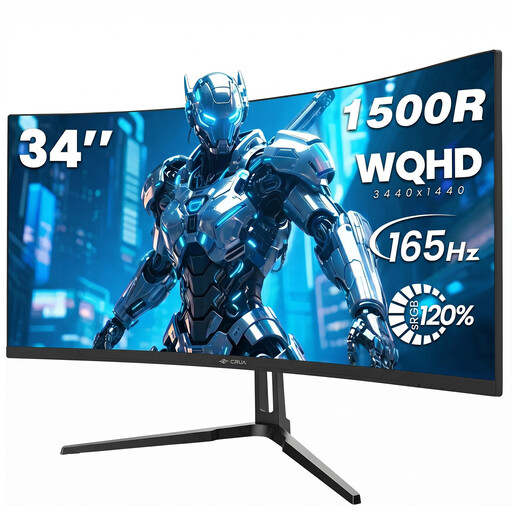
CRUA CR340QA-H 34-inch ultrawide monitor
The wide screen may come in handy when designing a calendar alongside reference material.
34 inches, 21:9, 3440 × 1440 pixels and 1500R curvature.
View at Joybuy
 No image available
INNOCN E34A1R 34-inch curved monitor
The stated screen area and option to display two sources side by side may be useful when working with a calendar and reference material.
3440 × 1440 pixels, 21:9, 1500R, plus PIP and PBP. The product title also specifies a height-adjustable stand.
View at Joybuy
 No image available
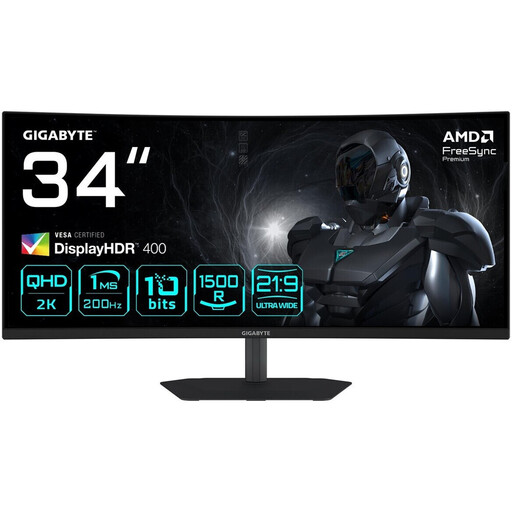
Gigabyte G34WQC2 34-inch curved monitor
The 21:9 format and stated resolution make this a relevant option for a wide workspace where you can keep several things in view.
3440 × 1440 pixels and 1500R curvature.
View at Joybuy
 No image available
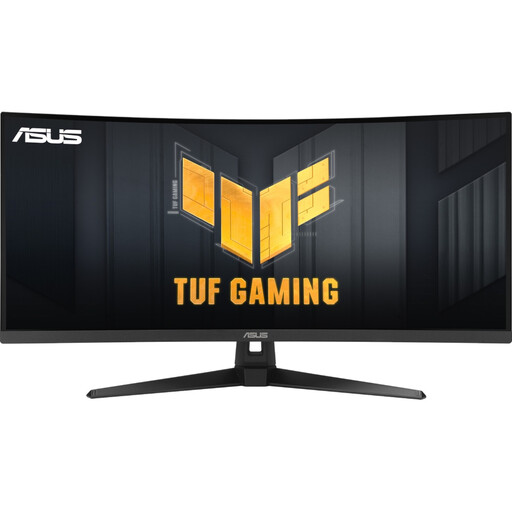
ASUS TUF Gaming VG34VQ3B 34-inch monitor
The stated resolution and 21:9 format are worth considering when planning a wider workspace.
3440 × 1440 pixels, VA panel, plus DisplayPort, HDMI and USB.
View at Joybuy
 No image available
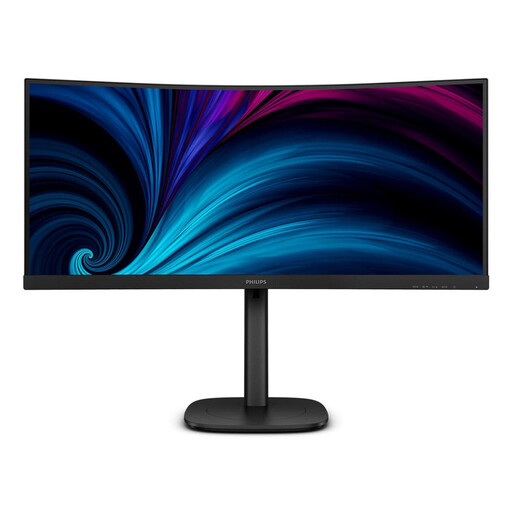
Philips 3000 Series 34B2U3600C/00
The 34-inch screen and stated resolution may suit designing a calendar with reference material alongside it.
3440 × 1440 pixels, 34 inches and LCD.
View at Joybuy
Frequently asked questions
How should I set up a monitor in a student room?
Measure your desk and the monitor stand, then check the adjustment options on the specific model. The ASR A6 from the Federal Institute for Occupational Safety and Health covers ergonomic display-screen workstations in an employment context; it isn’t a directly applicable setup requirement for a student room used privately.
Is one USB-C cable enough for video and charging?
Only if both your laptop and monitor support the necessary functions, and the stated power delivery is sufficient. Dell lists up to 90 W over USB-C for the P3425WE; check your laptop’s video output and power requirements separately.
How can I compare the power consumption of different monitors?
Compare the kWh/1000 h figure on the EU energy labels for the specific models, and factor in how long you use the monitor and your electricity tariff. Without these personal details, it isn’t possible to work out a suitable cost in euros.
What are my rights when buying online in Germany?
Consumers who buy online generally have a 14-day right of withdrawal; the Verbraucherzentrale (German consumer advice centre) cites the conclusion of the contract or receipt of the goods as the relevant reference points. If goods are faulty, statutory rights against the seller should be distinguished from a voluntary manufacturer’s warranty.
Does a computer monitor sold in Germany need an EU energy label?
Computer monitors are generally covered by EU energy-labelling rules for electronic displays. The European Commission lists requirements including energy labels and model information; this doesn’t mean there is a particular minimum efficiency class for designing your calendar.


