Comparing colours by a window
If you’re checking versions side by side and the daylight changes as you work, reflections in the monitor’s actual position and a colour mode suited to your output destination are key.


If you want to compare two colour edits by a bright window, start by considering the exact position of your monitor and a colour workflow suited to your output destination – rather than focusing on a single peak brightness or colour gamut figure. A creative-focused ultrawide model may be better suited to this kind of comparison, while a docking model could be more convenient if you regularly switch between laptops. However, an anti-glare specification or docking information doesn’t prove that a monitor will be glare-free or colour-accurate in your workspace.
If you’re checking versions side by side and the daylight changes as you work, reflections in the monitor’s actual position and a colour mode suited to your output destination are key.
If you want to view references and edits side by side, consider the native resolution, screen width and space required for the stand together.
If you regularly switch between working on your laptop and at a desk, the video connection and USB-C charging power need to be compatible with your laptop.
| Buying consideration | What to check | Who should pay particular attention? |
|---|---|---|
| Reflections and light from windows | Consider the surface finish, monitor position and whether you can control the amount of incoming light. | If changing daylight affects what you see on screen, you’ll want to check reflections in your actual workspace and be able to control the light coming in. This is the top consideration for around 36% of consumers. |
| Colour mode and colour workflow | Decide on your output destination, then plan for suitable colour modes and checks on your own system. | For digital or other output destinations, you’ll want to choose a suitable colour mode and, if needed, check it on your specific device. Colour workflow is the priority for around 29% of consumers. |
| Space for views and tools | Test your preferred window layout at the native resolution, and check that the monitor and stand fit on your desk. | If you want references and edits to be clearly visible at the same time, you’ll need enough usable screen space and room for the stand. Desk space is the main consideration for around 21% of consumers. |
| Laptop connection and docking | Check your laptop’s video output, cable and required charging power against the specific monitor. | If you regularly connect a laptop, the video signal and charging power need to work with your device and cable. This connection requirement comes first for around 14% of consumers. |
ASUS lists typical brightness of 350 cd/m² and HDR peak brightness of 400 cd/m² for the PA348CGV. These figures refer to different specifications and don’t measure reflections at your window-side desk.
Only compare brightness figures measured on the same basis, and assess your monitor position separately.
Colour gamut modes, profiling and calibration serve different purposes. What matters is whether the colour workflow suits your output destination.
First decide whether you’re working for digital sRGB or P3 output, or for print. Then check that your monitor and colour workflow are suitable.
For colour-critical work, you may also need a measuring device and time for checking or calibration.
USB-C power, resolution and colour modes are independent product features. A connection alone doesn’t tell you whether the colour workflow is suitable or reflections by the window will be a problem.
Check laptop compatibility, your actual window layout and colour mode separately.
If the video connection or charging power isn’t suitable, you may need additional accessories.
The DesignVue PD3420Q is a flat 34-inch ultrawide model with published specifications for colour comparison.
The ProArt PA348CGV is a 34-inch model designed for creative workflows.
The Pro P3425WE is designed for USB-C docking; check the UltraSharp U3425WE as a separate model.
The 34BA85QE-B business monitor combines a wide workspace with laptop connectivity.
The FlexScan EV3450XC is an office ultrawide; FlexScan and ColorEdge are separate product ranges.
These Joybuy products offer different ultrawide layouts. Check the resolution, stated colour figures and connections against your workspace; product specifications don’t replace checking reflections and your colour workflow in your own setup.
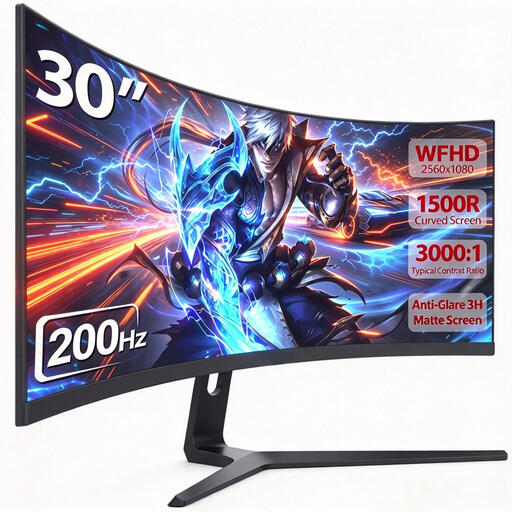 No image available
For a wide layout with two views; check the native resolution against your tool palettes.
21:9 format, 2560 × 1080 pixels, 200 Hz, 1500R and VA panel.
 No image available
For two wide views side by side; check that the layout works with your tools at the native resolution.
32:9 format, 5120 × 1440 pixels, 165 Hz, 1500R and 120% sRGB according to the product specification. This figure doesn’t prove the colour accuracy of the individual monitor.
 No image available
For a wide workspace; check that the resolution is sufficient for your comparison views and tools.
21:9 format, 3440 × 1440 pixels, VA panel, 200 Hz and 1500R. PIP and PBP are listed in the product name; check that the source views you want suit your workflow.
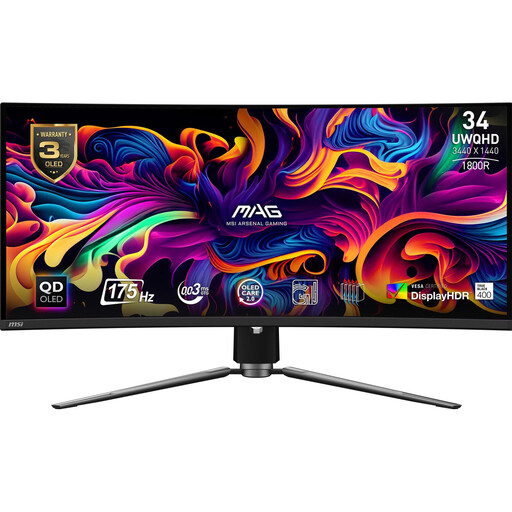 No image available
For a curved ultrawide layout; check the colour workflow and lighting conditions in your setup separately.
QD-OLED, 34 inches, UWQHD, 21:9 and 175 Hz according to the product name.
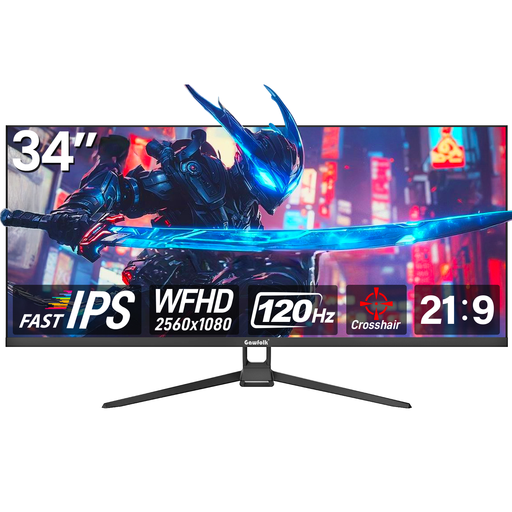 No image available
For two views in a wide layout; check the native resolution against your tools.
21:9 format, 2560 × 1080 pixels, 120 Hz and Fast IPS. The product name lists 128% sRGB; this doesn’t prove the colour accuracy of the individual monitor.
No. The surface specification alone can’t tell you whether it will work in your space. Check the monitor’s position and whether you can control the daylight coming in. The German Federal Institute for Occupational Safety and Health stresses that daylight in workspaces must be adjustable to suit the task.
If reliable colours matter to you, check the colour workflow on your specific system. EIZO distinguishes profiling – measuring a device to create a profile – from calibration. A factory calibration report doesn’t automatically describe the lighting conditions you’ll be working in.
Only if your laptop, connection and the monitor’s charging power are compatible. BenQ lists 65 W with DisplayPort Alt Mode for the PD3420Q, while Dell lists up to 90 W for the P3425WE. Check these figures against your laptop’s requirements.
No. A colour gamut figure alone doesn’t prove the colour accuracy of your specific device. Decide on your output destination first, then check that the colour mode and calibration suit your workflow.