A 34-inch ultrawide monitor with a resolution of 3440 × 1440 pixels is a sensible starting point if both document windows fit side by side and remain readable at your preferred text scaling. LG describes a model designed for viewing files side by side, while Microsoft Support explains how to snap windows in Windows. Then check the stand, desk space and notebook compatibility: Dell lists USB-C power delivery of up to 90 W for the P3425WE, but video output and charging requirements must be compatible with your notebook and cable.
Who is an ultrawide monitor suitable for?
People who compare document versions
If you regularly check two versions of the same text, you can display both windows at once. Microsoft Support explains how to snap windows in Windows. A 34-inch ultrawide gives you a wide workspace, although scaling and the application you use will affect how much text stays visible.
People who read long documents
When working with longer texts, important factors include a comfortable font size, viewing distance and screen position. The German Federal Institute for Occupational Safety and Health covers screen design within the relevant scope of ASR A6.
Notebook users with a permanent workstation
If you regularly connect your notebook at your desk, USB-C, a network port and power delivery may be important. The available features depend on the specific monitor, notebook and cable; Dell and Philips list these connectivity features for certain models.
What should you look for when buying?
First, check whether both documents are readable side by side at your usual text size. Then consider how the monitor will fit on your desk, and finally check that its connections will work with your notebook.
The percentages show the main purchasing priority consumers identified when comparing two document versions.
| Priority |
What to check when buying |
Who is this most important for? |
| Two document windows |
Resolution and aspect ratio; test both versions in your usual application and at your usual scaling. |
When I compare two versions of a text, I want both to fit side by side at my usual scaling. Around 36% of consumers put screen space first. |
| Readable text |
Assess text size at your planned viewing distance; seeing more content should not come at the expense of readability. |
When working on documents for a long time, I want a comfortably readable font size rather than the maximum amount of content on screen. Around 29% of consumers prioritise readability. |
| Desk setup |
Check the monitor’s width, the space needed for its stand and the model’s actual adjustment options. |
At my permanent workstation, I want to position the wide screen comfortably and know in advance how much desk space its stand will take up. Around 21% of consumers prioritise their desk setup. |
| Notebook connectivity |
Check USB-C video output, the charging power you need, and data and network requirements against the available ports. |
If I regularly connect my notebook at my desk, I want video and, if needed, power delivery to work with my device. Around 14% of consumers make notebook connectivity their main priority. |
Common misconceptions
-
A 34-inch screen does not automatically make two document pages easy to read
Window width, the application you use and your preferred text scaling all affect how much text is visible at once.
Open both versions in your usual application and check how they look with your usual font size and scaling.
-
USB-C does not automatically guarantee full docking functionality
A monitor may offer USB-C, networking and a specific charging output without every notebook supporting these features through its corresponding port.
Check video output, charging requirements and cable compatibility against the specifications for your notebook and the specific monitor.
-
A manufacturer’s warranty is not the same as your statutory rights
The Verbraucherzentrale distinguishes statutory rights against the seller from a voluntary warranty with its own terms and conditions.
Keep a record of the seller and warranty terms. If a fault arises, don’t assess your rights solely on the basis of an advertised warranty period.
Key brands at a glance
Dell
The Dell P3425WE is a 34-inch office ultrawide with a USB-C hub, designed for people who want both document space and notebook connectivity.
- Dell lists a resolution of 3440 × 1440 pixels, height adjustment, RJ45 and USB-C power delivery of up to 90 W for this model.
- Check that your notebook and cable support the video output and power delivery you need. These specifications apply to the P3425WE, not all Dell monitors.
LG
LG describes the 34BA75QE-B as a curved 34-inch IPS ultrawide for office use and viewing files side by side.
- LG lists a resolution of 3440 × 1440 pixels, 90 W USB-C, RJ45 and an adjustable stand for this model.
- The description of side-by-side viewing is the manufacturer’s claim, not an independent productivity test.
Philips
The Philips 34B2U3600C/00 combines a 34-inch ultrawide display with USB-C, RJ45 and Smart KVM.
- Philips lists a resolution of 3440 × 1440 pixels and a Smart KVM switch for this model.
- KVM is mainly useful if you want to switch between computers; it isn’t needed to view two files on the same computer.
Lenovo
The ThinkVision T34WD-40 is a 34-inch docking monitor designed for notebook workstations.
- Lenovo lists a resolution of 3440 × 1440 pixels, USB-C with up to 100 W and RJ45 for this model.
- Before buying, check that the specific connectivity options meet your notebook’s needs and charging requirements.
EIZO
According to EIZO, the FlexScan EV3451X is a 34.1-inch office ultrawide with USB-C docking and KVM.
- EIZO lists a resolution of 3440 × 1440 pixels, 94 W Power Delivery and a seven-year warranty for the EV3451X.
- Check the warranty terms separately. Don’t assume similarly named models are the same without confirming first.
Joybuy products for comparing documents
This selection from Joybuy features wide ultrawide displays for viewing documents side by side. Compare the resolution, aspect ratio, desk space required and connections with your workspace.
 No image available
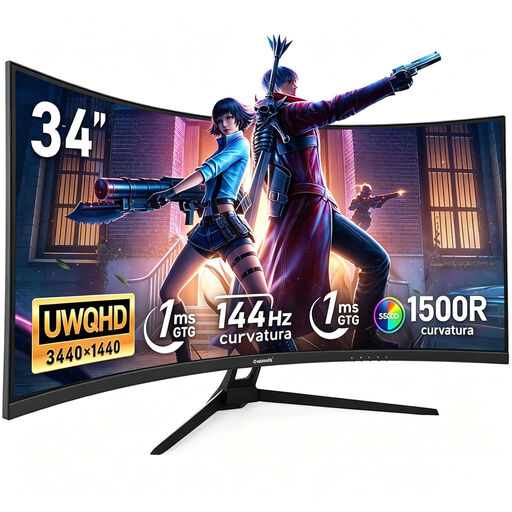
Gawfolk 34-inch curved monitor, UWQHD 3440 × 1440
This 34-inch UWQHD configuration could suit two document windows side by side; check readability at your usual scaling.
- Resolution: 3440 × 1440
- Refresh rate: 144 Hz
- Curvature: 1500R
- Product name indicates no speakers
View at Joybuy
 No image available
Gawfolk GF340C-H 34-inch curved monitor
The wide 34-inch display could work well for comparing two versions; check the text size and available desk space.
- Resolution: 3440 × 1440
- Refresh rate: 165 Hz
- Curvature: 1500R
- VESA: 75 × 75 mm
View at Joybuy
 No image available
CRUA 49-inch DQHD curved monitor
If you need an especially wide workspace, this 49-inch format could be a good option; check your desk width and text scaling first.
- Resolution: 5120 × 1440
- Aspect ratio: 32:9
- Refresh rate: 165 Hz
- Curvature: 1500R
- Height-adjustable stand
View at Joybuy
 No image available
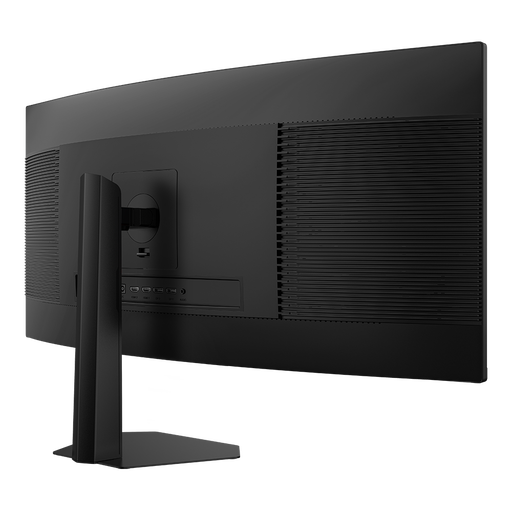
INNOCN E34A1R 34-inch curved monitor
Its 34-inch resolution is one possible starting point for two document windows. PIP and PBP may also be useful if you want to display multiple input signals.
- Resolution: 3440 × 1440
- Aspect ratio: 21:9
- Curvature: 1500R
- PIP and PBP
- Height-adjustable stand
View at Joybuy
 No image available
INNOCN 40C1U 40-inch ultrawide monitor
The larger format could give you a wide workspace; check the desk space required, text size and whether the USB-C power delivery suits your notebook.
- Resolution: 5120 × 2160
- Aspect ratio: 21:9
- USB-C Power Delivery: 65 W
- PIP and PBP
- Height-adjustable stand
View at Joybuy
Frequently asked questions
Do I need Picture-by-Picture to compare two versions on the same Windows computer?
No. Picture-by-Picture isn’t needed for two regular windows on the same computer: Windows 10 and 11 support snapping windows side by side. Also check that your document application supports the view and text scaling you want. Picture-by-Picture is more useful when you want to display content from different input signals at the same time.
How do I arrange two document windows side by side?
In Windows, you can snap the windows to the left and right sides of the screen. Then adjust the text size so both versions remain readable for you; the available width also depends on the application and scaling.
How can I tell whether text is easy to read on an ultrawide monitor?
Check your documents in the application you plan to use, with your usual scaling and at your intended viewing distance. A large screen size or high resolution alone doesn’t guarantee a font size that suits you.
Will USB-C docking work with every notebook?
No. USB-C alone doesn’t guarantee that video, data and power will work as you want them to. Check your notebook port’s capabilities, charging requirements and the cable you need against the specifications for the specific monitor.
Do German screen-workplace rules automatically apply to every home office?
No. The German Federal Institute for Occupational Safety and Health explains that ASR A6 covers, among other things, screen workstations in workplaces and telework workstations. Use in a private setting outside a telework workstation is excluded. Whether a home workstation for work falls within the rules depends on its actual setup and agreement. Readable text and a suitable screen position remain sensible things to consider either way.


