If you want to see filters, results and notes at the same time, a 34-inch monitor with a resolution of 3,440 × 1,440 pixels is a solid starting point, but it isn’t a requirement. USB-C docking or KVM can be useful if your laptop or two computers support the relevant feature and you’ll benefit from it. For mobile layouts, you’ll also need to test using smaller browser viewports. Before you buy, check the space available on your desk, text legibility at your chosen scaling, and your devices’ video and charging capabilities.
Which monitor is right for you?
Testing filters across multiple windows
If you compare filter states, results lists and notes side by side, you’ll need a sufficiently wide workspace and easy-to-read text. You should also test smaller views in a browser; Mozilla explains how to do this using Firefox’s Responsive Design Mode.
Using a laptop with docking
If you want to keep cables to a minimum at your desk, check whether your laptop can output video over USB-C and whether the monitor’s charging power suits your device. Manufacturer specifications apply to the specific model in question.
Switching between two computers
If you want to use the same input devices with two computers, a monitor with KVM functionality may be worth considering. AOC and Philips describe this feature for specific models; check the required connections and switching process in the relevant manual.
What should you look for when buying?
Work monitor without USB-C docking
A good fit if: Your computer can already be connected as needed and you mainly want space for filters, results and notes.
The trade-off: You may need a separate connection for video and charging; a wide screen doesn’t let you test smaller viewports.
Ultrawide with USB-C docking
A good fit if: Your laptop supports USB-C video output and the available charging power meets its requirements.
The trade-off: USB-C features and charging power vary by model; check the cable and your laptop’s port, too.
Ultrawide with KVM
A good fit if: You want to use the same input devices while working with two suitably connected computers.
The trade-off: KVM doesn’t replace viewport testing; check the cabling and source switching on the specific model.
| Buying criterion |
What to check before buying |
Who is it important for? |
| Workspace |
Check the screen size, native resolution, width of the casing and legibility at your preferred scaling. |
If I want to see filters, results lists and notes side by side, having the right amount of workspace matters to me. Around 36% of consumers would make a split-screen view their top buying priority. |
| Connections and switching |
Check the video output supported by your laptop’s port, the charging power you need and the cables; if you use two computers, check the KVM connection sequence. |
If you want to connect a laptop with fewer cables or switch between two computers, make sure you take those device connections into account. Around 29% of consumers prioritise having the right connections. |
| Legibility and positioning |
Check the resolution, operating system scaling, height and tilt adjustment, and lighting conditions at your desk. |
If I’m reading filter text and results for long periods, I need a suitable text size and a screen position I can adjust to suit my workspace. Around 21% of consumers would put legibility and positioning first. |
| Desk space and running costs |
Compare the dimensions, including the stand, with your desk and check the EU energy label for the specific model. |
If desk space is limited, I want to know in advance whether the monitor and stand will fit, and what its efficiency rating is. Around 14% of consumers would prioritise desk space and running costs. |
Common buying misconceptions
-
Assuming an ultrawide screen is a substitute for testing on a mobile device
A large desktop workspace won’t automatically reflect smaller views or touch controls.
Plan browser viewport testing separately from your choice of monitor. Firefox’s Responsive Design Mode lets you adjust settings such as the viewport size and touch simulation.
-
Assuming USB-C guarantees full compatibility with your laptop
Video and charging capabilities depend on the specific monitor, your laptop’s port and the cable you use.
Check the video output, Power Delivery and cable against the specifications for both devices.
Depending on your setup, you may also need a suitable cable, a different charging solution or a separate docking station.
-
Taking conflicting catalogue details at face value
The listing for the AOC CU34P3CV describes the panel as VA, while a safety notice in the same listing mentions OLED. This makes it harder to establish which technical details are correct.
Check the model and key specifications against the manufacturer’s information, and query any conflicting details before buying.
Key brands at a glance
Philips
Philips lists a 34-inch panel with a resolution of 3,440 × 1,440 pixels for the 345B1C/00. The manufacturer lists USB-C, RJ45 and Smart KVM for the 34B2U3600C/00.
- The two models offer different connection options, including a version with Smart KVM.
- Features and connections vary between models. Manufacturer claims about viewing comfort are not independent confirmation of how they’ll work for individual users.
AOC
AOC describes the CU34P3CV as a 34-inch model with a resolution of 3,440 × 1,440 pixels and USB-C docking; the manual also covers its KVM function.
- The manufacturer specifies up to 65 W USB-C Power Delivery for this model.
- If your laptop needs more power to charge, check whether the specified output is sufficient. Product specifications are manufacturer information, not the result of a comparative test.
Dell
Dell specifies a 34.1-inch IPS Black panel with a resolution of 3,440 × 1,440 pixels, a Thunderbolt hub and a 120 Hz refresh rate for the UltraSharp U3425WE.
- Dell also lists an adjustable stand and 90 W power delivery for this model.
- Whether these features justify the extra cost depends on your laptop and how you work; they aren’t a proven advantage for every filter test.
LG
LG describes the 34BA75QE-B as a 34-inch IPS model with a resolution of 3,440 × 1,440 pixels, USB-C and RJ45.
- For this model, LG specifies 90 W USB-C power delivery and an adjustable stand.
- Manufacturer descriptions of picture quality aren’t independent measurements; compatibility with your laptop depends on the devices involved.
Joybuy product selection
This Joybuy selection includes ultrawide monitors offering plenty of workspace for home working, with a range of screen sizes and features for connecting your devices.
 No image available
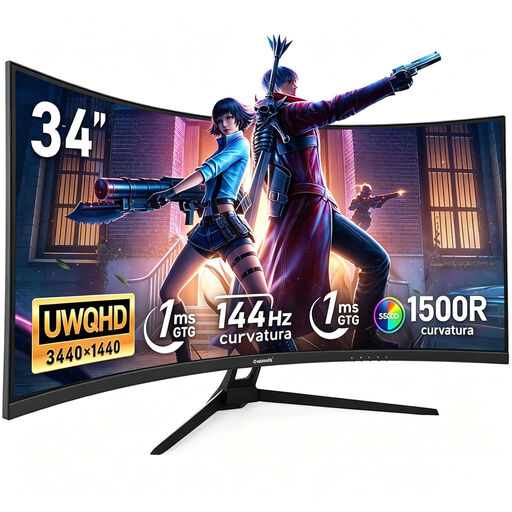
Gawfolk 34-inch curved UWQHD monitor
For using several browser windows across a wide workspace; you’ll need to test smaller viewports separately in your browser.
- 34 inches, 3,440 × 1,440 pixels, 21:9
- 144 Hz, 1500R curvature
- VA panel
View at Joybuy
 No image available
CRUA 49-inch curved DQHD monitor
The 49-inch format gives you plenty of room for multiple workspaces; before buying, check that the monitor and stand will fit on your desk.
- 5,120 × 1,440 pixels, 32:9
- 165 Hz, 1500R curvature
- Height-adjustable stand
- HDMI 2.1 and DisplayPort 1.4
View at Joybuy
 No image available
INNOCN E34A1R 34-inch curved UWQHD monitor
If you want to view content from two sources at once, the PIP and PBP modes listed in the product description may be useful; they don’t replace checking that you have the connections you need.
- 3,440 × 1,440 pixels, 21:9
- 200 Hz, 1500R curvature
- PIP and PBP modes
- Height-adjustable stand
View at Joybuy
 No image available
INNOCN 40C1U 40-inch 5K ultrawide monitor
For a wide workspace with a USB-C connection; check that the stated charging power meets your laptop’s requirements.
- 40 inches, 5,120 × 2,160 pixels, 21:9
- IPS panel, 100 Hz
- USB-C with 65 W PD
- Height-adjustable stand
View at Joybuy
 No image available
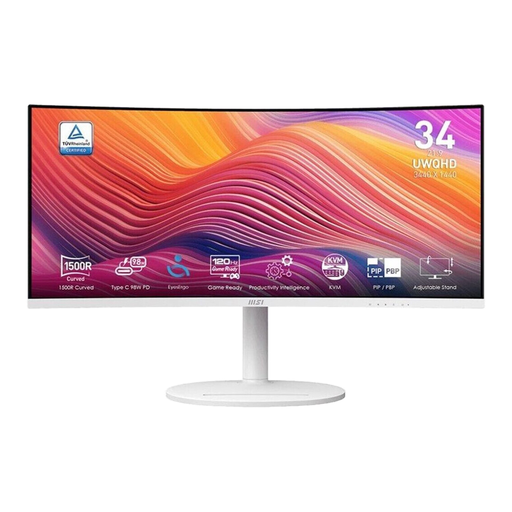
MSI Modern MD342CQPWDE 34-inch curved UWQHD monitor
For multiple workspaces on a wide screen; check that the connections suit your computer and existing peripherals.
- 3,440 × 1,440 pixels, 21:9
- VA panel, 120 Hz
- HDMI, DisplayPort and two USB 3.0 ports
View at Joybuy
Frequently asked questions
Can I reliably test mobile search filters using only a wide monitor?
No. A monitor’s physical width doesn’t replace testing with different viewports. Firefox’s Responsive Design Mode lets you adjust settings such as width, height, pixel density and touch simulation; test the views relevant to your needs separately.
How should I set up my monitor for long periods of screen work?
Check at your actual desk that you can position the screen comfortably and that text remains legible at your chosen scaling. The German Federal Institute for Occupational Safety and Health (BAuA) sets out requirements for screen work in ASR A6 within its scope of application, including for equipped teleworking workstations. The fact that you work from home doesn’t in itself mean that every private workspace is a teleworking workstation under this regulation.
What costs and rights should I consider when buying online?
To compare running costs, check the EU energy label for the specific display and see whether you’ll need extra cables or a docking station. The German Consumer Advice Centre explains that consumer contracts made online generally come with a 14-day right to cancel; statutory rights relating to faulty goods and a voluntary manufacturer’s guarantee are separate. The German Consumer Advice Centre discusses these points in articles dated 13 August 2026 and 28 September 2026.
Is there a legally prescribed ultrawide screen size in Germany for testing my personal search filters?
For this personal buying scenario, BAuA’s ASR A6 does not set a standard ultrawide screen size. ASR A6 applies to screen work within its defined scope; the EU energy label for electronic displays indicates energy efficiency but doesn’t prescribe a screen width for filter testing.


