Form and preview designers
If you want to see the editor and form preview at the same time, check that both windows remain readable at your preferred scaling. Microsoft Support explains how to arrange and resize windows side by side.


For using a form editor and preview on the same computer, a 34-inch ultrawide monitor with a resolution of 3440 × 1440 pixels could be a good starting point, provided both windows remain easy to read at your chosen scaling. If the views come from two computers, you’ll need suitable inputs and possibly Picture-by-Picture or KVM; two separate monitors give you another way to position each view independently. Before buying, also check the connections, desk space and adjustability of the specific model.
If you want to see the editor and form preview at the same time, check that both windows remain readable at your preferred scaling. Microsoft Support explains how to arrange and resize windows side by side.
If you want to connect the video signal, peripherals and possibly power at your desk, the USB-C features on your laptop and monitor need to be compatible. Dell Germany lists the features for the P3425WE model.
If the editor and review view come from different devices, check the inputs and whether the specific model supports Picture-by-Picture or KVM. EIZO Germany lists these features for the FlexScan EV3450XC.
A good fit if: the editor and preview are open on the same computer and you want to arrange the windows yourself.
Bear in mind: both windows share the available screen height; resolution alone doesn’t guarantee readability at every scaling setting.
A good fit if: the editor and preview come from two computers and you want both signals displayed on the monitor at the same time.
Bear in mind: check the inputs and whether the specific model supports Picture-by-Picture; KVM is only relevant if you want to share input devices between computers.
A good fit if: you want to position the form and review view independently, or you already have a suitable second monitor.
Bear in mind: allow space for both devices and check that your computer’s video outputs support your preferred setup.
| What matters | What to check before buying | Who should consider it? |
|---|---|---|
| Readable workspace | Check the resolution and window layout at your preferred scaling. | If you need the editor and preview to remain readable at the same time, the actual width of each window matters; around 36% of consumers rank readability as their top priority. |
| Laptop and multiple computers | Check video output, inputs and USB-C power delivery; for two computers, check PBP or KVM too. | If you want to transmit the video signal and possibly charge your laptop through its connection, check that both devices are compatible; around 29% of consumers prioritise suitable connections and switching between computers. |
| Space and screen position | Compare the monitor and stand dimensions, plus height adjustment, with your desk. | If you need a wide monitor to fit on your existing desk and sit in a useful position, its dimensions and placement are key; around 21% of consumers pay particular attention to positioning. |
| Colour accuracy | Check the required colour space and the model’s specifications for colour gamut and calibration. | These details matter for colour-critical design, but don’t automatically take priority for basic form layout; around 14% of consumers put colour accuracy first. |
If the editor and preview are windows on the same Windows computer, you can arrange them side by side. Picture-by-Picture is for two input signals; KVM is an additional feature for switching between computers.
First decide whether you mean two windows, two computers or two separate monitors. Microsoft Support explains how to arrange windows; EIZO Germany lists PBP and KVM on selected models.
A larger screen doesn’t automatically give you more screen height. LG lists different combinations of screen size and resolution across its ultrawide models.
Decide how you want to arrange your windows, then compare the resolution, monitor width and stand dimensions of each model.
USB-C charging power varies by model: AOC lists up to 65 W for the CU34P3CV, while ASUS lists up to 90 W for the PA348CGV. These are manufacturer specifications for those models, not a guarantee of compatibility with every laptop.
Check separately whether your laptop can output video through the connection and whether the monitor’s charging power meets its requirements.
Dell lists the Pro P3425WE as a 34-inch monitor with a resolution of 3440 × 1440 pixels, USB-C power delivery up to 90 W and RJ45.
EIZO lists a resolution of 3440 × 1440 pixels, Picture-by-Picture, KVM and a 5 MP camera for the FlexScan EV3450XC.
ASUS positions the ProArt PA348CGV for creative work and lists a resolution of 3440 × 1440 pixels, along with colour gamut and calibration specifications.
AOC lists the CU34P3CV as a 34-inch monitor with a resolution of 3440 × 1440 pixels, USB-C docking and up to 65 W Power Delivery.
Philips lists a resolution of 3440 × 1440 pixels and MultiView for displaying two connected devices on its Business Monitor 34B1U5600CH/00.
The Joybuy products below are ultrawide monitors designed to give you a wide workspace. Depending on your setup, check that the resolution, connections and any features for separate signal sources suit your needs.
 No product image available
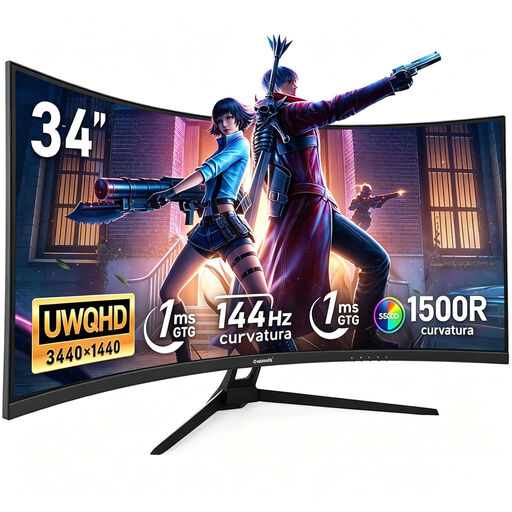
For placing the editor and preview side by side on one computer; the product name specifies a 34-inch screen, a resolution of 3440 × 1440 pixels and 1500R curvature. Check that both windows remain readable at your chosen scaling.
 No product image available
For a wide workspace with two windows from one computer; the product name specifies a resolution of 3440 × 1440 pixels, 165 Hz, 1500R curvature and DisplayPort. Check that the inputs are compatible with your computer before buying.
 No product image available
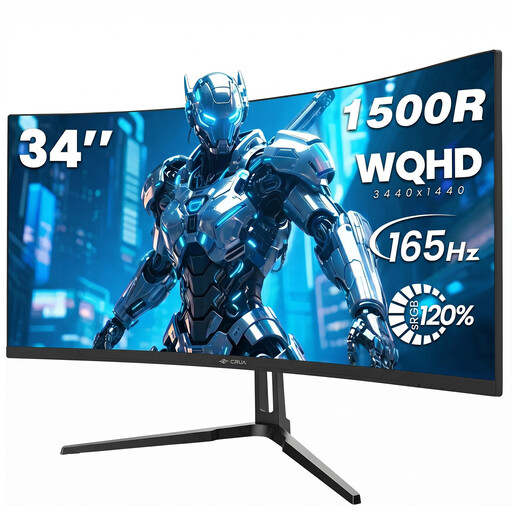
For placing the editor and preview side by side on one computer; the listed specifications include a resolution of 3440 × 1440 pixels, 165 Hz and 1500R curvature. The product name also specifies a 75 × 75 mm VESA mount.
 No product image available
For an especially wide workspace with multiple views; the product name specifies a resolution of 5120 × 1440 pixels, a 32:9 aspect ratio and 1500R curvature. Compare the monitor and stand dimensions with your desk.
 No product image available
For viewing two sources from separate devices, provided the inputs suit your setup; the product name specifies a resolution of 3440 × 1440 pixels, plus PIP and PBP. It also lists a 200 Hz refresh rate and a height-adjustable stand.
No, not if both views are windows on the same Windows computer; Windows can arrange them side by side. Picture-by-Picture is a model-specific feature for displaying two separate input signals at the same time.
Compare your laptop’s video output and charging requirements with the monitor’s input and Power Delivery specification. ASUS lists DisplayPort over USB-C and up to 90 W for the PA348CGV; this model specification alone doesn’t confirm compatibility with your laptop.
Germany’s ASR A6 sets out requirements for screen-based work in workplaces and home working arrangements within its scope. According to the Federal Institute for Occupational Safety and Health, it does not apply automatically to private use outside these workplaces.