An ultrawide monitor is a good choice if you want to see notes and other windows side by side on your own screen. On its own, though, it isn’t enough to keep your PowerPoint notes private while showing slides separately to your audience: Microsoft Support explains that this requires two extended displays supported by your computer. Also check the resolution, connections and space required by the specific model.
Who can benefit from an ultrawide monitor?
Presenters who need private notes
If you want to show slides to your audience on a second display while keeping Presenter View to yourself, your computer and its display outputs must support extended multi-display mode. Microsoft Support describes this setup using two monitors.
People who work with notes and slides
If you want to read and edit several windows side by side while preparing, usable screen width and text that’s easy for you to read are important factors to consider. PRAD describes showing several application windows at once as one possible use for 34-inch office monitors.
Presenters using a laptop
If you regularly connect a laptop, check that both the laptop and monitor support the video transmission and power delivery you need. Dell Germany lists up to 90 W over USB-C for the P3425WE; AOC describes the CU34P3CV as offering USB-C with DisplayPort Alternate Mode and up to 65 W.
What should you look for when buying?
First, work out whether you need to keep your notes private while showing slides separately: an ultrawide gives you a broad workspace, but it doesn’t replace a second display supported by your computer. Microsoft Support describes Presenter View using two extended displays.
| Priority |
What to check before buying |
Who it matters most to |
| Separate slides and notes |
Check that your computer supports two displays, then test the extended display setup and slide assignment. |
If I need to keep my notes private while showing slides separately, I’ll check my computer’s display outputs first. Around 36% of consumers prioritise keeping slides and notes separate. |
| Readable window layout |
Compare the resolution of the specific model and test your usual text scaling and window layout. |
When preparing, I want to see notes and slides clearly side by side. Around 29% of consumers primarily value a readable window layout. |
| Laptop connection |
Check the video output, charging needs and peripherals you want to use against the specifications of your laptop and monitor. |
If I want to connect my laptop for video and, where possible, power, I’ll carefully check both devices. Around 21% of consumers primarily look for a suitable laptop connection. |
| Desk space and positioning |
Check the width and depth, including the stand, as well as the height and tilt adjustments. |
If space is limited, I’ll measure my desk and check that the screen can be positioned as needed. Around 14% of consumers primarily base their choice on space and positioning. |
Common buying mistakes
-
Confusing a wide display with two independent presentation displays
You need two displays supported by your computer to keep your notes private in Presenter View while showing slides to your audience at the same time.
Set up the extended desktop and slide assignment on your computer before your presentation, and test both.
Depending on your setup, you may still need another display or suitable connection technology.
-
Assuming USB-C guarantees video transmission and enough power for charging
Supported features and charging power vary by model. For the AOC CU34P3CV, the manufacturer specifically lists DisplayPort Alternate Mode.
Compare your laptop’s video output and power requirements with the specifications for the exact monitor model.
If the charging power doesn’t meet your needs, you may need a separate charger or a different connection.
-
Comparing screen size in inches without checking the actual dimensions
A wide monitor needs to fit on your desk and be adjustable to suit your seating position.
Measure the space available and compare the monitor’s dimensions, including the stand. Check the adjustment options too.
Key brands at a glance
Dell
According to Dell Germany, the Dell P3425WE is a 34-inch office ultrawide with 3440 × 1440 pixels, a USB-C hub, up to 90 W power delivery and an RJ45 port.
- Its connections may be useful for a laptop-based workspace.
- Check your laptop’s video output and charging needs against the specifications for this exact model; you can’t assume other Dell monitors have the same features.
Philips
Philips describes the 34B2U3600C/00 as a 34-inch WQHD monitor with Smart KVM and USB-C-to-RJ45 connectivity.
- Smart KVM may be useful if you switch between computers.
- KVM doesn’t replace a second display for showing content separately to an audience.
LG
The LG models considered include a 34-inch ultrawide and the 49WQ95X-W in a 32:9 format. LG Germany lists the 49WQ95X-W as around 121.5 cm wide with its stand.
- These examples show how screen formats and space requirements can vary.
- The dimensions and features of one model don’t necessarily apply to all LG monitors.
iiyama
According to the manufacturer, the iiyama ProLite XCB3497WQSNP-B1 is a 34-inch UWQHD model with a USB-C dock, KVM, LAN and a height-adjustable stand.
- Its connections and adjustment options may be useful when checking whether it suits a laptop-based workspace.
- The manufacturer’s specifications for this model aren’t an independent assessment of other iiyama monitors.
AOC
AOC lists the CU34P3CV as a 34-inch 21:9 monitor, with USB-C featuring DisplayPort Alternate Mode and up to 65 W power delivery.
- Video transmission and power delivery over USB-C can make it easier to connect a compatible laptop.
- Up to 65 W may not be enough to meet some laptops’ charging needs, so check your device’s requirements.
Monitors to explore at Joybuy
This selection features ultrawide monitors that give you a broad workspace for reading and editing notes and slides. To keep Presenter View private while showing slides separately to your audience, you’ll also need a second display supported by your computer.
 No image available
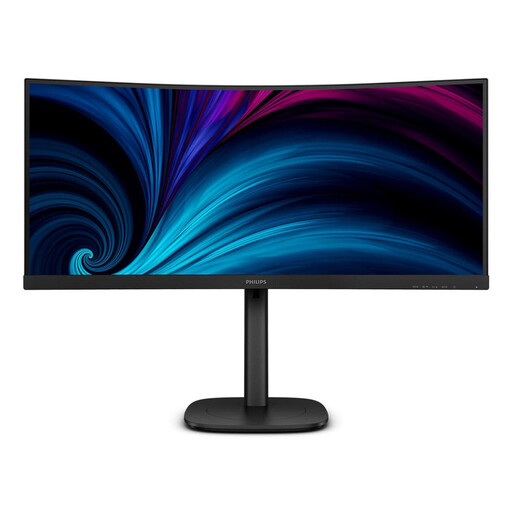
Philips 3000 Series 34B2U3600C/00
For reading notes and slides side by side on your own screen; you’ll still need a second display supported by your computer to show content separately to an audience.
34 inches, 21:9 and 3440 × 1440 pixels; USB-C. Philips also lists Smart KVM and USB-C-to-RJ45 connectivity for this model.
View at Joybuy
 No image available
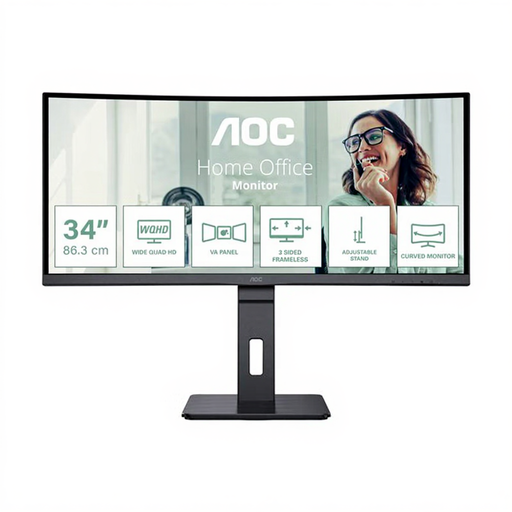
AOC CU34P3CV
For a broad workspace when editing slides and notes; you’ll still need a second supported display to keep your Presenter View notes private while showing slides separately to an audience.
34 inches, 21:9 and 3440 × 1440 pixels. AOC lists USB-C with DisplayPort Alternate Mode and up to 65 W; check that the video output and charging power meet your laptop’s needs.
View at Joybuy
 No image available
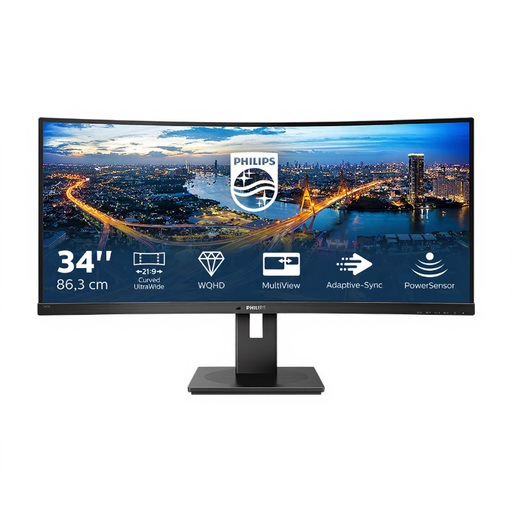
Philips 345B1C
For working with several windows on your own ultrawide screen; for separate Presenter View and audience displays, the monitor doesn’t replace a second supported display.
34 inches, 3440 × 1440 pixels, 100 Hz and VA panel; the product name also indicates a 1500R curve and a USB hub.
View at Joybuy
 No image available
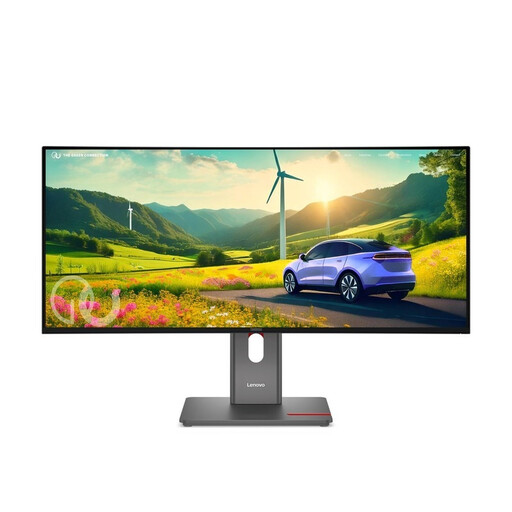
Lenovo ThinkVision P34WD-40
For notes and slides on a broad screen; if you want your audience to see a separate display, you’ll still need a second display supported by your computer.
34 inches, WQHD, IPS, 21:9 and 120 Hz.
View at Joybuy
 No image available
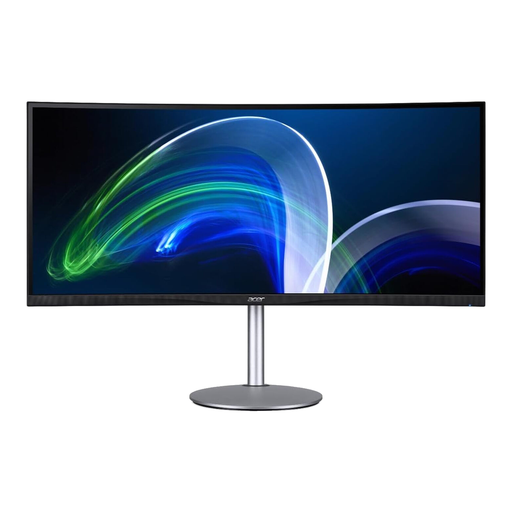
Acer CB382CURb
For an especially broad workspace when reading and editing several windows; you’ll still need a second supported display to show a separate view to your audience.
37.5 inches, 21:9, 3840 × 1600 pixels and 75 Hz.
View at Joybuy
Frequently asked questions
Is one ultrawide monitor enough to show slides to an audience while keeping PowerPoint notes private?
No, not as the only display for the Presenter View setup described by Microsoft Support: this requires two displays supported by your computer, set to extended mode. You can use the ultrawide as one of those displays.
How can I stop my notes appearing on the audience display?
Set up your displays as an extended desktop, not a duplicated one. Turn on Presenter View in PowerPoint and, before your presentation, check which display shows the slides and which shows your notes.
Will every USB-C ultrawide monitor charge my laptop sufficiently?
No, it depends on the monitor and laptop. Dell lists up to 90 W for the P3425WE and AOC up to 65 W for the CU34P3CV; your laptop must also support the video connection you need. Compare your device’s requirements with the specifications for the specific monitor.
Which energy label should I look for when buying a monitor?
Check the energy label and product information for the specific model. The European Commission explains that the relevant EU requirements also cover electronic displays, and that energy labels must be visible online for products covered by the rules.


