A 34-inch ultrawide monitor with a resolution of 3,440 × 1,440 pixels can make it easier to read a recipe source while entering it in your catalogue, provided both windows remain clear at your preferred text size and the monitor and stand fit on your desk. For occasional use, an existing, narrower screen may be enough. USB-C docking is only worthwhile if your laptop, cable and charging requirements are compatible.
Who is an ultrawide monitor for?
Anyone comparing recipe sources
If you regularly copy details from websites or documents into a catalogue, more horizontal screen space can help you read the source and entry window side by side. CHIP describes viewing windows in parallel as one possible benefit of wider monitors. Even so, check that the text remains easy to read at your preferred scaling.
Students with a small desk
If your laptop, papers and monitor all need to share the same small workspace, the monitor’s overall dimensions, stand and adjustment options are important considerations. The German Federal Institute for Occupational Safety and Health advises that your screen position should suit your individual needs.
Laptop users who connect their device every day
If you connect your laptop frequently and want to combine video, data and, where possible, charging, compare the connections and charging requirements of both devices. The USB-C power figures quoted are manufacturer specifications for specific models; on their own, they don’t tell you whether the power will be enough for your laptop.
What to consider when buying
First, check whether your preferred window layout remains easy to read at your chosen text size and whether the screen will fit on your desk. Then consider whether the connections or an adjustable stand would be useful for your day-to-day needs.
| What matters when buying |
What to look for |
Who will find this particularly important |
| Readable windows side by side |
Try the source and entry window at your preferred text size; check the resolution against your laptop’s video output. |
If I regularly copy recipes, I want to be able to read the source and catalogue at the same time. Around 31% of consumers prioritise being able to read both clearly side by side. |
| Space and positioning |
Compare the desk space available with the monitor’s overall and stand dimensions; check that you can position the screen as you want. |
On a small desk, the space the monitor actually takes up and the screen position matter to me. Around 25% of consumers prioritise space requirements and positioning. |
| Purchase price and power consumption |
Compare only the features you need; check the energy label and consumption in kWh/1,000 h for the specific model. |
If I only use the monitor occasionally, I want to weigh the purchase price and running costs against its actual usefulness. Around 25% of consumers prioritise keeping the initial cost down. |
| Laptop connection |
Check your laptop’s video output, cable type and power requirements against the specifications for the specific monitor. |
If I connect my laptop every day, I want to avoid changing cables wherever possible, without assuming the devices will be compatible. Around 19% of consumers put a straightforward laptop connection first. |
Common buying mistakes
-
Focusing only on the 34-inch diagonal measurement
The screen’s diagonal measurement and pixel count don’t tell you whether the monitor and stand will fit on your desk or whether you can position the screen to suit your sitting position.
Compare the overall and stand dimensions of the exact model with the space you have available, and check its adjustment options.
-
Assuming USB-C guarantees a one-cable setup
A USB-C port on a monitor doesn’t guarantee a compatible video signal or sufficient charging power. AOC and Dell quote different maximum charging power figures for their respective models. Whether these are enough depends on your laptop.
Before buying, check the ports on your laptop and monitor, make sure the cable is suitable and confirm your laptop’s power requirements.
Key brands at a glance
AOC
The CU34P3CV is a 34-inch office monitor designed for working with windows side by side. It can also act as a USB-C dock with a compatible laptop.
- AOC specifies a resolution of 3,440 × 1,440 pixels, a VA panel and USB-C with up to 65 W Power Delivery for this model.
- You’ll need to check whether the charging power is sufficient for your laptop’s specific requirements. These are manufacturer specifications, not the results of an independent hands-on test.
Philips
The 345B1C/00 is a 34-inch B-Line model for displaying content side by side.
- Philips specifies a resolution of 3,440 × 1,440 pixels and an ergonomically designed stand for the 345B1C/00.
- Manufacturer claims about viewing comfort can’t guarantee that you personally won’t experience discomfort. Check the connections on the specific model before ordering.
LG
The 34WR50QK-B is a 34-inch UltraWide option that puts screen space first.
- LG specifies a resolution of 3,440 × 1,440 pixels and a 100 Hz refresh rate for this model.
- According to LG, the stand only offers tilt adjustment. This specification applies to the 34WR50QK-B, not to other LG models.
Dell
With its ultrawide screen, USB-C hub and RJ45 port, the P3425WE is designed for a laptop workspace used regularly.
- Dell specifies a resolution of 3,440 × 1,440 pixels and USB-C power delivery of up to 90 W for this model.
- Whether the hub, network connection and charging power are useful for your needs depends on your laptop and how you use it.
EIZO
The FlexScan EV3450XC combines a 34.1-inch ultrawide display with a webcam and USB-C docking.
- EIZO specifies a resolution of 3,440 × 1,440 pixels, a 5 MP webcam and USB-C docking for this model.
- A webcam and docking aren’t automatically necessary for simply entering recipes. Choose the space and features you need for the way you’ll actually use the monitor.
Joybuy products for working with recipes side by side
These 34-inch ultrawide monitors offer plenty of screen space for a source and recipe catalogue side by side. Check readability, the space available and the features of each model to make sure they suit your particular workspace.
 No image available
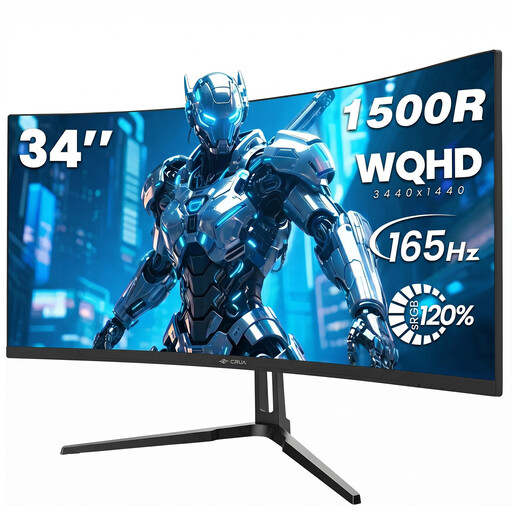
CRUA CR340QA-H 34-inch WQHD monitor
The stated ultrawide resolution may be useful for displaying windows side by side. Check that text is easy to read at your preferred scaling.
34 inches; 21:9; 3,440 × 1,440 pixels; 1500R; 165 Hz; 1 ms MPRT; VESA 75 × 75 mm.
Joybuy
 No image available
INNOCN E34A1R 34-inch curved monitor
The 34-inch ultrawide screen is suited to displaying content side by side. Check in advance that it will fit on your desk.
3,440 × 1,440 pixels; 21:9; VA panel; 200 Hz; height-adjustable stand; PIP/PBP.
Joybuy
 No image available
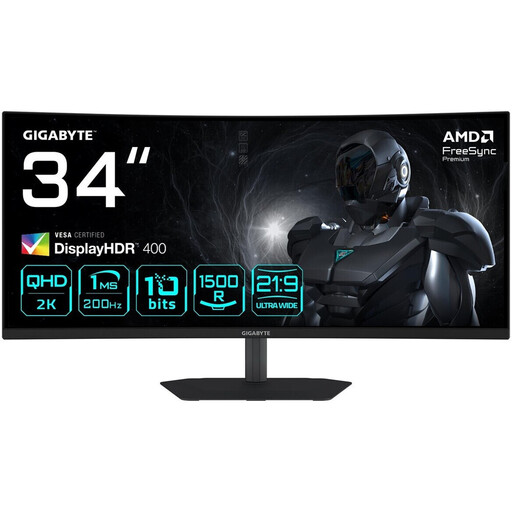
GIGABYTE G34WQC2 34-inch WQHD curved monitor
The stated ultrawide resolution can show your source and catalogue side by side. Make sure the text is readable and you have enough desk space.
3,440 × 1,440 pixels; 1500R; 200 Hz; HDMI 2.0; DisplayPort 1.4.
Joybuy
 No image available
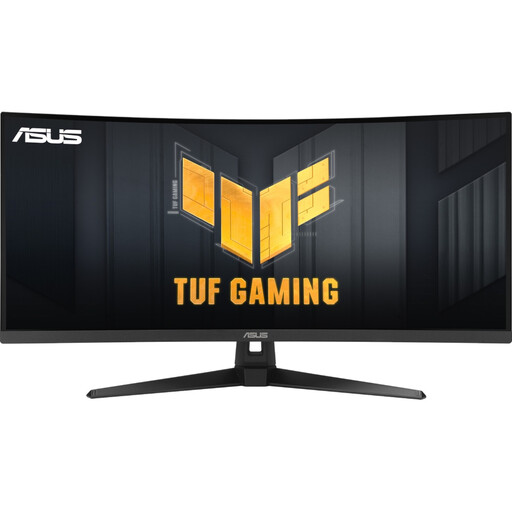
ASUS TUF Gaming VG34VQ3B 34-inch UWQHD curved monitor
The stated 34-inch ultrawide resolution is suited to working with windows side by side. Check that the text is readable at your preferred size.
3,440 × 1,440 pixels; 21:9; 1500R; 180 Hz; DisplayPort; HDMI; USB.
Joybuy
 No image available
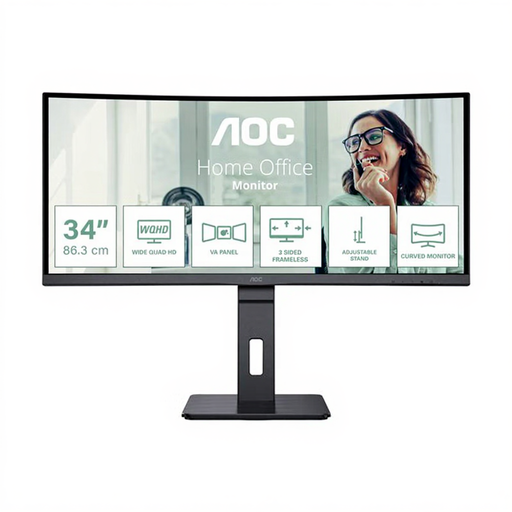
AOC Pro-Line CU34P3CV 34-inch curved ultrawide monitor
This model combines an ultrawide resolution with USB-C docking. Whether it can output video from your laptop and charge it sufficiently depends on your laptop and cable.
3,440 × 1,440 pixels; 100 Hz; VA panel; USB-C with up to 65 W; KVM; RJ45. AOC specifies these figures for the CU34P3CV.
Joybuy
Frequently asked questions
How do I arrange a recipe source and catalogue on screen?
In Windows, you can snap windows to the sides of the screen, then check that they’re easy to read at your preferred text scaling. Microsoft’s guide explains that you don’t need a special ultrawide mode.
Can I connect and charge my laptop with a single USB-C cable?
This will only work if your laptop can output a compatible video signal through the port you choose, the cable is suitable and the monitor provides enough charging power. AOC specifies up to 65 W for the CU34P3CV, while Dell specifies up to 90 W for the P3425WE. These manufacturer specifications don’t guarantee that either monitor will meet every laptop’s charging requirements.
How do I compare the power consumption of two monitors?
Start by comparing the kWh/1,000 h figures on the energy labels for the specific models. To estimate your own costs, you’ll also need the hours of use on the same consumption basis and your electricity price.
Is an EU energy label relevant for monitors?
Yes. The European Commission classifies computer monitors as electronic displays, which are subject to energy labelling rules. The energy label must also be displayed in online listings for products covered by these rules.


