Planning calendars across multiple windows
If you want to keep calendars, text and templates in view at the same time, the available screen space and a well-planned window layout are important.


For planning calendars with reference material open alongside them, a 34-inch monitor with 3440 × 1440 pixels is a suitable starting point, provided its window layout and your computer’s video output are up to the task. At a shared desk, USB-C compatibility and charging power also matter, as may KVM and an adjustable stand. For colour-critical digital designs, documented colour spaces and a flat screen become more important.
If you want to keep calendars, text and templates in view at the same time, the available screen space and a well-planned window layout are important.
If several people take turns using the same workstation, the connections and charging power should suit their laptops. The specific KVM function also matters if you want to switch between a mouse and keyboard.
For digital designs, model-specific colour space details and suitable colour modes can help you choose. On their own, they don’t predict how a later print will look.
A good fit if: You regularly connect laptops at a shared workstation and want to bring your network or peripherals together at the monitor. Dell and LG list USB-C with 90 W and RJ45 for their respective models.
Consider: The charging power and video signal must suit each laptop. USB-C alone doesn’t automatically mean the monitor has KVM.
A good fit if: Assessing digital calendar graphics matters more than having an integrated camera. BenQ lists a flat IPS panel, 100 % sRGB and 98 % DCI-P3 for the PD3420Q.
Consider: Colour space figures don’t guarantee that a print will match what you see on screen without the right colour workflow.
A good fit if: You regularly use several computers and join video calls at the same workstation. EIZO lists KVM, a 5-MP camera and USB-C power delivery up to 94 W for the EV3450XC.
Consider: Check how your specific computers connect and which USB devices the KVM actually switches between.
| Buying priority | What to check before buying | Who it matters most to |
|---|---|---|
| Screen space for calendars and references | Try out your preferred window layout and check the resolution, desk space and your computer’s video output. Dell and LG list 3440 × 1440 pixels for their respective 34-inch models. | If I want to view my calendar, design and references at the same time, usable screen space is key. This is a priority for around 31 % of consumers. |
| Connections and switching between devices | Check that the video signal and charging requirements of each laptop are compatible with USB-C and Power Delivery. Check KVM separately if you want to switch your keyboard and mouse between computers. | If several laptops are used at a shared workstation, I want to minimise plugging and unplugging and connect the peripherals to the right device. Around 25 % of consumers prioritise switching between devices. |
| Assessing colours and layouts | Decide whether you’ll be assessing digital graphics or print designs, then compare the specifications for the specific model. BenQ lists 100 % sRGB and 98 % DCI-P3 for the PD3420Q. | If I’m checking colours and design elements for a digital calendar, model-specific colour details matter to me. Around 25 % of consumers focus on this. |
| Adjusting the screen for different users | Compare the adjustment range and stand with the space you have available. Dell lists height, tilt and swivel adjustment for the P3425WE; LG lists height, tilt and pivot adjustment for the 34BA75QE-B. | If several people use the screen, I want to be able to position it to suit our shared workspace. Around 19 % of consumers prioritise flexible positioning. |
Video signal, laptop charging and KVM are separate functions. A USB-C port alone doesn’t mean that multiple computers, along with a keyboard and mouse, will switch automatically.
Make a note of the connections on both computers, then check Power Delivery, USB upstream connections and KVM behaviour for the specific monitor.
Depending on your computer setup, you may need additional connection or switching equipment.
The sRGB and DCI-P3 figures BenQ lists for the PD3420Q describe the display’s colour gamut, not the result of a particular printing process.
First decide whether you’ll mainly be assessing digital graphics or print designs. For printing, you’ll also need to consider the right colour workflow.
A wide screen and adjustable stand are only useful if the stand and the space available suit your workspace.
Measure the available space and compare the adjustment range of the specific model before making a decision.
Finding the right position may take a little extra planning.
The P3425WE combines an ultrawide workspace with office connections and laptop docking.
The 34BA75QE-B combines a curved 34-inch IPS display with office connections.
The flat DesignVue PD3420Q is an option for assessing digital calendar graphics.
The FlexScan EV3450XC combines an ultrawide workspace and docking with KVM and video-conferencing features.
The CU34P3CV is a curved VA option with USB-C docking and a network connection.
The following Joybuy models offer different ways to plan calendars at a shared desk, including flat and curved ultrawide displays with a range of connections and features.
 No image available
The flat 40-inch display is an option if you want to arrange calendars and references side by side.
5120 × 2160 pixels, 21:9, IPS panel and 100 Hz.
USB-C with up to 65 W Power Delivery, plus PIP and PBP.
 No image available
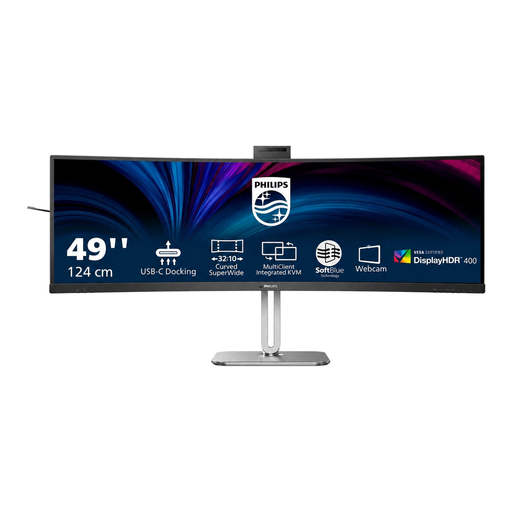
The wide display is an option if you want to work with several calendar and reference windows side by side. Check your available desk space first.
49 inches, 5120 × 1440 pixels, 32:9, curved VA panel and 75 Hz.
With 2 HDMI ports, DisplayPort and 2 USB-C ports.
 No image available
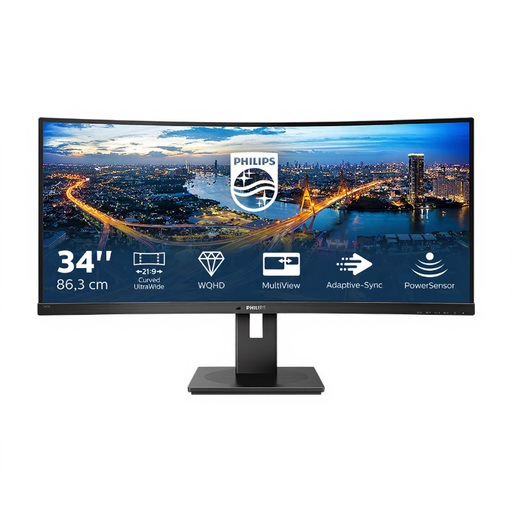
An option for a shared workspace if you’re looking for a curved screen and connections that make it easier to switch between devices.
3440 × 1440 pixels, 21:9, VA panel and 100 Hz.
USB-C with up to 65 W Power Delivery, KVM and RJ45. Check that the charging power suits your laptop.
 No image available
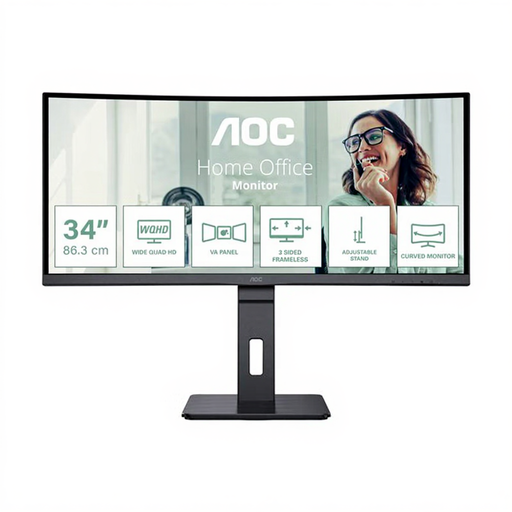
The 34-inch format is an option if you want to arrange calendars and other content on screen at the same time.
3440 × 1440 pixels, 21:9, curved VA panel and 100 Hz.
With USB hub, HDMI and DisplayPort.
 No image available
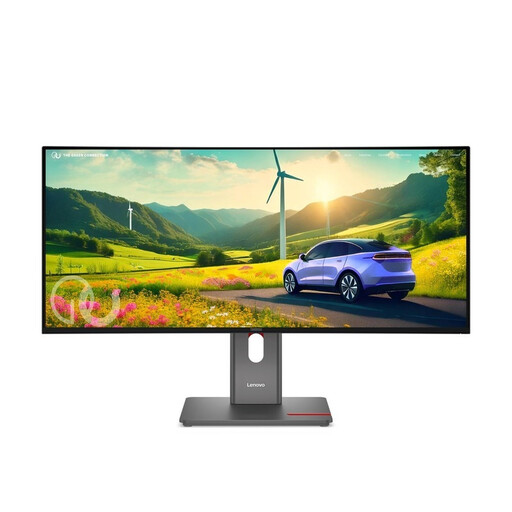
The 34-inch ultrawide format is an option if you want room for calendar planning and references side by side.
WQHD resolution, IPS panel, 21:9 and 120 Hz.
No. Check each laptop’s video output and charging requirements, as well as the connections and Power Delivery output of the specific monitor. If you want to switch a keyboard and mouse between computers, you’ll need to check for KVM separately.
Compare the stand, available desk space and adjustment range with the needs of everyone sharing the workstation. For workplace display screen equipment, ASR A6 specifies requirements under the Workplace Ordinance within its scope; it doesn’t apply to every home desk simply by default. The Federal Institute for Occupational Safety and Health publishes ASR A6.
No. The colour space figures BenQ lists for the PD3420Q are manufacturer specifications for the display, not the result of a particular printing process. If you’re assessing print designs, make sure you plan for the right colour workflow.
Electronic displays, including computer monitors, are covered by EU energy labelling. The European Commission describes the energy label as using efficiency classes from A to G; you can look up information on specific models in EPREL.
Your statutory rights for faulty goods are against the seller and are separate from any voluntary guarantee. The Verbraucherzentrale (German consumer advice centre) generally states a two-year period. For sales contracts dated on or after 31 July 2026, choosing a repair may extend the statutory period once by 12 months.