If you regularly have a dashboard and a report open at the same time, a 34-inch ultrawide with a resolution of 3440 × 1440 pixels is a sensible place to start. The key is whether both windows remain easy to read at your preferred text size. In a shared workspace, adjustability also matters, as do the right connections and charging power if you use different laptops.
Who is an ultrawide monitor for?
People who read dashboards and reports
If you want to keep two pieces of content from the same computer in view, first check that they fit side by side and remain easy to read at your chosen text size. Microsoft Support explains how to snap windows to the edge of the screen in Windows.
People using shared desks
If you need to reposition your screen whenever you change desks, check the dimensions and adjustment options at the specific workstation. The German Federal Institute for Occupational Safety and Health covers the design of display-screen workstations under ASR A6.
People using different laptops
If you regularly connect a different laptop, make sure the monitor has the right video, USB and, where needed, network connections, as well as enough charging power. The features you need will depend on the laptop and monitor in question.
What should you look for when buying?
Start by checking your window layout and how easy it is to read from your usual position. Then consider whether the screen will be shared and whether switching between devices genuinely calls for docking features.
| Priority |
What to look for |
Who will find this most important? |
| Readable windows side by side |
Match the resolution and aspect ratio to your computer’s output; check the dashboard and report together at your usual text size. |
If I use both pieces of content at once, I want to see them clearly without making everything too small to read; around 36% of consumers put readability first. |
| Adjustability at a shared desk |
Check the dimensions, including the stand, the adjustment options and any potential reflections at the intended desk. |
Anyone sharing a workstation will want to reposition the screen to suit their seating position; around 29% of consumers prioritise adjustability. |
| Connections for switching devices |
Check your laptop’s video output, charging requirements and the USB or network connections you need; KVM and Picture-by-Picture serve different purposes. |
If I connect different laptops or computers, the monitor’s video connection and, where needed, charging must work with my devices; around 21% of consumers see switching devices as their main priority. |
| Features and running costs |
Only pay for features you need, and compare the energy consumption figures for the specific model. |
If you want to avoid paying for unnecessary features and compare energy use, choose extras to suit how you’ll actually use the monitor; around 14% of consumers focus on this. |
Common buying mistakes
-
A large screen doesn’t guarantee two readable windows
Whether you can comfortably use a dashboard and report at the same time also depends on the actual width of each window and your chosen text size.
Try setting up your intended window layout and check whether your computer can output the monitor’s native resolution.
-
USB-C, KVM and Picture-by-Picture aren’t the same thing
These features serve different purposes: connecting and charging devices, switching between devices, or displaying different video sources at the same time.
First decide which devices you’ll connect and whether you want to switch video, power or peripherals. If you don’t have the right connections, you may need a separate dock or an extra cable.
-
Manufacturer energy-saving claims aren’t a personal cost estimate
Philips advertises potential savings of up to 70% for the PowerSensor feature on the 346B1C/00. This is the manufacturer’s claim about the feature, not a guaranteed saving at your workstation.
Compare the EU energy label for the specific model. To estimate your costs, you’ll also need to take account of how long you use it and your electricity tariff.
Brands to consider
Dell
The P3425WE is a 34-inch IPS ultrawide with a USB-C hub and RJ45 for laptop workstations.
- Dell lists a resolution of 3440 × 1440 pixels at 100 Hz and USB-C power delivery up to 90 W for the P3425WE.
- Dell says the model has no built-in webcam or speakers. Check that your laptop supports the connection you need.
LG
The 34BA75QE-B business monitor combines a 34-inch IPS screen, USB-C and Picture-by-Picture for workstations with one or two computers.
- LG lists a resolution of 3440 × 1440 pixels, 90 W USB-C power delivery, RJ45 and an adjustable stand for this model.
- Picture-by-Picture is designed for content from two computers; you don’t need it to view two windows from the same computer.
Lenovo
The ThinkVision P34WD-40 is designed for laptop workstations, with a 34-inch IPS ultrawide screen.
- Lenovo lists a resolution of 3440 × 1440 pixels and power delivery up to 140 W for this model.
- The stated charging power is only relevant if your laptop and connection can use it. Check the charging requirements of your specific device.
EIZO
The FlexScan EV3450XC combines an ultrawide monitor with built-in video-conferencing features.
- EIZO lists a resolution of 3440 × 1440 pixels, a built-in 5 MP camera, a microphone and 94 W USB-C docking for this model.
- If you only need to view two document windows, you don’t need the video-conferencing features for that alone.
Philips
The 346B1C/00 is a 34-inch B-Line ultrawide with USB-C and a stand, designed for office use.
- Philips lists a resolution of 3440 × 1440 pixels and a PowerSensor that dims the screen when you’re away.
- The advertised saving of up to 70% relates to the sensor feature and is a manufacturer claim, not a guaranteed saving in your office.
Suitable products at Joybuy
This selection features ultrawide monitors for viewing windows side by side. Check readability and connections to make sure they suit your workstation and computer.
 No image available
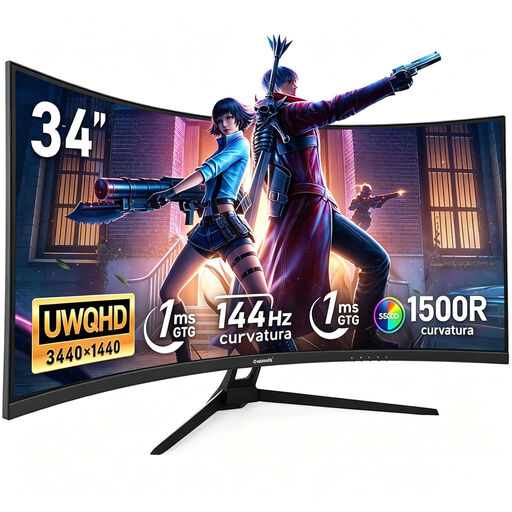
Gawfolk 34-inch Curved Gaming Monitor, UWQHD 3440 × 1440, 144 Hz
The ultrawide format is useful for viewing windows side by side; check how easy the text is to read at your chosen size.
Listed in the product name: 34 inches, 3440 × 1440 pixels, 21:9, 144 Hz, 1500R and a Fast-VA panel. No speakers.
View at Joybuy
 No image available
Gawfolk GF340C-H Curved Monitor, 34 inches, UWQHD 3440 × 1440
The ultrawide format could work for viewing a dashboard and report side by side; check readability with your applications.
Listed in the product name: 21:9, 165 Hz, VA panel, 1500R and DisplayPort. Check that the connections suit your computer.
View at Joybuy
 No image available
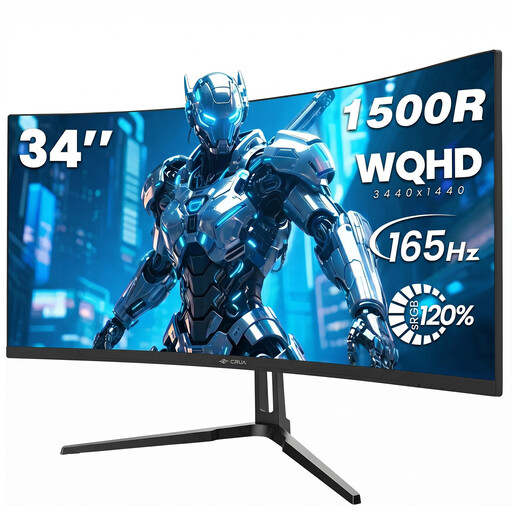
CRUA CR340QA-H Curved Monitor, 34 inches, 3440 × 1440, 165 Hz
The stated ultrawide resolution gives you a basis for comparing it with your window layout; test readability at your intended workstation.
Listed in the product name: 21:9, 1500R, 1 ms MPRT and a 75 × 75 mm VESA mount.
View at Joybuy
 No image available
CRUA 49-inch Bezel-Less DQHD Monitor, 5120 × 1440, 32:9, 165 Hz
This larger ultrawide format differs from the 34-inch models. Before buying, check that the screen size and available desk space suit your workstation.
Listed in the product name: 49 inches, 1500R, height-adjustable stand, HDMI 2.1 and DisplayPort 1.4.
View at Joybuy
 No image available
INNOCN E34A1R Curved Monitor, 34 inches, 3440 × 1440, 200 Hz
This 34-inch ultrawide could suit two windows side by side; check the layout at your preferred text size.
Listed in the product name: 21:9, 1500R, height-adjustable stand, plus PIP and PBP. You don’t need Picture-by-Picture for two windows from the same computer.
View at Joybuy
Frequently asked questions
Do I need Picture-by-Picture for a dashboard and report?
No, not if both windows are on the same Windows computer: Windows can snap application windows side by side. LG describes Picture-by-Picture on the 34BA75QE-B as a way to display video content from two computers.
What should I check before connecting a laptop?
Check that the laptop’s supported video output and charging requirements match the specific monitor, and make sure it has the USB and network connections you need. The models listed have different stated USB-C charging powers. A USB-C port alone doesn’t guarantee that video and power will work as you expect.
What should I know about setting up a monitor in a German office?
For display-screen workstations in workplaces, ASR A6 sets out requirements under the Workplace Ordinance within its scope of application. In the passages referenced here, the German Federal Institute for Occupational Safety and Health does not specify an ultrawide screen size or a particular brand. Check the setup and adjustment options at your workstation.
How can I compare energy consumption?
Use the EU energy label and product information for the specific model. To work out your own costs, you’ll also need to know how long you use it and your electricity tariff. Check the service and warranty terms for each offer separately.


