Working with slides and notes at the same time
If you want to keep both windows in view while preparing or presenting, look for enough usable screen space and a clear, readable display. Microsoft Support explains how to snap and position windows.


A 34-inch ultrawide monitor with a resolution of 3,440 × 1,440 pixels can give you room to display slides and notes side by side in separate windows. Just make sure the text is easy to read and that the monitor’s footprint and connections suit your workspace. However, if you want to keep your speaker notes private during a presentation, the display or sharing settings are what matter. Microsoft Support explains how to use PowerPoint Presenter View across two supported displays, while in an online meeting you can choose to share just a single window.
If you want to keep both windows in view while preparing or presenting, look for enough usable screen space and a clear, readable display. Microsoft Support explains how to snap and position windows.
If you don’t want to share your notes with your audience, select the right display or sharing option in your presentation or meeting software. Microsoft Support explains both Presenter View across two displays and how to share a single window.
If you want to set up the monitor as a permanent workstation and connect your display, power and peripherals via USB-C where possible, check that its connections match your laptop. Dell Germany and LG Germany list USB-C power delivery for their respective models; compatibility depends on the laptop.
When displaying slides and notes on one screen, the key things to consider are usable width, your presentation setup, compatible laptop connections and an adjustable stand.
A good fit if: you want to open slides and notes side by side in separate windows at the same workstation.
The trade-off: Extra width doesn’t guarantee that the text will be the right size, or that your notes will stay private if you share your entire screen.
A good fit if: you want to use Presenter View with your notes on one display and your slides on another.
The trade-off: Your computer and presentation setup must support two displays and have the right connections.
A good fit if: you want to keep your notes open on your ultrawide monitor and share only the presentation window in an online meeting.
The trade-off: Before the meeting, check that you’re sharing the window you want, rather than your entire desktop.
| Priority | What to check when buying | Who it matters most to |
|---|---|---|
| Readable space for both windows | Check the resolution and aspect ratio of the specific monitor, then try both windows at your preferred text size. | If I want to read slides and notes at the same time, I check how they look at my usual scaling setting. For around 36% of consumers, readable screen space comes first. |
| Keeping notes private while presenting | Decide in advance whether you’ll use two displays for PowerPoint Presenter View or share a single window. | If I want to keep my notes private during a presentation, I check my setup and sharing settings in advance. Around 29% of consumers prioritise this separation. |
| Laptop connection | Check the monitor’s video output via USB-C, power delivery and connections against the specifications of your specific laptop. | If I want to connect my laptop with as few cables as possible, I check the video signal and power requirements of both devices. Around 21% of consumers put a suitable laptop connection first. |
| Setup and day-to-day use | Check the stand, desk space and readability at your workstation; compare the energy labels for specific models if energy use is a concern. | If I want to position the monitor to suit my desk and viewing distance, I check its adjustability and text size. For around 14% of consumers, the setup is their main priority. |
Arranging windows side by side isn’t the same as having a separate view for your audience. If you share your entire desktop, don’t assume that notes open to the side will stay hidden.
Test what you’ll actually be sharing before your presentation. The PowerPoint Presenter View described here requires two supported displays; alternatively, you can choose to share just the presentation window in Teams.
Philips specifically lists USB-C for the 346B1C/00. You can’t assume the 345B1C/00 has the same feature.
Before ordering, check the full model number and the connections you need.
Depending on your laptop and monitor, you may need a separate dock or extra cables.
Text size, viewing distance and the stand all affect how the display looks at your workstation. A general claim from the manufacturer can’t replace checking it for yourself.
Check that you can position the monitor comfortably and that both windows remain readable in your day-to-day use.
The examples below refer to specific monitors designed for work. Connections and features apply only to the model variant mentioned.
The Pro P3425WE combines a 34.1-inch ultrawide display with USB-C hub features for a permanent laptop workstation.
The 34BA75QE-B business ultrawide is described as having an IPS panel, USB-C and RJ45 for workspaces where you use multiple windows.
The B-Line includes the 34-inch ultrawide monitors covered here, including the 345B1C/00 and 346B1C/00.
The ViewFinity S65UC is a 34-inch option to consider if you need inputs for two devices.
The FlexScan EV3451X combines an ultrawide workspace with USB-C docking.
The Joybuy models below are ultrawide monitors designed for displaying presentation and notes windows side by side. Compare the resolution, aspect ratio and setup with your desk and preferred text size.
 No image available
This 34-inch ultrawide model with a resolution of 3,440 × 1,440 pixels could be a good fit if you want to arrange slides and notes on one display.
144 Hz; no speakers; height-adjustable stand.
 No image available
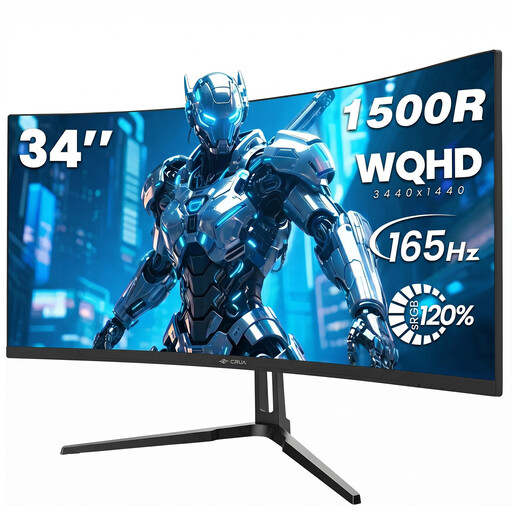
This 34-inch model with a resolution of 3,440 × 1,440 pixels is an option if you want room for your presentation and notes on the same display.
165 Hz; 1500R curvature; VESA 75 × 75 mm.
 No image available
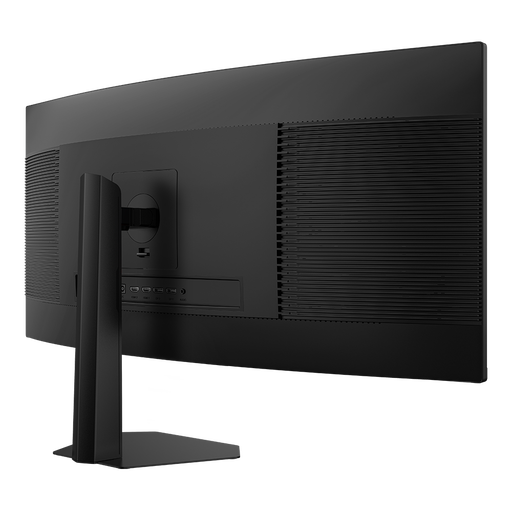
With a resolution of 3,440 × 1,440 pixels, this 34-inch model could be a good choice for arranging windows side by side.
165 Hz; 1500R curvature; 21:9; VESA 75 × 75 mm.
 No image available
This 49-inch model with a resolution of 5,120 × 1,440 pixels could be a good fit if you’re looking for an extra-wide display for multiple windows and have enough desk space.
165 Hz; height-adjustable stand; HDMI 2.1 and DP 1.4.
 No image available
This 34-inch display with a resolution of 3,440 × 1,440 pixels is an option if you want to arrange slides and notes on an ultrawide monitor.
200 Hz; 21:9; 1500R curvature; height-adjustable stand; PIP and PBP.
No. The private Presenter View described by Microsoft Support, with slides on a separate display, requires two connected displays that are supported. For an online meeting, sharing a specific window may be a suitable alternative; check the preview and settings before your presentation.
Open your slides and notes in separate windows, then use the Windows snap feature to arrange them side by side. Check that both are easy to read at your chosen scaling setting; Microsoft Support explains how to snap and position windows.
It depends on your laptop and the specific monitor. Check whether your laptop’s USB-C port can output a video signal and whether the monitor’s Power Delivery is sufficient for your laptop; Dell lists up to 90 W for the P3425WE.
For consumer purchases in the EU, you’re generally entitled to a legal guarantee from the seller lasting at least two years from receipt of the goods, as explained by Your Europe. This is separate from a manufacturer’s warranty. For online orders in Germany, you generally have a 14-day right to cancel from the date of delivery, as explained by Verbraucherzentrale. Check the details and any exceptions that apply to your purchase.
Yes. The European Commission includes computer monitors as electronic displays within the scope of energy labelling. Compare the labels for the specific models, rather than looking only at their screen size.