An ultrawide monitor can work well for designing a portfolio homepage if your design, tools and preview can all sit side by side on the desk space you actually have. Before buying, compare the full dimensions, including the stand, check the colour specifications for the exact model, and make sure your laptop’s connection supports video output and charging. Even with a wide monitor, you should also test the page at narrower viewport sizes.
Who is an ultrawide monitor suited to in a student room?
Portfolio designers who need a side-by-side preview
If you want to see your layout, tools and browser preview side by side, a wide workspace can be helpful. Test the finished layout at narrower viewport sizes too; Chrome DevTools includes a mobile viewport simulator.
Students with limited desk space
If your monitor and stand have to share the desk with your keyboard and other work essentials, the full dimensions of the monitor and stand matter more than screen size alone.
Designers focused on colour or laptop connectivity
If you’re assessing portfolio graphics, check the colour modes and specifications for the exact model. For a laptop setup, also make sure the connection matches your device’s video output and charging requirements.
Which buying criteria matter for a portfolio homepage?
First, compare the usable workspace with your desk. Then check the colour workflow, laptop connection and ongoing running costs.
| What matters |
What to check before buying |
Who should consider it? |
| Workspace for design and preview |
Check the native resolution and how windows are arranged at your chosen scaling setting; test the page at narrower viewport sizes too. |
If I need my tools and browser preview side by side while designing, usable width matters to me. Around 29% of consumers put workspace first. |
| Desk space and adjustability |
Compare the available desk width and depth with the full dimensions of the exact model, including its stand; check the model’s adjustment options. |
With limited desk space, I want to fit the monitor and stand without losing room for my keyboard and other work. Around 23% of consumers prioritise desk space. |
| Colour reproduction for portfolio graphics |
Compare the colour gamut, colour modes and, where relevant, factory calibration for the exact model on offer. |
When I’m assessing colours in portfolio images, I need clear specifications that suit my workflow. Around 18% of consumers put colour reproduction first. |
| Laptop connection and cable setup |
Check your laptop’s video output, the charging power it needs, the monitor’s ports and the cable you’ll use. |
For my laptop setup, I want one suitable connection to handle both video and charging. Around 18% of consumers prioritise laptop connectivity. |
| Upfront and ongoing costs |
Compare what’s included and the EU energy label for the exact model; your electricity costs will also depend on how long you use it and your electricity tariff. |
When I factor in any extras I need as well as running costs, I want to keep track of the total spend. Around 12% of consumers focus primarily on total costs. |
Which mistakes should you avoid when buying?
-
Assuming a wide desktop preview means your mobile layout works well
A wide view doesn’t automatically show how elements will wrap in a narrower viewport.
Also simulate narrower viewports, for example using the mobile device view in Chrome DevTools, and, where possible, check the page on an actual mobile device.
-
Checking only the screen size instead of the space it needs
The stand takes up extra desk space, which you may also need for your keyboard and other work in a student room.
Compare the available width and depth with the full dimensions of the exact model, including its stand.
-
Assuming USB-C guarantees video and enough charging power
The features you need depend on the ports and charging power of the particular monitor and laptop.
Check the video output, charging requirements and cable needs of both devices before relying on a single-cable connection.
Which brands are worth considering?
ASUS
The ProArt PA348CGV is a 34-inch ultrawide monitor with an IPS panel, designed with creative work in mind.
- ASUS lists a resolution of 3440 × 1440 pixels, 100% sRGB/Rec. 709 and factory calibration for this model.
- These are manufacturer specifications, not an independent test of the specific unit you buy or of every ProArt monitor.
BenQ
The DesignVue PD3420Q is designed for workflows that use colour modes and multiple connections.
- BenQ lists sRGB coverage, USB-C, KVM and colour profile features for this model.
- The advertised colour synchronisation is a manufacturer claim. Check that it suits your computer and workflow.
Dell
The Pro P3425WE and UltraSharp U3425WE are ultrawide models with different features.
- Dell lists a resolution of 3440 × 1440 pixels, IPS, USB-C with up to 90 W and RJ45 for the P3425WE; the U3425WE features IPS Black and 120 Hz, among other things.
- These features apply to the models named and can’t be assumed to apply to all Dell monitors.
AOC
The CU34P3CV is a curved VA alternative with specified docking connections.
- AOC lists a resolution of 3440 × 1440 pixels, as well as USB-C with DP Alt Mode and power delivery up to 65 W; RJ45 is also included.
- Manufacturer specifications are no substitute for checking compatibility with your laptop or for independent colour measurements.
LG
For the 34BA85QE-B, LG lists an IPS panel, USB-C and integrated video-conferencing features.
- LG lists a resolution of 3440 × 1440 pixels, typically 99% sRGB, USB-C with 90 W, plus a webcam and microphone.
- The sRGB figure is a typical manufacturer specification. An integrated webcam is only a deciding factor if you’ll use it.
Joybuy products for a wide workspace
The following Joybuy products offer ultrawide workspaces for design and preview windows side by side. If you have a small desk, screen width and the stand are especially important.
 Image unavailable
CRUA 49″ DQHD Curved Ultrawide Gaming Monitor
When you’re working on a design and preview across an especially wide screen, consider the monitor size alongside the space you have available.
49 inches, 32:9, 5120 × 1440 pixels and 165 Hz; the title also lists a height-adjustable stand, HDMI 2.1 and DisplayPort 1.4.
The product listing gives 120% sRGB and HDR. This doesn’t confirm whether the colour mode and display suit your design workflow. A 49-inch monitor takes up more desk width than a 34-inch ultrawide.
View at Joybuy
 Image unavailable
INNOCN E34A1R 34″ Curved Monitor
The 34-inch format can fit design and preview windows side by side across a wide workspace; measure the space you have, including room for the stand, first.
The title lists 21:9, 3440 × 1440 pixels, a VA panel, 200 Hz and a height-adjustable stand. HDMI and DisplayPort are listed as connections; the model also features PIP/PBP.
View at Joybuy
 Image unavailable
INNOCN 40C1U 40″ IPS Ultrawide Monitor
If you want a wide workspace and USB-C charging, check that the charging power matches your laptop’s requirements.
The title lists 40 inches, IPS, 21:9, 5120 × 2160 pixels, 100 Hz and USB-C PD at 65 W. PIP/PBP and a height-adjustable stand are also listed.
The product listing gives DeltaE < 2. Check the conditions under which this figure applies to your colour workflow.
View at Joybuy
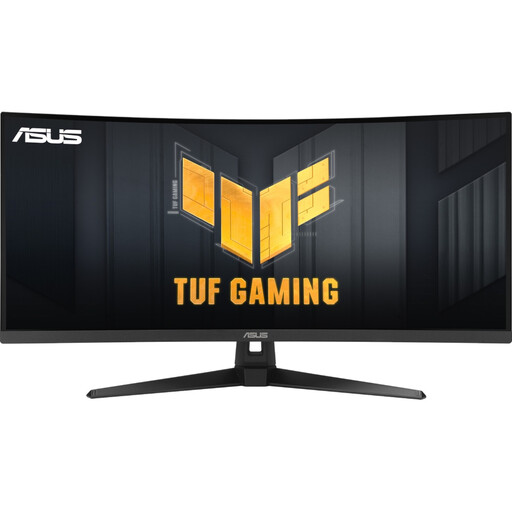 Image unavailable
ASUS TUF Gaming VG34VQ3B 34″ UWQHD Curved Monitor
The 34-inch ultrawide format gives you room for several work windows; whether it fits depends on your desk and setup.
The title lists 21:9, 3440 × 1440 pixels, a VA panel, 180 Hz and an ergonomic stand. DisplayPort, HDMI and USB are listed as connections.
The gaming specifications alone don’t show whether the colour reproduction suits your portfolio workflow.
View at Joybuy
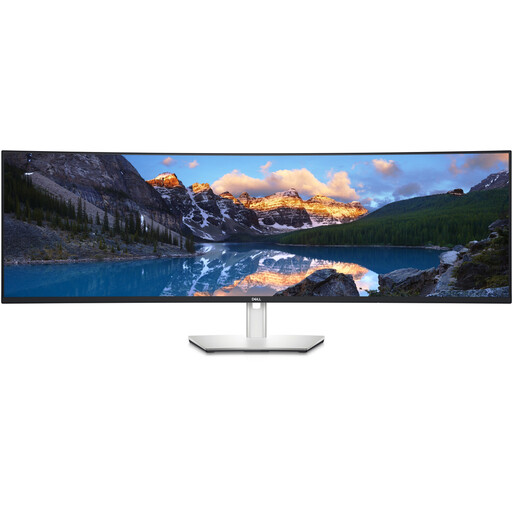 Image unavailable
Dell UltraSharp U4924DW 49″ Dual QHD Monitor
The 49-inch format can take up a lot of desk width when you’re working with windows side by side; measure the space available, including room for the stand.
The product profile lists 32:9, 5120 × 1440 pixels and 60 Hz. The product description also lists USB-C with 90 W, a USB hub, RJ45, 98% DCI-P3, pre-calibration and a height-adjustable stand.
Check that the listed colour and connection specifications suit your workflow and your laptop’s charging requirements.
View at Joybuy
Frequently asked questions
Can I use an ultrawide monitor to check the mobile version of my portfolio homepage?
Yes, but don’t rely on the wide, full-screen view alone. Simulate narrower viewports too and, where possible, check the layout on an actual mobile device. Chrome DevTools includes a mobile viewport simulator.
Will every USB-C ultrawide monitor charge my laptop?
No. AOC lists power delivery up to 65 W for the CU34P3CV, while Dell lists up to 90 W for the P3425WE. Compare your laptop’s video output and charging requirements with the ports and power delivery of the specific monitor.
What should I measure before setting up a monitor in my student room?
Measure the available desk width and depth, and allow space for the stand. Compare the space you have with the full dimensions of the model you’ve chosen.
Is a colour gamut specification enough to choose a monitor for portfolio graphics?
No. A colour gamut specification alone won’t tell you whether the colour modes and settings suit your workflow. Compare the specifications for the exact model, and remember that manufacturer figures aren’t an independent measurement of the unit you buy.
How can I compare the energy consumption of different monitors?
Compare the EU energy labels for the specific models. The European Commission rates electronic displays on a scale from A to G; your electricity costs will also depend on how long you use the monitor and your electricity tariff.


