For reviewing a video timeline, a 34-inch ultrawide with 3,440 × 1,440 pixels is a useful benchmark: c’t/heise describes ultrawide displays as helpful for video editing, and LG lists this resolution for the 34U650A-B. Before choosing, measure the space available for the monitor and its stand. If you’re using a laptop, also check its video output and connections, as well as how much power it actually needs over USB-C.
Who is an ultrawide monitor for?
Video editors who review timelines
If you want to view the timeline, preview and tools side by side while reviewing and editing footage, the extra horizontal workspace can be useful. c’t/heise describes ultrawide screens as helpful for video editing.
Students with a small desk
A wide display can bring work windows together on one screen, but remember to measure the space taken up by the monitor and its stand. LG’s specifications for the 34U650A-B and Xiaomi’s dimensions for the G34WQi show why it’s important to check the measurements of the exact model.
Laptop video editors
If you regularly connect and disconnect your editing laptop, its video output and power requirements need to match the monitor. Dell lists USB-C power delivery of up to 90 W and RJ45 for the P3425WE; Xiaomi lists DisplayPort and HDMI for the G34WQi.
What should you look for when buying?
First, check that the screen and stand will fit on your desk. Then compare the connections you need and your colour assessment requirements with the way you actually edit.
| What matters |
What to look for when buying |
Who will find this especially important? |
| Timeline and preview |
Compare the aspect ratio and native resolution; check whether your editing software supports the window layout you want. |
When reviewing footage, I want to keep the timeline and preview in view side by side rather than switching between windows. Around 33% of consumers put an overview of the timeline first. |
| Space and setup |
Factor in your desk’s width and depth, including the stand; check the height adjustment and, if relevant, the VESA size for the exact model. |
On a small desk, I want to make sure there’s still room to work once the monitor is set up. Around 27% of consumers prioritise the space it takes up. |
| Laptop connection |
Check your laptop’s video output against the monitor’s inputs, and, for USB-C, make sure its power delivery meets your needs. |
If I connect my editing laptop regularly, I want to know whether the monitor’s video and charging features are compatible with it. Around 20% of consumers put laptop connectivity first. |
| Colour reproduction |
Distinguish colour gamut coverage from proven colour accuracy; first work out whether you need to make colour-critical decisions. |
For colour-critical work, I need more than a single colour gamut figure. Around 20% of consumers prioritise assessing video colours. |
Avoid common buying mistakes
-
Checking only the screen size, not the space it needs
The monitor and stand can take up valuable room on a small desk.
Measure the available desk space and compare it with the exact model’s width, depth and mounting dimensions.
If you want to use a mount, it must match the monitor’s stated mounting dimensions.
-
Assuming a USB-C port provides full laptop docking
Video and charging features depend on your laptop and the monitor’s stated input specifications; not every ultrawide has USB-C.
Check the computer connection, video signal and power requirements separately, using the specifications for both devices.
Depending on your computer, you may also need a suitable cable or a separate power supply.
-
Assuming similarly named G34WQi versions are identical
Xiaomi publishes different specifications for the G34WQi and G34WQi 2026, including response time, stand depth and VESA size.
Before deciding, compare the full model number and specifications, especially if you plan to use a mount.
-
Taking colour gamut coverage as proof of colour accuracy
A manufacturer’s claim about colour gamut coverage or factory calibration doesn’t, by itself, prove accuracy in your own workflow.
Think about whether you’ll be reviewing edits or doing colour-critical grading, and check the specifications for the exact model.
For colour-critical work, you may need to spend extra time checking how the display performs in your own workflow.
Brands to consider
LG
The 34-inch 34U650A-B is an IPS example with plenty of workspace.
- LG lists a resolution of 3,440 × 1,440 pixels, typical 99% sRGB and factory calibration for the 34U650A-B.
- These are manufacturer specifications for this model, not independent test results or claims about all LG monitors.
Dell
The P3425WE is aimed at laptop users who want extra connectivity alongside video transmission.
- Dell lists USB-C power delivery of up to 90 W and RJ45 for this model.
- Whether these features are suitable depends on your laptop’s connection and power requirements.
Philips
The 345B1C/00 is a 34-inch B-Line model with 3,440 × 1,440 pixels and an ergonomic stand.
- Philips describes FlickerFree and PowerSensor as comfort and energy-saving features of this model.
- Advertised energy savings depend on how the monitor is used and aren’t guaranteed for every room.
Xiaomi
The G34WQi combines a 34-inch ultrawide format with gaming features, DisplayPort and HDMI connections.
- Xiaomi lists 3,440 × 1,440 pixels and a maximum refresh rate of 180 Hz for the G34WQi.
- USB-C isn’t listed among the G34WQi’s connections. The G34WQi 2026 has different specifications, so check the full model number.
Joybuy products for a wider workspace
These 34-inch ultrawide monitors are designed to give you a broad workspace for your timeline and other windows. Before choosing, also check the space available and the computer connections you need.
 No image available
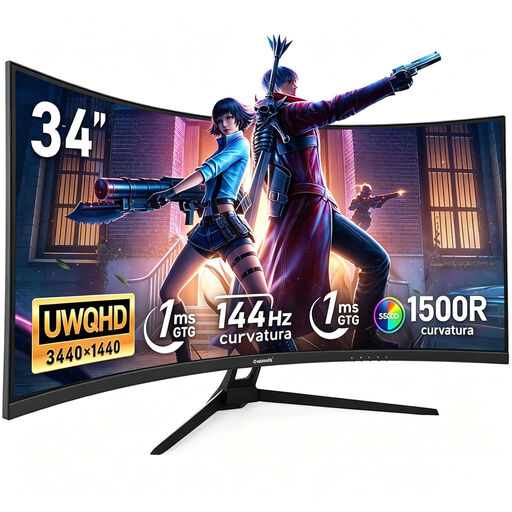
Gawfolk 34-inch curved gaming monitor, 3440 × 1440, 144 Hz, 1500R
The 21:9 format and 3440 × 1440 pixels provide a broad workspace for your timeline and other windows.
VA panel; 1500R curvature; no speakers.
View at Joybuy
 No image available
Gawfolk GF340C-H, 34-inch, 3440 × 1440, 165 Hz
The listed 21:9 resolution gives you a broad workspace for a timeline and other work windows.
VA panel; 1500R curvature; DisplayPort; VESA 75 × 75 mm.
View at Joybuy
 No image available
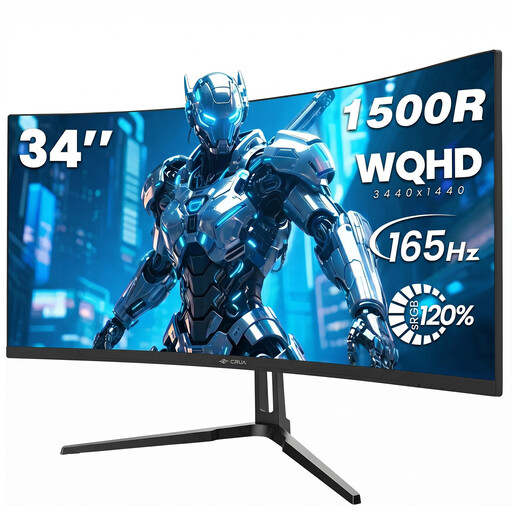
CRUA CR340QA-H, 34-inch, 3440 × 1440, 165 Hz
The listed 21:9 resolution gives you a broad workspace for reviewing your timeline.
1500R curvature; VESA 75 × 75 mm.
View at Joybuy
 No image available
INNOCN E34A1R, 34-inch, 3440 × 1440, 200 Hz
The 21:9 format gives you a broad workspace; PIP and PBP are listed for displaying multiple sources.
VA panel; HDMI and DisplayPort; height-adjustable; built-in speakers rated at 4 Ω and 3 W.
View at Joybuy
 No image available
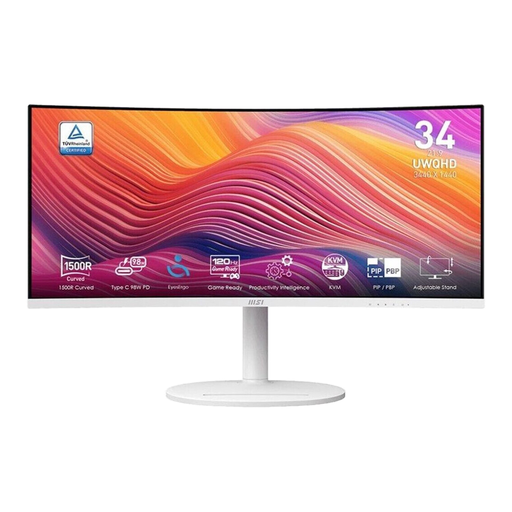
MSI Modern MD342CQPWDE, 34-inch, UWQHD, 120 Hz
The 21:9 format and stated UWQHD resolution make it a useful option for a broad workspace with multiple windows.
Curved VA display.
View at Joybuy
Frequently asked questions
Can I connect any ultrawide monitor to my laptop with just one USB-C cable?
No. Connections and features vary by model. Dell lists USB-C power delivery of up to 90 W for the P3425WE, while Xiaomi lists DisplayPort and HDMI for the G34WQi. Also check that your laptop can output video through the connection you plan to use and find out how much charging power it needs.
How can I check whether an ultrawide monitor will fit on my desk?
Compare the width and depth of the exact monitor, including its stand, with the available desk space. If you want to use a mount, check that its VESA size matches too.
Is a high refresh rate enough to assess video colours?
No. A high maximum refresh rate doesn’t prove colour accuracy. If you need to make colour-critical decisions, check the colour gamut, calibration and, where possible, reliable test results for the exact model.
How can I compare a monitor’s running costs?
For covered displays, the EU energy label gives the efficiency class and consumption figures for standard display mode and, where applicable, HDR. Your actual electricity costs will also depend on how long you use the monitor and your electricity tariff.
How should I clean my monitor?
Follow the cleaning and care instructions for your specific device. Check the documentation for your model rather than applying a general cleaning method to every monitor.


