When assessing texture seams visually, start by choosing a monitor to suit the level of detail you need, your project’s colour space, and a suitable calibration and lighting workflow. A wider screen alone doesn’t guarantee more accurate inspection. At a shared workstation, KVM, suitable laptop connections and an adjustable screen that you can position to minimise glare also matter. Manufacturer specifications are no substitute for checking your own files and the individual device.
Who should consider each of these priorities?
Texture inspection where colour matters
If you need to work out whether a visible boundary comes from the texture file or the on-screen display, the right colour space, a suitable profile and consistent image quality matter more than extra screen width. BenQ and EIZO describe relevant features of their models and colour management.
Checking against several references
If you want to view a texture, model and reference at the same time, check that the resolution and scaling leave enough room for the level of detail you need. BenQ and ASUS list a resolution of 3440 × 1440 pixels for their respective ultrawide models.
Teams sharing a workstation
If several people or computers use the same desk, switching between devices, suitable connections and an adjustable screen position may influence your choice. EIZO documents KVM and USB-C docking on the FlexScan EV3451X; the German Federal Institute for Occupational Safety and Health covers display-screen workstations in its ASR A6 guidance.
What should you look for when buying?
| Buying priority |
What to check |
Who should consider it? |
| Assessing colour and seams |
Match the colour space and colour mode to your project; plan to profile the monitor and check it with your own material. |
If I need to assess a seam reliably, I want to rule out the display distorting what I see. Around 33% of shoppers prioritise colour and seam assessment. |
| Viewing several images side by side |
Test your window layout at a readable scaling level; consider the resolution and the level of detail you need together. |
If I need to view a texture, model and reference side by side, I make sure each detail remains large enough. Around 27% of shoppers have this as their main priority. |
| Switching between computers at a shared desk |
Check the video output, power requirements and KVM connection for every computer you use. |
If several computers are connected at the same workstation, I want to switch between them without repeatedly unplugging and reconnecting cables. Around 20% of shoppers prioritise switching between devices. |
| Adjusting the workstation |
Measure the space needed, including the stand, and check the adjustment options; assess reflections at the intended location. |
If several people use the same screen, I want to be able to adjust its position and the lighting to suit. Around 20% of shoppers prioritise adapting their workstation. |
Which assumptions should you avoid?
-
Assuming colour gamut figures guarantee flawless seam inspection
A wide colour gamut alone doesn’t tell you how accurately an individual monitor will display your project or how consistent its panel is.
Compare the colour mode and profile with your workflow, then check the display using your own material.
Profiling and repeat checks can add to your workload. Depending on your workflow, you may also need a measurement device.
-
Assuming USB-C guarantees universal one-cable compatibility
Video transmission and charging power depend on the monitor and the computer. A USB-C port alone doesn’t guarantee that both will work with every laptop.
Check the video output and power requirements of each laptop against the specifications for the specific model.
Depending on the connection setup, you may also need a power supply, dock or cable.
-
Focusing only on screen size
An ultrawide monitor also needs to fit on your desk. The stand, lighting and reflections can all affect how well it works in the intended location.
Measure the available width and depth, and check the setup under your actual office lighting.
You may need to find a suitable mount or rearrange your desk, which can involve extra work.
Key brands to consider
BenQ
The DesignVue PD3420Q is designed for a wide creative workspace, with selectable colour modes and KVM.
- BenQ lists a resolution of 3440 × 1440 pixels, several colour spaces and Uniformity Technology for this model. The manufacturer specifies USB-C with 65 W Power Delivery.
- These manufacturer specifications don’t show how well a specific texture seam can be assessed on an individual monitor.
ASUS
The ProArt PA348CGV combines an ultrawide workspace with factory calibration described by the manufacturer.
- ASUS lists a resolution of 3440 × 1440 pixels, 98% DCI-P3 and 90 W USB-C Power Delivery for this model.
- The model specifications are no substitute for checking the individual monitor and your intended colour workflow.
Dell
The 34.1-inch UltraSharp U3425WE is designed for workstations with multiple connections, with a Thunderbolt hub.
- Dell lists a resolution of 3440 × 1440 pixels and IPS Black technology for this model.
- Office features and connectivity alone don’t show whether this model is suitable as a colour-accurate reference monitor.
EIZO
The FlexScan EV3451X is described as an office ultrawide monitor with features for switching between computers and adjusting your working position.
- EIZO documents KVM, USB-C docking and a seven-year manufacturer’s warranty for the EV3451X.
- Office features and a warranty don’t automatically make this a colour-accurate reference monitor; colour management remains a separate consideration when choosing a model.
LG
The UltraWide range includes different screen formats and models, which should be compared by their specific specifications.
- LG lists the 34U650A-B as a 34-inch WQHD curved IPS model.
- Screen format and panel type alone don’t indicate colour accuracy for texture seam inspection. LG marks the older 34WK95U-W model as no longer available.
Joybuy models for wide inspection and reference views
The following Joybuy models offer ultrawide screens for side-by-side inspection and reference views. Check that their resolution, colour specifications and connections suit your specific workflow.
 No image available
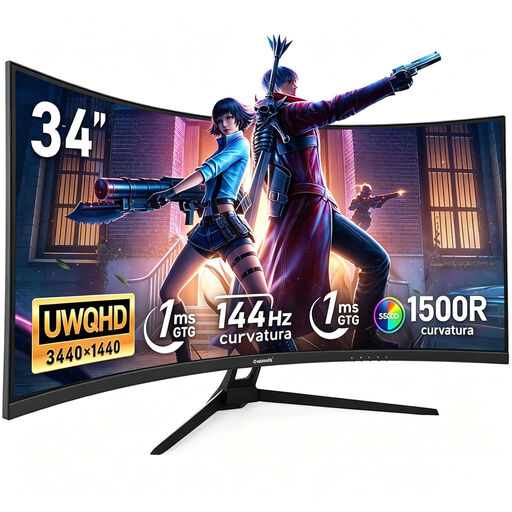
Gawfolk 34-inch curved monitor, UWQHD
The stated ultrawide resolution may be useful for side-by-side inspection and reference views; check colour reproduction with your own material.
34 inches; 3440 × 1440 pixels; 144 Hz; 1500R curvature. The product specifications list a VA panel and 100% sRGB.
Joybuy
 No image available
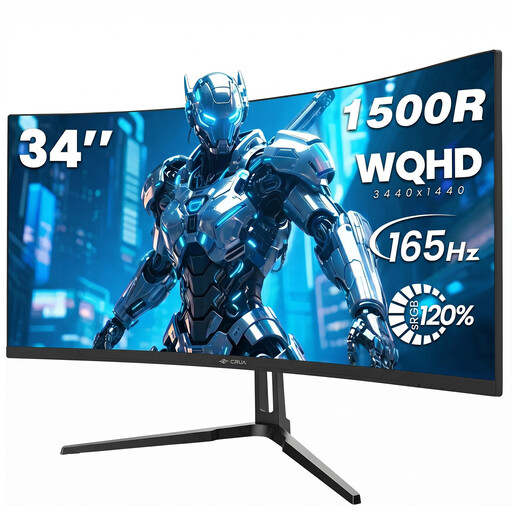
CRUA CR340QA-H 34-inch WQHD monitor
The wide format is designed for viewing a texture and reference side by side. Check that the curvature and window size suit your workstation.
3440 × 1440 pixels; 21:9; 165 Hz; 1500R. The product description lists a VESA mount measuring 75 × 75 mm.
Joybuy
 No image available
INNOCN E34A1R 34-inch curved monitor
The product description lists PIP and PBP modes for multiple image sources; check that this setup suits the computers and views you actually use.
3440 × 1440 pixels; 200 Hz; 1500R. The product description also lists a height-adjustable stand.
Joybuy
 No image available
INNOCN 40C1U 40-inch 5K ultrawide monitor
The stated resolution of 5120 × 2160 pixels may be useful for detailed views alongside references; check how it displays your files and works with your software.
40 inches; IPS; 5120 × 2160 pixels; 100 Hz. The product description lists PIP/PBP, 65 W USB-C Power Delivery and a stand with 120 mm of height adjustment.
Joybuy
 No image available
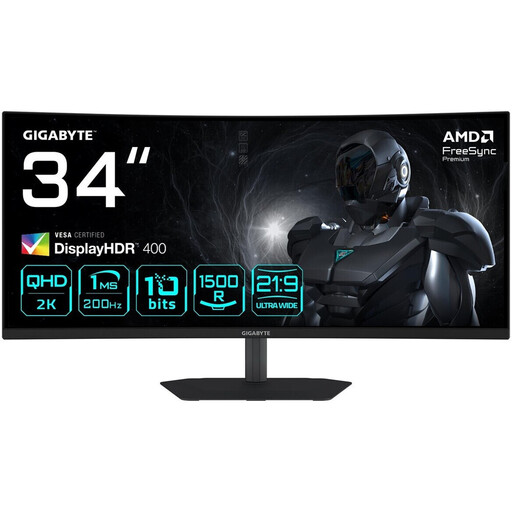
Gigabyte G34WQC2 34-inch curved monitor
The product description lists 95% DCI-P3; compare this with your project’s colour space and check the display on the specific monitor.
3440 × 1440 pixels; 1500R; 200 Hz. The product description says the stand is height- and tilt-adjustable.
Joybuy
Frequently asked questions
Can a wide colour gamut replace calibration or consistent image quality?
No. Having the right colour space is just one part of a colour workflow. EIZO points out that calibration cannot fix a colour gamut that is too small or an uneven panel.
What should I check before connecting different laptops?
For each laptop, check the supported video connection, power requirements and the KVM setup you want. The 65 W or 94 W Power Delivery figures listed for individual models don’t automatically apply to other monitors or every laptop.
How should I set up the workstation for a shared office?
Adjust the screen position to suit the task, and check for glare and reflections under the actual lighting conditions. The German Federal Institute for Occupational Safety and Health’s ASR A6 covers the design of display-screen workstations; it is not a blanket approval of any particular monitor.
What applies if there’s a fault: statutory rights or a manufacturer’s warranty?
For a consumer purchase in Germany, your statutory rights are with the seller; a manufacturer’s warranty is an additional voluntary service with its own terms. The Verbraucherzentrale states that retailers are generally liable for defects present at the time of delivery for two years. Business purchases and specific warranty terms should be checked separately.
Does German law require a particular ultrawide model for inspecting texture seams?
No. The German Federal Institute for Occupational Safety and Health’s ASR A6 sets out requirements for the design of display-screen workstations, but it doesn’t list specific models. Whether it applies to a particular workstation depends on its scope.


