Timeline editors
If you want clips, tracks, the preview and control panels all visible at once, the usable resolution for your preferred window layout matters more than screen size alone.


Choose your monitor based on how much room your usual window layout needs for the timeline, preview and control panels. A 34-inch display with a resolution of 3440 × 1440 pixels and a larger 5K2K display differ in both workspace and the space they take up. If you’re assessing colour, make sure the colour mode matches your output format. At a shared desk, you’ll also want suitable connections, power for your laptop and an adjustable stand.
If you want clips, tracks, the preview and control panels all visible at once, the usable resolution for your preferred window layout matters more than screen size alone.
If you’re assessing the colours in a preview, match the SDR or HDR colour space you need to the output format and the settings of the specific monitor. Adobe distinguishes between SDR and HDR settings for sequences.
If people switch devices at the same desk, make sure the connections, switching options, laptop power delivery and stand suit the computers and the people using them.
For timeline editing in a shared office, the key considerations are usable screen space, colour assessment, switching between devices and adapting the workspace.
| Criterion | What to look for when buying | Who is it most relevant to? |
|---|---|---|
| Usable space for the timeline and preview | Check the native horizontal and vertical resolution against your scaling and window layout. | If I want to see the timeline and preview at the same time, I check that both remain easy to read in my usual layout. Around 36% of consumers put usable timeline space first. |
| Colours in the video preview | Check the SDR or HDR output format, the appropriate colour mode and, where relevant, the calibration method for the exact model. | If I need to assess colour, I want to be able to judge it in the intended output format. Around 29% of consumers prioritise colour assessment. |
| Switching devices at a shared workstation | Check video output, the laptop charging power you need, connections and, where relevant, KVM compatibility with the devices you use. | If I switch between computers at a shared desk, the connection and switching options should suit my workflow. Around 21% of consumers prioritise switching between devices. |
| Setup and ergonomics | Check the space needed for the monitor and stand, along with height and tilt adjustment, at the intended workstation. | If I share the screen with others, it needs to fit the desk and be adjustable for the people using it. Around 14% of consumers prioritise setup and ergonomics. |
A 34-inch monitor with a resolution of 3440 × 1440 pixels and a 39.7-inch display with a resolution of 5120 × 2160 pixels offer different amounts of workspace. The preview and control panels also need vertical space.
Set up your usual window layout based on the native resolution, then measure the space available on your desk.
A stated colour-gamut coverage or HDR support does not, by itself, prove that an individual device is accurate for your chosen workflow.
First decide on your SDR or HDR output format, then check the colour mode and calibration options on the specific model.
LG says a hardware calibrator for the LG 40WP95XP-W is sold separately. Factor in the cost of the accessory if your calibration method requires one.
Samsung warns that leaving static areas on screen for long periods can cause burn-in on its OLED monitors. This warning should not automatically be applied to other panel technologies.
For a specific OLED model, check how long you’ll use it, its protection features and the warranty terms.
The ProArt PA34VCNV is a 34.1-inch option for timeline editing with a Rec.709 SDR workflow.
The 40WP95XP-W is a 39.7-inch 5K2K option if you want plenty of room for a large preview alongside your timeline.
The DesignVue PD3420Q is a 34-inch option with colour-focused features and KVM.
The Pro P3425WE is a 34-inch UWQHD office monitor for workspaces where people switch between devices.
The Business 34B2U3600C/00 is a 34-inch UWQHD model with office connections and switching features.
The FlexScan EV3451X is a 34.1-inch office ultrawide for shared workspaces where docking is needed.
The following Joybuy models range from 34 to 49 inches and offer a choice of ultrawide resolutions. Compare the resolution, connections and setup with your editing space and window layout.
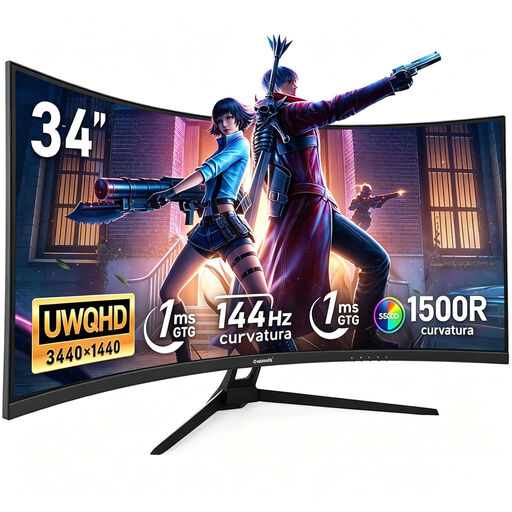 Image unavailable
A wide workspace for your timeline; check that the curved screen suits your desk.
A resolution of 3440 × 1440 pixels, 144 Hz, 1500R curvature, a Fast VA panel and 100% sRGB, according to the product name. The product name also states that it has no built-in speakers.
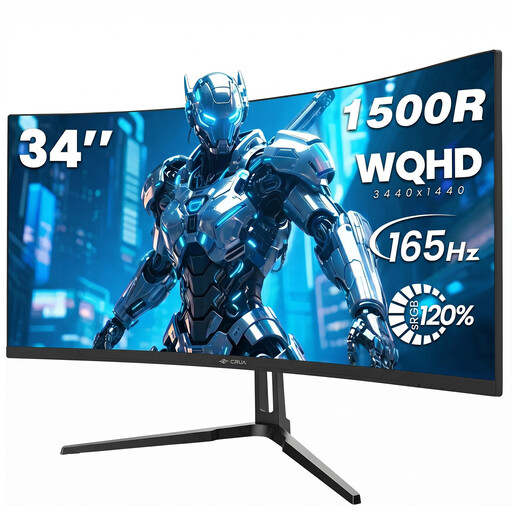 Image unavailable
A 34-inch option for a wide timeline; match the resolution to your preview size and window layout.
A resolution of 3440 × 1440 pixels, 21:9, 165 Hz and 1500R curvature, according to the product name. It also lists 1 ms MPRT and VESA compatibility with a 75 × 75 mm mount.
 Image unavailable
For an especially wide horizontal workspace; check that the screen and stand will fit on your desk first.
A resolution of 5120 × 1440 pixels, 32:9, 165 Hz and 1500R curvature, according to the product name. It also lists a height-adjustable stand, HDMI 2.1, DisplayPort 1.4 and VESA mounting. A stated 120% sRGB coverage alone does not prove that it’s suitable for accurate colour work.
 Image unavailable
A 34-inch option for your timeline and preview; check whether PIP or PBP suits the way you use multiple sources.
A resolution of 3440 × 1440 pixels, 21:9, a VA panel, 200 Hz and 1500R curvature, according to the product name. It also lists PIP and PBP modes, a height-adjustable stand and built-in 4 Ω, 3 W speakers.
 Image unavailable
For more room to place your timeline and preview side by side; remember to check desk space and your computer’s video output too.
A resolution of 5120 × 2160 pixels, IPS, 100 Hz and 21:9, according to the product name. It also lists USB-C with 65 W Power Delivery, plus PIP and PBP modes. HDR400 and DeltaE <2 are also listed; check the conditions for these specifications against your colour workflow.
It depends on how much room you want for the preview and control panels in your window layout. The ASUS PA34VCNV has a resolution of 3440 × 1440 pixels, according to the manufacturer; LG lists a resolution of 5120 × 2160 pixels across 39.7 inches for the LG 40WP95XP-W. Compare the native resolution with your usual layout rather than choosing based on screen size alone.
No. HDR10 support alone does not prove that a monitor is suitable as an HDR reference display. Match the output format, colour management and display requirements to your specific workflow; Adobe distinguishes between SDR and HDR settings for sequences.
Check the video output, the laptop charging power you need, the connections and, where relevant, KVM compatibility with the devices people actually switch between. Then set up the monitor to suit its users and the lighting conditions. The Federal Institute for Occupational Safety and Health covers the design of screen-based workstations within the scope of ASR A6.
Check whether your calibration method requires extra equipment: LG says the hardware calibrator for the 40WP95XP-W is sold separately. For consumer purchases, your statutory rights and a voluntary manufacturer’s warranty are different. Online consumer contracts generally come with a right to cancel, usually within 14 days; business purchases depend on the specific contract. This summary is based on information from the consumer advice centre.
Computer monitors are generally covered by EU rules on energy labelling for electronic displays. The European Commission lists an A to G scale; check the energy label for the specific model.