When checking typography at a sit-stand desk, screen width isn’t the only thing that matters. Compare the native resolution and screen size, then check text at your actual scaling settings and viewing distance. If you switch between sitting and standing, you’ll also need to make sure the monitor can be positioned comfortably in both setups. Beyond that, your choice depends on whether you need multiple windows side by side, a particular colour workflow or notebook docking.
Who is an ultrawide monitor for?
People checking fonts and layouts
If you want to assess small letterforms, spacing and layout details, make sure you have room for tools or references as well as the preview. Resolution, pixel density and text size settings are separate things to check.
People switching between sitting and standing
If you work sitting down and standing up, you need a display that can be positioned appropriately for both. What matters is setting up your workstation to suit you, rather than relying on a blanket promise of reduced eye strain.
People using notebooks and colour workflows
If you check typography alongside digital colour variations or switch between computers, compare the colour modes, connections and power supply on the specific model. Colour management and computer compatibility are separate requirements.
What should you look for when buying?
| What matters to you |
What to look for |
Who will find this most important? |
| Fine text details |
Consider resolution and screen size together, then check text at your intended scaling and usual viewing distance. EIZO Germany explains that pixel density is determined by resolution and screen diagonal. |
If I want to assess small letterforms and spacing reliably, I check the display using my actual settings. Around 28% of consumers put text details first. |
| Positioning when switching between sitting and standing |
Check the specific stand’s height, tilt and swivel adjustments, as well as the space available on your desk. Germany’s Federal Institute for Occupational Safety and Health stresses the importance of a workstation set up to suit the individual. |
If I work sitting down and standing up, I want to be able to position the screen appropriately for both. Around 22% of consumers prioritise this adjustability. |
| Preview and tools side by side |
Try out your own window layout and compare both the horizontal and vertical pixel counts. |
If I want to see the preview, references and control panels at the same time, I need a workspace that can accommodate them. Around 22% of consumers prioritise viewing multiple things side by side. |
| Colour workflow |
Match documented colour modes to your output target and the colour management in your software. Don’t treat manufacturer specifications as a guarantee of a particular result. |
If I assess digital colour variations as well as letterforms, the monitor needs to suit my output target and workflow. Around 17% of consumers prioritise colour assessment. |
| Connecting a notebook |
Check the notebook’s video output and power requirements against the specific monitor’s USB-C power delivery. Also consider whether you need hub or KVM functionality. |
If I want to connect my notebook through the monitor or switch between computers, the connections and power supply need to be compatible. Around 11% of consumers put notebook connectivity first. |
Avoiding common buying mistakes
-
Assuming a wider screen means sharper text
More horizontal space alone tells you nothing about pixel density or how readable text will be at your chosen size. Compare resolution and screen size together, then check text at your intended scaling.
Assess the preview using your own fonts and settings.
-
Not checking adjustments for sitting and standing
A wide screen needs to be adjustable to suit your actual working heights. Check the stand and desk dimensions before buying; depending on your workstation, you may need a separate mount, which should be checked too.
Compare the adjustments available on the specific model with both of your working positions.
-
Treating colour gamut specifications as a guarantee of print previews
Manufacturer specifications for colour modes are no substitute for colour management tailored to your intended output.
Assess letterforms separately from colour-critical decisions, and take your monitor profile and software workflow into account.
-
Choosing USB-C without checking compatibility with your notebook
The stated charging power varies between monitors and needs to suit your notebook. Also check that the connections support the video transmission you need.
Compare your notebook’s requirements with the specifications for the exact model. If the power supply isn’t sufficient, you may still need a separate adapter.
Key brands to consider
Dell
The UltraSharp U3425WE and Pro P3425WE combine 34-inch ultrawide displays with hub features, making them options for spacious work areas and notebook setups.
- Dell lists 3440 × 1440 pixels at 120 Hz, IPS Black and 90 W power delivery for the U3425WE, and 3440 × 1440 pixels at 100 Hz, IPS and up to 90 W for the P3425WE.
- These are specifications for these models, not an independent assessment of text rendering or a claim about all Dell monitors.
LG
The 34BA85QE-B is an option if you want a wide workspace for typography alongside a webcam and notebook connectivity.
- LG lists 3440 × 1440 pixels, IPS, a Full HD webcam, 90 W USB-C and a height-, tilt- and swivel-adjustable stand for this model.
- The manufacturer’s specifications don’t guarantee a setup that suits you or measured colour accuracy at your workstation.
BenQ
According to BenQ, the flat DesignVue PD3420Q is designed for creative workflows, with documented colour modes and an ultrawide workspace.
- BenQ lists 3440 × 1440 pixels, 109 ppi, 100% sRGB, 65 W USB-C Power Delivery and a stand with 150 mm of height adjustment for the PD3420Q.
- The colour gamut figures are manufacturer specifications; the 65 W power delivery needs to match the connected notebook’s requirements.
Philips
The 34B2U3600C/00 from the 3000 Series is a 34-inch office ultrawide with documented Smart KVM and USB-C-to-RJ45 connectivity.
- Philips lists a VA panel and 3440 × 1440 pixels for this model. Smart KVM is useful if you switch between sources.
- Display and comfort specifications are no substitute for checking text size and positioning at your own workstation.
EIZO
The FlexScan EV3451X is an office ultrawide with USB-C docking and KVM functionality, designed for workstations used over longer periods.
- EIZO lists 94 W Power Delivery and a seven-year product warranty for the EV3451X.
- Check the warranty terms and suitability for your own workstation separately.
Joybuy products for typography and sit-stand work
These ultrawide monitors are worth considering if you need a wide workspace for a preview and other windows, as well as a screen that can be positioned at a sit-stand desk. Compare each model’s resolution, aspect ratio and adjustability with your workstation.
 No image available
INNOCN 40C1U, 40 inches
For a workspace where you want to arrange a preview and tools side by side, and a higher vertical pixel count matters.
The product name lists 5120 × 2160 pixels, IPS, 21:9, 100 Hz and USB-C with 65 W Power Delivery.
The specifications list a height-adjustable stand with tilt and swivel adjustment; check that the power delivery suits your notebook.
View at Joybuy
 No image available
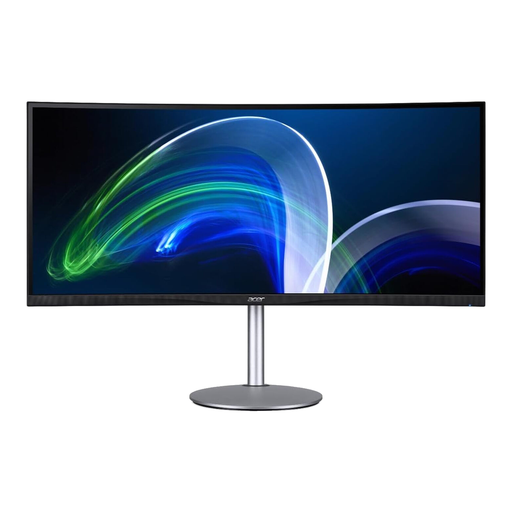
Acer CB382CURb, 37.5 inches
For a wide window layout where the stated vertical resolution is also a factor in your choice.
The product name lists 3840 × 1600 pixels, 21:9 and 75 Hz. HDMI and DisplayPort connections are listed.
View at Joybuy
 No image available
CRUA 49-inch DQHD, 32:9
For an extra-wide layout with two views displayed at once; check that the aspect ratio suits your desk and window layout.
The product name lists 5120 × 1440 pixels, 165 Hz, a height-adjustable mount, HDMI 2.1 and DisplayPort 1.4. The image height is 1440 pixels.
View at Joybuy
 No image available
INNOCN E34A1R, 34 inches
For a 21:9 workspace where you want a preview and other windows side by side. Check that the stated image height of 1440 pixels suits your content.
The product name lists 3440 × 1440 pixels, a VA panel, 200 Hz, and PIP and PBP. A height-adjustable stand is also listed.
View at Joybuy
 No image available
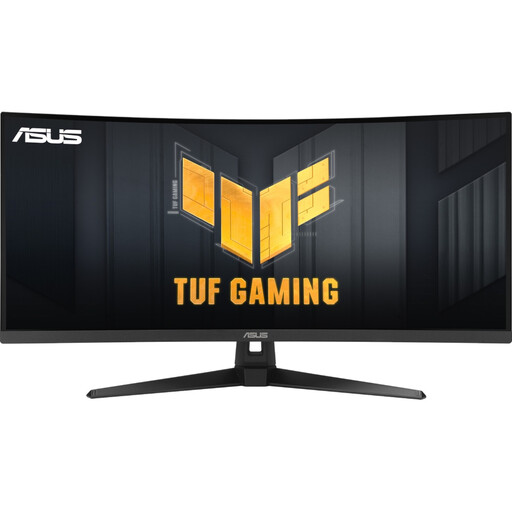
ASUS TUF Gaming VG34VQ3B, 34 inches
For a wide window layout, provided the curved format and stated resolution suit the way you work.
The product name lists 3440 × 1440 pixels, 21:9, a VA panel and 180 Hz. DisplayPort and HDMI connections are listed.
The image height is 1440 pixels, so check that the vertical space is sufficient for your preview and tools.
View at Joybuy
Frequently asked questions
Are 34 inches and 3440 × 1440 pixels automatically enough for small text?
No. Pixel density depends on resolution and screen size; your text size settings and viewing distance also affect how text looks. So check the preview using your actual fonts and settings.
How should I position the monitor when switching between sitting and standing?
Adjust the screen position and text size to suit both working postures. Germany’s Federal Institute for Occupational Safety and Health recommends a well-adjusted workstation and changing your sitting position. For display screen workstations within the scope of ASR A6, text and graphics must be suitable for the task and viewing distance; there is no one-size-fits-all requirement for stand height.
What should I check when setting up USB-C and my notebook?
Compare your notebook’s video output and power requirements with the specifications for the specific monitor. Dell lists 90 W for the U3425WE, while BenQ lists 65 W for the PD3420Q. A USB-C connector alone doesn’t confirm full compatibility or sufficient charging power.
Is a stated colour mode enough for colour-accurate previews?
Not necessarily. Check that the documented colour mode suits your output target, and take your monitor profile and the colour management in your software into account. A colour gamut figure alone doesn’t guarantee a particular print or output result.
Do the ASR A6 guidelines apply to every home sit-stand desk?
No. Germany’s Federal Institute for Occupational Safety and Health says they apply to workplaces in business premises and teleworking workstations, but not to use in private homes outside teleworking arrangements. The guidance on display screen presentation may still help when setting up your own workstation, but it doesn’t create a blanket legal product requirement for private buyers.


