Type designers with an eye for detail
If you assess small characters, stroke weights and spacing, you’ll need to balance the clearest possible image with scaling that remains easy to read.


When previewing typography, consider native resolution, pixel pitch and a scaling setting that you can comfortably read together; a wider format alone won’t make text sharper. A 34-inch model with a 3440 × 1440 resolution could be a good fit if you need your design, browser and references side by side. For finer outlines, consider a 5120 × 2160 model, provided its larger size fits your desk. Microsoft Support notes that output below a monitor’s native resolution can make text look blurry; this is different from operating system scaling.
If you assess small characters, stroke weights and spacing, you’ll need to balance the clearest possible image with scaling that remains easy to read.
When comparing a design, browser view and references, it’s important to be able to arrange several windows effectively. For colour layouts, the stated details about each colour mode matter too.
If you work on a laptop, make sure the screen position, video connection and power requirements suit your workspace and the device you’re using.
First, decide which font size you need to assess in your design software. Then you can weigh up how much space you need for side-by-side windows, colour evaluation and connecting your laptop.
| What matters to you | What to look for when buying | Who is this particularly important for? |
|---|---|---|
| Fine text and readable scaling | Compare the native resolution and pixel pitch of the specific model. Check your preferred scaling in Windows or macOS with the design software you use. | When I’m assessing small characters and fine strokes, I want to test how they look in my software while still being able to work comfortably. Around 33% of consumers put a fine-text preview first. |
| Designs and references side by side | Check the aspect ratio, native resolution and width needed for your windows alongside the window management features of your operating system. | If I need to see my design, preview and reference at the same time, the usable workspace at my chosen scaling is what matters. Around 27% of consumers prioritise having several windows open side by side. |
| Colour reproduction for digital layouts | Check the colour gamut details and colour modes relevant to your target medium for the specific model. Manufacturer specifications are not measurements of an individual device. | When working with coloured type specimens and digital layouts, I want to take into account the colour specifications that are relevant to my work. Around 20% of consumers put colour evaluation first. |
| Connectivity and setup | Check the dimensions, including the stand, adjustment options, your computer’s video output and the power delivery required by the specific model. | If space, screen position and connecting my laptop shape my workflow, I check all these points together. Around 20% of consumers prioritise a home-working setup that suits their needs. |
Screen width alone doesn’t tell you how sharply characters will appear. Resolution and pixel pitch vary between individual ultrawide models too.
Compare the native resolution and pixel pitch of each model. Then try an operating system scaling setting that you find easy to read, rather than treating output resolution and scaling as the same thing.
With higher scaling, you may be able to fit fewer windows on screen at once.
Video, charging and switching functions vary by model. The connector alone doesn’t confirm that your laptop can output a video signal or charge at sufficient power.
Check your computer’s video output and power requirements against the functions explicitly listed for the monitor’s input.
If your computer and monitor can’t be connected suitably, you may need a different connection solution.
LG marks the older 34WK95U-W model as no longer available on its German product page. Its specifications therefore don’t prove that it’s currently available to buy.
Use its details for comparison purposes only, and check the specific model on offer before making a purchase.
The P3425WE and U4025QW offer different screen sizes and resolutions in the ultrawide category.
The ProArt PA34VCNV is a 34.1-inch ultrawide model for digital design work.
The 34B2U6603CH/00 business model combines a 34-inch workspace with connectivity and source-switching functions.
The 34BA85QE-B is a 34-inch business ultrawide with a webcam and USB-C.
The DesignVue PD3420Q is a 34-inch ultrawide model for colour-focused design work.
This selection includes 34-inch ultrawide screens with 3440 × 1440 resolution, as well as a larger 40-inch option with 5120 × 2160 resolution. Compare text size and window layout using the software you actually work with.
 No image available
The wide workspace could be useful for viewing designs and references side by side. Check that the text remains easy to read at your preferred scaling.
34 inches, 3440 × 1440, 21:9, 1500R curvature and 165 Hz; HDMI and DisplayPort connections, according to the product description.
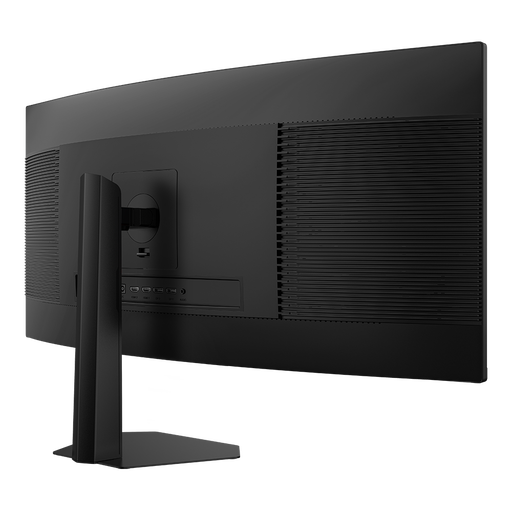 No image available
If you want to view content from two sources at once, PIP and PBP are useful features to consider. Check how your typography looks in the application you plan to use.
3440 × 1440, 21:9, VA panel, 1500R curvature and 200 Hz. The product description lists PIP/PBP and a height-adjustable stand.
 No image available
The higher native resolution is worth considering if assessing fine text outlines is a priority and the larger screen fits your desk.
5120 × 2160, 21:9, IPS panel and 100 Hz. The product description lists USB-C with 65 W Power Delivery, PIP/PBP and a height-adjustable stand.
 No image available
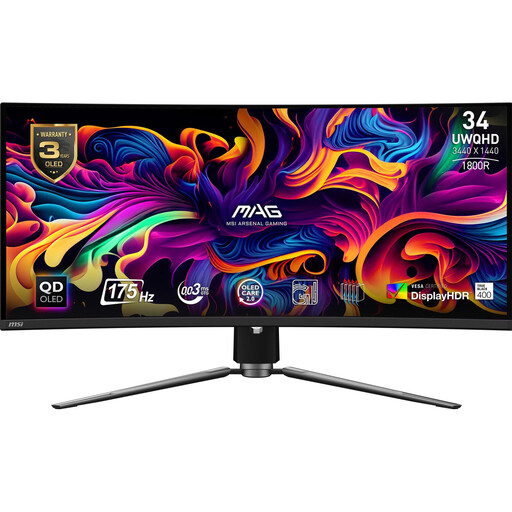
If your workflow involves several devices, the switching functions listed in the product description may be useful. Check that they work with your sources.
34 inches, 3440 × 1440, 21:9, QD-OLED and 175 Hz. The product description also lists PIP/PBP and KVM.
 No image available
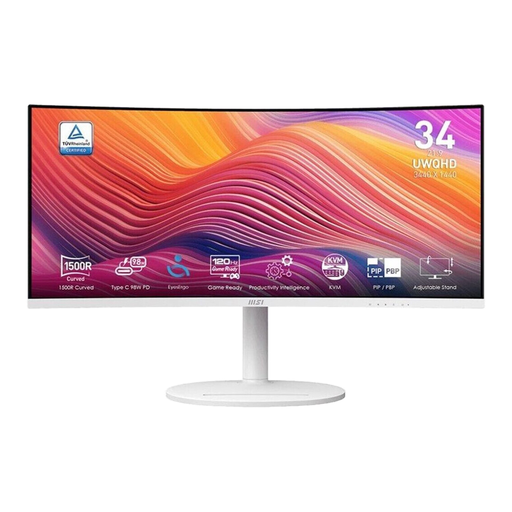
The wide workspace could suit typography designs and references side by side. Test how much window space is available at your chosen scaling.
34 inches, 3440 × 1440, 21:9, curved display and 120 Hz. The product description lists a tiltable stand and VESA mounting option.
First, check the native resolution, then adjust display scaling in Windows or the display settings in macOS. Microsoft Support notes that text can look blurry if the monitor is set to a lower-than-native resolution. Check the result in the application you actually use.
No, the connector alone doesn’t confirm this. Compare your laptop’s video output and power requirements with the monitor’s explicitly listed functions. For example, ASUS lists DisplayPort over USB-C and 96 W Power Delivery for the PA34VCNV.
ASR A6 sets out requirements for workplaces and teleworking workplaces within its scope. According to the Federal Institute for Occupational Safety and Health, it doesn’t automatically apply to screen use in private homes outside a teleworking workplace. Whether a particular workplace falls within its scope depends on its classification under employment law; it doesn’t establish a general statutory minimum resolution for monitors bought for private use.
For a faulty purchase, statutory rights under the legal guarantee are separate from a voluntary manufacturer’s warranty. The consumer advice centre identifies the seller as the point of contact for goods that should be free from defects as agreed. Don’t put an old monitor in household rubbish: the Federal Environment Agency recommends separate collection and free drop-off options, such as at a recycling centre.