An ultrawide monitor alongside a second screen can work well if you can arrange your designs, references and tools legibly across both displays, and your computer supports the configuration you want. For colour approval, suitable monitor modes and a consistent colour-management workflow are important. If you need two clearly separate views or would prefer less screen width, two separate monitors may be more practical.
Who is an ultrawide setup suited to?
Designers working with multiple views
If you review designs, references and tool panels side by side, look for a native resolution that keeps windows legible at your preferred scaling. An additional screen will work only if your computer supports both displays in the configuration you want; Microsoft Support and Apple Support explain the display options available on their respective platforms.
Designers working on colour approval
For digital or printed output, suitable colour modes and a consistent review and output workflow are essential. Adobe explains that monitors and printers use different colour spaces, so a colour-space figure alone does not confirm that a design is ready for print approval.
Designers using different computers
If you use a laptop and perhaps a second computer at the same workstation, the video connection and charging power need to suit your devices. If you connect two computers, PBP for displaying both sources at once and, where relevant, KVM for sharing a keyboard and mouse may also be useful.
What should you look for when buying?
First, decide whether you want two physical screens connected to one computer or two computer sources displayed on one screen. PBP shows two sources on a single display, but it does not replace a second monitor.
| What matters |
What to check when buying |
Who will find this particularly important? |
| Usable workspace |
Native resolution and window layout; check that everything is legible at your usual scaling. |
If I want to see my design, references and tools at the same time, the legibility of each window matters to me. Around 31% of consumers say workspace is their main concern. |
| Colour checking |
Check the colour space you need, the available monitor mode and your workflow for the intended output medium. |
If I compare colours for digital or printed output, I need suitable modes and a consistent review process. Around 31% of consumers put colour checking first. |
| Connections and displays |
Check how many external displays your computer supports at the resolutions and refresh rates you want. Distinguish between two physical screens and two sources on one screen. |
If I want to use the ultrawide alongside my existing display or switch between computers, the connection needs to suit my setup. Device compatibility is the top concern for 23% of consumers. |
| Desk space and positioning |
Measure your desk’s width and depth, then compare the monitor dimensions, including the stand. |
If there is limited room alongside my existing screen, I need to plan how both devices will fit in advance. Around 15% of consumers focus mainly on desk space and positioning. |
Avoid common buying mistakes
-
Confusing PBP with a second screen
A split-screen view shows two sources on one monitor, but it does not provide an additional physical screen or get around any limits on your computer’s display outputs.
First, decide whether you need two displays connected to one computer or two sources on one display. Then check the relevant feature and the video outputs your computer supports.
-
Treating colour-space coverage as print approval
Monitors and printers use different colour spaces, so a percentage figure alone does not describe the entire colour-management workflow.
Choose a mode that suits your output medium, and check colour management and the output preview separately.
-
Comparing screen size by diagonal measurement alone
An ultrawide monitor needs to fit your workspace alongside your existing screen, its stand and your input devices.
Measure your desk’s width and depth, and check the external dimensions, including the stand. Depending on the space available, you may need a different stand or a suitable mount.
Brands and models to consider
BenQ
The DesignVue range is worth considering for creative work. The PD3420Q combines a 34-inch screen with colour modes and features for two computer sources.
- BenQ lists 100% sRGB, 98% DCI-P3, PIP/PBP, KVM and 65 W USB-C for the PD3420Q.
- The stated refresh rate is 60 Hz. Colour figures are manufacturer specifications, not the result of an independent test of an individual unit.
ASUS
The flat ProArt PA348CGV is an ultrawide option with documented colour and USB-C features.
- ASUS lists a 3440 × 1440-pixel resolution, 100% sRGB, 98% DCI-P3, factory calibration and 90 W USB-C for this model.
- The manufacturer’s calibration specifications do not confirm the colour accuracy of an individual unit or that your computer supports two external displays.
Dell
The UltraSharp U3425WE is worth considering for workstations that need a curved 34.1-inch screen and a Thunderbolt hub.
- Dell lists a 3440 × 1440-pixel resolution at 120 Hz, IPS Black and 90 W power delivery for the U3425WE.
- A Thunderbolt hub does not confirm that a particular computer will also support your existing second screen.
Philips
The Business Monitor 34B1U5600CH/00 combines docking features with a function for displaying two sources at once.
- Philips lists a 3440 × 1440-pixel resolution, a VA panel and MultiView for a dual connection.
- The product description does not confirm independently verified colour accuracy for colour-critical graphic design approval.
LG
The 34WQ75X-B is a comparison model for ultrawide setups, with IPS, PBP and built-in KVM.
- LG lists a 3440 × 1440-pixel resolution and typically 99% sRGB for this model.
- LG marks the model as no longer available on its German product page; it is included here for feature comparison only.
Joybuy products for an ultrawide setup
These ultrawide monitors are suited to workspaces where you want to arrange designs, references or tools alongside a second screen.
 No image available
INNOCN 40C1U 40-inch ultrawide monitor
If you want to arrange your design work and tools across a wide screen, check that the size and resolution suit your desk and scaling preferences.
- 40 inches, 5120 × 2160 pixels, IPS and 100 Hz
- 21:9, 65 W USB-C and PIP/PBP
- Height-adjustable stand listed in the product title
View at Joybuy
 No image available
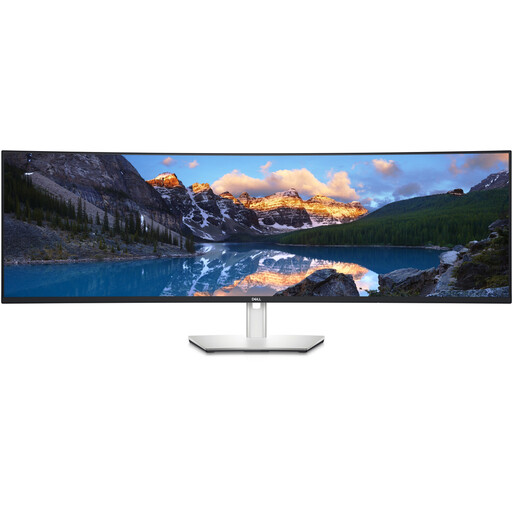
Dell UltraSharp U4924DW 49-inch monitor
If you want to arrange several views side by side across a wide screen, check that the resolution and dimensions suit your workspace.
- 49 inches, 5120 × 1440 pixels and 60 Hz
- Connections listed in the product title: HDMI, DisplayPort and USB-C
View at Joybuy
 No image available
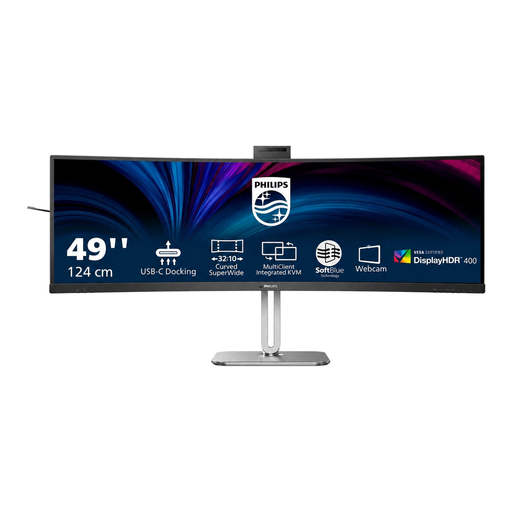
Philips 49B2U6900CH 49-inch monitor
If you’re looking for a wide workspace with a USB-C connection, check the listed connections and dimensions against your setup.
- 49 inches, 5120 × 1440 pixels, VA and 75 Hz
- Connections listed in the product title: HDMI, DisplayPort and USB-C
View at Joybuy
 No image available
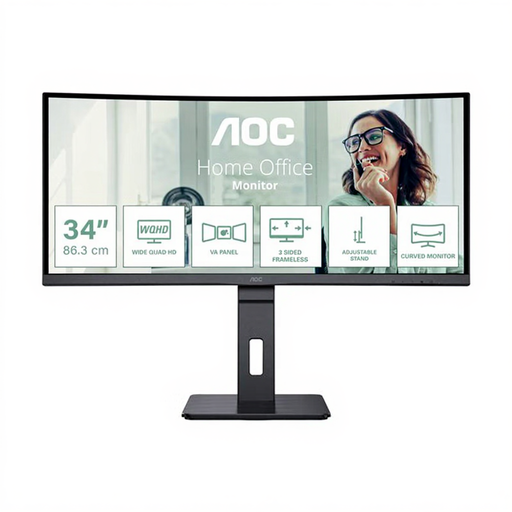
AOC Pro-Line CU34P3CV 34-inch ultrawide monitor
If you’re considering a 34-inch ultrawide with KVM listed in the product title, check that it suits your connection and source setup.
- 3440 × 1440 pixels, VA and 100 Hz
- Listed in the product title: 65 W USB-C and KVM
View at Joybuy
 No image available
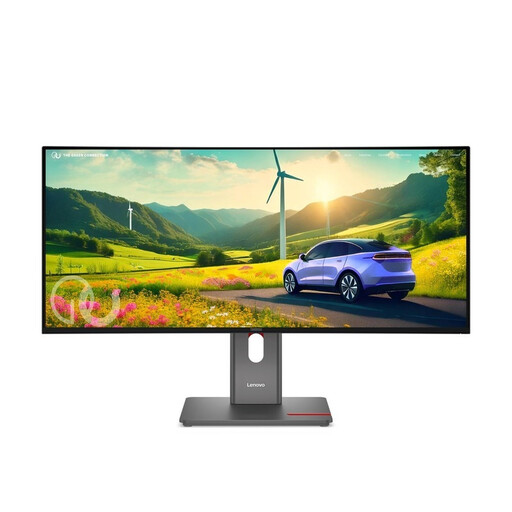
Lenovo ThinkVision P34WD-40 34-inch monitor
If you’re looking for a 34-inch IPS model for designs and references, also check that your computer supports the resolution and refresh rate.
- WQHD, IPS, 21:9 and 120 Hz
View at Joybuy
Frequently asked questions
Does picture-by-picture replace a second physical monitor?
No. PBP or a similar dual-view feature displays two sources on one screen. To add a second physical monitor, your computer needs to support its connection and the display configuration you want.
How do you set up an ultrawide alongside your existing display?
Connect both displays to video outputs supported by your computer. In Windows, you can identify detected displays and adjust their positions in the display settings to match your setup. On a Mac, the number of external displays you can use depends on the specific model, as well as the resolution and refresh rate.
Is a high sRGB or DCI-P3 figure enough for print approval?
No. Adobe distinguishes between the colour spaces used by monitors and printers. Also check the document’s colour mode, colour management and intended output medium; colour-space figures in monitor specifications are supplied by the manufacturer.
Are there specific rules for using two monitors at work?
If your workplace falls within the scope of the Workplace Ordinance, its annex requires multiple screens to be arranged ergonomically and input devices to be clearly assigned. This does not mean there is a blanket requirement to have two monitors on a home desk.


