What should you look for when buying?
First check the light where you’ll position the monitor, then the screen height you need for your timeline and preview, followed by colour mode, connections and space requirements. The proportions refer to consumers choosing an ultrawide for video editing by a bright window; each person is assigned to the concern they rank as their top priority.
| Priority |
What to check when buying |
Who is it particularly relevant to? |
| Window light |
Window position and screen finish; model-specific reflection tests, if available. |
When I review a timeline by a window in daylight, I want to minimise distracting reflections. Around 33% of consumers in this use case prioritise being able to see the screen clearly in window light. |
| Timeline and preview |
Vertical resolution and preview size at your chosen scaling setting. |
I want to see my editing tracks, controls and preview at the same time, and compare the screen height I need with the space on my desk. For around 27% of consumers, workspace for the timeline and preview is the main consideration. |
| Colour assessment |
Target colour space and suitable colour mode; check calibration claims separately from accuracy measurements. |
When I assess colours for a particular output, the right mode matters more than extra width alone. Around 27% of consumers prioritise colour assessment. |
| Connections and positioning |
Check your computer’s video output and charging capacity against the monitor’s dimensions. |
I want to connect the monitor to my computer and position it sensibly in the space I have. For around 13% of consumers, this compatibility is the main priority. |
Joybuy products for your timeline and preview
The Joybuy models below include 34-inch ultrawides with 3440 × 1440 pixels and larger monitors with extra screen height. Compare the resolution and connections with your editing setup; claims about a matt finish don’t replace checking for reflections at your own window.
 No image available
INNOCN 40C1U, 40-inch, 5120 × 2160
The stated resolution gives you extra screen height for a larger preview alongside your timeline; also check that you have enough space and graphics output.
IPS panel, 5120 × 2160 pixels and 100 Hz. The product description also lists PIP/PBP, USB-C and a height-adjustable stand.
The 40-inch format takes up more desk space than typical 34-inch monitors.
View at Joybuy
 No image available
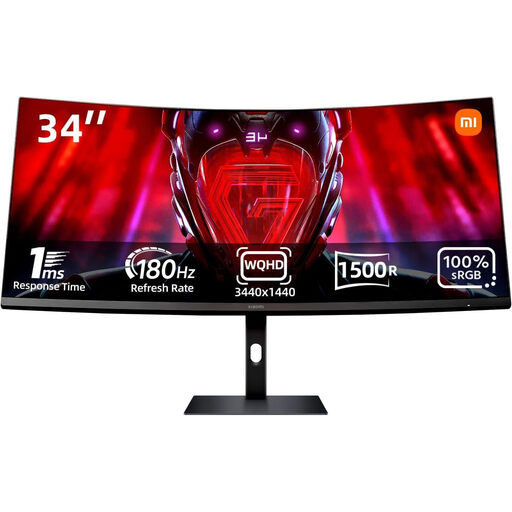
Xiaomi G34WQi, 34-inch, 3440 × 1440
The 34-inch format, 21:9 screen and 3440 × 1440 pixels make this an option for a wide timeline workspace.
The product description lists a matt, anti-glare finish and 100% sRGB. Colour gamut coverage alone doesn’t confirm colour accuracy.
DisplayPort and HDMI connections are also listed, along with tilt adjustment.
View at Joybuy
 No image available
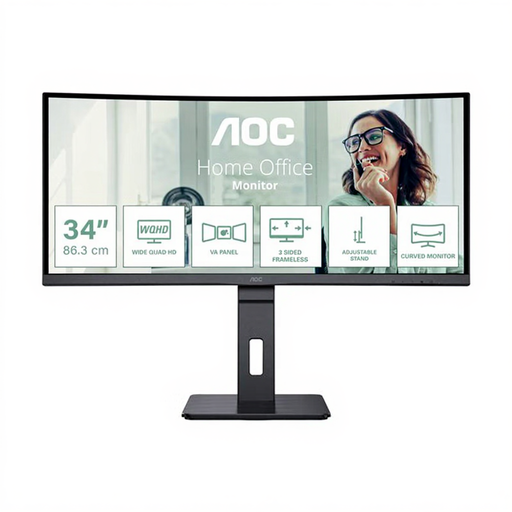
AOC Pro-Line CU34P3CV, 34-inch, UWQHD
The stated 3440 × 1440 pixel resolution gives you a wide workspace for your timeline and multiple windows.
VA panel, 100 Hz and USB-C with up to 65 W power delivery. The product description also lists KVM, a USB hub and Ethernet.
Check that your computer can output video over USB-C and that the stated charging capacity is suitable for your device.
View at Joybuy
 No image available
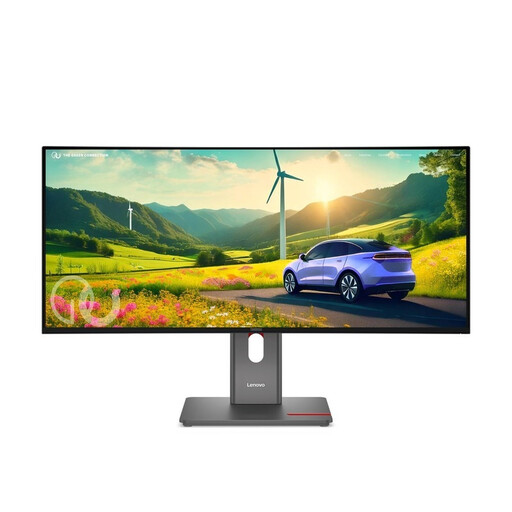
Lenovo ThinkVision P34WD-40, 34-inch, IPS
The 21:9 display with 3440 × 1440 pixels is specified as a wide workspace for side-by-side windows.
The product description lists 120 Hz, 98% DCI-P3, 99% sRGB and factory calibration. These specifications aren’t an independent accuracy test.
Also listed are USB-C with up to 140 W power delivery, a USB hub and Ethernet. Check your computer’s connection and power requirements.
View at Joybuy
 No image available
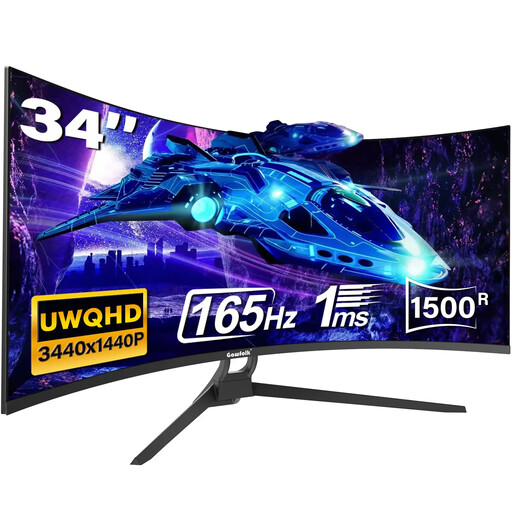
Gawfolk 34-inch, UWQHD, 165 Hz
The 21:9 format with 3440 × 1440 pixels is specified as a wide workspace for your timeline.
The product description lists a curved display, 165 Hz, and HDMI and DisplayPort connections.
VESA compatibility at 75 × 75 mm is listed if you’d prefer an alternative mounting option.
View at Joybuy
Frequently asked questions
Is a matt finish enough by a bright window?
Not necessarily. Check the monitor’s angle to the window, potential direct reflections and, if needed, window coverings in the space where you’ll use it. Reflection handling needs to be assessed separately.
How should I set up the screen for my timeline?
Position the screen in relation to the window to avoid distracting reflections across your workspace, then check the preview and text at your usual scaling setting. If you’re setting up a screen for a workplace, you’ll also need to take the relevant health and safety requirements into account.
Do I need to check colour regularly for colour-critical video work?
If you need to make reliable colour assessments, check that the colour mode suits your output and, if necessary, test accuracy after calibration. A colour gamut coverage figure alone won’t answer this question.
What should I check about returns and support before buying online?
Check information about return costs separately from voluntary manufacturer warranties and your statutory rights when goods are faulty. According to the European Union’s guidance, consumers generally have a 14-day right to cancel a standard online purchase from the date of delivery; information requirements and exceptions apply to return costs.
Are there specific requirements in Germany for a screen by a bright window?
For workplaces covered by the relevant workplace regulations, ASR A6 sets out requirements for work with screens. The German Federal Institute for Occupational Safety and Health also explains requirements for lighting and views out of the workplace. Buying a monitor for personal use doesn’t in itself mean you have to choose a particular model or a fixed brightness level.


