Timeline editors
If you want to arrange clips, preview and tools all at once, usable workspace matters more than gaming-focused features. Adobe explains how you can display parts of the Premiere interface on a second monitor.


A 34-inch ultrawide monitor with a resolution of 3,440 × 1,440 pixels is a sensible starting point if you want to arrange your timeline, preview and panels on one screen; LG lists these specifications for the 34WN780-B. You don’t have to choose this size: check readability, desk space and adjustability at both working heights, as well as your computer’s connections. For colour assessment, the colour mode needs to suit your delivery and colour-management workflow.
If you want to arrange clips, preview and tools all at once, usable workspace matters more than gaming-focused features. Adobe explains how you can display parts of the Premiere interface on a second monitor.
If you switch between sitting and standing while you work, you should be able to position the screen comfortably at both desk heights. Germany’s Federal Institute for Occupational Safety and Health describes this dynamic change as sit-stand working.
If you assess colour while reviewing footage, the monitor’s colour mode and the colour management in your editing software need to suit your delivery workflow. Adobe describes Premiere’s colour-management settings as part of controlling how colours are interpreted and displayed.
First, decide how you want to arrange your windows in practice. Then check the desk position and colour workflow. Extra features such as docking matter most if your computer can make use of them.
| Consideration | What to check | Most important for |
|---|---|---|
| Space for the timeline and preview | Check the resolution, overall width and your own window layout. | If I want to arrange my timeline, preview and panels on one screen, usable width matters more to me than screen size alone. Around 33% of consumers prioritise timeline space. |
| Position when switching between sitting and standing | Check the adjustment range, stand dimensions and, if needed, a suitable mount; test the position at both desk heights. | If I switch between sitting and standing, I need to be able to position the screen comfortably at both desk heights. Around 27% of consumers prioritise this sit-stand positioning. |
| Colour display when reviewing footage | Compare the documented colour modes with your delivery colour space and colour-management setup. | When assessing colour, I want to match the monitor mode and my editing software settings to the intended delivery format. Around 20% of consumers prioritise this. |
| Connectivity and power | Check the video output, cables and required charging power against your specific computer. | When I connect a laptop, I need the display and charging features that my computer and cables actually support. Around 20% of consumers prioritise connecting a laptop. |
Resolution and your actual window layout both affect how well the timeline and preview fit together at your chosen scaling.
Check the monitor and stand dimensions, as well as your editing layout, before settling on a format.
An HDR label alone doesn’t prove that a monitor is suitable for reliable HDR sign-off.
Distinguish between general timeline viewing and colour-critical sign-off. Check the features you need for the latter, along with your delivery workflow.
Video output, data connectivity and charging power depend on the specific monitor, computer and cable.
Compare the monitor’s features with your laptop’s video output and charging requirements. Depending on your laptop, you may also need a separate connection or power supply.
LG describes the 34WN780-B as a 34-inch ultrawide monitor with an adjustable Ergo stand.
According to BenQ, the DesignVue PD3420Q combines an ultrawide format with selectable colour modes.
Dell lists the Pro P3425WE as a 34-inch ultrawide monitor with USB-C hub features.
EIZO describes the FlexScan EV3450XC as a 34.1-inch ultrawide monitor with USB-C docking and conferencing features.
This selection includes ultrawide monitors for a wide timeline and preview layout. Check the space required, screen positioning and computer connections for each model.
 No image available
For an extra-wide timeline layout, if you have room for a 49-inch monitor on your desk.
49 inches; 32:9; 5,120 × 1,440 pixels; 165 Hz; height-adjustable stand; HDMI 2.1 and DisplayPort 1.4; VESA mounting.
 No image available
For a timeline and preview layout on a 34-inch ultrawide; the product title lists a height-adjustable stand.
21:9; 3,440 × 1,440 pixels; VA panel; 200 Hz; PIP/PBP; HDMI and DisplayPort.
 No image available
For a wide timeline and preview layout; check that a 40-inch monitor will fit on your desk.
21:9; 5,120 × 2,160 pixels; IPS panel; 100 Hz; height-adjustable stand with a 120 mm ±5 mm adjustment range; 65 W USB-C Power Delivery; PIP/PBP.
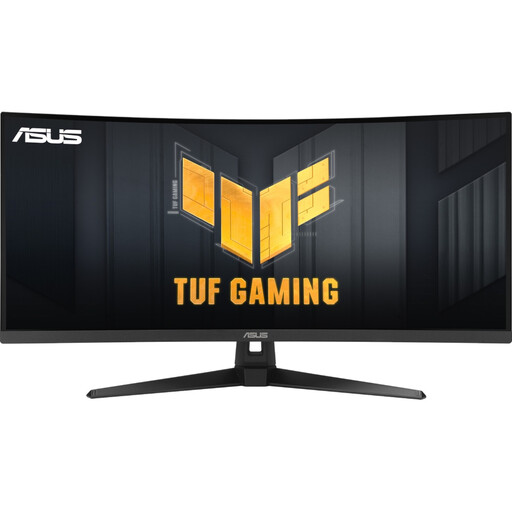 No image available
For a 34-inch timeline layout; check that the stand allows you to position the screen as you want.
21:9; 3,440 × 1,440 pixels; VA panel; 180 Hz; HDMI and DisplayPort.
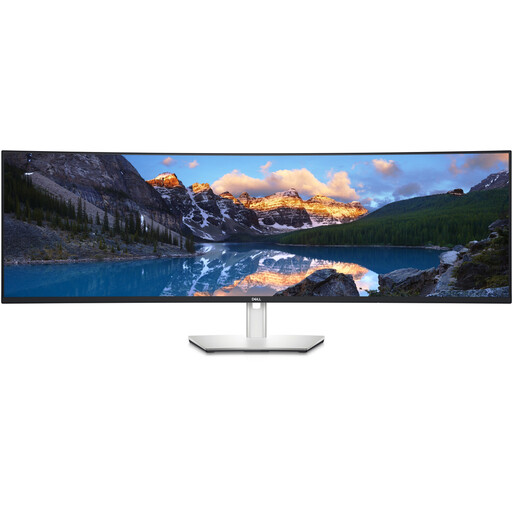 No image available
For an extra-wide timeline and preview layout; the stated monitor width is 1,214.9 mm, so you’ll need enough desk space.
32:9; 5,120 × 1,440 pixels; 60 Hz; height-, tilt- and swivel-adjustable stand; 90 W USB-C Power Delivery, USB hub and RJ45.
No, it depends on your preferred preview size and how easy you find the timeline to read. According to Adobe, you can also display parts of the Premiere interface on a second monitor; compare both layouts with your editing setup.
Check the screen position both sitting down and standing up, and use the adjustment on the specific stand or a suitable mount. Germany’s Federal Institute for Occupational Safety and Health describes the dynamic switch between sitting and standing as a sit-stand approach.
You can’t tell from the label alone. PRAD described the HDR support on the BenQ PD3420Q it tested as basic. For colour-critical assessment, decide on your delivery format and colour-management workflow first.
Compare the energy label and product datasheet for the specific model. EUR-Lex lists electronic displays, including monitors, under EU energy-labelling rules; some types of display are exempt.