For a wide timeline and a separate preview, pair an ultrawide monitor with a second physical screen. If you want to view two video sources on one panel, you’ll need a monitor with PBP. Adobe explains how to send the output to a second monitor in Premiere, as well as how to move panels there. For colour-critical viewing, the specifications for the exact model and the relevant colour space matter more than screen size alone.
Who is an ultrawide monitor suitable for?
Timeline editors with a second preview screen
You want a clear, wide view of your clips and tracks, with the programme output displayed separately. Adobe explains how to send the output to a second monitor in Premiere, as well as how to move panels there.
Editors who need a colour-critical preview
You assess colour as you edit, so you compare the colour space and calibration specifications for the exact model with your workflow.
Editing setups with two video sources
You want to view two connected sources on one ultrawide panel from time to time. For this, look for a clearly specified PBP feature and the right inputs.
What should you look for when buying?
First, decide whether you mean a second physical monitor or two sources via PBP. Then compare the resolution and colour specifications with your editing layout, and check the space and connections you’ll need.
| What you need |
What to check before buying |
Who will find this particularly important? |
| Timeline space and readability |
Check the native resolution of the exact model and test your usual window layout on it. |
If I want to keep clips and tracks in view at the same time, usable space for the timeline, preview and tools matters. Around 36% of consumers put timeline space first. |
| Colour assessment in the preview |
Compare the Rec.709 specifications, colour modes and, where applicable, the factory calibration report for the exact model with your output workflow. |
If I need to assess video colours, I want specifications for the relevant colour space and colour characterisation, not just a large screen. Around 29% of consumers prioritise colour assessment. |
| Two screens or video sources |
Decide whether you need a second physical monitor or PBP; check the software settings, inputs and clearly specified PBP feature. |
If I need a separate programme output or two sources on one panel, the connection needs to suit my setup. Around 21% of consumers prioritise connecting two screens. |
| Desk space and running costs |
Measure the available desk space, including the stand, and compare the model’s energy label and product data sheet. |
If I also need space for a second screen at my editing desk, the whole setup has to fit; energy consumption matters to me too. Around 14% of consumers prioritise space and running costs. |
Which buying decisions could cause problems?
-
Assuming PBP is the same as a second physical monitor
On models that support it, PBP displays two sources on one panel. Adobe describes sending the programme output to a second computer monitor as a separate setup.
Sketch out your preferred window layout, then decide whether you need PBP or a second physical monitor.
A separate preview may require an additional monitor and suitable connections.
-
Assuming 34 inches automatically means enough resolution
LG lists a resolution of 2560 × 1080 pixels for the 34WQ500-B, while ASUS lists 3440 × 1440 pixels for the PA348CGV. Screen size alone doesn’t tell you how much room your editing layout will have.
Compare the pixel counts and test how easy it is to read your timeline and preview windows, rather than focusing only on screen size.
-
Assuming USB-C is a complete one-cable solution without checking
BenQ lists 65 W USB-C charging for the PD3420Q, while Lenovo lists up to 100 W for the T34WD-40. These specifications apply to the respective models and won’t necessarily suit every laptop.
Check your laptop’s power requirements and video output, as well as the designated port on the exact monitor.
Depending on your laptop, you may still need a separate power adapter or another video connection.
-
Taking colour space figures as proof of colour accuracy
The Rec.709 and calibration specifications from ASUS and BenQ apply to specific models; they don’t represent measurements taken at your editing desk.
Choose colour checks to suit your output workflow and assess the specifications for the exact model, not the brand as a whole.
Key brands at a glance
ASUS
The ProArt PA348CGV and PA34VCNV combine an ultrawide format with model-specific colour and connectivity specifications.
- For the PA348CGV, ASUS lists 3440 × 1440 pixels, 100% sRGB, 98% DCI-P3, PIP/PBP and 90 W USB-C Power Delivery.
- These manufacturer specifications apply to the PA348CGV and don’t replace an assessment of your own editing setup.
BenQ
The PD3420Q is aimed at buyers who want to combine timeline space with documented colour modes and PIP/PBP.
- For the PD3420Q, BenQ lists 3440 × 1440 pixels, 100% Rec.709, a factory calibration report and 65 W USB-C Power Delivery.
- Check that the listed charging power suits your laptop; the report doesn’t replace measurements at your own workstation.
Dell
The P3425WE is a 34-inch model with a USB-C hub, while the U4025QW offers a larger 5K2K format.
- Dell specifies 3440 × 1440 pixels, up to 90 W USB-C Power Delivery and RJ45 for the P3425WE. For the U4025QW, Dell lists a 40-inch 5K2K display with a refresh rate of up to 120 Hz.
- The connectivity and display specifications apply to the models named, not to all Dell monitors.
LG
The documented models include both 34-inch ultrawide monitors and larger 5K2K displays.
- LG lists 2560 × 1080 pixels and a tilt-adjustable stand for the 34WQ500-B; the 40WP95XP-W is specified as 39.7 inches with a resolution of 5120 × 2160 pixels.
- A higher pixel count alone doesn’t prove that a monitor will deliver better colour assessment in your specific workflow.
Lenovo
The ThinkVision T34WD-40 is a 34-inch docking option for an editing setup with a laptop, network connection and peripherals.
- Lenovo lists a VA panel with 3440 × 1440 pixels, RJ45 and USB-C with up to 100 W.
- The manufacturer’s stated colour gamut coverage alone doesn’t prove that the monitor will deliver calibrated colour assessment at your workstation.
Joybuy products for your timeline and preview
This selection features ultrawide monitors for a spacious timeline. The INNOCN E34A1R product title also specifies PIP&PBP for two video sources.
 No image available
Gawfolk GF340C-H curved monitor, 34 inches
The 34-inch ultrawide format is well suited to a wide timeline and panels.
UWQHD with 3440 × 1440 pixels, 21:9, 165 Hz, 1500R, VA panel and DisplayPort.
View on Joybuy
 No image available
CRUA 49-inch DQHD curved ultrawide monitor
The wide 32:9 format is an option if you want plenty of horizontal space for your timeline and panels.
DQHD with 5120 × 1440 pixels, 165 Hz, 1500R, height-adjustable stand, HDMI 2.1, DisplayPort 1.4 and VESA mounting.
View on Joybuy
 No image available
INNOCN E34A1R curved monitor, 34 inches
The product title specifically lists PIP&PBP if you want to use two video sources on one panel.
UWQHD with 3440 × 1440 pixels, 21:9, 200 Hz, 1500R and PIP&PBP.
View on Joybuy
 No image available
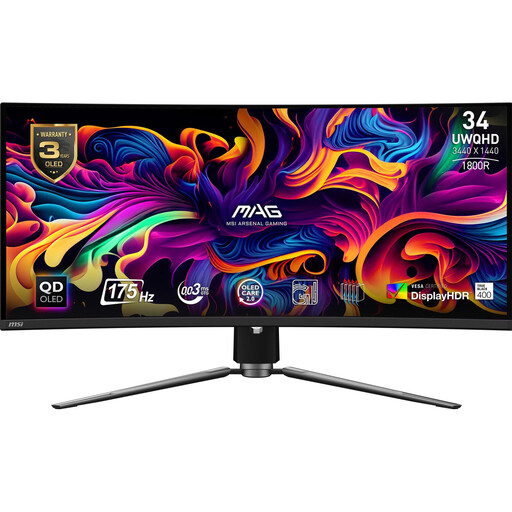
MSI MAG 341CQPDE QD-OLED curved monitor, 34 inches
The 34-inch UWQHD format is designed for a wide timeline; assess whether it’s suitable for colour checks based on your workflow.
UWQHD, 21:9 and 175 Hz.
For static images, the product listing advises against using maximum brightness for extended periods and bypassing OLED protection cycles.
View on Joybuy
 No image available
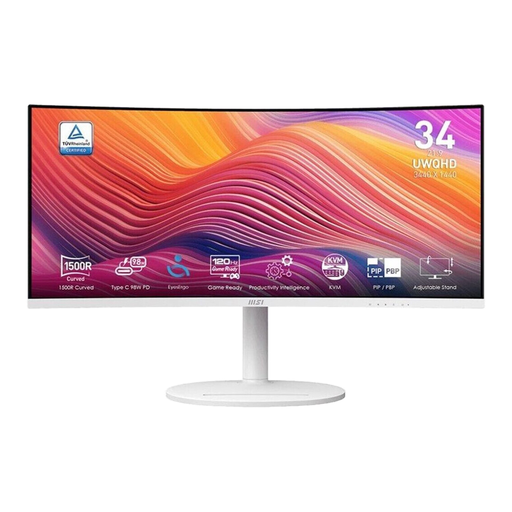
MSI Modern MD342CQPWDE curved monitor, 34 inches
The 34-inch ultrawide format is well suited to a wide timeline and panels.
UWQHD with 3440 × 1440 pixels, 21:9 and 120 Hz.
View on Joybuy
Frequently asked questions
How do I set up the preview on a second physical monitor?
For Premiere, Adobe explains how to enable Mercury Transmit in the playback settings and then select the second monitor. Alternatively, you can move panels to the second screen and arrange them to suit your task.
Can a PBP monitor replace two physical screens?
No. On models that support it, PBP displays two sources on one panel, but it doesn’t give you a second, physically separate preview screen. If you need an independent programme output alongside your timeline, plan for a second monitor.
Is 34 inches enough for a video timeline?
Screen size alone won’t tell you, as 34-inch models can have different resolutions. LG lists 2560 × 1080 pixels for the 34WQ500-B, while ASUS lists 3440 × 1440 pixels for the PA348CGV. Compare the native resolution with your usual window layout.
Is an HDR10 label enough to assess HDR video?
No. HDR10 support alone doesn’t prove that a display meets all the requirements of your HDR workflow. Compare the specifications for the exact model with your output requirements.


