Timeline reviewers
You want to arrange longer sections of your edit and your panels clearly, without losing sight of the preview. Whether the layout works depends on your editing software and the scaling you choose.


Choose an ultrawide monitor that lets you use your timeline, preview and panels together at your preferred scaling. For colour assessment, you’ll also need to consider the right colour mode and your output workflow; when connecting a laptop, video transmission and charging power are key. If you work in a particularly quiet space, check the noise levels of the specific model rather than assuming it will be silent.
You want to arrange longer sections of your edit and your panels clearly, without losing sight of the preview. Whether the layout works depends on your editing software and the scaling you choose.
When reviewing footage, you also assess SDR colours. You’ll need to consider the monitor mode and output colour space together, rather than relying on a colour gamut percentage alone.
You want to connect your laptop and monitor in a way that suits your setup, while also considering desk space and potential operating noise in a quiet room. Noise levels depend on the specific model.
| What matters to you | What to look for | Who it matters most to |
|---|---|---|
| Space for your timeline and preview | Try your usual window layout and check the resolution, aspect ratio and actual dimensions, including the stand. | If I want to see editing sections, the preview and panels at the same time, the layout needs to remain readable at my chosen scaling. Around 26% of consumers put an overview of the timeline first. |
| Colour assessment | Compare colour modes and calibration options with your software’s colour management settings and output colour space. | If I’m assessing colours for SDR output, the monitor settings and colour management need to match the intended colour space. Around 21% of consumers prioritise colour control. |
| Operating noise | Check noise information for the specific model and, if quiet operation matters, test the device under your usual operating conditions. | In a quiet home office, I don’t want to make assumptions about fan or electronic noise based on general product information. Around 21% of consumers put quiet operation first. |
| Fit on your desk | Measure the available width and depth; check the dimensions specifically including the stand, as well as the adjustment options. | If my desk is short on space, the monitor needs to fit with its stand and be easy to position. Around 16% of consumers first consider desk space and positioning. |
| Laptop connection | Check your laptop’s video output and charging requirements, along with the video, data and Power Delivery functions of the specific monitor port. | If I want to connect my laptop to the monitor, video transmission and charging power need to suit my device. Around 16% of consumers prioritise laptop connectivity. |
Screen size alone won’t tell you how your software will arrange the preview and panels, or how much space the monitor will take up with its stand.
Compare the resolution with your usual layout, and measure the width and depth of your available workspace.
Your laptop and monitor both need to support the functions you require. Charging ratings such as 65 W or 90 W apply to specific models.
Check the specifications of both devices and the port you plan to use before setting up a one-cable connection.
If the connection or charging power isn’t suitable for your laptop, you may need an additional compatible connection or charging option.
With static, high-contrast elements displayed for long periods, image retention or burn-in can be a consideration with OLED. ASUS describes protective features for the models listed in its guide, not for all OLED monitors as a whole.
Weigh the features of the specific model against how long you use static interfaces, and read the care and warranty information.
The Dell Technologies Community notes that some monitors can produce fan noise. This isn’t a noise measurement of the ultrawide models mentioned here.
If quiet operation is essential, check information for the specific model or test the device under your usual operating conditions.
The DesignVue PD3420Q is a 34-inch IPS option if you’re looking for both workspace and specified colour modes.
The Pro P3425WE combines a wide workspace with USB-C hub functions for a compatible laptop.
The 34BA85QE-B is aimed at buyers who also want to use an ultrawide monitor for video calls.
The FlexScan EV3451X is an option if docking and the manufacturer’s stated service offer are important to your choice.
This Joybuy selection includes ultrawide monitors for wide editing layouts, with different aspect ratios and features. Before buying, check which model suits your workspace and your actual connection and colour workflow.
 No image available
The 32:9 format may suit you if you want to arrange your timeline and preview across an especially wide space; whether your layout remains clear at your preferred scaling depends on your software.
The product title lists a 49-inch screen, 5,120 × 1,440 pixels, 32:9, 165 Hz, 1500R and a height-adjustable stand.
The product description lists 120% sRGB; this manufacturer figure alone doesn’t prove colour accuracy in your workflow.
 No image available
The 21:9 format and stated resolution are an option if you want to set up a wide editing workspace on a 34-inch monitor.
The product title lists 3,440 × 1,440 pixels, a VA panel, 200 Hz, PIP/PBP and built-in speakers.
 No image available
With a 21:9 aspect ratio and the stated resolution, this model offers a wide workspace; check that it fits on your desk with the stand.
The product title lists 5,120 × 2,160 pixels, IPS, 100 Hz and USB-C with 65 W Power Delivery. Whether the charging power is enough for your laptop depends on its requirements.
 No image available
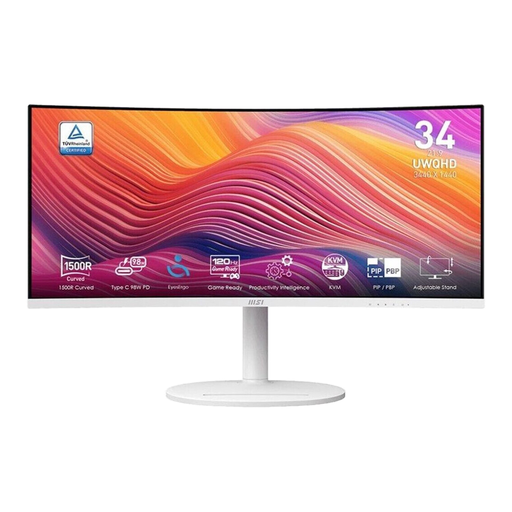
The 21:9 format is an option if you want to arrange your timeline and other editing windows side by side.
The product title lists 3,440 × 1,440 pixels, a curved VA panel and 120 Hz.
 No image available
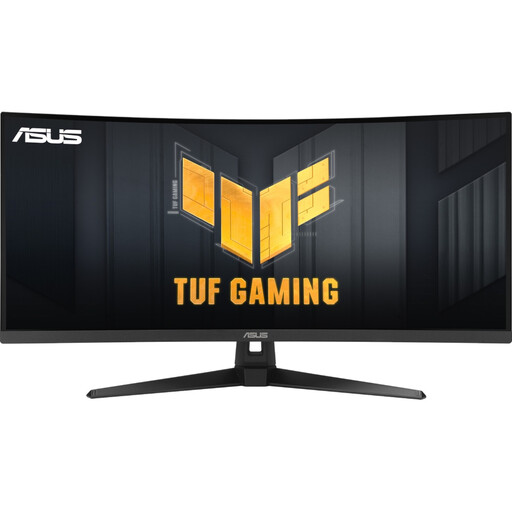
The 21:9 format may suit a wide editing workspace; check the setup and window layout with your software.
The product title lists 3,440 × 1,440 pixels, a curved VA panel, 180 Hz, 1 ms MPRT and DisplayHDR 400.
No, not just to arrange and review edits. If you’re assessing colours for an output, your monitor and colour management need to match the intended output colour space. Adobe explains the colour management settings in Premiere; a colour gamut figure alone won’t tell you whether your own workflow is displaying colours correctly.
Arrange your timeline, preview and other panels to suit your needs, then check the layout at your preferred scaling. Adobe also explains how to move panels to a second monitor in Premiere, which can be an alternative to a single ultrawide screen.
Not necessarily: USB-C alone doesn’t guarantee video output or suitable charging power. Compare the functions supported by the specific monitor port with your laptop, including video, data and Power Delivery.
No, you can’t tell whether a monitor is suitable for a quiet workspace from its product category alone. The Dell Technologies Community notes that some monitors can produce fan noise; this isn’t a measurement of the models mentioned here. If quiet operation is essential, check information for the specific model or test the device under your usual conditions.
The European Commission generally places computer monitors under EU energy labelling rules for electronic displays. The label uses classes A to G, with some display types exempt. Compare details for the specific model through EPREL.