Animators working with lots of frames
You want to keep your timeline, frame view and tools visible at the same time. Check the usable resolution and how much desk space the monitor and stand will take up.


For working with animation frames at a shared desk, the usable resolution should suit your work area and software – screen size alone tells you little about how much space you’ll have. For colour-critical work, check that the available colour modes are suitable and consider calibration where necessary. When switching between computers, check KVM, connections and power delivery separately. The stand or monitor arm also needs to suit the desk and the different seating positions.
You want to keep your timeline, frame view and tools visible at the same time. Check the usable resolution and how much desk space the monitor and stand will take up.
If you’re assessing colours in illustrations or animation frames, the colour modes and any calibration options need to suit your output workflow.
If you share a desk or computer with others, you’ll need suitable connections and a monitor position that can be adjusted for different users.
First, check that the resolution and dimensions suit your animation software and shared desk. Then compare the colour workflow, switching between computers, positioning and energy information against your actual needs.
| What matters | What to check before buying | Who it matters most to |
|---|---|---|
| Space for frames and tools | Check the resolution and aspect ratio, as well as the monitor’s width and stand; consider the available space in your software. | If I want to see frames, the timeline and tools side by side, the usable space is what matters to me. Around 28% of consumers put this need for space first. |
| Assessing colours | Check the stated colour modes and any calibration information against your output requirements and project workflow. | If I need to assess the colours in my frames accurately, I want to know whether the available modes suit my output requirements. Around 22% of consumers prioritise colour assessment. |
| Switching between computers | Check the video connection, USB data connection, required charging power and KVM separately for each model and computer. | If I switch between computers and input devices at a shared desk, I want suitable connections and confirmed KVM functionality. Around 22% of consumers focus on switching between computers and shared peripherals. |
| Monitor positioning at a shared desk | Measure the screen width and stand depth, and check the adjustment options against your desk. If you’re using an arm, check the mount and range of movement too. | If the seating position or user changes, I want to be able to adjust the monitor without blocking the desk. Around 17% of consumers prioritise an adjustable setup. |
| Energy use and ongoing costs | Compare information for the exact model. To estimate your own electricity costs, use the same usage period and electricity rate for each monitor. Only budget for accessories after checking what you already have. | If I want to keep an eye on energy use and potential extra purchases, I need comparable model information and a suitable setup. Around 11% of consumers put energy use and ongoing costs first. |
For viewing frames and control panels side by side, resolution and available desk width matter too. A large screen alone doesn’t tell you how much room your software interface will actually have.
Check the resolution and monitor dimensions, and see how your animation software’s interface is displayed.
Video, data transfer, switching between computers and power delivery are separate functions. A USB-C port doesn’t automatically mean that all of them are available.
Check the connections, charging power and KVM functionality of the exact model against the needs of each device.
Depending on the equipment you already have, you may need additional connections or a separate dock.
A stated colour gamut or animation mode doesn’t automatically mean that the colours will be suitable for every output requirement and workflow.
Consider the colour mode, output requirements and any calibration as part of the same workflow.
An adjustable mount is only useful in a shared workspace if it fits the desk and has enough room to move.
Measure the desk edge and available depth, and check that the monitor can be positioned suitably for everyone using it.
If the mount or setup isn’t suitable, you may need a different mount or another way to position the monitor.
The DesignVue range includes models for creative work. The PD3420Q is a 34-inch ultrawide monitor with colour modes for different applications.
The Dell Pro 34 Plus USB-C Hub Monitor P3425WE is designed for workspaces where laptop connectivity and a network connection are important.
The business monitors listed cater to different workspace needs: the 34B2U5600C/00 is designed for switching between sources, while the 34E1C5600HE/01 adds an integrated webcam.
The 34WN780-B from the Ergo range is worth considering if you need to adjust the monitor’s position at your desk.
According to Lenovo, the ThinkVision P34WD-40 combines a 34-inch IPS ultrawide display with docking connections.
This selection features ultrawide monitors for viewing frames and control panels side by side, in a range of screen sizes and configurations.
 No image available
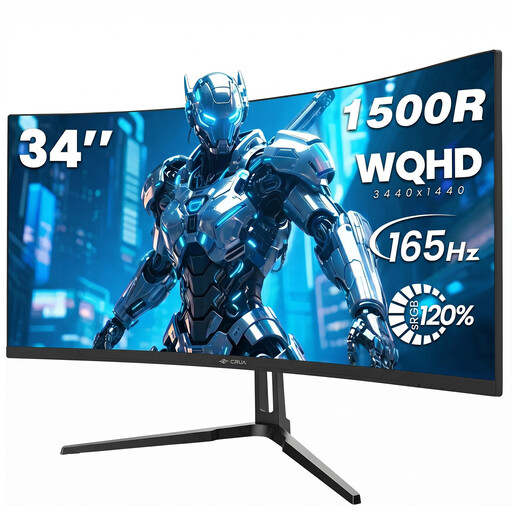
The stated ultrawide resolution is designed to provide a wide workspace for viewing content side by side.
The product specifications list a resolution of 3440 × 1440 pixels, a 21:9 aspect ratio, 1500R curvature, 165 Hz, a VA panel and DisplayPort.
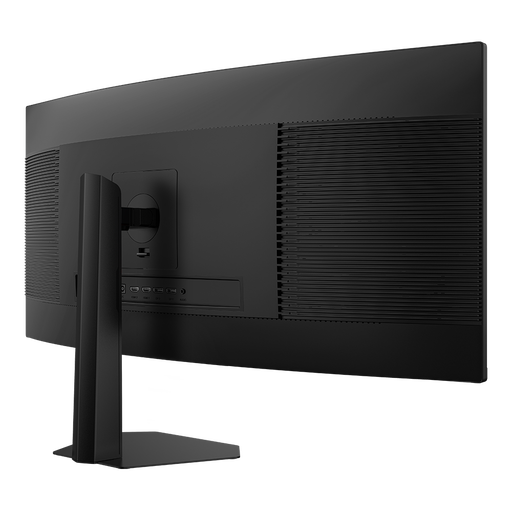
VESA 75 × 75 mm mounting is specified for desk installation. Check that the mount and desk are compatible.
 No image available
The stated resolution provides a wide workspace for displaying frames and tools side by side.
The product specifications list a resolution of 3440 × 1440 pixels, a 21:9 aspect ratio, 1500R curvature and 165 Hz.
VESA 75 × 75 mm mounting is specified for wall or desk installation. Check that it will fit your workspace.
 No image available
The wide display may suit a workspace with lots of content side by side. Check first that your desk and software can accommodate it.
The product specifications list a resolution of 5120 × 1440 pixels, a 32:9 aspect ratio, 165 Hz and a height-adjustable stand.
Other listed features include 120% sRGB, HDR, HDMI 2.1, DisplayPort 1.4 and VESA mounting. Check whether it’s suitable for your colour workflow based on your output requirements.
 No image available
The stated ultrawide resolution is suited to arranging frames and tools across a wide workspace.
The product specifications list a resolution of 3440 × 1440 pixels, a 21:9 aspect ratio, a VA panel, 200 Hz and 1500R curvature.
The product description lists PIP and PBP modes, as well as a stand that adjusts in height, tilt and swivel. Check that these features suit your sources and desk.
 No image available
The stated resolution and screen size are suited to a wide workspace with multiple views.
The product specifications list a resolution of 5120 × 2160 pixels, a 21:9 aspect ratio, an IPS panel and 100 Hz.
Other listed features include USB-C with 65 W Power Delivery, PIP and PBP functions, and a height-adjustable stand. Check compatibility with your computers and connected sources.
Not just for arranging frames. First, check how much workspace you need and what your preview requirements are. BenQ lists a resolution of 3440 × 1440 pixels and a 60 Hz refresh rate for the PD3420Q.
Adjust the screen position and display size to suit each user’s task and viewing distance. For employee workstations covered by ASR A6, the rules on working with screens should be taken into account. The Federal Institute for Occupational Safety and Health describes requirements there for a sufficiently large, clear display. Sharing a desk alone doesn’t determine whether these rules apply.
No. USB-C alone doesn’t mean that a monitor has a KVM switch. Check that the exact model supports this function and has the connections you need. Philips lists KVM for the 34B2U5600C/00.
Compare the energy information for the exact model using the EU energy label or EPREL. To estimate your own costs, you’ll also need to use the same usage period and electricity rate for every device you compare.
Consumers generally have a 14-day right to cancel an online purchase. The Verbraucherzentrale explains that you need to notify the seller of your decision to cancel, and that the time limit may start from the conclusion of the contract or receipt of the goods, depending on the agreement. Your statutory rights against the seller are separate from any voluntary guarantee.