A 34-inch ultrawide monitor with a resolution of 3,440 × 1,440 pixels can be a good starting point for comparing architectural plans, provided drawings remain easy to read side by side at your preferred scaling. AOC and LG list this resolution for their respective models. If you want to do without your laptop’s power adapter, both the laptop and monitor need to support USB-C video output, and the monitor’s charging power must meet your laptop’s requirements. The monitor will still need to be plugged into a power socket. For finer details or coloured designs, a higher-resolution model or one with the right features may be worth considering. Bear in mind the space it will take up and the potential software scaling issues Autodesk has highlighted for Revit in certain situations.
Who is an ultrawide monitor for?
Plan comparison
If you compare plan variations or different drawing revisions side by side, check that labels and lines remain easy to read in your chosen window layout. AOC and LG list a resolution of 3,440 × 1,440 pixels for their respective 34-inch models.
Laptop users with limited power sockets
If you want to connect your display, peripherals and, potentially, charge your laptop through one cable, USB-C compatibility and suitable charging power are key. AOC lists up to 65 W for the CU34P3CV, while LG lists 90 W for the 34BA75QE-B. Your laptop needs to support the connection and be able to run on the power supplied.
Detail and presentation reviews
If you assess fine drawing details or coloured designs, consider resolution, software scaling and the colour features you need for your workflow together. BenQ lists CAD/CAM and colour modes for the PD3420Q, among other features. Dell lists a resolution of 5,120 × 2,160 pixels across 39.7 inches for the U4025QW.
What to consider when buying
34 inches with USB-C docking
A good fit if: you want to view plans side by side and power a compatible laptop, including its display signal, through a single cable.
Consider: AOC lists up to 65 W and LG 90 W. Whether you can leave your laptop’s power adapter at home depends on your laptop and its charging requirements. The monitor will still need to be plugged in.
Ultrawide for CAD views and colour modes
A good fit if: you want to review coloured designs as well as drawings on the same screen. BenQ lists CAD/CAM and several colour modes for the PD3420Q.
Consider: Manufacturers’ colour gamut claims are no substitute for checking what your particular workflow requires. The stated USB-C power delivery of 65 W must also be suitable for your laptop.
Larger, higher-resolution ultrawide
A good fit if: you can make use of more pixels for drawing details and toolbars, and have enough room for a larger screen. Dell lists a size of 39.7 inches and a resolution of 5,120 × 2,160 pixels for the U4025QW.
Consider: Check the space available, your computer’s connection and software scaling. Autodesk describes display issues in Revit with certain scaling configurations.
| What matters when buying |
What to check |
Who is it important to? |
| Reading plans side by side |
View two typical files at your preferred scaling and in your chosen window layout; consider the resolution and usable width. |
When I compare two plan revisions at the same time, I want to read labels and lines without constantly switching between them. Around 25% of consumers put readable plans side by side at the top of their list. |
| Powering a laptop through the monitor |
Check your laptop’s USB-C video output and charging requirements against the monitor’s power delivery. |
With limited power sockets, I want to combine the display signal and laptop charging without relying on insufficient power. Around 25% of consumers prioritise powering their laptop through a single connection. |
| Seeing fine lines and toolbars clearly |
Check the resolution and computer connection, then test your software at a scaling level that keeps everything easy to read. |
When drawing details and toolbars matter most, the display needs to work well with my software too. Around 20% of consumers say clearly visible details are their top priority. |
| Assessing coloured designs |
Compare the exact model’s colour gamut specifications and colour modes with the requirements of your output process. |
For coloured designs, I want the right colour options, not just a large workspace. Around 15% of consumers put colour reproduction first. |
| Setting up a suitable workspace |
Check the dimensions, stand and the way you want to position the monitor on your desk. |
If desk space is limited or I need to adjust the screen’s position, the setup matters more than a larger diagonal. Around 15% of consumers prioritise space requirements and adjustability. |
Common misconceptions
-
USB-C doesn’t automatically mean you can leave your laptop’s power adapter at home
The models mentioned have different stated USB-C charging power. Your laptop and monitor also need to support the video transmission and power delivery you want.
Check your laptop’s connections and charging requirements against the specifications for the exact monitor model. If the charging power is too low, you may still need your separate laptop power adapter.
-
A larger screen doesn’t guarantee more readable plans
Resolution, window layout and the scaling used by your software all matter when comparing plans. Autodesk notes that Revit can have display issues with certain scaling settings.
Try typical plans and toolbars in your preferred layout, and make sure they remain easy to read at your preferred scaling.
-
Don’t plug one extension lead into another
Germany’s Federal Office of Civil Protection and Disaster Assistance warns against connecting extension leads in a chain or overloading them.
Plan for the number of mains sockets you need and don’t exceed the stated maximum load of an extension lead.
Key brands at a glance
AOC
The CU34P3CV is a 34-inch option for comparing plans, with USB-C docking. The details below refer to this model.
- AOC lists a resolution of 3,440 × 1,440 pixels, a VA panel, a USB hub and RJ45.
- According to AOC, USB-C delivers up to 65 W. Whether this is enough for your laptop depends on its power requirements and connections.
LG
According to LG, the 34BA75QE-B combines a 34-inch IPS ultrawide display with USB-C docking and Picture-by-Picture.
- LG lists a resolution of 3,440 × 1,440 pixels, 90 W USB-C power delivery, RJ45 and an adjustable stand.
- Picture-by-Picture is most useful if you want to display two signal sources at the same time. Make sure the charging capability and setup suit your needs.
BenQ
The PD3420Q is aimed at buyers who want to view drawings and coloured designs on a 34-inch display.
- BenQ lists an IPS panel, a resolution of 3,440 × 1,440 pixels, 65 W USB-C and KVM.
- Colour gamut and mode specifications come from the manufacturer. The charging power needs to suit your laptop.
Dell
The U4025QW is a larger, higher-resolution ultrawide option for detailed views and toolbars.
- Dell lists a size of 39.7 inches, a resolution of 5,120 × 2,160 pixels and power delivery of up to 140 W.
- Check your available space, computer connection and software scaling before choosing the larger display.
Philips
The 346B1C/01 is a 34-inch ultrawide option with USB-C and an adjustable stand.
- Philips lists a resolution of 3,440 × 1,440 pixels and describes the 21:9 format as offering space to view content side by side.
- To find out whether you can leave your laptop’s power adapter at home, check the exact model’s USB-C charging power against your laptop’s requirements.
Joybuy products for viewing plans side by side
The ultrawide models below offer a range of screen sizes and resolutions for spacious workspaces. If you want to leave your laptop’s power adapter at home, check that the specific model supports USB-C video output and provides sufficient charging power. Screen size alone won’t tell you this.
 No image available
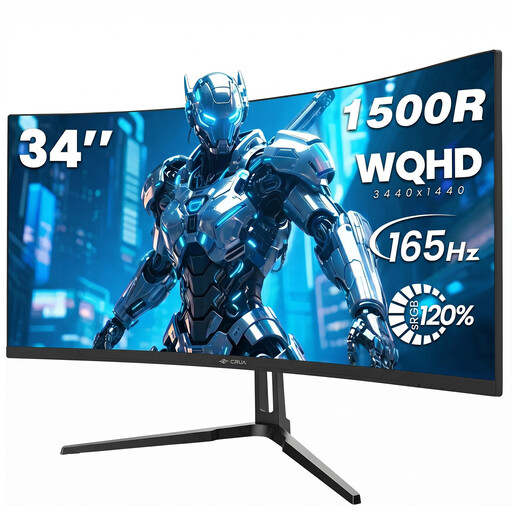
CRUA CR340QA-H, 34 inches, 21:9, 3,440 × 1,440 pixels
The 34-inch, 21:9 format with a resolution of 3,440 × 1,440 pixels could work well for viewing plans side by side. Whether labels remain readable also depends on your window layout and scaling.
The product title also lists a 1500R curve and a 165 Hz refresh rate.
Joybuy
 No image available
CRUA 49 inches, 32:9, 5,120 × 1,440 pixels, 165 Hz
The 49-inch format provides a wide workspace for viewing content side by side. Before choosing it, check that the screen and stand will fit your workspace.
The product title lists a 1500R curve and a height-adjustable stand.
Joybuy
 No image available
INNOCN E34A1R, 34 inches, 21:9, 3,440 × 1,440 pixels
For viewing two plans side by side, this 34-inch display offers a 21:9 format with a resolution of 3,440 × 1,440 pixels. Check how readable your own files are at your preferred scaling.
The title lists a VA panel, a 200 Hz refresh rate, and PIP and PBP. Check that the listed picture source features work with your planned setup.
Joybuy
 No image available
INNOCN 40C1U, 40 inches, 5,120 × 2,160 pixels, IPS
The 40-inch screen and 5,120 × 2,160-pixel resolution could be useful for detailed drawings and toolbars. Check how your software looks at your preferred scaling.
The product title lists USB-C PD65W, as well as PIP and PBP. Whether your laptop can be charged while receiving a video signal depends on compatibility and its power requirements.
Joybuy
 No image available
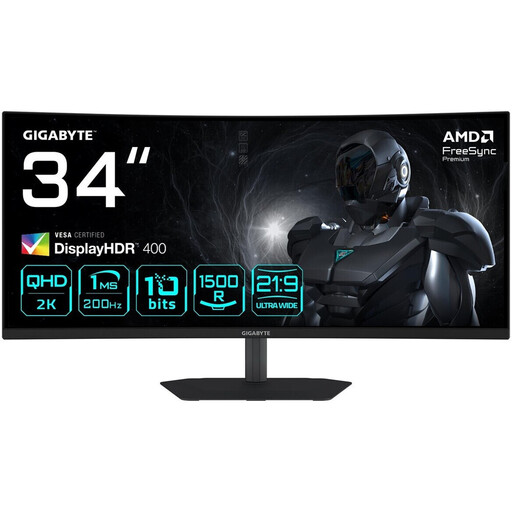
Gigabyte G34WQC2, 34 inches, 21:9, 3,440 × 1,440 pixels
This 34-inch, 21:9 display is an option for a spacious workspace. How easy plans are to read depends on your software’s layout and scaling.
The product title lists a 1500R curve, 200 Hz and DisplayHDR 400.
Joybuy
Frequently asked questions
Can I display plans and charge my laptop through USB-C?
This can work with compatible devices. AOC lists video transmission through DisplayPort Alternate Mode and charging at up to 65 W over USB-C for the CU34P3CV. Check that your laptop can output a video signal through the connection and that the charging power meets its requirements. The monitor still needs its own power supply.
What can I do if Revit displays controls incorrectly on a high-resolution monitor?
Autodesk describes display issues with certain combinations of high resolution and scaling, including desktop scaling above 150%. Check the display and scaling settings in your Revit installation. This doesn’t mean that high-resolution ultrawide monitors are unsuitable in general.
Can I plug several extension leads into one another if I have limited power sockets?
No. Germany’s Federal Office of Civil Protection and Disaster Assistance advises against this on fire safety grounds and warns not to exceed the maximum load of an extension lead. Instead, plan for the mains sockets you actually need.
What energy information can I compare for monitors?
The European Commission includes computer monitors in its category for electronic displays. Compare the energy information for the specific model. Without knowing how long you use it and your electricity tariff, it isn’t possible to work out your personal annual running cost.


