When viewing two architectural drawings side by side, what matters most is how much usable space remains in your software once toolbars are accounted for, at a scale that’s easy to read. A 34-inch ultrawide may suit a smaller desk, while 49-inch models offer more horizontal pixels but take up considerably more space. The models considered here also have 1440 vertical pixels. Autodesk Support also explains how to arrange windows in AutoCAD, so it’s worth factoring in your software and the specifics of your workspace when choosing.
Who is an ultrawide monitor for?
Anyone comparing plans
If you want to keep two drawings or views open side by side, a shared, wide workspace can save you from constantly switching between windows. Autodesk Support explains how to arrange separate drawings side by side in AutoCAD; check how much space your toolbars take up.
Anyone reviewing details at a sit-stand desk
For fine annotations and changing working heights, the screen needs to be positioned well and scaled so it remains easy to read in your CAD application. The Federal Institute for Occupational Safety and Health describes sit-stand working as alternating between sitting and standing.
Laptop users who need docking
If you regularly connect your laptop, check that the specific monitor supports the video output, charging power and connections you need for your device. A USB-C port alone doesn’t tell you which features are available.
What should you look for when buying?
First, compare how windows are arranged and how easy text is to read in your software. Then consider how the monitor will fit on your desk, followed by any additional connections you actually need.
The percentages show the main consideration when choosing an ultrawide monitor for architectural drawings at a sit-stand desk.
| Consideration |
What to check before buying |
Who is it most relevant to? |
| Comparing two drawings |
Window arrangement and the drawing area left once toolbars are accounted for; desk width for the chosen format. |
If I want to compare two plan views side by side without constantly switching windows, usable width is essential. Around 33% of consumers prioritise comparing plans side by side. |
| Reading annotations and details |
Check the native resolution and text scaling alongside your CAD tool palettes; consider the vertical pixel count. |
If I want to clearly see measurements and fine lines, I need the right combination of resolution and scaling. Around 27% of consumers prioritise being able to read plan details. |
| Adjusting the screen position |
Check the stand and adjustment options on your desk; consider the width and positioning both while sitting and standing. |
If I switch between sitting and standing, I want to be able to position the monitor comfortably in both positions. Around 20% of consumers prioritise flexible positioning. |
| Connecting a laptop and peripherals |
Check the laptop’s video output and required charging power against the features of the specific monitor. |
If I connect my laptop frequently, I want to know whether the required connection supports both video and charging. Around 20% of consumers prioritise laptop docking. |
Common buying mistakes
-
Choosing by screen size alone
A wider display doesn’t automatically give you more vertical space for plans. The 49-inch models considered here have 1440 vertical pixels, so screen width alone won’t tell you how much of a drawing will be visible at your chosen scaling.
Compare the native resolution, window arrangement and dimensions of the monitor with your software and available space.
A larger monitor may take up more desk space; depending on how you work, you may still need an additional screen.
-
Assuming USB-C means full docking support
Manufacturers list charging power and connections for individual models. That doesn’t mean every USB-C monitor supports video and charging with every laptop.
Check your laptop’s video output and power requirements against the specifications of the specific monitor.
If the features aren’t compatible, you may need a separate power supply, cable or dock.
-
Planning your sit-stand desk and monitor separately
A height-adjustable desk doesn’t remove the need to check that the screen position and footprint work at both desk heights. The Federal Institute for Occupational Safety and Health describes sit-stand working as alternating between positions.
Check the monitor position and space for your input devices both while sitting and standing.
You may need a different suitable stand or a compatible monitor mount.
Brands and model ranges at a glance
Dell
The U3425WE and P3425WE are 34-inch office ultrawide monitors with different features.
- Dell Germany lists a resolution of 3440 × 1440 pixels and a height-adjustable stand for both models.
- Dell lists USB-C charging up to 90 W and RJ45 for the P3425WE. These features don’t automatically apply to other Dell monitors; check laptop compatibility separately.
EIZO
The FlexScan EV3450XC and EV3895 differ in their size and resolution.
- EIZO Germany lists a resolution of 3440 × 1440 pixels and USB-C docking with 94 W Power Delivery for the EV3450XC. The EV3895 is listed with a resolution of 3840 × 1600 pixels.
- The manufacturer’s resolution specifications don’t replace checking readability and scaling in your CAD application.
LG
The 49WQ95X-W offers an especially wide 32:9 workspace.
- LG Germany lists a resolution of 5120 × 1440 pixels and a height-adjustable stand.
- LG’s German product page lists this model as no longer available. According to LG, the monitor is 1215.1 mm wide without the stand.
Lenovo
The ThinkVision P49w-30 is a 49-inch model designed for wide window layouts and docking.
- Lenovo Germany lists a resolution of 5120 × 1440 pixels, a 32:9 aspect ratio and Thunderbolt 4 with up to 100 W Power Delivery.
- Check that the monitor’s width and connection suit your workspace and laptop.
AOC
The CU34P3CV is a 34-inch, office-focused option with a curved VA panel.
- AOC lists a resolution of 3440 × 1440 pixels and a 21:9 aspect ratio for this model.
- These manufacturer specifications alone don’t show that it performs better with fine CAD lines or colour reproduction.
Monitors to consider at Joybuy
These monitors cover wide 34-inch and larger ultrawide formats for comparing drawings side by side. Check the resolution, scaling and footprint against your workspace.
 No image available
CRUA 49-inch ultrawide monitor, 32:9, 5120 × 1440
The wide 32:9 screen may suit you if you want several drawings and windows open at once, provided you have enough desk space.
49 inches; 5120 × 1440 pixels; 165 Hz; height-adjustable stand; HDMI 2.1 and DisplayPort 1.4.
If wall-mounting, use a VESA mount suitable for the display’s size and weight.
View at Joybuy
 No image available
INNOCN E34A1R, 34-inch ultrawide monitor
The 21:9 format can give you a continuous workspace for two plan views; check that the text is easy to read at your usual scaling.
34 inches; 3440 × 1440 pixels; 21:9; 1500R; height-adjustable stand; PIP and PBP modes.
View at Joybuy
 No image available
INNOCN 40C1U, 40-inch ultrawide monitor
The stated resolution has more vertical pixels than 1440-pixel models; check that the scaling and CAD interface suit the way you work.
40 inches; 5120 × 2160 pixels; 21:9; height-adjustable stand; USB-C with 65 W Power Delivery; PIP and PBP.
View at Joybuy
 No image available
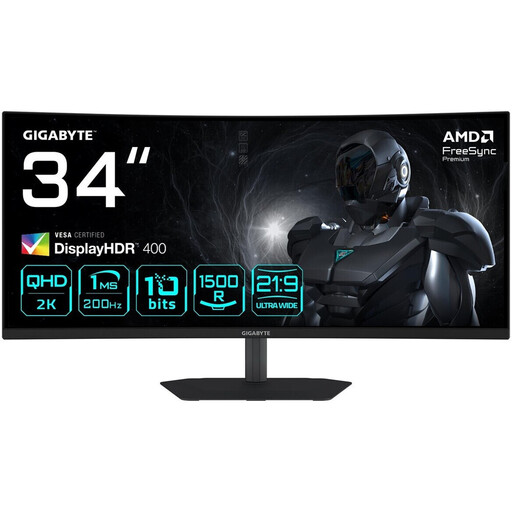
Gigabyte G34WQC2, 34-inch ultrawide monitor
The 21:9 format and 3440 × 1440 pixels are worth considering for a setup with plan windows side by side.
34 inches; 3440 × 1440 pixels; 1500R; HDMI 2.0 and DisplayPort 1.4.
View at Joybuy
 No image available
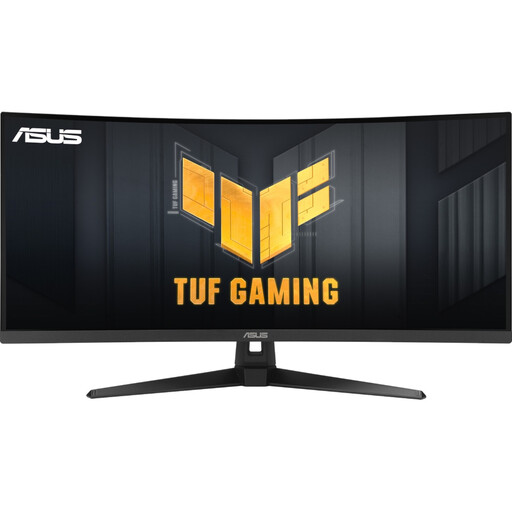
ASUS TUF Gaming VG34VQ3B, 34-inch ultrawide monitor
The 21:9 format gives you a wide shared workspace; compare the resolution with your preferred window arrangement and text scaling.
34 inches; 3440 × 1440 pixels; 21:9; VA panel; DisplayPort, HDMI and USB.
View at Joybuy
Frequently asked questions
Do I need a 49-inch monitor to view two AutoCAD drawings?
No. Autodesk Support explains how you can arrange drawings or views side by side. Check how much space remains on your chosen screen after toolbars are accounted for, at a scale that’s easy to read.
Will any USB-C port support video and laptop charging?
No, you can’t tell from the port name alone. Check your laptop’s video output and power requirements against the specific monitor’s listed features and charging power.
Should I stand for as long as possible at a sit-stand desk?
No. The Federal Institute for Occupational Safety and Health describes sit-stand working as alternating between sitting and standing. Set up your screen and workspace to suit both positions.
Where can I compare a monitor’s energy consumption and dispose of an old one?
Compare the energy information in the product information sheet for the specific model. The European Commission includes electronic displays in EU energy labelling and ecodesign requirements. The German Environment Agency lists recycling centres as free drop-off points for old electrical appliances.
What are my rights if a monitor I’ve bought is faulty?
If a product is faulty, you may have statutory rights against the seller. These are separate from any voluntary guarantee. The consumer advice organisation Verbraucherzentrale says that for new goods, these rights can be exercised within two years of delivery or receipt.


