For comparing two colour edits side by side, an ultrawide is a good choice if you want both views together on one seamless screen, without a bezel in between. Two separate monitors are better if you need a dedicated, carefully calibrated display for checking your work. Either way, your colour target, profiling and screen uniformity are what matter: extra width or a manufacturer’s factory specification is no substitute for the right setup, as Adobe and EIZO explain in their guidance on calibration and profiling.
Which option is right for you?
Colour-critical image editors
If you’re working towards a specific output, choosing the right colour space, calibration and consistent image quality matter more than having extra screen width. EIZO and Adobe explain the importance of colour management and profiling.
Before-and-after comparers
If you want to assess two versions at the same time, what matters is how many usable pixels you have across the screen for both windows. LG’s published resolutions for its 21:9 and 32:9 models show the difference in width.
Image editors with a laptop setup
If you use comparison views, tools and a laptop at the same workstation, check the display connections, data connections and power supply for your specific device. ASUS and Dell list different connection and docking features for their respective models.
What should you look for when buying?
21:9 ultrawide
A good fit if: you want to view two editing stages side by side, without a screen bezel in between.
Bear in mind: Both windows share the available horizontal pixels.
32:9 super ultrawide
A good fit if: you want to arrange particularly wide views across one continuous screen.
Bear in mind: The extra width doesn’t provide additional image height on the examples listed.
Two separate monitors
A good fit if: you want to keep your editing display separate from a dedicated display for checking your work.
Bear in mind: Both displays need suitable connections, space and their own appropriate profile settings.
| Priority |
What to check before buying |
Who it matters most to |
| Reliable colours |
Check that the project’s colour target matches the stated colour space; look at calibration options, profiling and uniformity specifications. |
If I’m assessing colours for a specific output, I want to take into account possible differences between the profile, colour space and screen area. Around 31% of consumers put reliable colours first. |
| Two views at once |
Arrange both editing windows, including their toolbars, at the size you want; check the usable width against the space on your desk. |
If I want to compare before and after versions side by side without a bezel in between, the usable width of both windows matters. Around 31% of consumers prioritise side-by-side comparison. |
| Detail and image height |
Check the native resolution, including the pixel height, and assess the viewing size with your tools on screen. |
When I’m checking image details, I want enough vertical workspace rather than just an extra-wide row of windows. Around 23% of consumers prioritise detail resolution. |
| Connections and workspace |
Check that the video input, USB-C or Thunderbolt features and stated charging power work with your laptop; if you’re using two monitors, check that it can output to both at the same time. |
If I want to connect my laptop to a screen and peripherals, I need connections that suit my device and workflow. Around 15% of consumers put suitable connections and a straightforward setup first. |
Common buying mistakes
-
Confusing colour gamut coverage with colour accuracy
A stated colour gamut doesn’t, on its own, confirm that the specific monitor has the right profile or displays colours consistently across the whole screen.
Start by setting your colour target, then check the colour gamut, calibration options and uniformity specifications. EIZO points out that calibration can’t simply fix a gamut that’s too small or an uneven screen.
For more precise colour checks, you may also need a calibration device or a separate reference display.
-
Assuming 32:9 automatically gives you a better view of detail
Despite their extra width, the listed 49-inch examples each have 1,440 vertical pixels. More horizontal screen space doesn’t automatically mean more image height for viewing details.
Compare pixel height and the window size you can actually use separately from the screen’s diagonal measurement.
-
Choosing a second monitor based only on the number of screens
What matters for comparison is the whole workstation and having two suitably configured displays, not simply the number of screens.
Check the connection options, desk space and colour management for both displays in advance.
A two-monitor setup may require extra mounts, suitable connections and more time to configure.
Brands to consider
ASUS
The ProArt PA34VCNV is a 34.1-inch 21:9 model with a resolution of 3440 × 1440 pixels, designed for sRGB or Rec. 709 workflows.
- ASUS specifies factory calibration with Delta E < 2 and 96 W USB-C for this model. PRAD discusses the monitor in the context of sRGB image editing and Rec. 709 video editing.
- These model-specific specifications don’t prove that it’s suitable for Adobe RGB print work or that every individual unit has consistent screen uniformity.
Dell
The UltraSharp U3425WE is a 34.1-inch 21:9 monitor with a resolution of 3440 × 1440 pixels, with a focus on docking features.
- Dell lists IPS Black, 120 Hz, a USB hub and 90 W power delivery. In its review of the model, PRAD notes its wide range of connections and good to very good image quality.
- Docking features are no substitute for calibrating a display used for colour-critical checks.
LG
The models range from the 21:9 ultrawide 34U650A-B to the extra-wide 32:9 49WQ95X-W.
- LG states typical coverage of 99% sRGB for the 34U650A-B and 98% DCI-P3 for the 49WQ95X-W.
- These figures refer to different colour spaces and reference points, so they aren’t directly comparable measures of colour accuracy.
Lenovo
The ThinkVision P49w-30 is a 49-inch 32:9 model for wide views and a docking workstation.
- Lenovo lists a resolution of 5120 × 1440 pixels, 98% DCI-P3 and Thunderbolt 4 with up to 100 W for this model.
- These manufacturer specifications aren’t an independent measurement of uniformity across the whole screen.
EIZO
FlexScan models such as the EV3450XC and EV3895 are positioned as work monitors, while the ColorEdge CG2700X is a separate 16:9 model for colour-critical checks.
- EIZO lists hardware calibration, a built-in calibration sensor and uniformity correction for the CG2700X.
- According to EIZO, the EV3450XC is an office monitor designed for typical sRGB use. The brand name alone doesn’t make a FlexScan model a substitute for a ColorEdge reference display.
Joybuy products for wide comparison views
This selection of Joybuy products includes 21:9 and 32:9 ultrawides for side-by-side editing views on one continuous screen.
 No image available
CRUA 49″ DQHD Curved Monitor
For two extra-wide views on one continuous 32:9 screen.
- 49 inches; 5120 × 1440 pixels
- 165 Hz; 1500R
- 120% sRGB according to the product description
- HDMI 2.1 and DisplayPort 1.4
The resolution provides 1,440 pixels of height. If you’re mounting it on a wall, make sure the VESA mount is suitable for its size and weight.
View at Joybuy
 No image available
INNOCN 40C1U 40″ 5K Ultrawide Monitor
For wide comparison views with more vertical resolution than the listed 1440p models.
- 5120 × 2160 pixels; 21:9
- IPS; 100 Hz
- USB-C with 65 W Power Delivery
- PIP and PBP
View at Joybuy
 No image available
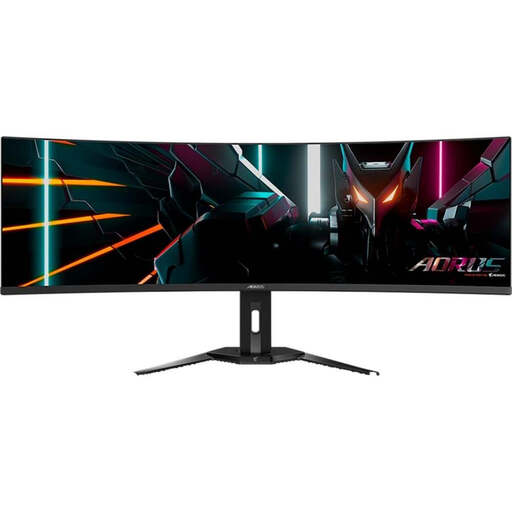
GIGABYTE AORUS CO49DQ OLED Monitor
For two wide signal or editing views on one continuous screen; PiP and PbP are listed as features.
- OLED; 5120 × 1440 pixels
- 144 Hz; 1800R
- HDMI 2.1
The stated resolution provides 1,440 pixels of height. Make sure you have a sturdy enough surface for this wide screen.
View at Joybuy
 No image available
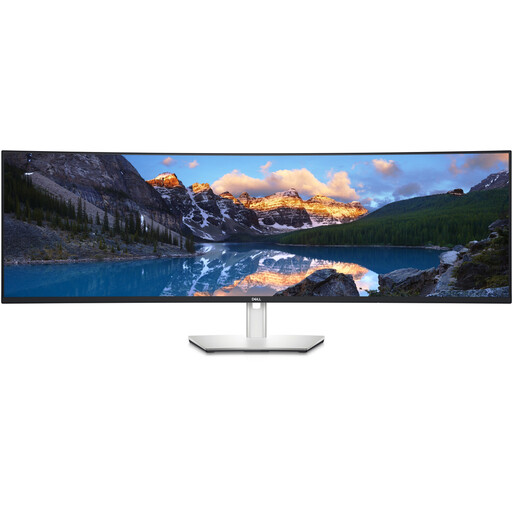
Dell UltraSharp U4924DW 49″ Monitor
For wide comparison views and multitasking on one continuous 32:9 screen.
- 5120 × 1440 pixels; 60 Hz
- HDMI, DisplayPort and USB-C
- 90 W USB-C
The resolution provides 1,440 pixels of height. Also allow for the space needed and make sure your setup can support the stated weight of 16.3 kg.
View at Joybuy
 No image available
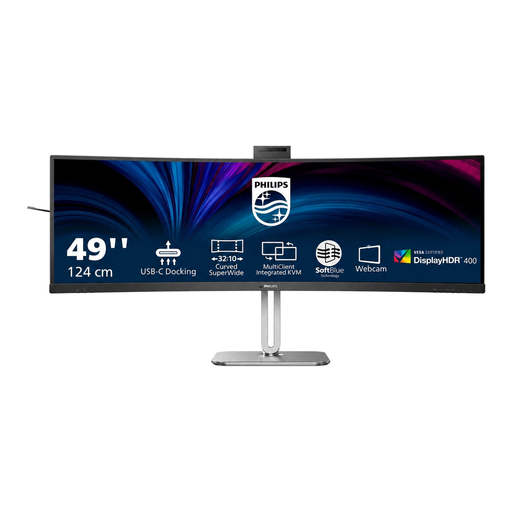
Philips 49B2U6900CH 49″ Curved Monitor
For two wide views and a workstation with a USB-C dock on one continuous 32:9 screen.
- 5120 × 1440 pixels; 75 Hz
- VA panel; 450 cd/m²
- 119% sRGB and Delta E < 2 out of the box according to the product description
- Two HDMI ports, DisplayPort and two USB-C ports
The resolution provides 1,440 pixels of height. You may need someone to help you move and set it up.
View at Joybuy
Frequently asked questions
Does factory calibration mean you don’t need to check the colours again?
No. Adobe describes calibration and profiling as steps towards predictable colour reproduction. EIZO points out that calibration can’t simply fix a colour gamut that’s too small or an uneven screen.
How should I set up a monitor before a colour-critical comparison?
Adobe recommends letting the monitor warm up for at least 30 minutes before calibration, ensuring the lighting conditions are stable and then saving the monitor profile. If you’re using two displays, configure each one appropriately; matching menu settings alone don’t guarantee identical colour reproduction.
How can I compare power consumption and energy information?
Compare the energy information for the specific models on a like-for-like basis, and take both devices into account if you’re using two monitors. The European Commission includes monitors within the regulations for electronic displays, and EPREL provides energy information for individual models.
What are your rights when buying a monitor online in Germany?
According to Verbraucherzentrale, consumers buying online generally have a 14-day right to cancel; check the time limit and conditions that apply to your specific purchase. If a newly purchased product is faulty, you may have statutory rights against the seller for two years. This is separate from any voluntary manufacturer’s guarantee.


