An ultrawide monitor can work well for editing and previewing on the same computer, as long as both windows remain easy to read at your usual text scaling. Two physical monitors can be positioned separately. Picture-by-Picture and KVM only matter if you want to use video signals or input devices from two computers. Also check the space available on your desk, the video connections and, for USB-C, whether the charging power is suitable for your laptop.
Which option suits you?
People editing a website with a live preview
If you use an editor and browser preview side by side on one computer, the key question is whether both windows remain easy to read at your preferred text size. Microsoft Support explains how to snap windows side by side in Windows.
Club members sharing a workspace
If you switch between a club computer and a laptop, or connect both computers at the same time, the monitor’s video inputs are important. Samsung Deutschland explains Picture-by-Picture and KVM for using two connected devices.
People working with images and graphics
If you edit club graphics as well as text, check the colour gamut figures for the specific model. BenQ lists these for the PD3420Q; manufacturer specifications are not an independent measurement of the individual display.
What to consider when buying
One ultrawide for two windows
A good fit if: you want the editor and preview visible at the same time on one computer, and both remain easy to read at your usual scaling.
Bear in mind: both windows share one continuous screen area. Resolution alone does not guarantee readable text or enough desk space.
Two physical monitors
A good fit if: you want to position the editor and preview as separate displays, or already own a suitable monitor.
Bear in mind: both monitors need desk space and suitable video outputs on your computer or dock.
Ultrawide with PBP and KVM
A good fit if: you want to connect two computers. Picture-by-Picture displays both sources at once, while KVM can switch your keyboard and mouse between them.
Bear in mind: these extra features aren’t needed for two windows on one computer.
| Buying priority |
What to look for |
Who should pay particular attention |
| Readability of two windows |
Check the editor and preview side by side at your usual text scaling; consider the native resolution and window width. |
If I want to read both views at once, their usable width matters most; around 36% of consumers put the readability of two windows first. |
| Space and positioning |
Measure the available desk width and depth, including the stand; decide whether you want to position the displays separately. |
If my workspace is short on space or I want to position the displays separately, how they fit is crucial; around 29% of consumers prioritise the space they take up. |
| Connecting your computer |
Check the video output, required USB-C charging power and connections on the specific monitor against your computer; consider PBP and KVM only if you have two sources. |
If I want to connect a laptop or club computer and possibly switch between two devices, I’ll check the connections carefully; around 21% of consumers put computer connectivity first. |
| Assessing images and graphics |
Check the colour gamut and calibration details for the exact model; if accurate colour decisions are essential, plan to test your own display appropriately. |
If I create club graphics and website images, I want clear information about colour performance; around 14% of consumers prioritise image work. |
Common misconceptions
-
Confusing two windows with two video sources
You can arrange the editor and preview as windows on the same Windows computer; you don’t need Picture-by-Picture or KVM for this.
Before looking for a model, work out whether you mean two windows, two physical displays or video signals from two computers.
-
Choosing based only on screen size
Screen size alone won’t tell you whether two windows will be easy to read at your scaling, or whether the monitor and stand will fit on your desk. LG’s German ultrawide range includes models with different resolutions.
Check the native resolution, open typical windows at your preferred scaling and measure the space needed, including the stand.
-
Assuming USB-C guarantees laptop compatibility
A USB-C port alone doesn’t tell you whether the monitor supports the video signal you need or can charge your laptop sufficiently.
Check the video output, USB-C features and charging requirements against the specifications for the specific monitor and your computer.
Notable brands to consider
Dell
The P3425WE is a 34-inch ultrawide for a laptop-based workspace.
- Dell lists a resolution of 3.440 × 1.440 pixels, a USB-C hub, RJ45 and power delivery of up to 90 W for this model.
- Dell does not list a built-in webcam or speakers. The stated charging power needs to suit your laptop; these are manufacturer specifications.
BenQ
The PD3420Q is a 34-inch IPS ultrawide designed for workspaces where you also create club graphics.
- BenQ lists 100% sRGB, 98% DCI-P3, a factory calibration report and 65 W USB-C Power Delivery for this model.
- The colour and performance figures are manufacturer specifications, not an independent assessment of the specific device or a guarantee of compatibility with every laptop.
Samsung
The ViewFinity S65UC LS34C652UAUXEN is designed for workflows involving two connected computers.
- Samsung Deutschland describes Picture-by-Picture and a KVM switch that can switch a keyboard and mouse between connected devices.
- You don’t need this switching feature to use the editor and preview as windows on one computer.
Philips
The 34B2U5600C/00 is a 34-inch business ultrawide for workspaces where you switch between sources and need a network connection.
- Philips Deutschland lists a resolution of 3.440 × 1.440 pixels, Smart-KVM and USB-C-to-RJ45 connectivity for this model.
- Its switching and networking features are most relevant if you use multiple sources or need a suitable network connection.
AOC
The CU34P3CV is a 34-inch ultrawide with specifications that may suit a workspace with several open windows.
- AOC lists a resolution of 3.440 × 1.440 pixels, a VA panel and USB-C with up to 65 W for this model.
- Check the German version and what’s included with the specific offer.
LG
LG’s German ultrawide range includes 34-inch models with different resolutions.
- LG lists models with both 3.440 × 1.440 and 2.560 × 1.080 pixels.
- The range specifications don’t mean every model has the same resolution or connections; check the details for the specific device.
Joybuy products for this workflow
The Joybuy options below include ultrawides for editing and previewing on one computer, as well as selected models with PIP/PBP for two video sources.
 No image available
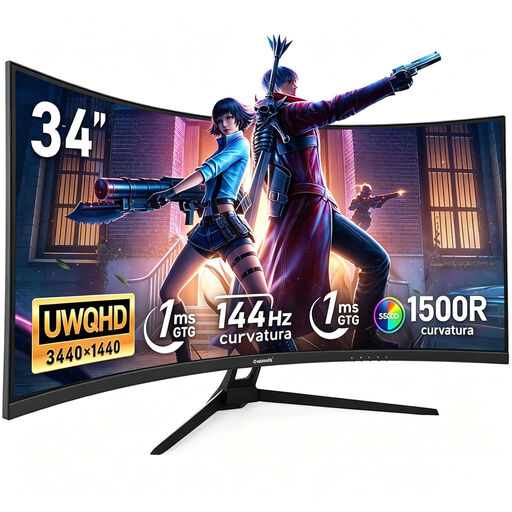
Gawfolk 34-inch Curved UWQHD Monitor
The wide ultrawide display is designed for editing and previewing on one screen.
The product title lists 34 inches, 3.440 × 1.440 pixels, 144 Hz, 1500R and 100% sRGB; it also states “Without Speakers”.
View at Joybuy
 No image available
INNOCN E34A1R 34-inch Curved Monitor
This model lists PIP/PBP for displaying separate video sources at the same time; you don’t need this feature for two windows on one computer.
The product title lists 34 inches, 3.440 × 1.440 pixels, 21:9, a VA panel, 200 Hz, 1500R and an adjustable-height design.
View at Joybuy
 No image available
INNOCN 40C1U 40-inch 5K Ultrawide Monitor
The product specifications list PIP/PBP for separate video sources; check whether you actually need this feature before choosing.
Specifications include 40 inches, 5.120 × 2.160 pixels, 21:9, an IPS panel, 100 Hz and USB-C Power Delivery at 65 W.
View at Joybuy
 No image available
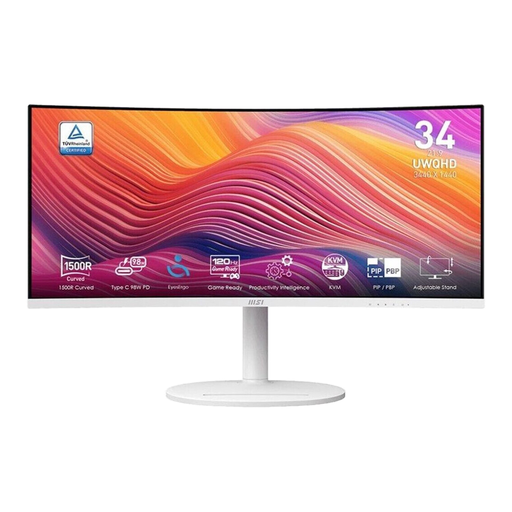
MSI Modern MD342CQPWDE 34-inch UWQHD Curved Monitor
This wide display is listed as an option for working with several windows on one monitor.
The product specifications list 34 inches, UWQHD at 3.440 × 1.440 pixels, 21:9, a VA panel, 120 Hz, a matte finish, and HDMI and DisplayPort connections.
View at Joybuy
 No image available
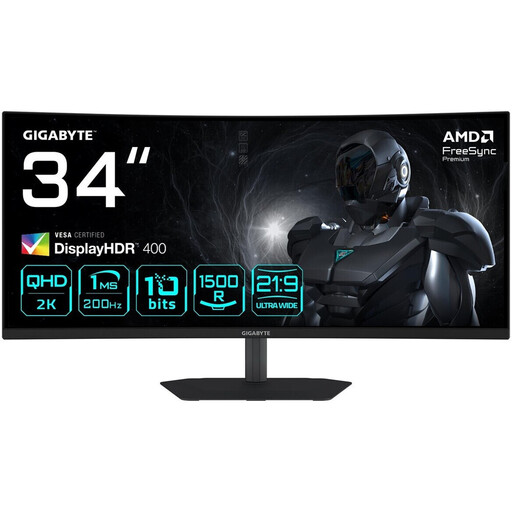
Gigabyte G34WQC2 34-inch Curved WQHD Monitor
The product description lists this model for work and multitasking; check that its size and resolution suit your two windows.
Specifications include 34 inches, 3.440 × 1.440 pixels, 21:9, 1500R, 200 Hz, HDMI 2.0 and DisplayPort 1.4.
View at Joybuy
Frequently asked questions
Do I need Picture-by-Picture to open the editor and website preview side by side?
No, not if both programmes are running on the same Windows computer: Windows can snap windows side by side. Picture-by-Picture is designed for separate video sources on compatible monitors.
How do I set up two physical monitors in Windows?
Connect both displays and check whether Windows recognises them in the display settings. You can adjust their arrangement there; check that your computer has the video outputs or dock connections you need.
What can I do if text looks blurry or too small on an ultrawide?
In Windows, check the monitor’s recommended resolution, then adjust the text or app scaling. Microsoft Support notes that using a lower resolution than the native one can make text look blurry.
How can I compare the energy consumption of monitors?
Compare the energy label for the specific model. The European Commission lists electronic displays, including computer monitors, on an energy efficiency scale from A to G.
What should I know about warranties and consumer rights if a monitor is faulty?
Your statutory rights against the seller and a voluntary manufacturer’s warranty are separate matters. The Verbraucherzentrale advises checking whether the purchase is a private one or made for a club; the contracting party and applicable terms may be important when determining your rights.


