What should you look for when buying?
First, measure the space available, then decide whether the extra room for your preview and control panels justifies the space needed for a 34-inch model. LG lists a resolution of 2560 × 1080 pixels for the 29U511A-B. LG lists 3440 × 1440 pixels for the 34WN780-B, as do BenQ for the PD3420Q and Dell for the P3425WE.
| Consideration |
What to check before buying |
Who is this important for? |
| Will the monitor fit on my desk? |
Measure the available width and depth; check the monitor and stand dimensions, or, if using an arm, the clamping area and room for movement. |
If my desk is short on space, I mainly want to be sure there’s room for both the screen and its mount. Around 36% of consumers put desk fit first. |
| How much workspace do I need? |
Compare the native resolution with your preferred layout for the timeline, preview and control panels. |
If I want to see several editing areas at once, extra width and height matter to me. Around 29% of consumers prioritise seeing the timeline and control panels at the same time. |
| Is the colour reproduction right for my workflow? |
Check your planned SDR or HDR output and the colour gamut specifications for the specific model; set up colour management appropriately in your editing software. |
If I’m assessing colours for a project, I don’t want to assume that monitor specifications mean my project output is correctly set up. Around 21% of consumers prioritise colour control. |
| Are the ports and power delivery sufficient? |
Compare your laptop’s USB-C video output and charging requirements with the monitor’s ports. Dell lists up to 90 W USB-C power delivery for the P3425WE, while BenQ lists 65 W for the PD3420Q. |
If I want to connect my laptop and peripherals as neatly as possible, I also check that the video signal and charging power are compatible. Around 14% of consumers prioritise keeping their connections organised. |
Adobe says that colour output in Adobe Premiere also depends on source clips being tagged correctly and the sequence’s working and output colour spaces being set appropriately.
Joybuy monitors for a wider editing workspace
This selection features 34-inch ultrawide monitors with 3440 × 1440 pixels, giving you room for a wide timeline and several editing areas on screen at once.
 No image available
Gawfolk GF340C-H 34-inch UWQHD monitor
For a wide timeline and several editing areas visible at once.
3440 × 1440 pixels, 21:9, 1500R curvature, VA panel and 165 Hz.
DisplayPort; VESA 75 × 75 mm. The stand is tilt-adjustable.
View at Joybuy
 No image available
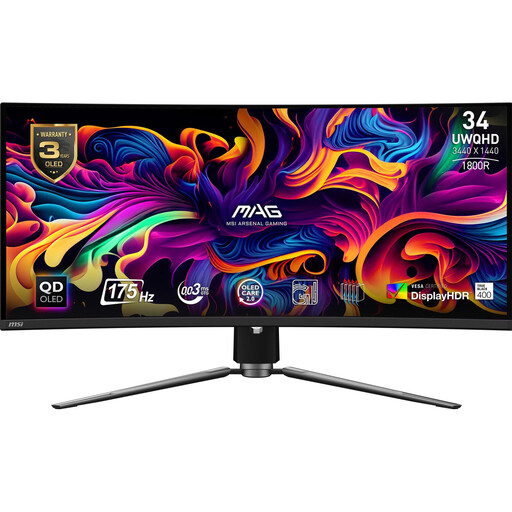
MSI MAG 341CQPDE QD-OLED
For a wide editing workspace, with the model’s stated colour gamut also available to consider as part of your choice.
34 inches, 3440 × 1440 pixels, 21:9, QD-OLED and 175 Hz; the product specifications list 99,3% DCI-P3.
The stated depth with the stand is 266 mm. If you’ll be displaying static images for extended periods, avoid using maximum brightness and take note of the OLED care features.
View at Joybuy
 No image available
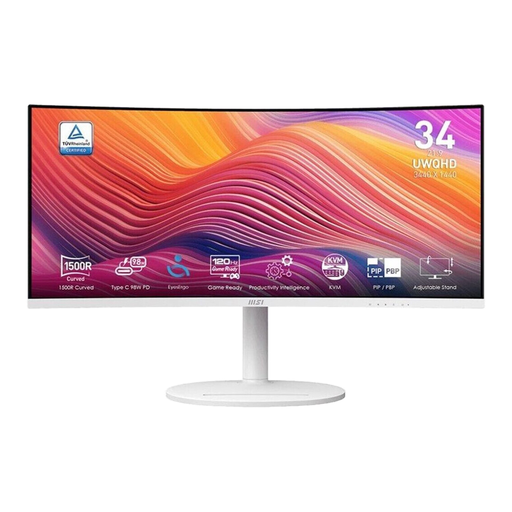
MSI Modern MD342CQPWDE
For a wide timeline and several editing windows on one monitor.
34 inches, 3440 × 1440 pixels, 21:9, curved QLED VA display and 120 Hz.
Matte display; listed connections include HDMI, DisplayPort and two USB 3.0 ports. The stand is tilt-adjustable.
View at Joybuy
 No image available
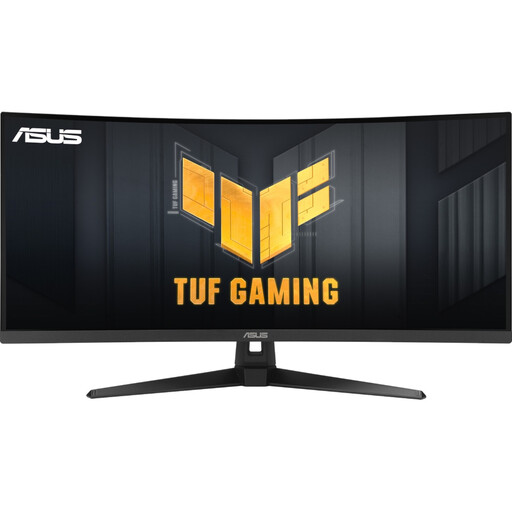
ASUS TUF Gaming VG34VQ3B
For a wide workspace, if the model’s stated colour gamut is relevant to your workflow.
34 inches, 3440 × 1440 pixels, 21:9, VA panel and 180 Hz; listed specifications include 90% DCI-P3 and DisplayHDR 400.
The stated colour gamut alone doesn’t confirm accurate project output. Also check your colour-managed workflow and the space required by the stand.
View at Joybuy
 No image available
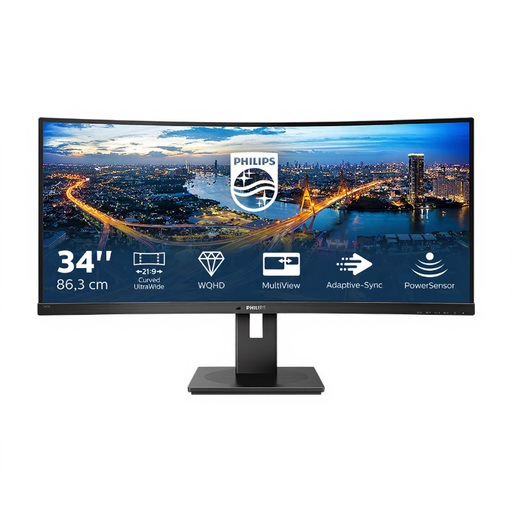
Philips 345B1C
For a wide editing workspace with a height-adjustable stand.
34 inches, 3440 × 1440 pixels, 21:9, 1500R curvature and 100 Hz.
USB hub; the stand has 180 mm of height adjustment. Compare its footprint with the space on your desk.
View at Joybuy
Frequently asked questions
Should I choose 29 or 34 inches for my timeline?
If desk width is very limited, start by checking the dimensions of a 29-inch model. If you need extra vertical space for your preview and control panels and can accommodate a 34-inch monitor, compare 3440 × 1440 with 2560 × 1080 pixels. Screen size alone won’t determine whether it will fit.
How do I set up an ultrawide on a small desk?
Measure the available width and depth, then compare both with the dimensions of the monitor and stand. If you’re using a clamp-mounted arm, also check the desk edge and room for movement. For a screen or home-working setup provided by an employer, ASR A6 is relevant within its scope; it doesn’t apply across the board to every home desk.
Are high colour gamut figures enough for colour grading?
No, a monitor’s colour gamut figures alone aren’t enough. In Adobe Premiere, source clips also need to be tagged correctly, and the sequence’s working and output colour spaces need to be set appropriately. This is particularly important when switching between SDR and HDR output.
What should I know about cancellation and faulty goods when buying online?
For qualifying distance purchases from a trader, you generally have a 14-day cancellation period from delivery; exceptions and rules on return costs may apply. Separately, if goods are faulty, you have a statutory guarantee from the seller of at least two years. The European Union’s Your Europe website explains these rights; a manufacturer’s warranty is an additional claim that should be checked separately.
What labelling and disposal rules should I be aware of in Germany?
Computer monitors generally fall within the scope of the EU energy labelling rules for electronic displays, so check the energy label for the specific model. Take an old monitor to an authorised collection point, such as a local authority recycling centre. Retailer obligations depend on the relevant legal requirements.


