Which monitor is right for you?

Editing long teaching recordings

When reviewing long takes, a wide display can give you room to place the timeline and other windows side by side. However, the aspect ratio alone won’t save you time; it also depends on how your editing software makes use of the workspace.

Editing footage with slides and subtitles

If you need to check small text, on-screen materials and image details, a high-resolution preview may matter more than maximum screen width. Check the scaling and readability at your own workstation, too.

Colour-critical video editing

If you’re matching the colour of recordings, your monitor should suit the output colour space and display workflow you’ve chosen. Manufacturers’ claims about colour spaces or calibration don’t replace checking whether those features are needed for your project.

What to look for when buying

Wide 21:9 monitor

A good fit if: you need room for long takes, the timeline and other windows at the same time.

The trade-off: According to LG, the LG 34U650A-B offers 3.440 × 1.440 pixels, which is fewer vertical pixels than a 4K UHD display with 3.840 × 2.160 pixels.

27-inch 4K for previews and on-screen text

A good fit if: you want to check slides, subtitles and image details in high resolution on a compact desk.

The trade-off: The 16:9 screen is less wide than 21:9; check the scaling and text size at your workstation.

Larger 4K display with connectivity

A good fit if: you’re prioritising more workspace and a Thunderbolt connection to your laptop; BenQ lists the PD3225U as 31,5 inches with 3.840 × 2.160 pixels.

The trade-off: Make sure you have enough desk space, and check the connections and power supply against your laptop.

Buying criteria What to check Who it matters most to
Keeping track of long recordings Compare the aspect ratio, native resolution, desk space and window layout in your editing software. LG lists the 34U650A-B as 21:9 with 3.440 × 1.440 pixels. If I want to review long takes and use the timeline alongside other windows, horizontal workspace matters most to me. Around 36 % of consumers put the timeline first.
Slides, subtitles and image details Match the native resolution and screen size to your preferred scaling. ASUS lists the PA279CRV as 27 inches with 3.840 × 2.160 pixels; EIZO also lists the CS2740 as 3.840 × 2.160 pixels. If I want to check small on-screen text and graphics in the preview, I pay particular attention to resolution and readability. Around 29 % of consumers prioritise text and image detail.
Colour reproduction Consider the output colour space, display mode and, where applicable, calibration together. BenQ lists the PD3225U as 100 % Rec.709; EIZO also states that the CS2740 offers 100 % Rec.709 and hardware calibration. If I’m matching recordings to a set output colour space, I want to be able to assess the display accordingly. Around 21 % of consumers put colour control first.
Laptop and workstation Check video transmission, the power delivery you need, cables and adjustment options for the specific model. ASUS lists USB-C Power Delivery at 96 W and 130 mm of height adjustment for the PA279CRV; EIZO lists a maximum of 60 W over USB-C for the CS2740. If I want to use my existing computer without needing unexpected adapters and set up the monitor to suit me, I check both in advance. Around 14 % of consumers prioritise connections and workstation setup.

Common misconceptions

  • Assuming ultrawide means 4K UHD

    A wide aspect ratio doesn’t automatically mean 4K UHD resolution. LG lists the 34U650A-B as 3.440 × 1.440 pixels; the 4K UHD models reviewed offer 3.840 × 2.160 pixels.

    Choose based on your main task: more room for the timeline or a high-resolution preview for details.

  • Assuming colour space figures guarantee accurate export colours

    A stated colour gamut coverage alone doesn’t prove that your project, display and output are set up correctly. The colour space you need depends on the intended output format.

    Set your output colour space, then check the display mode and, where applicable, calibration.

  • Assuming USB-C guarantees a simple one-cable setup

    The models vary in their stated USB-C power delivery. A connection will only suit your workstation if your computer, cable and monitor support the video transmission and charging power you need.

    Check your laptop’s requirements against the specifications for the exact monitor model.

    Depending on your existing setup, you may need a suitable cable or a different connection and charging solution.

Relevant brands at a glance

LG

The UltraWide 34U650A-B is a 34-inch 21:9 option for buyers looking for a wide workspace.

  • According to LG, the 34U650A-B offers 3.440 × 1.440 pixels and typically 99 % sRGB.
  • Its resolution isn’t 4K UHD; a wider screen doesn’t necessarily mean faster editing.

ASUS

The ProArt PA279CRV is a 27-inch 4K model for checking detail and colour-focused workflows.

  • ASUS lists a Rec.709 mode and 96 W USB-C Power Delivery; PRAD has tested this exact model.
  • These specifications apply to the PA279CRV and shouldn’t be assumed to apply to other ProArt models.

BenQ

According to BenQ’s German specifications, the DesignVue PD3225U combines a 31,5-inch 4K display with video-focused colour modes and Thunderbolt.

  • BenQ states that it offers 100 % Rec.709, 85 W power delivery and 150 mm of height adjustment.
  • Connecting a laptop depends on whether the other device’s ports support the setup you want.

EIZO

According to EIZO, the ColorEdge CS2740 is an approximately 27-inch 4K UHD option for photography, video and colour-grading workflows.

  • EIZO lists hardware calibration, 100 % Rec.709 and up to 60 W power delivery over USB-C.
  • These features don’t prove that every buyer needs a calibratable monitor.

Dell

According to the German product listing, the UltraSharp U2725QE is a 27-inch 4K Thunderbolt hub monitor for workstations with multiple connections.

  • Dell lists a 120 Hz refresh rate and an IPS Black panel for this model.
  • Hub and refresh rate features only affect your buying decision if you’ll use them at your workstation. The U2725QE is not the same model as the P3225QE.

Joybuy product selection

This selection includes wide ultrawide monitors for timeline work, as well as 4K models for a high-resolution preview.

CRUA 49-inch DQHD monitor, 32:9 aspect ratio

CRUA 49-inch DQHD monitor, 32:9

The wide screen may suit you if you want to arrange long takes and the timeline side by side; make sure you have enough space at your workstation.

49 inches, 5.120 × 1.440 pixels, 165 Hz, plus HDMI 2.1 and DisplayPort 1.4.

The stated resolution isn’t 4K UHD at 3.840 × 2.160 pixels.

Joybuy
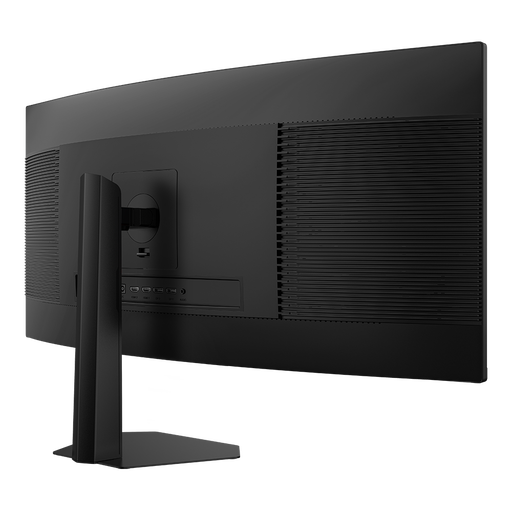
INNOCN E34A1R, 34-inch monitor with a 21:9 aspect ratio

INNOCN E34A1R 34-inch monitor, 21:9

The wide format may suit long timelines; check the preview size and window layout in your editing software.

34 inches, 3.440 × 1.440 pixels, VA panel and 200 Hz; height-adjustable stand.

The stated resolution isn’t 4K UHD.

Joybuy

INNOCN 40C1U, 40-inch monitor with 5.120 × 2.160 pixels

INNOCN 40C1U 40-inch monitor, 21:9

If you’re looking for a wide, high-resolution workspace, this model could be an option; bear in mind that a 40-inch screen needs plenty of room.

5.120 × 2.160 pixels, IPS panel, 100 Hz and USB-C with 65 W Power Delivery; height-adjustable stand.

Joybuy

INNOCN CB27U1, 27-inch 4K UHD monitor

INNOCN CB27U1 27-inch 4K UHD monitor

The compact 4K screen may suit you if you want to check slides, subtitles and image details in the preview.

3.840 × 2.160 pixels, IPS panel, 120 Hz and USB-C with 90 W Power Delivery; height-adjustable stand.

Joybuy
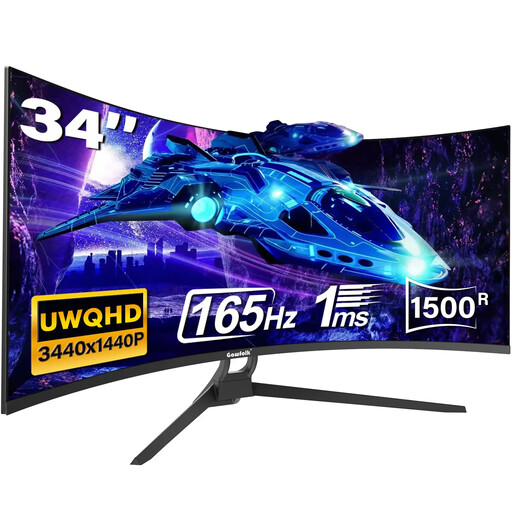
Gawfolk 34-inch UWQHD monitor with a 21:9 aspect ratio

Gawfolk 34-inch UWQHD monitor, 21:9

The 21:9 format may suit a wide timeline and extra windows; check that the preview size meets your needs.

3.440 × 1.440 pixels, 165 Hz, plus HDMI 2.1 and DisplayPort 1.4.

The stated resolution isn’t 4K UHD.

Joybuy

Frequently asked questions

Will a new monitor automatically make long or high-resolution recordings run more smoothly?

No. Choosing a screen doesn’t replace checking your computer’s performance. Adobe describes proxy files as an editing aid, especially for high-resolution or demanding footage; this is a software workflow, not a monitor feature.

How should I set up colour for my output?

First, set the output colour space in your editing project, then choose a matching display mode. Adobe describes both a Rec.709 SDR workflow and workflows with a wider colour gamut, so Rec.709 isn’t automatically the right setting for every project.

What should I check when it comes to connections and positioning?

Compare your laptop’s video connection and required charging power with the specifications for the specific monitor. Also consider desk space and adjustment options; the DGUV describes ergonomics as part of designing screen-based workstations.

How can I compare the power consumption of different monitors?

Compare the EU energy label and EPREL listings for specific models on the same usage basis. The European Commission notes that energy labels for electronic displays also include HDR information; to estimate your own annual cost, you’ll also need to take usage time and electricity prices into account.

What labelling and consumer rights should I know about when buying a monitor in Germany?

EU energy labelling rules apply to monitors. If you buy a new monitor from a business seller, you’re generally entitled to a minimum of two years’ legal protection against faults; this is separate from any voluntary manufacturer’s warranty. Online purchases generally come with a 14-day right to cancel, subject to the relevant conditions and exceptions in each case.