For long theatre rehearsals, a 21:9 monitor may be a good choice if you need more horizontal space for source footage, your timeline and tools. A 16:9 4K monitor is a better fit if you want to assess UHD detail on a display with a resolution of 3840 × 2160 pixels. The extra width doesn’t replace the image height of native 4K UHD. You should also decide on your output format and check that the connections and available desk space suit your setup.
Who this decision matters to
Editing long takes
When reviewing lengthy rehearsals, you’ll want to arrange your source footage, timeline and tools clearly. Adobe explains how to use separate Source and Program monitors, and how to move Premiere panels to a second display. ASUS lists the PA348CGV as a 21:9 monitor with a resolution of 3440 × 1440 pixels.
Checking colour and scenes
With changing stage lighting and dark scenes, it’s important to match your display to the intended SDR or HDR output format. Adobe documents the relevant settings for Premiere; contrast and colour specifications apply only to the specific monitor model in question.
Checking 4K detail
If you want to assess 4K UHD footage on a display with the corresponding pixel resolution, a 16:9 4K monitor may be suitable. ASUS, BenQ and EIZO list different models with a resolution of 3840 × 2160 pixels; the space available for your timeline and panels is a separate consideration.
What to consider when buying
First decide whether an uncluttered editing workspace or a native 4K view is more important for your theatre footage.
| Priority |
What to check before buying |
Who it matters most to |
| Timeline overview |
Compare the aspect ratio and native resolution with the editing workspace you actually use. |
If I want to review long takes and keep the source footage, timeline and tools in view at the same time, the layout is key. Around 36% of consumers put an overview of long takes and editing tracks first. |
| Stage lighting and colour |
Choose an SDR or HDR output, then check the appropriate monitor mode, contrast and whether calibration is needed. Adobe documents different colour settings for Premiere sequences. |
If changing stage lighting and dark scenes are important to my colour decisions, the preview needs to match the output format. Around 29% of consumers prioritise assessing stage lighting, shadows and output colours. |
| 4K detail view |
Match the resolution of your footage and output to the display’s native resolution; allow space for your preview and panels too. |
If I want to check UHD detail on a screen with the corresponding native resolution, 4K image height matters more than extra timeline width. Around 21% of consumers put pixel-level checks of 4K UHD footage first. |
| Connections and setup |
Check your computer’s video output and cable against the monitor’s connections, power requirements and the space available. |
If I want to connect a monitor to my computer or set up a second display, the connections need to suit my workspace. Around 14% of consumers prioritise connectivity and a practical workstation setup. |
Common misconceptions
-
Assuming an ultrawide format gives you a pixel-accurate 4K preview
A 21:9 monitor with a resolution of 3440 × 1440 pixels doesn’t provide the 2160-pixel image height of a native 4K UHD view.
Decide whether timeline space or a native 4K view matters more. If you want to display both separately, check whether you can add a second screen.
-
Confusing a wide colour gamut or HDR support with accurate colour settings
Adobe has separate settings for SDR and HDR output. A colour gamut specification alone doesn’t tell you whether the sequence is correctly set up for your intended output format.
Choose your output format first, then set up colour management and the monitor mode for your specific workflow.
-
Overlooking static editing interfaces on OLED screens
During long sessions, menu bars and panels may remain in the same place for extended periods. The protection features ASUS lists for the PG32UCDM Gen3 don’t guarantee that image retention or burn-in won’t occur.
Check the care guidance and warranty terms for the specific model, and weigh up OLED against LCD alternatives.
-
Assuming USB-C or Thunderbolt will automatically work as a one-cable solution
Connections and power delivery vary between monitors. A USB-C or Thunderbolt port alone doesn’t guarantee that the video output and charging power will suit your computer.
Check the video output, cable, required resolution and power needs against the specifications of the specific devices.
Depending on your computer, you may need a suitable adapter, a different cable or a separate power supply.
Brands to consider
ASUS
The ProArt range includes both a wide editing display and 27-inch 4K models; ROG OLED is a separate option for buyers considering OLED.
- ASUS lists the PA348CGV as a 21:9 monitor with a resolution of 3440 × 1440 pixels and 90 W power delivery over USB-C. According to ASUS, the PA279CRV offers a resolution of 3840 × 2160 pixels.
- These specifications apply to the models listed, not to all ASUS monitors. If you’re considering OLED, take protection features and static editing interfaces into account separately.
BenQ
The Creative Pro PD3225U is a 31.5-inch 4K model for buyers looking at a larger 16:9 screen with a Rec.709 mode and Thunderbolt connection.
- BenQ lists the PD3225U as offering a resolution of 3840 × 2160 pixels, a native contrast ratio of 2000:1 and Thunderbolt 3 with 85 W power delivery.
- These specifications relate to this model and don’t replace testing the actual device or checking your own colour calibration.
EIZO
The ColorEdge CS2740 is a 27-inch 4K model for buyers planning a hardware-calibrated colour workflow.
- EIZO documents hardware calibration of the CS2740 using its ColorNavigator software.
- You’ll need a suitable calibration workflow to benefit from this; the 27-inch 16:9 screen doesn’t automatically provide more space for a long timeline.
Dell
The UltraSharp U2725QE is a 27-inch 4K model that may appeal to buyers looking for a Thunderbolt hub and an IPS Black panel.
- Dell lists the U2725QE as offering 4K, a Thunderbolt hub and a contrast ratio of 3000:1.
- These are the manufacturer’s specifications for this model, not an independent comparison with other monitors.
Joybuy products
This selection includes ultrawide monitors for editing long takes; check whether the vertical resolution of each model suits the 4K view you want.
 No image available
INNOCN 40C1U, 40 inches, 5K (5120 × 2160)
The wide 21:9 screen is designed for editing long takes and, according to the product specifications, offers an image height of 2160 pixels for a UHD view.
IPS panel, 100 Hz, USB-C with 65 W Power Delivery, plus PIP/PBP.
View at Joybuy
 No image available
Gawfolk GF340C-H, 34 inches, 3440 × 1440
The curved ultrawide display gives you plenty of width for your timeline and editing workspace; its stated vertical resolution doesn’t match the 2160-pixel height of UHD resolution.
VA panel, 165 Hz, 1500R and DisplayPort.
View at Joybuy
 No image available
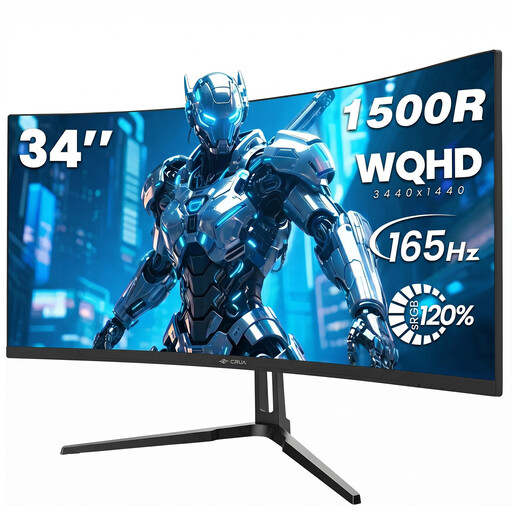
CRUA CR340QA-H, 34 inches, 3440 × 1440
The 21:9 format can give you room for a wide timeline, but with 1440 vertical pixels, the display doesn’t offer the native image height of 4K UHD.
Curved 1500R display, 165 Hz, 1 ms MPRT and a 75 × 75 mm VESA mount.
View at Joybuy
 No image available
CRUA, 49 inches, DQHD 32:9 (5120 × 1440)
The 32:9 format gives you an extra-wide workspace for your timeline and panels; the stated vertical resolution is 1440 pixels, not 2160.
Curved 1500R display, 165 Hz, HDMI 2.1 and DisplayPort 1.4. If you’re mounting it on a wall, take the monitor’s size and weight into account.
View at Joybuy
Frequently asked questions
Do I need an ultrawide monitor for long theatre recordings?
No. If your timeline is the main bottleneck, a 21:9 display can give you more horizontal space. Alternatively, you can move Premiere panels to a second screen. Check that your editing software and computer connections support this setup.
How do I set up colour assessment for SDR output?
First, set the sequence’s output colour space. Adobe documents Rec.709 as the standard for the corresponding SDR workflow in Premiere; then choose a suitable monitor mode and calibrate it for your workflow. These Premiere settings aren’t a guide to every editing programme.
Is an HDR sticker enough to assess dark stage footage?
No. What matters is the intended SDR or HDR output format and a preview that matches it. For DirectX HDR in Premiere on Windows, Adobe lists an HDR10-capable display and other system requirements; an HDR label alone doesn’t prove that a monitor is suitable as a reference display.
What should I bear in mind when using an OLED monitor for long editing sessions?
Follow the care guidance for your specific model, as editing interfaces can stay on screen unchanged for long periods. ASUS lists OLED Care features for the PG32UCDM Gen3; this doesn’t mean burn-in is impossible.


