Designers working on a design and preview
You want to see your workspace and browser preview at the same time, and need to decide whether two windows on one wide display will suit your workflow.


If your design and browser preview are windows on the same computer, an ultrawide monitor can give you one continuous workspace. Two physical monitors are still a good option if you need separate displays or screens in different sizes and orientations. Before buying, check the usable width for your windows, colour reproduction, connections and desk space.
You want to see your workspace and browser preview at the same time, and need to decide whether two windows on one wide display will suit your workflow.
You assess the colours and details of a landing page and want to distinguish advertised colour gamut coverage from proven colour accuracy.
You want to connect a laptop, peripherals or a second computer, and need to match video output, power delivery and KVM features to your setup.
Best for: Opening your design and preview side by side on the same computer. Microsoft Support and Apple Support explain how to arrange windows.
Trade-off: Splitting the screen does not create two separate displays; both apps need enough room at your chosen scaling setting.
Best for: Keeping your preview and design separate, or using displays in different sizes and orientations.
Trade-off: Both monitors need desk space and suitable connections; whether they’ll work for you depends on your workspace.
Best for: When you mean two computers or video sources by “two screens”. Picture-by-Picture can show both at once; KVM is useful if you want to control them together.
Trade-off: Check the available inputs and make sure the specific combination of video sources and control devices will work with the model you’re considering.
| What you need | What to check before buying | Who it matters to |
|---|---|---|
| Room for your design and preview | Check the resolution, operating system scaling and minimum width needed by both apps together. | If I want to see my design and browser preview at the same time, I need enough usable width for both apps. Around 31% of consumers put this workspace requirement first. |
| Assessing colours and details | Compare colour gamut coverage, calibration information and, where available, independent measurements of the exact model. | If I need to assess colours for a landing page, I don’t want to confuse colour gamut coverage with colour accuracy. Around 25% of consumers focus on assessing colour. |
| Connecting a laptop or two computers | Check USB-C video output and the charging power you need; for two computers, check KVM, Picture-by-Picture and inputs. | If I want to connect my laptop or two-computer setup, the video output and connections need to be compatible. Around 19% of consumers focus on finding the right connection. |
| Setting up your workspace | Check the dimensions of the monitor and stand, adjustment options, possible mounting options and your seating position. | If I have limited desk space, the display and stand need to fit where I plan to put them. Around 13% of consumers prioritise how the monitor will fit into their workspace. |
| Power consumption and accessories | Check the EU energy label for the exact model and what’s included; factor in any cables or mounting hardware you’ll need for your setup. | If I want to understand power requirements and what accessories I’ll need in advance, the model specifications and included items matter. Around 12% of consumers pay particular attention to these points. |
Two windows on one computer and two physical video sources are different things. Picture-by-Picture and KVM won’t automatically meet your needs if you want to arrange two apps side by side on one computer.
Before buying, decide whether you mean two apps, two computers or two separate displays.
LG states that the 34BQ77QB-B has typical sRGB coverage of 99%. A colour gamut coverage figure alone is not independent proof of colour accuracy.
If colour decisions are especially important, check calibration information and independent measurements for the exact model.
Checking or calibrating colour reproduction may take extra time.
Video output and power delivery need to be compatible with your laptop; the monitor models mentioned offer different maximum charging power.
Check USB-C video output, the wattage you need and what’s included for your computer.
Your particular setup may require an additional compatible cable or power supply.
The FlexScan EV3451X is a 34.1-inch ultrawide model with USB-C docking and KVM.
The UltraSharp U3425WE is a 34.1-inch display with a Thunderbolt hub and height-adjustable stand.
The 34BQ77QB-B is a business ultrawide model with laptop docking and support for two video sources.
The ViewFinity S65UC, model LS34C652UAUXEN, is a 34-inch display that supports two video sources.
The CU34P3CV is a 34-inch ultrawide model with a VA panel and USB-C docking.
The Joybuy products below offer wide ultrawide workspaces for side-by-side windows. For models specifically listed with PIP or PBP, using two video sources is also included as a potential use case.
 No image available
The 21:9 format and 3440 × 1440 resolution provide a wide workspace for viewing your design and preview side by side.
The product title lists a VA display, as well as PIP and PBP for video sources.
 No image available
The 5120 × 2160 resolution and 21:9 format listed in the product title are useful for viewing several things side by side.
The title lists an IPS display, 100 Hz, PIP and PBP, as well as USB-C PD65W. Check that the listed connections and charging power suit your devices.
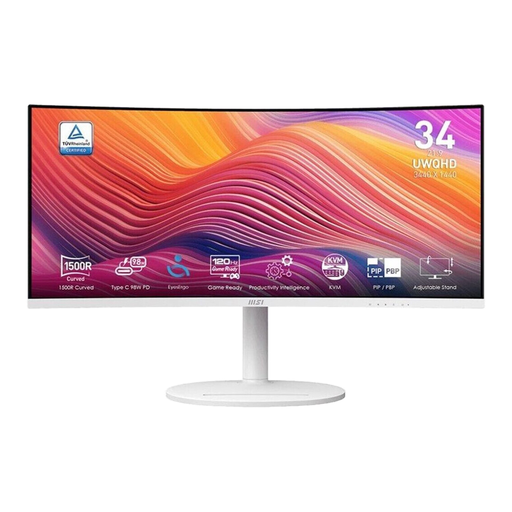 No image available
The 21:9 UWQHD format is designed for two work windows arranged side by side.
The product title lists a curved VA display with a 120 Hz refresh rate.
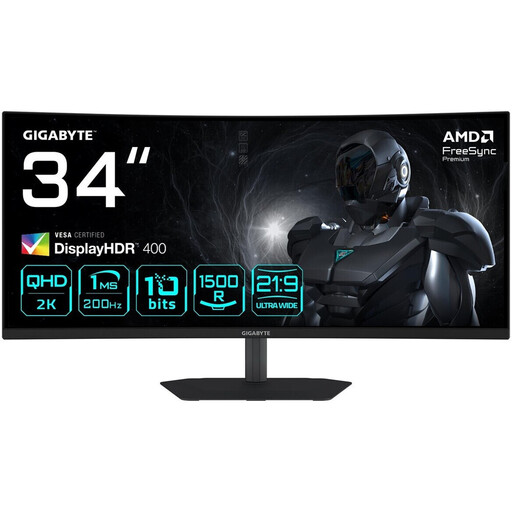 No image available
The ultrawide format and 3440 × 1440 resolution give you plenty of room to view your design and preview side by side.
The product title lists 1500R curvature, 200 Hz and HDMI and DisplayPort connections.
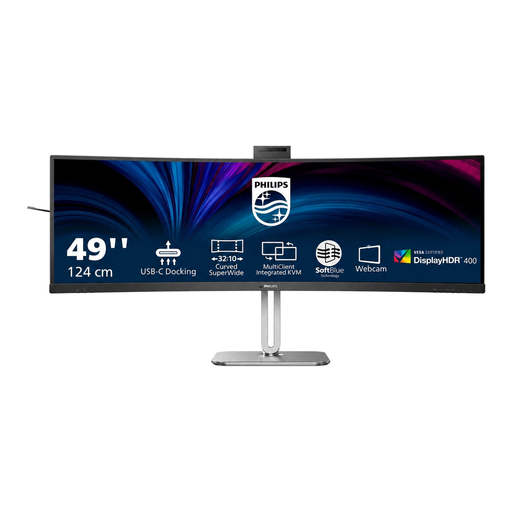 No image available
The 5120 × 1440 Dual QHD resolution listed in the product title is designed for viewing several things side by side.
The title lists a curved VA display with a 75 Hz refresh rate, along with HDMI, DisplayPort and USB-C.
No, not if both views are windows on the same computer. Microsoft Support explains how to snap windows in Windows, while Apple Support covers Split View on Mac. Try your apps at the scaling setting you want to use and see whether they have enough width.
Picture-by-Picture is designed for two video sources on a monitor that supports the feature. To show two windows on one computer, you can use your operating system’s window arrangement. A KVM switch is useful if you want to control two computers with the same keyboard and mouse.
No. A colour gamut coverage figure alone doesn’t prove colour accuracy. For the exact model, also check calibration information and, where available, independent measurements.
Check that your laptop can output video over USB-C and that the monitor’s charging power suits your device. If you’re using two computers, also check the inputs you need, as well as PIP, PBP and, where relevant, KVM.
Compare the monitor and stand dimensions with your desk, and check the adjustment options from your intended seating position. Also consider whether you’ll need additional mounting hardware for your setup.