An ultrawide monitor is a good choice if you want to view two typography previews side by side on one continuous screen. Two separate monitors are better if you want to position them independently or use one in portrait orientation. For small text, native resolution and pixel density matter, as does choosing a comfortable scaling setting: 34-inch screens with 3,440 × 1,440 pixels and 34-inch screens with 5,120 × 2,160 pixels offer different levels of detail. Also check that your computer can output the resolution you want through the right connection.
Which option is right for you?
For comparing layouts
If you want to compare two font or page layouts at the same time, the usable window width matters, especially if you want to avoid a bezel down the middle. Microsoft Support explains how to snap multiple windows in Windows, while PRAD lists viewing several application windows at once as one use for a 34-inch monitor.
For checking fine details
If small text and outlines are important, consider resolution and screen size together, and check that the scaling is comfortable to read. EIZO explains the relationship between resolution, screen size and pixel density. Microsoft Support also notes that using a resolution below the native setting can make text appear blurry.
For laptop and multi-device users
If you switch between devices or want to connect video, peripherals and, where applicable, power through one hub, the ports and charging capacity need to suit your devices. LG, AOC and Dell list different resolutions and connection or hub features for specific models.
What should you look for when buying?
Ultrawide with 3,440 × 1,440 pixels
A good fit if: You want to arrange two preview windows on one continuous screen and make the most of the available width.
Trade-off: Screen width alone doesn’t tell you how clearly small text will appear.
Ultrawide with a higher resolution
A good fit if: You want finer image detail on a similarly sized screen, and your computer can output its native resolution.
Trade-off: Check how much workspace you’ll have in your programmes at a scaling setting that’s comfortable to read.
Two separate monitors
A good fit if: You want to position your views independently or use a suitable monitor in portrait orientation.
Trade-off: There’s a bezel between the views, and your computer and ports need to support the number of external displays you want to use.
| Buying priority |
What to check |
Who it matters most to |
| Two previews side by side |
Open your usual documents side by side and check the usable width at your preferred scaling setting. |
If you need both views to remain easy to read at the same time, window width is key. Around 40% of consumers put comparing two views first. |
| Fine text and outlines |
Compare screen size and native resolution; test small text in your programmes at a scaling setting that’s comfortable to read. |
Anyone assessing small lettering and fine outlines will pay particular attention to detail. Around 30% of consumers say clear, small text is their top priority. |
| Laptop and other devices |
Check video output, the charging capacity you need, cables and, where applicable, KVM compatibility for the specific model and your devices. |
If you switch between computers or want to connect your laptop through the monitor, the features need to work together. Around 20% of consumers prioritise docking or switching between devices. |
| Setup, energy and support |
Check the stand and desk space; compare the energy labels for specific models and read warranty terms separately from your statutory rights. |
If you want to adapt the screen to your workspace and compare support options, setup and after-sales terms matter too. Around 10% of consumers put this first. |
Avoid common misconceptions
-
“34 inches” automatically means small text will look sharp
Screen size alone doesn’t tell you the pixel density. 34-inch models are available with both 3,440 × 1,440 and 5,120 × 2,160 pixels, and the way they look also depends on scaling.
Compare the native resolutions and test small text in your programmes at the scaling setting you actually plan to use.
-
A USB-C port guarantees video and enough power to charge your laptop
Features vary by model. AOC lists DisplayPort Alternate Mode and up to 65 W Power Delivery for the CU34P3CV. These specifications don’t automatically apply to other monitors or every laptop.
Check your laptop’s video output and power requirements against the connection and charging specifications of the specific monitor.
-
An ultrawide automatically replaces two independently adjustable displays
You can arrange several windows on one screen in Windows. Separate displays that have been detected can, however, be positioned and configured individually.
Before you buy, consider whether you need two windows side by side or two displays that can actually be positioned independently.
Key brands at a glance
Philips
The 34B2U5900C/00 is a 34-inch option with 5,120 × 2,160 pixels in high-resolution mode.
- Its higher native pixel count may be useful if fine detail is a priority for your typography previews.
- The pixel count doesn’t prove that text will be easier to read in a particular application. Check the active resolution and scaling setting.
Dell
Dell says the UltraSharp U3425WE combines a 34.1-inch screen, 3,440 × 1,440 pixels, an IPS Black panel and hub features.
- In its 2024 review of the specific U3425WE, PRAD praised its picture quality and docking features.
- Its resolution isn’t in the 5,120 × 2,160 class. Check that it’s suitable for your small text and preferred scaling setting.
LG
LG describes the 34U650A-B as a 34-inch ultrawide with 3,440 × 1,440 pixels and an IPS panel.
- The model specifications give you a clear resolution to compare when viewing two applications side by side.
- LG’s claims of 99% sRGB and factory calibration are manufacturer specifications, not independent proof that the monitor is suitable for a particular typography preview.
AOC
AOC lists a 34-inch screen, 3,440 × 1,440 pixels, a VA panel and USB-C docking for the CU34P3CV.
- AOC specifies DisplayPort Alternate Mode and up to 65 W charging for this model. Check that these work with your laptop.
- A Joybuy listing for the CU34P3CV also mentions OLED. Check the model and panel specifications before buying rather than treating this as a confirmed feature of the monitor.
EIZO
The FlexScan EV3451X is a documented 34.1-inch ultrawide with USB-C docking and KVM.
- EIZO advertises a seven-year manufacturer’s warranty for the EV3451X.
- Check the terms of this model-specific warranty and distinguish it from your statutory rights.
Joybuy products for typography previews
This selection includes ultrawide monitors for viewing previews side by side, with a range of screen sizes, resolutions and connection options.
 No image available
INNOCN 40C1U 40-inch ultrawide monitor
Worth considering if you want high levels of detail and the option to display two sources at once.
40 inches, 5,120 × 2,160 pixels, IPS panel, 21:9, 100 Hz, PIP/PBP and USB-C with 65 W Power Delivery.
View at Joybuy
 No image available
Gawfolk GF340C-H curved ultrawide monitor
Could suit two preview windows side by side. Check that both windows have enough room in the application you use.
34 inches, 3,440 × 1,440 pixels, 21:9, VA panel, 165 Hz, 1500R, HDMI and DisplayPort.
If you’re comparing fine details, note that the stated resolution is below the 5,120 × 2,160 class.
View at Joybuy
 No image available
CRUA 49-inch ultrawide monitor
Could be a good option if you want to arrange two preview windows across an especially wide screen.
49 inches, 5,120 × 1,440 pixels, 32:9, 165 Hz, 1500R, height-adjustable stand, HDMI 2.1 and DisplayPort 1.4.
If you’re assessing fine details, note that the stated resolution is below the 5,120 × 2,160 class.
View at Joybuy
 No image available
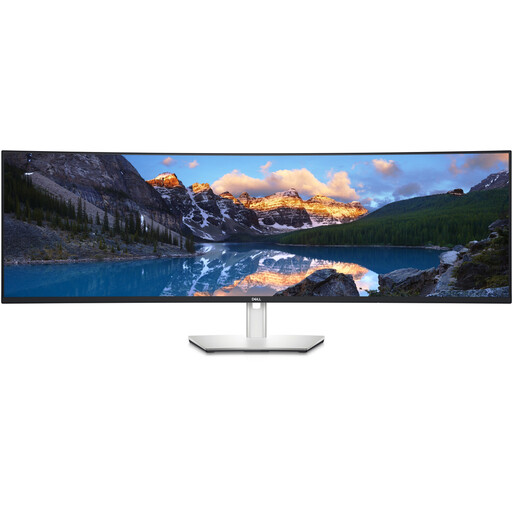
Dell UltraSharp U4924DW 49-inch monitor
Could suit two previews on one continuous screen if you also want to connect your laptop and peripherals through the monitor.
49 inches, 5,120 × 1,440 pixels, 60 Hz, USB-C with 90 W, USB hub and RJ45.
For finer details, note that the stated resolution is below the 5,120 × 2,160 class.
View at Joybuy
 No image available
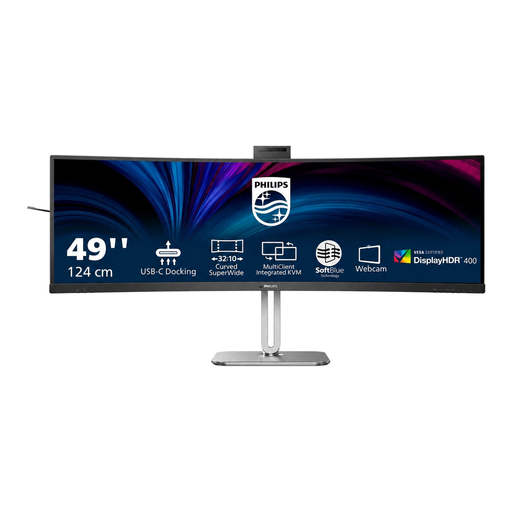
Philips 49B2U6900CH 49-inch ultrawide monitor
Worth considering if you want to display several sources at once and arrange two preview windows across a wide screen.
49 inches, 5,120 × 1,440 pixels, 32:9, 75 Hz, VA panel, MultiView/PIP/PBP, USB-C, two HDMI inputs and DisplayPort.
For assessing fine details, note that the stated resolution is below the 5,120 × 2,160 class.
View at Joybuy
Frequently asked questions
How do I set up two typography previews on an ultrawide in Windows?
First, set the native resolution recommended by your system and choose a scaling setting that’s comfortable to read. You can then arrange application windows side by side using Snap or Snap layouts, and check how they look in the programmes you actually use.
Does picture-by-picture do the same thing as two windows on one computer?
No, they’re different features. Philips describes MultiView on the 34B2U5900C/00 as a way to display two connected devices at once. To view two documents on one Windows computer, you can arrange the operating system’s windows side by side.
Can I use one monitor in a two-monitor setup in portrait orientation?
Windows lets you change the screen orientation, but the monitor also needs to be physically rotatable or mounted accordingly. Check the stand or mounting options for the specific model.
What should I compare when it comes to power use and support?
Compare the EU energy labels for specific monitors rather than estimating power use from screen size. When buying a new product in Germany, distinguish your statutory rights against the seller from a voluntary manufacturer’s warranty. Any additional cover is set out in the relevant terms.
Do private buyers in Germany have to use two monitors?
The screen-work rules cited here don’t create a general requirement for private buyers to use two monitors. The BAuA rule ASR A6 sets out requirements for the workplaces and teleworking arrangements it covers, and expressly excludes use in private settings outside such workplaces. If your employer has set up your workplace, check whether the specific rules apply.


