Photographers importing to a smartphone
You want to copy camera photos to a USB-C phone or tablet. Before you set off, check whether your device recognises the reader, where it saves the files and whether your setup has enough power.


First, choose a USB-C card reader that explicitly supports your camera card’s format. Then check that your battery-powered phone, tablet or laptop recognises the reader and can save the files. A compact UHS-I reader may be enough for SD cards; UHS-II or CFexpress is only suitable if both the card and reader support the relevant standard or type. Open the copied photos on your destination device before deleting anything from the camera card.
You want to copy camera photos to a USB-C phone or tablet. Before you set off, check whether your device recognises the reader, where it saves the files and whether your setup has enough power.
You use SD or microSD cards and want a compact reader. If you have UHS-II cards or large batches of photos, make sure the reader supports the card standard.
You need to know which CFexpress type your camera uses: Type A and Type B each require a reader specifically labelled for that type. Also check whether the reader supports your SD cards.
A good fit if: Your camera uses SD or microSD and you need a small reader for a USB-C device when you’re out and about.
The trade-off: UGREEN advertises simultaneous access to two cards on model 50706; Transcend says this feature is not supported on the RDC3.
A good fit if: You use UHS-II SD cards and regularly import large numbers of photos. Apple specifies UHS-II support for its USB-C to SD card reader.
The trade-off: The card and destination device must also support the standard; an SD slot isn’t designed for CFexpress.
A good fit if: Your camera uses CFexpress Type A and you also need to read SD cards. Lexar has a dedicated Type A/SD reader range.
The trade-off: Type A and Type B aren’t interchangeable; stated transfer rates don’t guarantee a specific copying time on a battery-powered device.
A good fit if: Your camera uses CFexpress Type B and you also have SD files to import. Lexar and PGYTECH each offer a dedicated Type B/SD version.
The trade-off: A Type B reader won’t replace a Type A reader. If you’re importing without mains power, also check the cable, device compatibility and power supply.
Check the card format and device compatibility first, then consider transfer speed and ease of use. Extra features are only worthwhile if they suit the way you actually swap cards.
| Buying criterion | What to check | Who it matters most to |
|---|---|---|
| Compatible card format | Match the label on your card to the explicitly supported slots, and distinguish between CFexpress Type A and Type B. | If I’m travelling with an SD, microSD or CFexpress camera, the reader must be compatible with my exact card. Around 33% of consumers say card format is the deciding factor. |
| Importing to a battery-powered device | Check the USB-C data connection, operating system and file access, and whether your device recognises the reader and card without an additional power supply. | If I want to copy directly to my phone, tablet or laptop without mains power, the import needs to work properly on that device. Around 27% of consumers say compatibility with their mobile import device is their main concern. |
| Speed when transferring large batches of photos | Compare UHS-I or UHS-II and the interfaces supported by the card, reader and host; maximum speeds aren’t guaranteed copying times. | If I often transfer lots of photos at once, I want the card and host to support the reader’s standard too. Around 20% of consumers prioritise import speed. |
| Ease of use and checking copied files | Check whether simultaneous reading or card storage is useful for your workflow, and open the copies before deleting the originals. | If I swap cards frequently, I want to keep them organised and check imported files while I’m out and about. Around 20% of consumers prioritise ease of use and checking copied files. |
Separate readers are available for Type A and Type B; the Lexar RW520 is specifically listed for CFexpress Type B.
Check the type printed on your camera card against the exact reader version.
If you use cards of both types, you may need an additional reader that’s specifically compatible with the other type.
The card standard, reader, host and file access all need to be compatible. Lexar notes that actual results depend on the card and system.
Check that your card and destination device are supported, then test a full import before relying on the setup while travelling.
UGREEN advertises simultaneous reading on model 50706; Transcend explicitly says the RDC3 doesn’t support it.
If you want to read SD and microSD cards at the same time, check that this feature is available on the exact model.
An incomplete copy can mean you lose your photos. Formatting removes the images from the card.
Open the copied files on the destination device and keep the originals until you’ve checked the copy.
If you don’t check the transfer, you could lose access to the original photos.
Model 50706 is an option if you switch between USB-C and USB-A and read SD and microSD cards.
The RDC3 is designed for USB-C devices with SD and microSD cards; the RDE2 is a separate CFexpress Type B reader.
Apple’s USB-C to SD card reader MW653ZM/A is a relevant option for importing SD cards to the USB-C devices listed by Apple.
Lexar offers separate USB-C readers for CFexpress Type A plus SD and CFexpress Type B plus SD.
Depending on the version, CreateMate products combine a card reader with card storage; CFexpress Type A/SD and Type B/SD are separate versions.
This selection includes USB-C hubs and card readers with SD and/or microSD/TF functionality. For CFexpress, you’ll need a reader specifically listed for Type A or Type B.
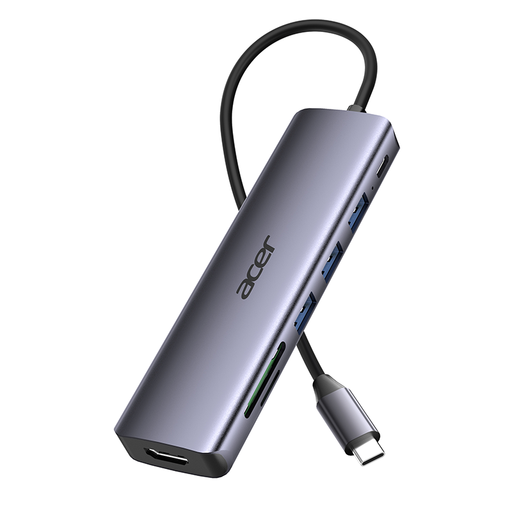 No image available
A good choice if you import SD or TF cards and want to use additional ports as well as the card reader. Check whether your battery-powered device can power the hub and card without an additional power source.
The listing mentions SD and TF card readers, HDMI with 4K at 30 Hz, three USB 3.0 ports at 5 Gbit/s and 100 W PD charging.
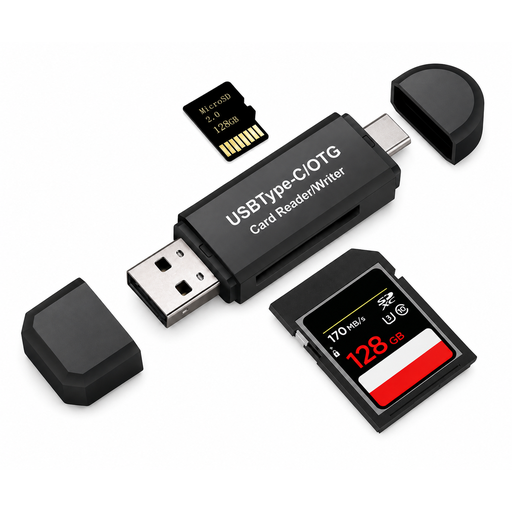 No image available
An option if you import SD or microSD/TF cards and also want to connect the reader to USB-A devices. Before travelling, check that your battery-powered device recognises both the reader and the card.
The listing names SD, microSD, TF and SDHC card formats, with USB-C and USB-A connection options.
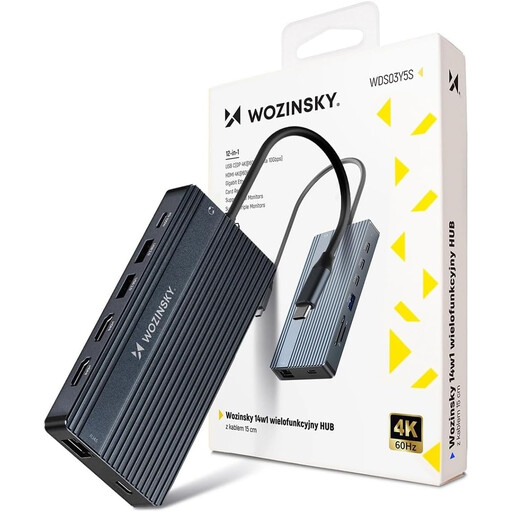 No image available
A good choice if you import SD or TF cards and need several additional ports. Check in advance whether your battery-powered device can run the hub with a card connected without an additional power supply.
The listing mentions an SD and TF card reader, HDMI, RJ45, USB-A and a 3.5 mm audio port.
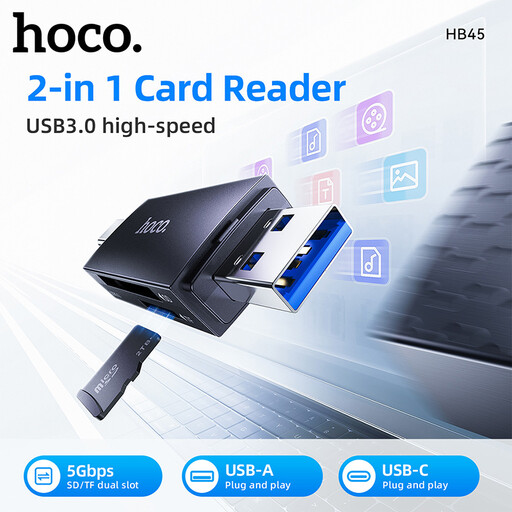 No image available
An option for microSD/TF cards if you switch between USB-C and USB-A devices. If your camera uses an SD card, check specifically before buying whether this version is suitable.
USB-A and USB-C are listed as connections; card support is specified for microSD/TF.
Yes, as long as your phone, card reader and card format are compatible. Apple explains how to access an SD card through “Files” and import to “Photos” on compatible USB-C iPhones; Files by Google says you can access recognised USB storage devices on Android 7.0 or later. Test your exact setup before travelling.
For the workflows described, Apple and Google refer to their built-in file management apps, but that doesn’t confirm that every third-party reader will work. A USB-C iPad can power connected devices; test beforehand whether your particular reader and card work with your battery-powered device without an additional power supply.
Only delete or format the card once you’ve opened and checked the copied files on the destination device. Apple explains that after importing, you can choose whether to keep or delete the media; formatting removes the images from the SD card.
When you buy from a trader in the EU, you have statutory rights if the goods are faulty. The European Union’s Your Europe website explains that these rights last for a minimum of two years from receipt of the goods. For ordinary online purchases, you generally also have a 14-day right to cancel, starting from delivery; under the conditions explained there, you may have to pay the return postage when you cancel. A voluntary guarantee doesn’t replace your statutory rights.
Not every product needs a CE mark. According to the European Commission, it’s only required when the harmonised EU rules that apply to that specific product say so. The mark isn’t a safety approval issued by a government authority.